In Excel VBA, checking whether a cell is empty or not is a very common task. You may want to check data entry, count empty cells, or display a message depending on whether a cell is blank. Luckily, VBA offers multiple ways to perform this check ranging from simple functions like IsEmpty to looping through ranges.
In this guide, we’ll explore several methods to detect empty cells in VBA, work through practical examples, and show how you can use the results in your worksheet or in message boxes. So, let’s explore how to do VBA Excel check if a cell is empty.
➤ Go to the VBA Editor and open the Module.
➤ Insert the required VBA macro.
➤ Run the macro and a message box will pop up showing if a cell is blank.

Below is a detailed discussion on this method including some other simple yet effective alternatives.
Using IsEmpty Function to Check If a Specific Cell Is Empty in VBA
The simplest way is to use the built-in IsEmpty function. This function returns True if the cell is empty and False if it contains any value. It is useful for checking a single cell.
So, the function may not be so beneficial while looking for more than one cell at a time. Use this when you want to test one cell.
For example, check Mike’s Department cell that’s B4 in our following dataset. In this scenario, we can simply apply the IsEmpty function in the Excel VBA.
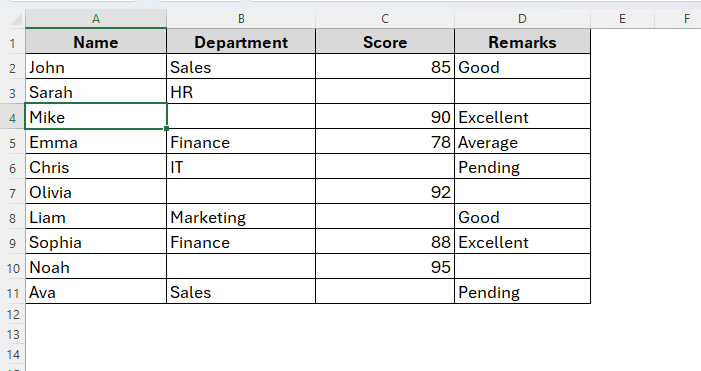
Steps:
➤ To begin with, open the VBA Editor from Developer → Visual Basic.
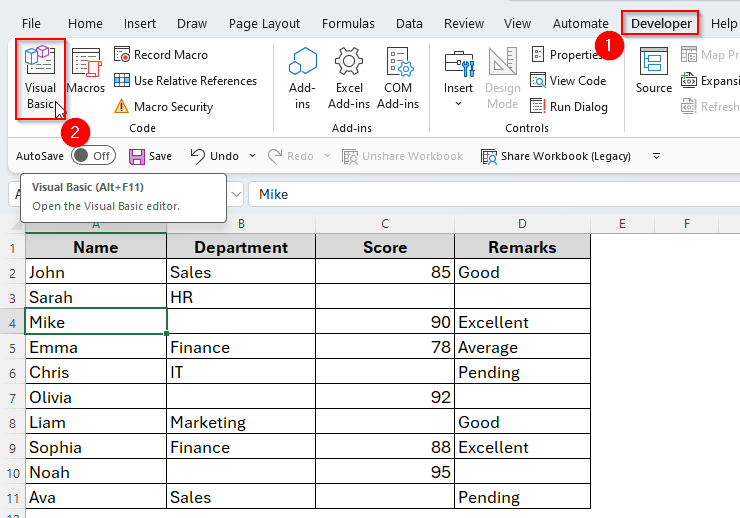
➤ Now go to Insert and choose Module.
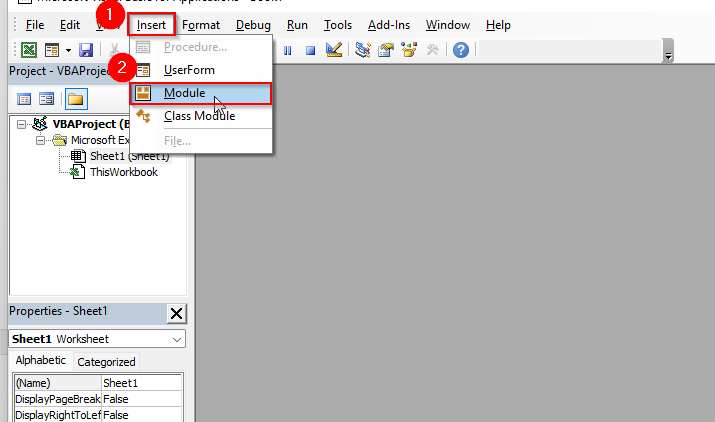
➤ In the module, copy and paste the following VBA macro.
Sub Check_Specific_Cell_IsEmpty()
    ' Example: check B4 (Mike's Department)
    Dim v
    v = ThisWorkbook.Worksheets("Sheet1").Range("B4").Value

    If IsEmpty(v) Then
        MsgBox "B4 is empty (IsEmpty = True).", vbInformation
    Else
        MsgBox "B4 is NOT empty. Value: """ & CStr(v) & """", vbInformation
    End If
End Sub
Note:
If you own a different dataset and apply this formula, just make some changes in the cell reference and sheet name in this macro.
➤ Once the macro is pasted, just run it and we’re done. To do so, simply tap F5 or go to Run → Run Sub/UserForm.

➤ As you can see in the image below, we’ve got a message showing B4 is empty with a reference to True.
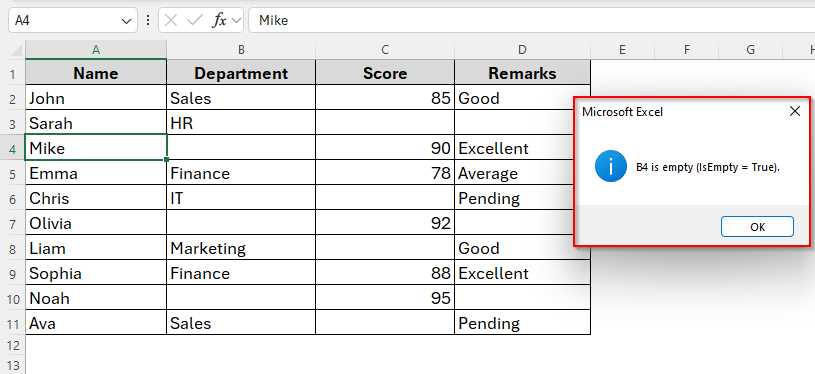
That means the cell B4 is truly empty.
Check If Multiple Cells in a Range is Empty
If you want to check a dataset with several blank cells, there are various methods you can choose from. You can still choose a message box or get the results directly in the corresponding cells in your worksheet.
However, using corresponding cells is cleaner and more visually effective. More importantly, it also works in two different ways.
Firstly, you can get the results for both empty and non-empty cells, and secondly, you can just highlight and find out the empty cell only. Below we’re going to discuss both of these methods. Let’s dive in.
Checking Multiple Cells for both Empty or not Empty
Let’s assume, you want per-cell status for several columns like Department, Score, or Remarks. Then you have to create status columns E, F and G. You’ll get the results in these corresponding cells.
Alternatively, you can also apply the macro which will create the corresponding cells automatically. Here, we’ve already created that kind of macro and will check column B.
Steps:
➤ Open the VBA editor and insert a new Module.
➤ Type the following macro.
Sub Check_Department_Range()
    Dim ws As Worksheet, rng As Range, cell As Range
    Set ws = ThisWorkbook.Worksheets("Checking multiple cells")
    ws.Range("E1").Value = "Dept Status"            ' header for results
    Set rng = ws.Range("B2:B11")                    ' department column
    For Each cell In rng
        ' robust emptiness test: treat "", spaces, and empty as empty
        If Len(Trim(cell.Value & "")) = 0 Then
            cell.Offset(0, 3).Value = "Cell is Empty"      ' writes to column E
        Else
            cell.Offset(0, 3).Value = "Cell is not Empty"
        End If
    Next cell
End Sub
➤ Then go to Run and choose Run Sub/UserForm to run the macro.

➤ Now go back to the dataset and here as you can see, column E is giving reference to each cell from Column B.
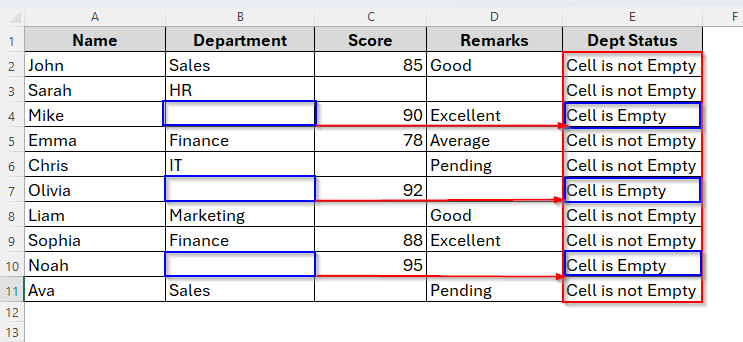
When there’s an empty cell it shows Cell is Empty while it says Cell is not Empty when there’s any data to the required cell.
Only Showing If the Cell is Empty
Now let’s say you just want to highlight the empty cells from column B and also show the result in corresponding column E. The good news is that we’ve also got a VBA macro here for this and you can get the result with a few clicks. Here we go.
Steps:
➤ Like the previous method, locate the VBA Editor and open the Module.
➤ Then insert the macro as below.
Sub MarkOnlyEmptyScoreCells()
    Dim ws As Worksheet, rng As Range, cell As Range
    Set ws = ThisWorkbook.Worksheets("Mark only blank cells")
    ws.Range("E1").Value = "Dept Empty?"
    Set rng = ws.Range("B2:B11")
    For Each cell In rng
        If Len(Trim(cell.Value & "")) = 0 Then
            cell.Offset(0, 3).Value = "Cell is Empty"
            cell.Interior.Color = vbYellow         ' highlight the blank department cell
        End If
    Next cell
End Sub
➤ Click F5 or select Run to activate the macro.

➤ Now check the datasheet. In column B, blank cells are already highlighted. We also have column E showing if Cell is Empty.

Check If Multiple Cells Are Empty to Get the Result in a Message Box
If you still prefer messages, then this method will be a good choice for you. You will have all the results in a single message box. But why one message box? Because showing a message per empty cell can be annoying. Rather this lists them all at once.
Steps:
➤ Open the VBA Editor and Module.
➤ Copy and paste the following VBA Macro. If you’re working on a different dataset, just edit the sheet name and range.
Sub MsgBox_List_Empty_Cells()
    Dim rng As Range, cell As Range, lst As String
    Set rng = ThisWorkbook.Worksheets("Mark multi blankcell in msg box").Range("B2:D11")
    For Each cell In rng
        If Len(Trim(cell.Value & "")) = 0 Then
            lst = lst & cell.Address(False, False) & ", "
        End If
    Next cell
    If Len(lst) = 0 Then
        MsgBox "No empty cells in B2:D11.", vbInformation
    Else
        ' remove trailing comma and space
        lst = Left(lst, Len(lst) - 2)
        MsgBox "Empty cells in the range: " & lst, vbExclamation
    End If
End Sub
➤ Now Run the macro.

➤ Return to the dataset and see you’ve already got a message referring to all the blank cells in the sheet.

Getting a Count of Empty Cells in a Selection
We’ve just learned how to detect empty cells in excel VBA. But sometimes we may also need to count the total empty cells. Counting blanks helps in quick validation.
Well, take it easy. You just need to select a range and then run a macro, or specify a range in code. Below are the steps to follow.
Steps:
➤ Select the cells you want to count blanks in A1:D11.
➤ Go to the Visual Basic Editor and copy-paste the following macro inside the Module.
Sub CountEmptyInSelection()
    Dim cnt As Long
    cnt = Application.WorksheetFunction.CountBlank(Selection)
    MsgBox "There are " & cnt & " empty cells in your selection.", vbInformation
End Sub
➤ Hit F5 or click Run to make it work out.

➤ Now go back to your worksheet. Here, the message box pops up with the total sum of empty cells in the sheet as we can see in the image below.

Downloadable Resources
Get our practice workbook or necessary files that we have worked with to prepare this article.
Check If a Cell Is Empty with VBA.xlsx
Frequently Asked Questions (FAQs)
Will IsEmpty work if a cell has spaces?
No. If a cell contains even a single space, it’s not considered empty.
Can I use VBA to highlight empty cells instead of writing text?
Yes, definitely you can. Use cell.Interior.Color = vbYellow inside the loop to highlight empty cells.
How can I stop VBA from showing multiple message boxes when checking a range?
Instead of MsgBox inside the loop, collect empty cell addresses in a variable and display them all at once.
Concluding Words
Checking if a cell is empty in VBA Excel may seem like a small task, but it’s incredibly useful for data validation, reporting, and cleaning up worksheets.
You can keep it simple with the IsEmpty function for a single cell, or scale it up with loops to check entire ranges. If you want quick feedback, use a message box, and if you need structured results, write them directly into the worksheet.
Whether you’re marking blanks, counting them, or automating data checks, VBA provides flexible ways to handle empty cells efficiently. Start with the method that fits your task best and build from there.