Managing inventory, sales, or product tracking is not just simple calculations. This process often requires using barcodes for more standard and productive worksheets in Excel. Businesses, warehouses, and even small shops use barcode integration to track their products properly. By barcode, you can easily convert product codes or SKUs to scannable barcodes, making the workflow faster and simpler.
If you want to know how to add barcode font in Excel, follow these simple steps –
➤ Make sure you have installed Code 39 fonts from any trusted website.
➤ Make a new column to store the barcodes.
➤ In the selected cell of the column, write the following formula –
=”*” & B2 & “*”
This adds asterisks before and after the value of the B2.
➤ Drag the cells and apply the same formula for each cell in the column.
➤ Select the entire column and choose the Libre Barcode 39 from the font lists.
➤ Press Enter to generate the barcodes.
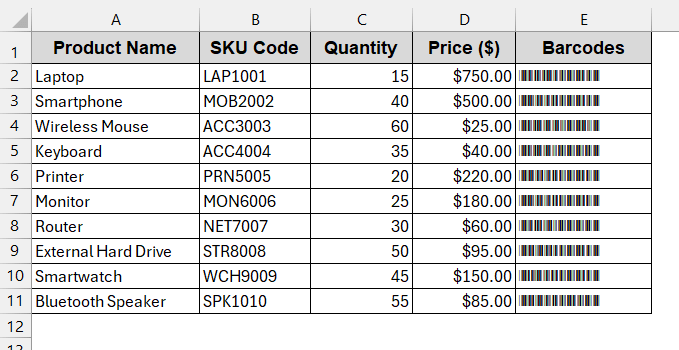
In this article, you will explore all the practical ways to add barcode font in Excel. Starting from free fonts like Code 39 to advanced methods like add-ins, VBA, and APIs, we will also introduce third-party apps for this. By the end, you will know which method fits your goals, whether printing bulk labels or creating professional reports. So, keep reading to turn plain Excel into functional and scannable barcodes.
What is Barcode Font in Excel?
A barcode font is a special type that converts regular alphanumeric characters into a machine-readable pattern. Instead of displaying the product in simple numbers (like 12345), it displays vertical black lines that can be scanned to retrieve product information. Without using complex software, this helps convert the simple product codes, SKUs, or IDs from your sheets into a scannable barcode.
The common types of barcode fonts are Code 39 and Code 128. The Code 39 is simpler and supports letters, numbers, and special characters. On the other hand, Code 128 is more complex but has the full support of the ASCII set. As a result, beginners often prefer Code 39 for their flexible uses, while advanced learners go for the latter.
Install and Apply a Free Barcode Font by Code 39
Applying Code 39 is the easiest way to add the barcode to your sheets; you only need to install the free barcode software first. Once installed, you can view them in the Fonts section like any other fonts, like Arial or Times New Roman. Simply selecting the barcode fonts will transform them to codes that can be scanned to get their information.
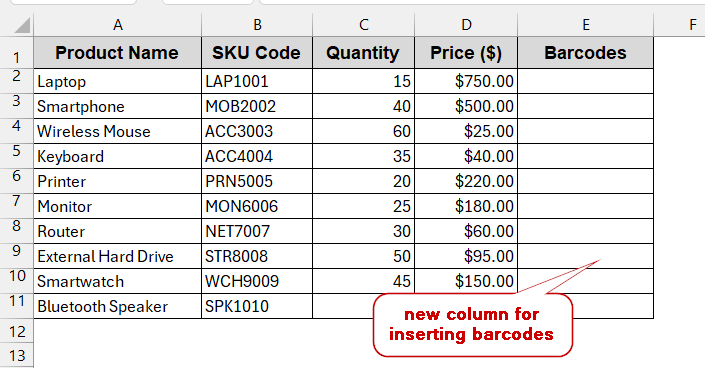
For this method, we will convert the SKU Code of the following products into barcodes –
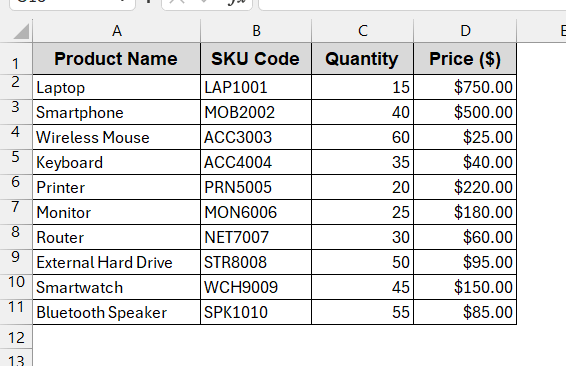
Steps (Installation):
➤ Search for Libre Barcode 39 on trusted sites like Google Fonts or IDAutomation.
➤ Download it by clicking on the download icon –
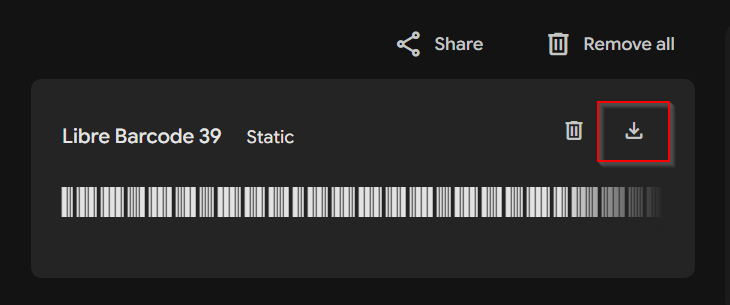
➤ This will download the zip file of Libre Barcode 39.
➤ Extract the file and find the file LibreBarcode39-Regular, which is in .ttf extension.
➤ Open the file and click on Install at the top of the file. You can also install it by right-clicking the file.
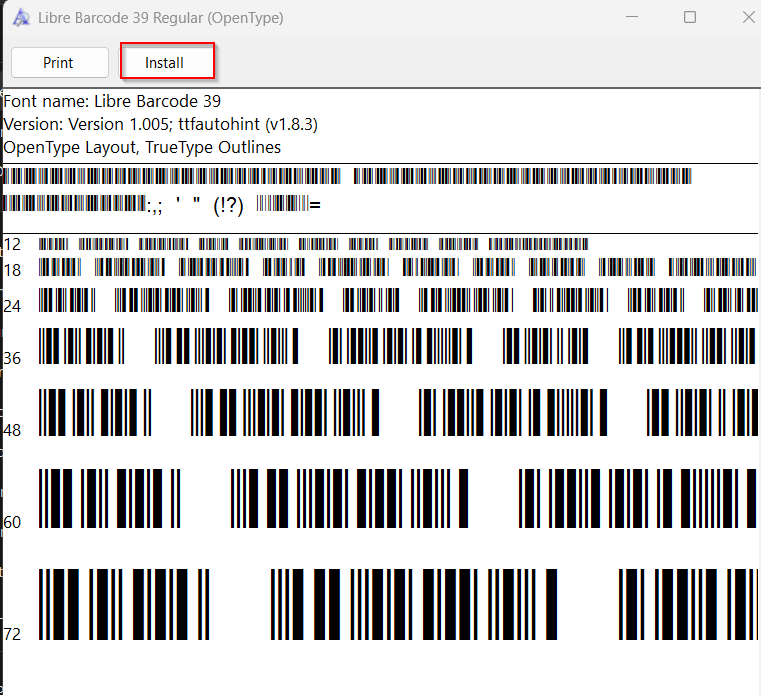
➤ This will install the font into your Excel. If your Excel was open during installation, close and restart it. The font will automatically appear in the list.
Steps (Adding Barcode Font):
➤ Create a new column in your datatable to store the barcodes.
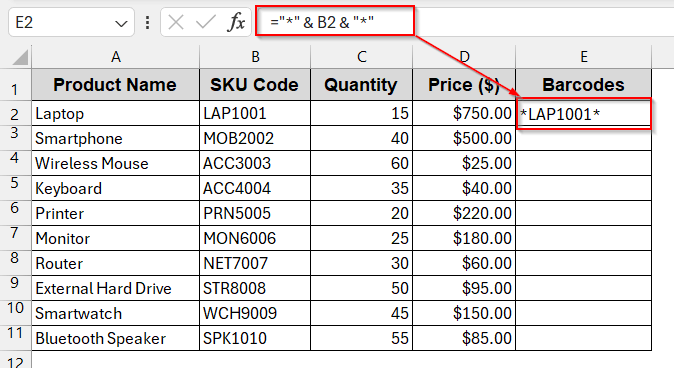
➤ In the first cell of the new column, write the following formula –
="*" & B2 & "*"
It means you are concatenating asterisks before and after the value of column B (SKU Code) to make it scannable for barcodes..
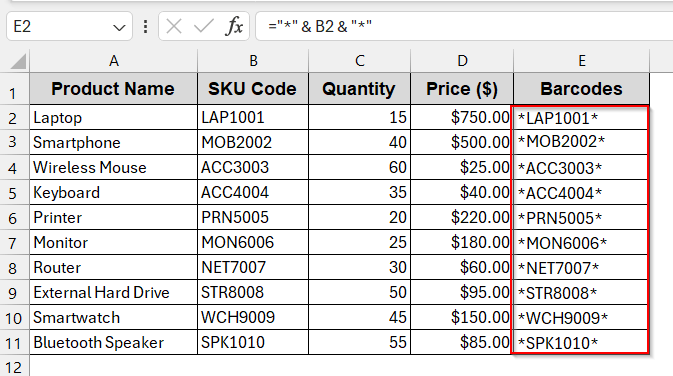
➤ Drag and fill the rest of the columns to apply the same formula.
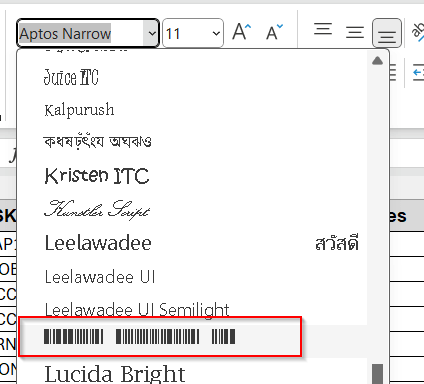
➤ Now select the entire column you created and the Font barcode from the Fonts section. Or search by Libre Barcode 39.
➤ Press Enter to generate the barcode font for the new column based on the SKU Code.
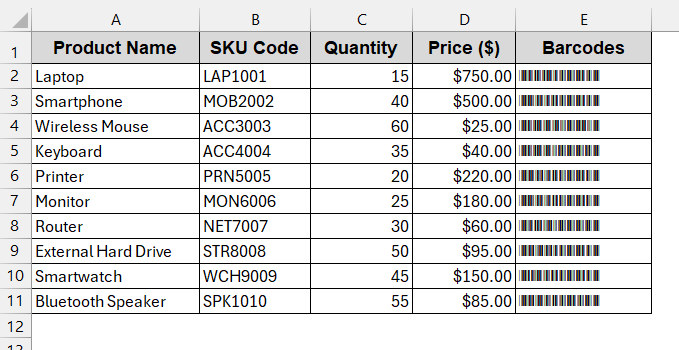
➤ For proper scanning, increase the barcode font size to 16 to 24 pts.
Note:
Code 39 requires a starting and ending character, here asterisks (*).
Use a VBA Font Encoder for Advanced Barcodes (Code 128)
While Code 39 is quite simple and works with easy manipulation, it has its own limitations. More advanced barcodes like Code 128, UPC, and EAN are more compact and reliable. But, they need proper encoding. These barcodes include check digits, special control characters, and compression rules that Excel cannot generate by itself. VBA can easily encode this encoding. This will correctly display the code in the correct format and be scan-ready for future uses.
We will use the VBA method to add Code 128 to the barcodes.
Steps:
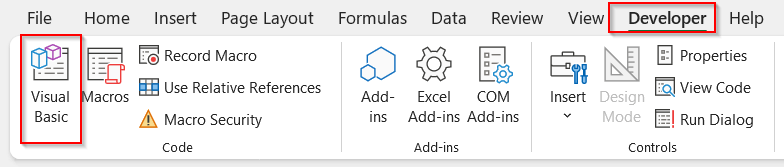
➤ Go to the Developers tab and click on Visual Basic.
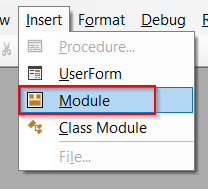
➤ In the launched VBA window, click the Insert tab and choose Module.
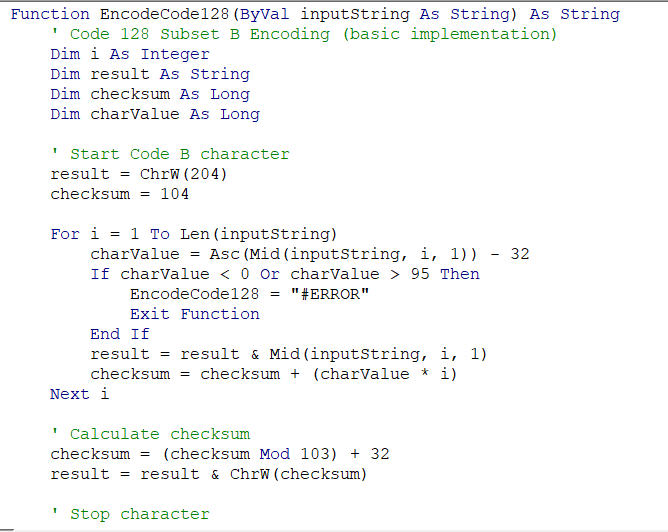
➤ In the new module, paste the below VBA code of the Code 128 encoder function –
Function EncodeCode128(ByVal inputString As String) As String
    ' Code 128 Subset B Encoding (basic implementation)
    Dim i As Integer
    Dim result As String
    Dim checksum As Long
    Dim charValue As Long
    ' Start Code B character
    result = ChrW(204)
    checksum = 104
    For i = 1 To Len(inputString)
        charValue = Asc(Mid(inputString, i, 1)) - 32
        If charValue < 0 Or charValue > 95 Then
            EncodeCode128 = "#ERROR"
            Exit Function
        End If
        result = result & Mid(inputString, i, 1)
        checksum = checksum + (charValue * i)
    Next i
    ' Calculate checksum
    checksum = (checksum Mod 103) + 32
    result = result & ChrW(checksum)
    ' Stop character
    result = result & ChrW(206)
    EncodeCode128 = result
End Function
➤ Press Ctrl + S to save the VBA Macros. Close the VBA window and go back to your worksheet.
➤ Create a new column to store the barcodes.
➤ In the first cell of the column, use the function you created with the cell you want-
=EncodeCode128(B2)
where B2 is the cell of the column SKU Code of the first product.
➤ Press Enter, and this will encode the value of the referenced cell.
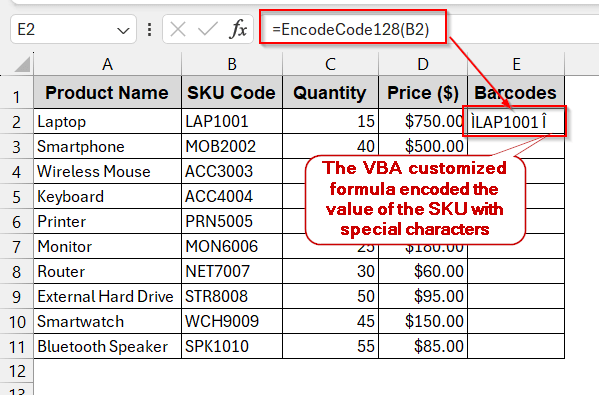
➤ Drag or use Fill Handle to generate the same formula for the rest of the cells.
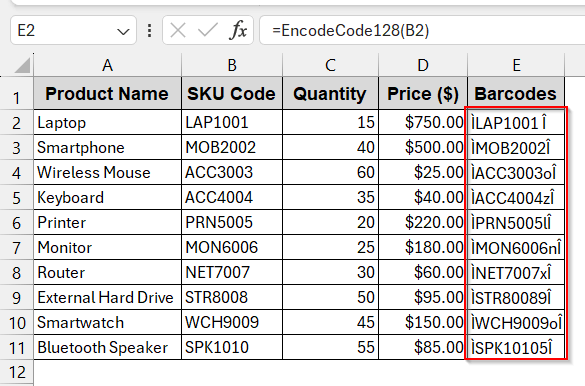
➤ Select the entire column of Barcodes and go to the Fonts list.
➤ Search for the Libre Barcode 128 from the font family and press Enter.
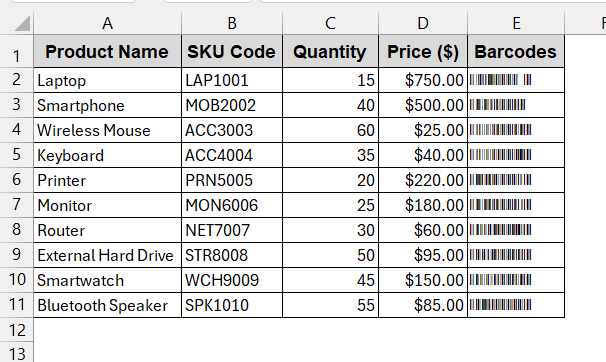
➤ You can change the size of the fonts and make them larger (like 16 to 24 pts) for more accurate scanning.
Notes:
➨ If you are uncomfortable with VBA, you can install commercial add-ins like IDAutomation or ConnectCode. Follow the same procedure and install from the .ttf file. This is better for GS1 FNC1 or Subset switching.
➨ The VBA code snippet is compatible with Code 128 Subset B. It covers lowercase, uppercase, numbers, and common symbols.
Generate Dynamic Barcode Images with IMAGE Function & Free API
If you’re using Excel 365 or the web version, you actually do not need to worry about installing any add-ins or Barcode fonts. You can dynamically generate barcodes from images. The updated Excel versions have an IMAGE function, pulling images from the web URL. When you combine this function with the free barcode API, you get the code converted to a barcode.
Steps:
➤ Open the dataset and create a new column for barcodes.
➤ In the column’s first cell, write the IMAGE function with the API –
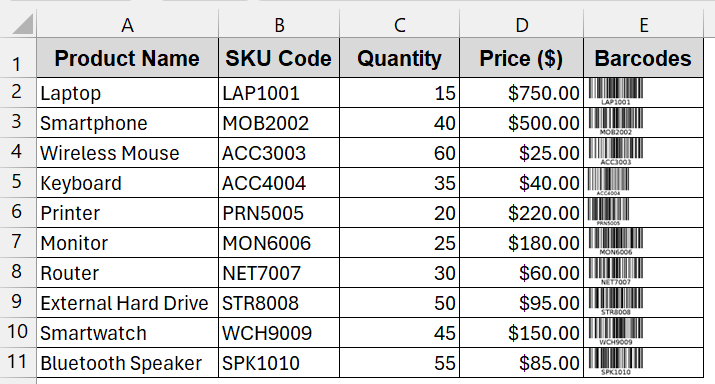
=IMAGE("https://barcodeapi.org/api/code128/" & B2)
Here, the API of Code 128 is passed to the function with the cell B2, the first cell of the SKU Code.
➤ Press Enter to generate the barcode.
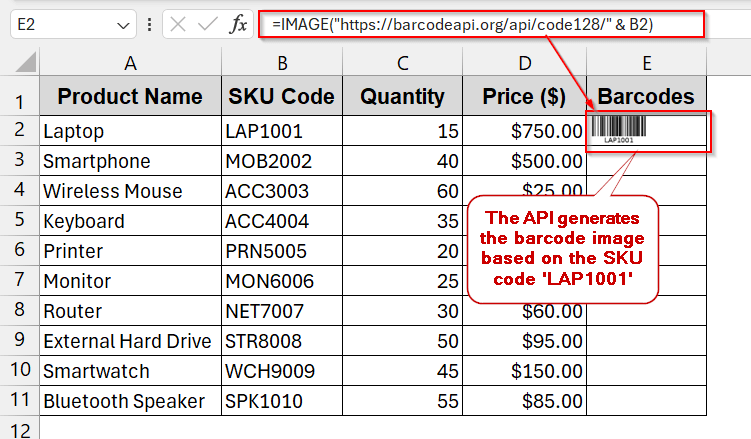
➤ Drag the cells to generate the entire column with API barcodes.
Notes:
➨ You can also generate barcodes for Code 39 by –
https://barcodeapi.org/api/code39/
➨ An internet connection is required to fetch the barcodes for the Web API.
➨ The IMAGE function is only available in Excel 365.
Creating Barcodes with Third-Party Barcode Generators
Do not feel comfortable installing barcode fonts or applying VBA encoding? Do not lose hope. You can still create barcodes with third-party tools and online websites. This tool not only generates barcode images from codes or IDs but can also be imported as PNG, SVG, or PDF into Excel. Based on the tool you are using, you can get a barcode for any code type.
Steps:
➤ Choose any online tool, or follow this link (https://barcode.tec-it.com/en/?data=)
➤ Enter the product data into the required option.
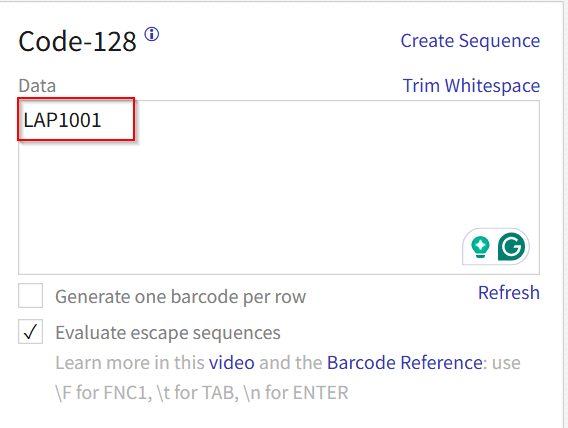
➤ Select a type as you want.
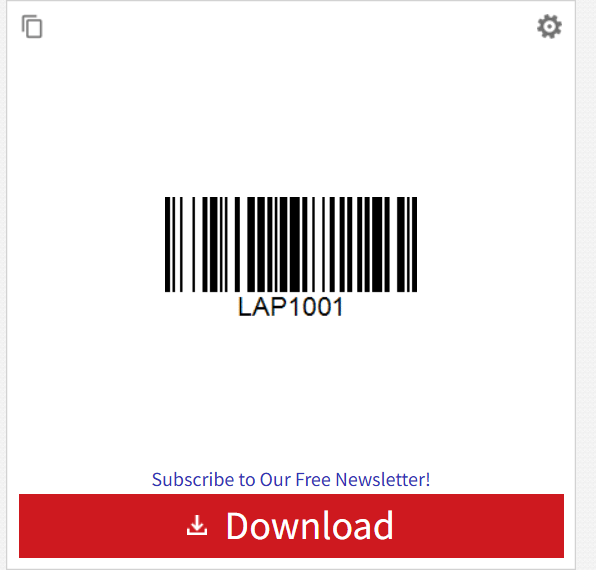
➤ The tool automatically generates the barcode.
➤ You can copy it or download it from the given option.
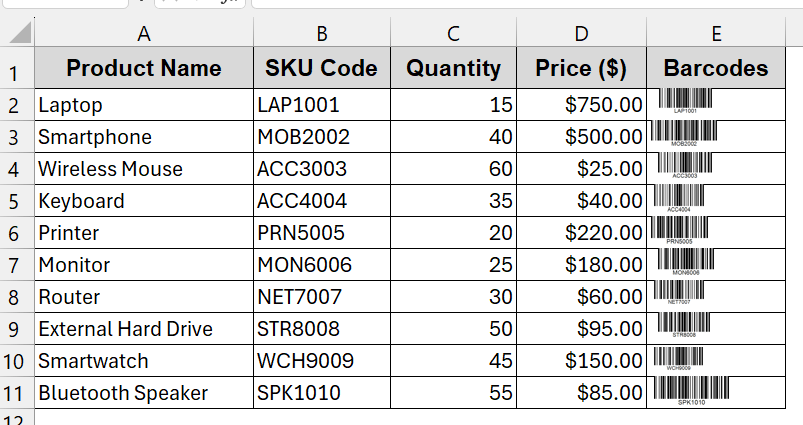
➤ Paste or import all the barcodes by bulk uploading.
Notes:
These barcodes are static images and cannot be updated with the changing product codes.
Downloadable Resources
Get our practice workbook or necessary files that we have worked with to prepare this article.
Frequently Asked Questions (FAQs)
What’s the difference between Code 39 and Code 128?
The Code 39 is free and easy to implement and supports the alphabet, numbers, and a few symbols. It produces longer and bulkier bar codes. On the contrary, Code 128 is much more compact and supports the entire ASCII character set. However, you need proper encoding using VBA or Add-Ins to use this.
Do I need start/stop characters or a check digit?
Depending on the barcode type, you might need to start/stop character or check digit flag. For the Code 39, you need to use an asterisk (*) around the value before formatting it to barcodes. On the other hand, the encoders automatically calculate the check digit for Code 128 and generate it accordingly.
Why isn’t the barcode font showing in Excel after installation?
The barcode font might not show in Excel if opened during the installation. Suppose it was opened, closed, and refreshed after downloading the .ttf file. Hopefully, you will find it there after downloading the correct file.
Will these barcodes actually scan when printed?
Yes – the barcodes actually scan when printed. Make sure they are the right size and pixels, and the bars are not distorted. If needed, print a sample barcode and test it.
Are there free vs paid barcode fonts and Add-Ins?
Various free barcode fonts and add-ins are available, like Libre Barcode 39 or Free3of9. These are enough for the basic uses. Apart from that, if you’re into the best ones with the professional edge, there are options like IDAutomation and ConnectCode.
Concluding Words
Adding the barcode data is the most practical and one of the error-free approaches to track your data. It does not matter what you choose. Be it the beginner-friendly Code 39, the professional accuracy of Code 128, or advanced solutions like API or Third-Party tools, Excel gives you full flexibility. You can not just print labels with this; you can transform your data into manageable ways. So, don’t limit yourself. Try all the methods, download our workbooks, and pick the one that best suits your workflow.