
When working in Excel with large datasets, the data is often messy and has mixed cases. Especially when data is being imported, we get all sorts of uppercase, lowercase, and half-capitalized databases. Also, there are specific conventions that we need to follow, like names needing to have the first letter capitalized. To prepare reports and make the data professional, it’s better to capitalize all the data in a consistent format. While formulas can do the job, many prefer quick, formula-free methods.
To capitalize all letters in Excel without a formula, follow these steps –
➤ Open the dataset and create a helper column to store capitalized letters.
➤ In the blank cell of the first column, start typing the first entry in uppercase.
➤ Press Enter, move to the next cell of the column.
➤ Start typing the next one also in uppercase.
➤ Excel auto-detects the pattern and shows a preview to apply the Flash Fill.
➤ Apply Flash Fill to the whole column.
➤ Delete the previous column if required.
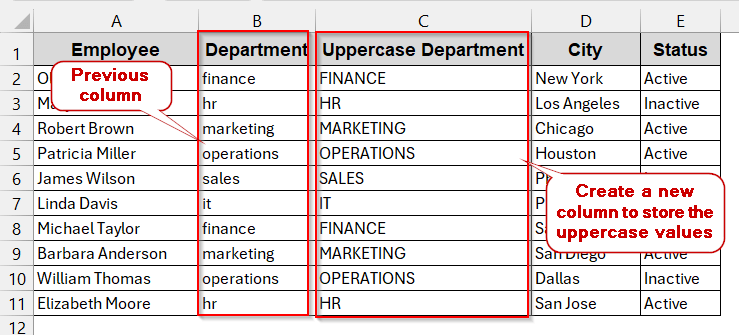
As you can see, it is not rocket science to know how to capitalize all letters in Excel without a formula. In the entire article, we will walk through all the effective non-formula ways to convert letters to uppercase. From basic Flash Fill to using Word or automated VBA, there are myriad options to choose from. Stick around with us to get all the tips and tricks and discover which methods align with your dataset.
Use Flash Fill to Capitalize Text Without Formula
The fastest way to capitalize text without formulas in Excel is using Flash Fill. This feature mainly detects the pattern of one or two rows and automatically suggests the rest of the values. As a result, a few keystrokes can clean your entire data more professionally.
To use this Flash Fill method, we will use the following dataset. It has all the texts in the Department in lowercase. We will capitalize all the values of the column.
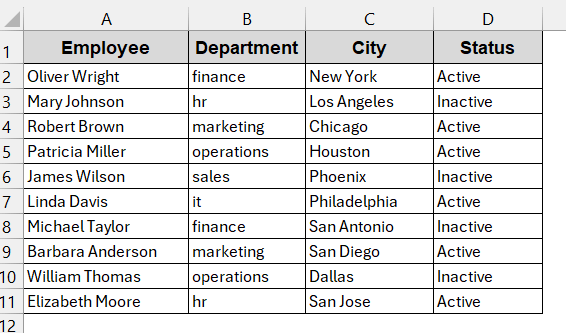
Steps:
➤ Open the dataset and determine which columns you want to change.
➤ Insert a new helper column to store the uppercase letters. It must be beside the original column (e.g, Department)
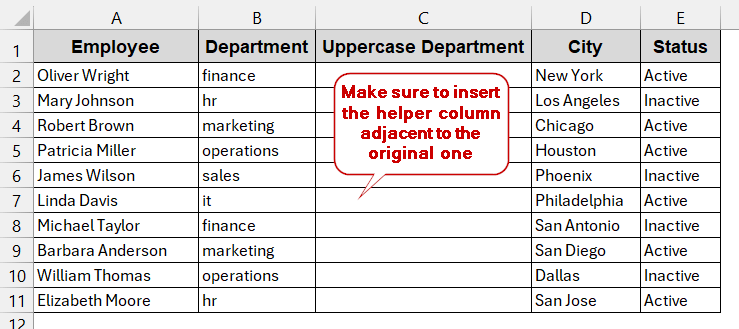
➤ In the first cell of the column, manually write the value in uppercase (e.g, FINANCE).
➤ Go to the next cell, and start typing. The Autofill will suggest the rest of the column in capital case in a similar pattern.
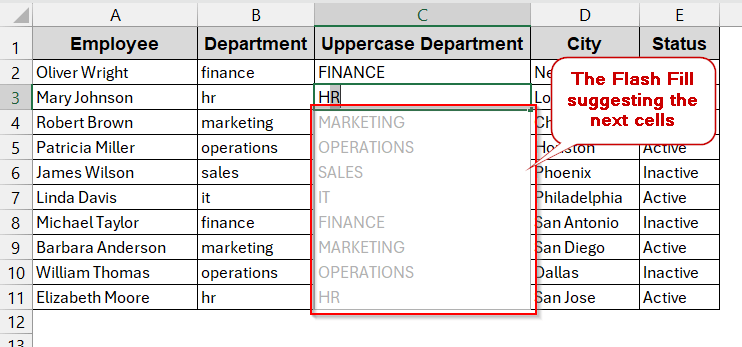
➤ Press Tab to apply the suggestion or use Ctrl + E .
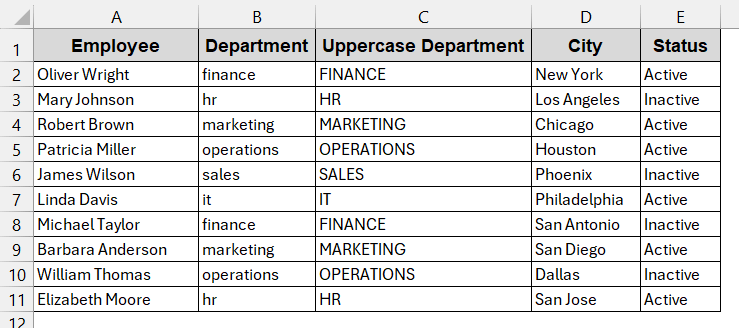
➤ If needed, delete the previous column with mismatched cases.
Notes:
➨ The Flash Fill might not work if it is not enabled. To enable the Flash Fill option, go to File -> Options -> Advanced. Under the Editing options, check the box for Automatically Flash Fill.
➨ The helper column must be beside the original one.
➨ Automatic Flash Fill only works for the later versions of Excel 2013.
Capitalize Text Using an All Caps Font
Wanna know a trick to capitalize texts without formulas and any hassle? We call this method a cheatsheet – just apply a font that only allows upper case. It is as simple as that. As long as your datasheet does not require any specific kind of formatting or style, you are good to go with this method.
Steps:
➤ Open the dataset, and decide on the column that needs to change.
➤ Select the column and go to the Home tab.
➤ In the Font section, choose a font with all uppercase letter styling.
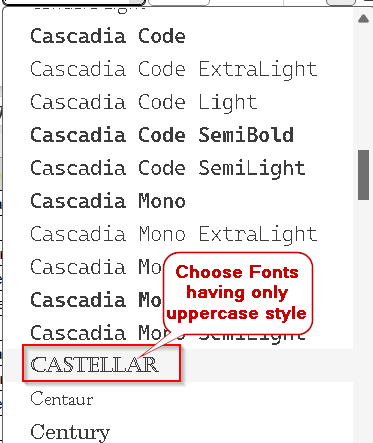
➤ After choosing the font, click on it to apply it to the rest of the cells.
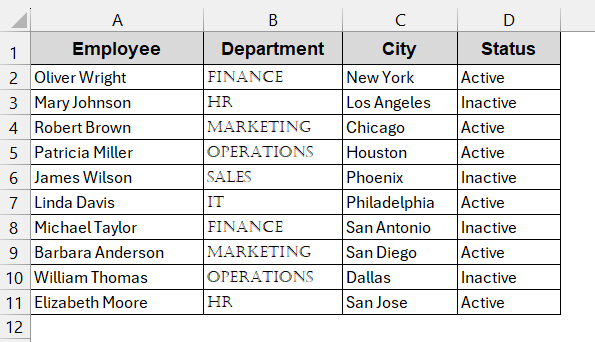
➤ If necessary, change the size of the column and match the fonts of the other columns to maintain consistency.
Note:
This changes the visual appearance of the texts. The actual text remains in the original case.
Format Excel Text in All Caps with Microsoft Word
Flash Fill, though fastest, isn’t always the reliable option. And, we understand, changing the font is not what everyone wants. In that case, Microsoft Word’s Formatting tools can come to the rescue. Unlike Excel, Word has built-in functionality for formatting tools to change the text to uppercase, lowercase, and title cases, too.
Steps:
➤ Open the dataset and copy the entire column whose case needs to be changed.
➤ Launch Microsoft Windows and create a new blank document.
➤ Paste the range in the document.
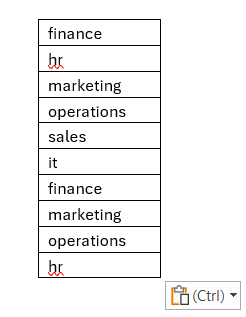
➤ Select the entire pasted text.
➤ Go to the Home tab and click on Change Case. It has the symbol of capital and small ‘a’. (Aa)
➤ As the dropdown menu opens, choose UPPERCASE.
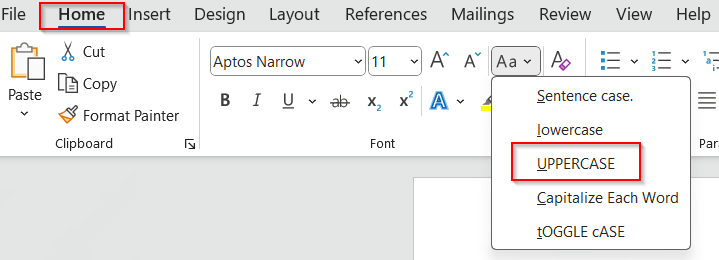
➤ This converts the selected range to capitalized format.
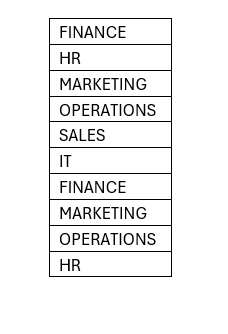
➤ Copy the new range from the Word.
➤ Paste it on the previous column (e.g, Department), replacing the previous column.
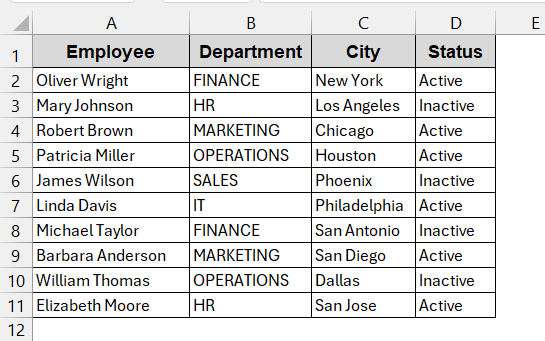
Notes:
Keep a backup of the data replaced or create a helper column beforehand to preserve the original data.
Automate Capitalization in Excel Using VBA
For larger and messier datasets, the best approach could be VBA Macros. Unlike the other methods, it inherently converts the text to a capital style with only one click. By creating the VBA Macro formula once, you can reuse it always, anytime.
Steps:
➤ Go to the Developers tab -> Visual Basic.
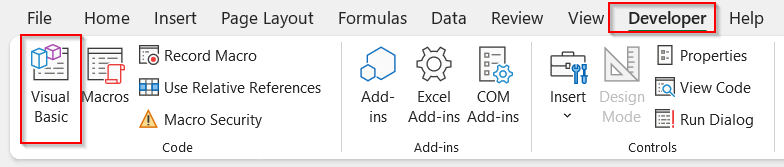
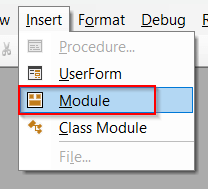
➤ This will launch the VBA editor window. In the new window, click on the Insert and select Module.
➤ In the blank space, write the VBA code to capitalize all letters –
Sub ConvertToUppercase()
    Dim Rng As Range
    For Each Rng In Selection
        If Not IsEmpty(Rng) Then
            Rng.Value = UCase(Rng.Value)
        End If
    Next Rng
End Sub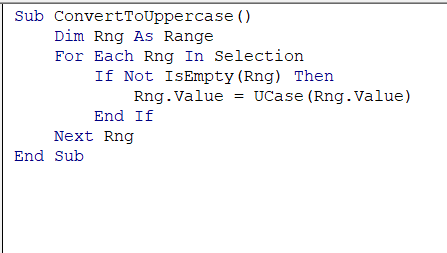
➤ Save the VBA snippet by Ctrl + S and close the VBA window.
➤ Select the Department column.
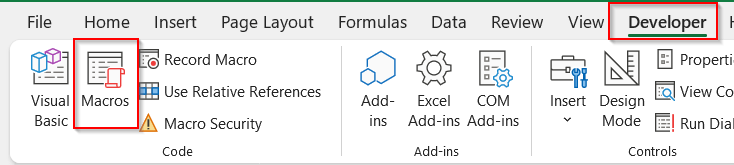
➤ Click on Macros in the Developer tab.
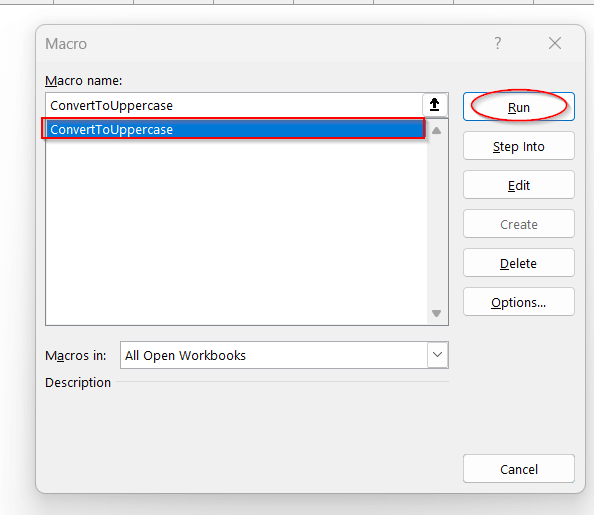
➤ In the Macros window, select the formula ConvertToUppercase. Click Run.
➤ This will convert the selected range to capital case.
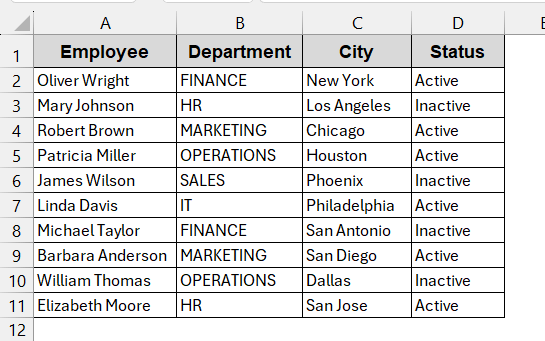
Note:
The Macro changes the case of the text permanently, and it can’t be undone.
Downloadable Resources
Get our practice workbook or necessary files that we have worked with to prepare this article.
Capitalize All Letters without Formula.xlsx
Frequently Asked Questions (FAQs)
Is there a keyboard shortcut in Excel to instantly capitalize selected text?
There is no specific keyboard shortcut programmed to capitalize text in Excel. However, if you use the Flash Fill method, you can use the shortcut Ctrl + E on the keyboard to fill the column with the capitalized version, detecting the pattern.
Will uppercase conversion affect formulas or linked cells?
The uppercase conversion does affect the formulas or linked cells when they are overwritten. If you just visually changed it using all caps fonts or created a helper column, the other cells remain intact.
Does uppercase conversion work on non-English text or special characters?
For the languages or Unicode that support uppercase, we can use formula and formula-free methods. However, scripts like Japanese, Arabic, and Bengali do not have any uppercase/lowercase variation. These types of scripts remain the same.
Is Flash Fill reliable on large datasets?
Flash Fill works fine with small to medium-sized data and is reliable enough. But, for large datasets, VBA Macros are easier and flexible.
Which method is best for bulk uppercase conversion?
All of the methods are well-curated to work with the bulk text conversions. For the fastest approach, it is better to stick to the Flash Fill. On the other hand, for bulk and repeated data, a customized VBA macro is created to capitalize the texts.
Concluding Words
Turning messy and mixed texts into a standardized, capitalized format does not always require a complex formula. Excel may not have a direct uppercase tool, but it has an array of options to look into. In Excel, you can use Flash Fill, all caps fonts, and even the VBA Macros to capitalize all letters without. Also, you can borrow Word’s formatting tools for capital casing and use them inherently in Excel. Among these tools, it is best to choose the one that syncs with your workflow. So, go through each method, download the workbooks, and try them out today.