When creating reports or presentations in Microsoft Word, inserting a visual chart from Excel is essential for data presentation. Copying an Excel chart to Word is a simple process, but you have several options to represent the chart in multiple ways. In this article, we will guide you through several ways to copy and paste a chart from Excel to Word.
To copy a chart from Excel to Word, the simplest method is to use the standard Copy and Paste feature.
➤ Select the chart in Excel and press Ctrl + C to copy.
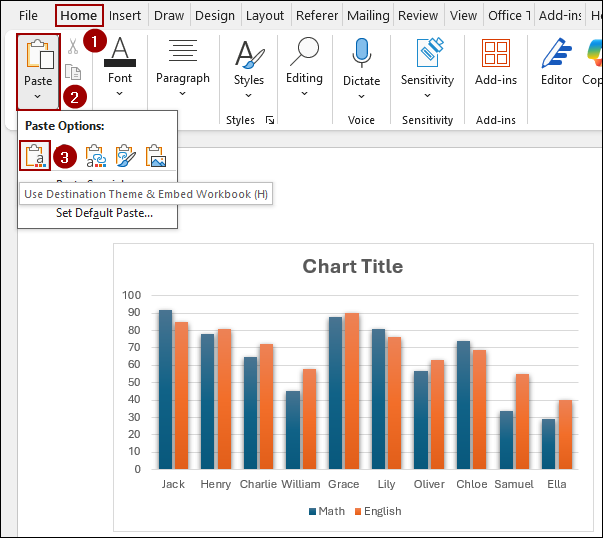
➤ In Word, go to the Home tab.
➤ Click the Paste dropdown arrow to access the various Paste options, such as Use Destination Theme & Embed Workbook or pasting it as a Picture.
➤ Select your desired option to copy a chart from Excel to Word.
Using Paste Option to Copy a Chart from Excel to Word
In this method, we will use the Paste options in Word to copy the chart, choosing between pasting it as a static image and linking with the workbook. The standard paste options provide the quickest way to transfer your chart and offer various choices for how the chart integrates with your Word document.
Copy Chart as Static Image in Word
Here, we will use two different paste features to copy the chart as an image in Word.
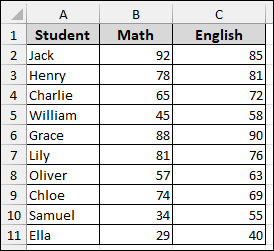
Let’s imagine a sample dataset showing student grades. The data includes the Student’s name, Math marks, and English marks.
To create the chart from this data.
➤ Select your entire data range from the Student column to the last cell of the English marks.
➤ Go to the Insert tab on the ribbon.
➤ In the Charts section, click on the dropdown for Insert Column or Bar Chart and select the 2-D Column option to generate your chart.
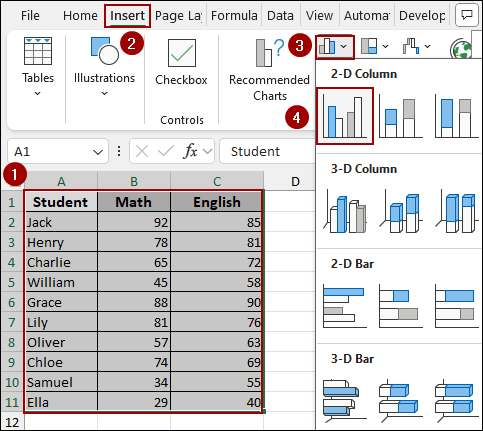
A column chart visualizing the grades will appear next to your data.
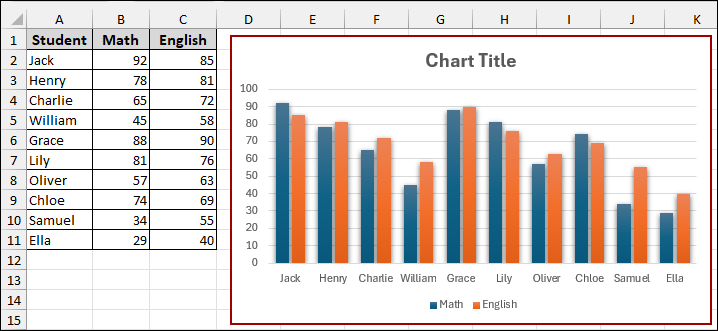
Now that the chart is ready, you can copy it.
➤ Right-click on the edge of the chart area to bring up the context menu.
➤ From the menu, click Copy.
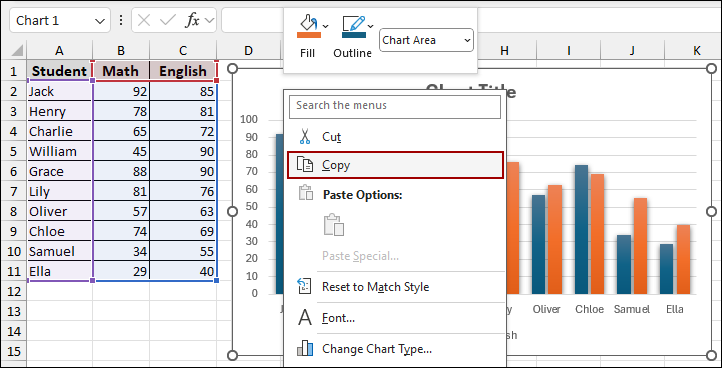
Next, open your Word document to paste the chart.
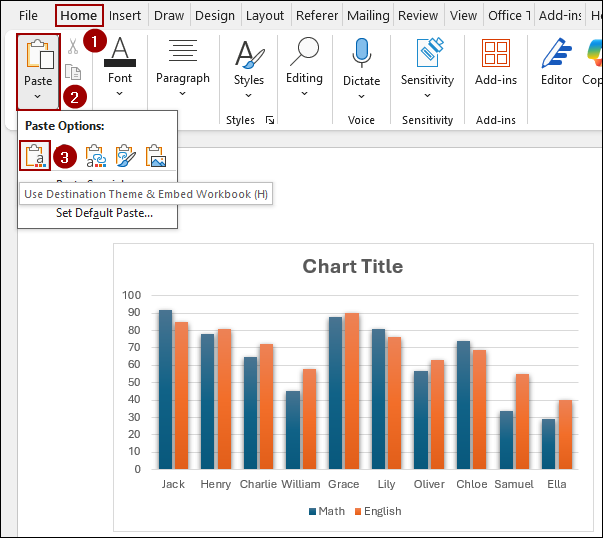
➤ Navigate to the Home tab in the Word ribbon.
➤ Click the Paste button to see the various Paste Options.
➤ Click on the first option, Use Destination Theme & Embed Workbook (H).
This option adopts the Word document’s theme, while the chart is not linked to the original Excel data.
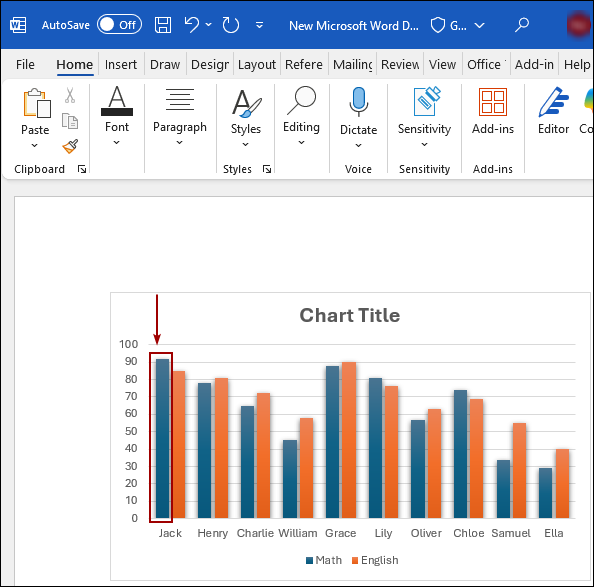
Coming back to the Excel sheet, let’s change a value, the Math mark for Jack from 92 to 10, and the corresponding bar in the Excel chart will reflect the change.
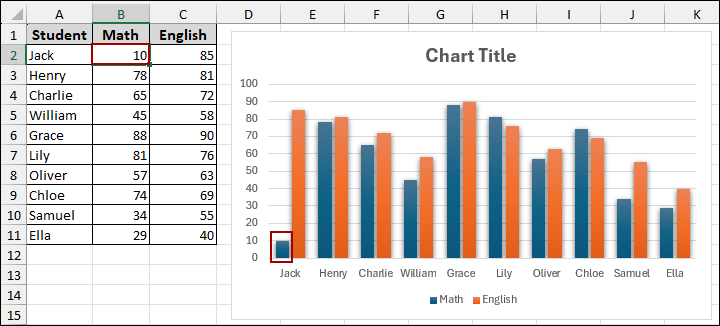
As you can see, the changes did not happen in the Word file chart, confirming the chart is static.
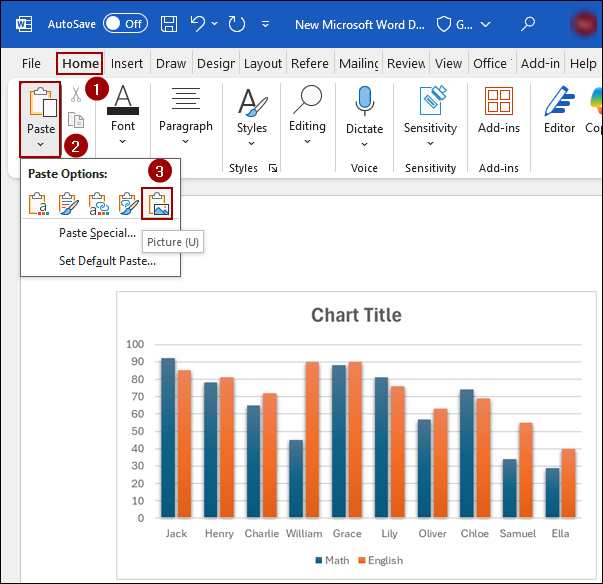
You can also use the Picture paste option, to copy the chart as an image.
➤ In Word, click on the Paste dropdown, and select the Picture (U) icon.
The chart is now pasted as a static image.
Copy Chart from Excel to Word with Auto-Update
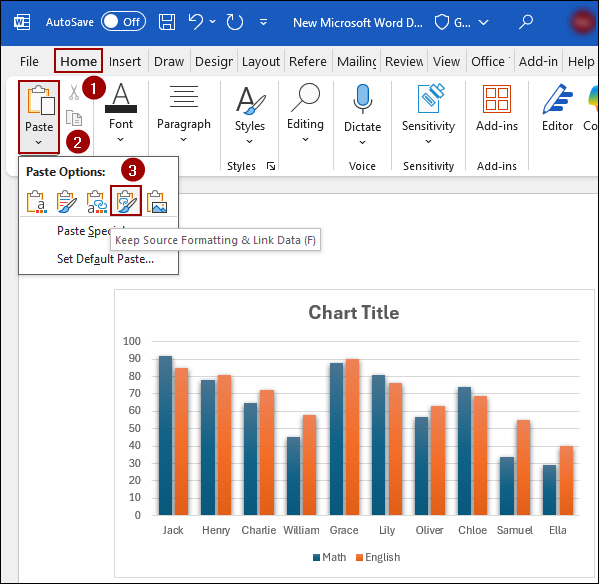
If you want the chart to be linked with the Excel sheet, you can use a different paste option.
➤ After copying the chart, go to Word, click on the Paste dropdown, and choose the option Keep Source Formatting & Embed Workbook (F).
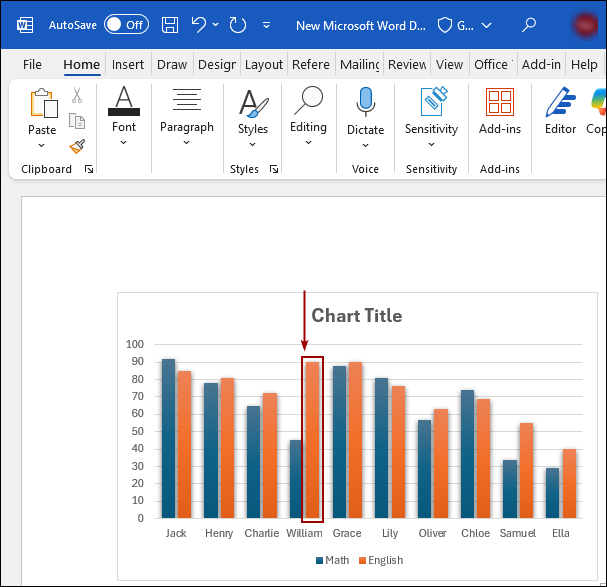
You can verify the link to data by changing another value, like the English mark for William, from 58 to 90 in the Excel sheet.
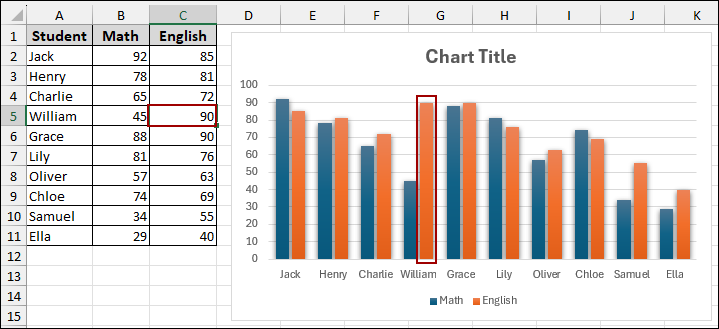
The change will be immediately reflected in the Word document chart, maintaining the source formatting.
Applying Paste Special Tool to Copy a Chart from Excel to Word
In this method, we will use the Paste Special tool to copy a chart from Excel to Word. The Paste Special feature gives access to change the chart’s file type and its connection to the original Excel workbook.
➤ After copying the chart from Excel, go to the Home tab in Word.
➤ Click the Paste dropdown menu.
➤ At the bottom of the dropdown, select Paste Special.
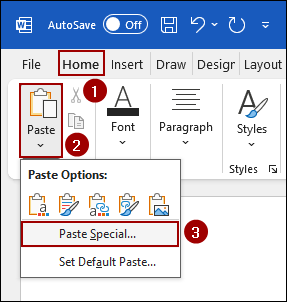
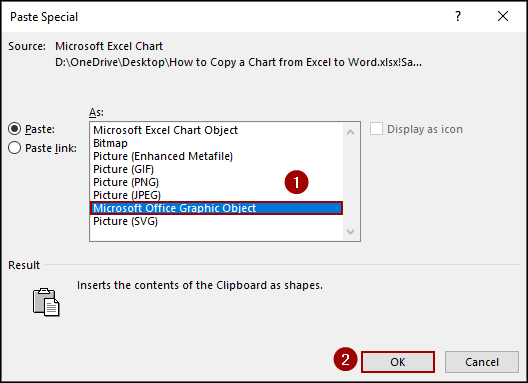
This opens the Paste Special dialog box. Here, you have two main options. The Paste option embeds the chart but disconnects it from the source file. It gives you options for the file type, such as Picture, Picture (PNG), and Microsoft Office Graphic Object. The Paste link option links the chart directly to the original Excel file. If the data in the Excel file changes, you can update the chart in the Word document to reflect the change.
To paste the chart as an editable graphic object.
➤ Choose Microsoft Office Graphic Object.
➤ Click OK.
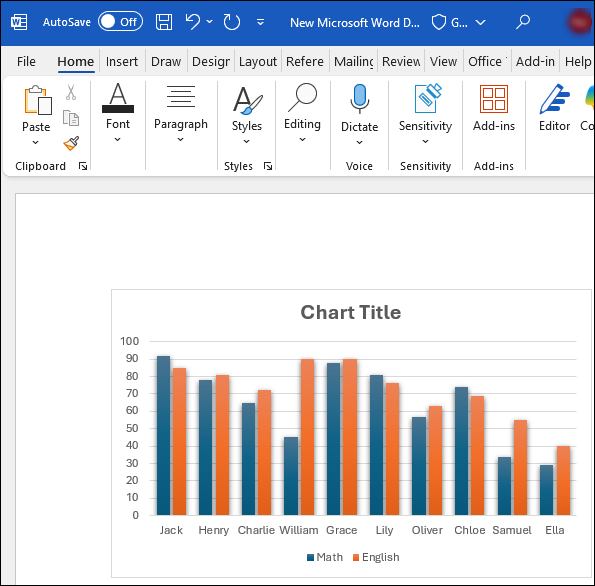
The chart is pasted into your Word document as a high-quality graphic object, which can be resized.
Downloadable Resources
Get our practice workbook or necessary files that we have worked with to prepare this article.
Copy Chart from Excel to Word.xlsx
Frequently Asked Questions
Why does my chart look different after pasting it into Word?
Word may apply default styles or resize the chart. To fix this, use Paste Special > Microsoft Excel Chart Object to retain the original formatting and proportions.
Can I edit the chart in Word after copying it from Excel?
Yes, if you paste it as an Excel Chart Object, you can double-click the chart in Word to edit it, just like in Excel. However, if it’s pasted as a picture, it cannot be edited.
How do I maintain the chart size when copying to Word?
Before copying, set the chart size in Excel. In Word, after pasting, right-click and choose Size and Position. Hence, lock the aspect ratio to keep proportions intact.
Concluding Words
Above, we have explored various techniques for copying an Excel chart into a Word document. Whether you need a quick, embedded graphic or a chart that stays dynamically linked to your source data, Excel and Word provide the tools you need. The simplest method involves using the standard Paste options in the Home tab. For more options over file type and linking, the Paste Special tool is the ideal choice. If you have any questions, please don’t hesitate to share them in the comments section below.