The Remove Duplicates tool in Excel is used for cleaning data, but it can fail to correctly identify and delete duplicate entries. This problem arises when Excel cannot see differences that are invisible to the naked eye, such as extra spaces or data formatting issues. In this article, we will discuss the common reasons why the Remove Duplicates feature doesn’t work and provide simple solutions for each problem.
To fix Remove Duplicates not working in Excel, here is one simple solution by removing hidden spaces.
➤ If you have hidden spaces in your data, insert a new column next to your original data.
➤ Write down the following formula, press ENTER, and drag down the Fill handle.
=TRIM(A2)
➤ Copy the clean data over the original data and go to Data > Data Tools > Remove Duplicates.
➤ Select the column from which you want to clear duplicates.
➤ Press OK, and you will see that the Remove Duplicates tool is working properly, deleting duplicates from the column.
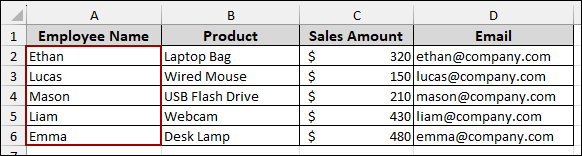
Duplicates Not Removed Due to Hidden Spaces
A frequent issue that prevents duplicates from being detected is the presence of extra spaces at the beginning or end of your data. Even if two cells appear identical, an extra space makes them unique to Excel. Here, we will clear spaces so that the Remove Duplicates tool can work properly.
Problem:
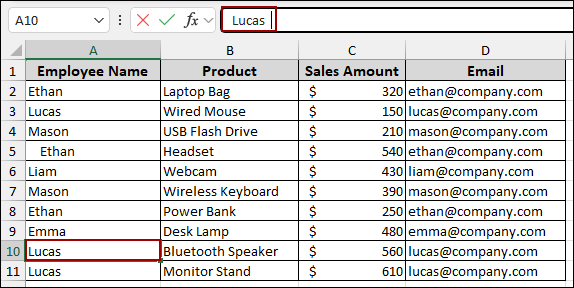
Suppose we have a sample dataset containing the following fields: Employee Name, Product, Sales Amount, and Email. In the name list, the names “Ethan,” “Lucas,” and “Mason” appear more than once.
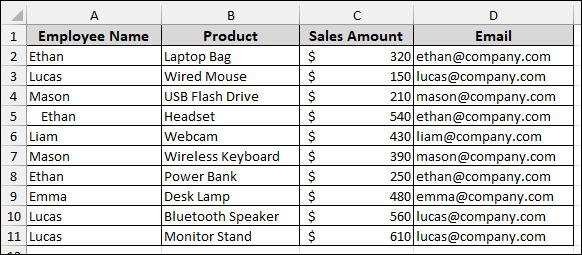
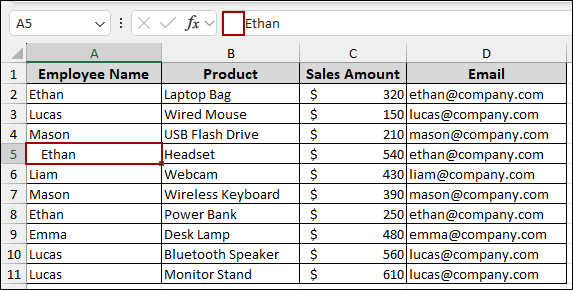
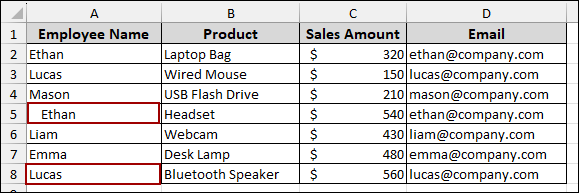
In cell A5, you will see some leading spaces before the name Ethan.
If we click on cell A10, the formula bar reveals an extra space after the name “Lucas,” which is often hard to spot.
Let’s use the Remove Duplicates feature for this column.
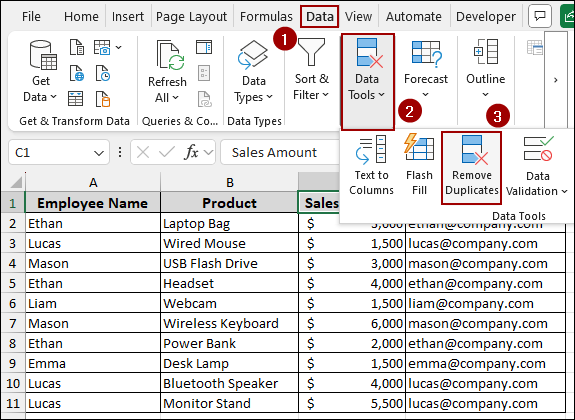
➤ Select the data and navigate to the Data tab.
➤ Click Data Tools, and then select Remove Duplicates.
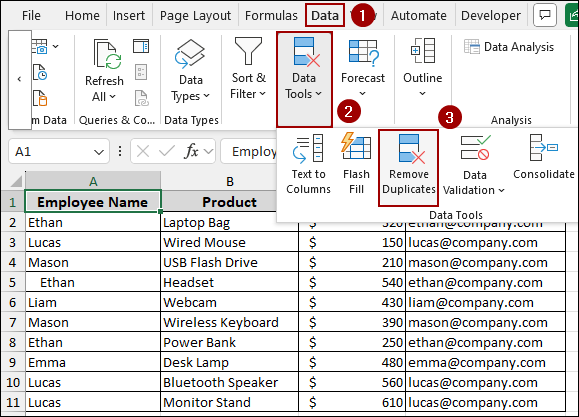
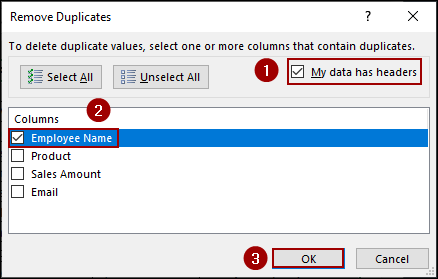
The “Remove Duplicates” dialog box appears.
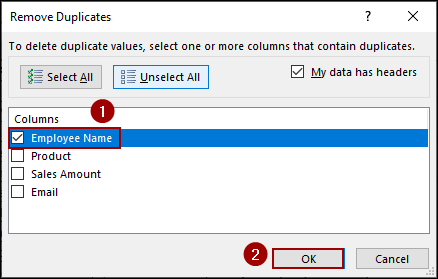
➤ Ensure the My data has headers box is checked and select Employee Name from the list of columns, then click OK.
As a result, you will still get duplicate names, such as “Ethan” and “Lucas”, because the extra space was not removed.
Solution:
The TRIM function is used to remove hidden spaces in Excel. Here, we will use this function to remove unwanted spaces from the list.
➤ Insert a new column next to your original data.
➤ In the first cell of this new column (E2), enter the formula, press ENTER, and drag down the Fill Handle.
=TRIM(A2)
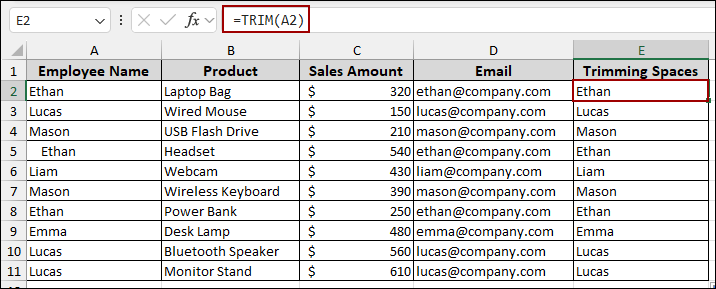
➤ Copy the clean data from the new column (E2:E11) by pressing Ctrl + C .
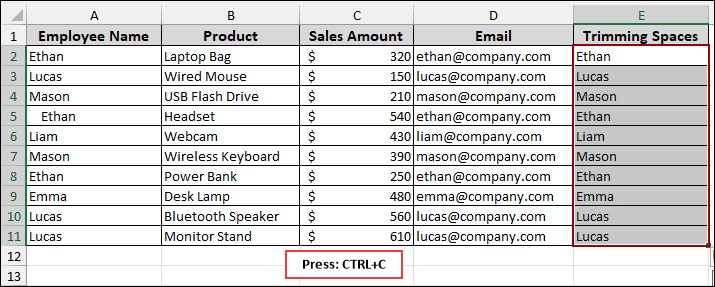
➤ Now, paste the values over the original data in column A by using the keyboard shortcut Ctrl + Shift + V .
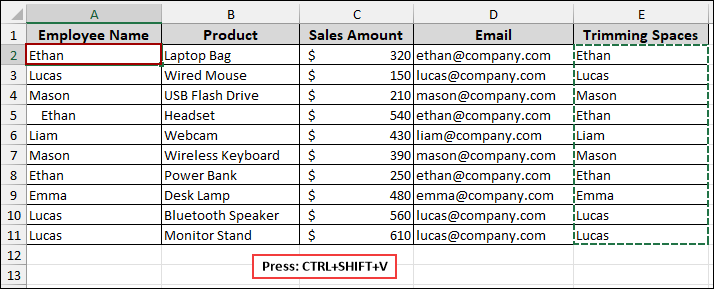
➤ Delete the temporary “Trimming Spaces” column by selecting column E and choosing Delete from the context menu.
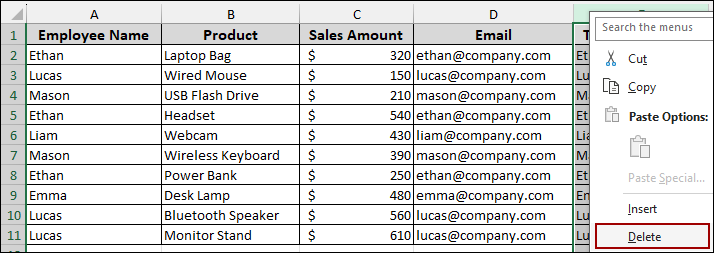
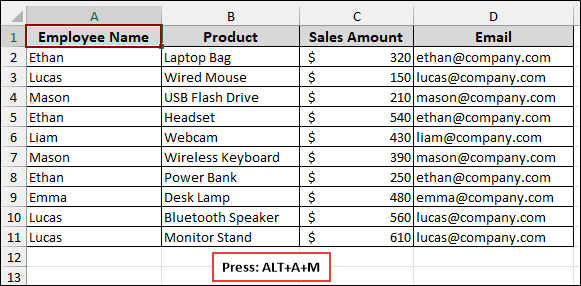
The data in column A is now clean, cleaning all the extra spaces. Now, we will apply the Remove Duplicates tool again. For this,
➤ Select the Employee Name column and press Alt + A + M to run the Remove Duplicates feature.
➤ From the Remove Duplicates window, checkmark the Employee Name and click OK.
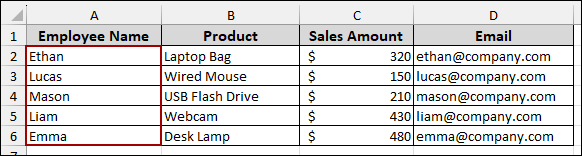
Finally, the duplicates will be successfully removed, and the resulting table will show unique employee names.
Numbers Stored as Text Prevent Duplicate Removal
While removing duplicates from number values, you will see that some numbers are stored as text. Excel cannot compare a numerical value to a number that is stored as text, treating them as distinct data types. First, we will implement the Remove Duplicates tool for some numbers that are stored as text. Then, we will convert to numbers so that the tool can remove duplicates properly.
Problem:
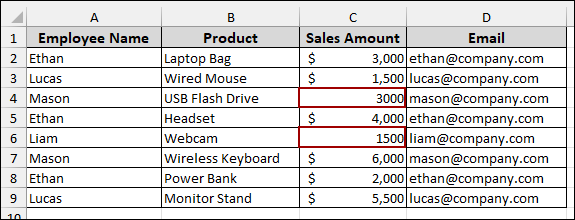
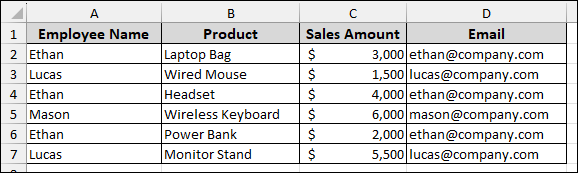
In the sample dataset, you will see that the values in cells C4 and C6 are stored as text, while the other values are stored as currency.
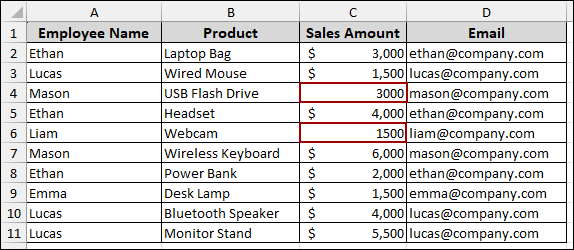
Now, if we apply the Remove Duplicates feature, you will see that these duplicate numbers stored as text are not cleared. This happened as Excel cannot recognize them as numbers.
Solution:
To fix this, we need to ensure the entire column uses the same number format.
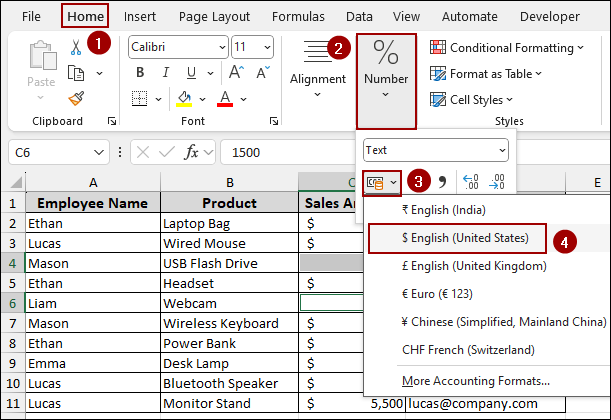
➤ Go to the Home tab, click the drop-down arrow in the Number group.
➤ Choose the Accounting or Currency format to apply a standardized style across all cells.
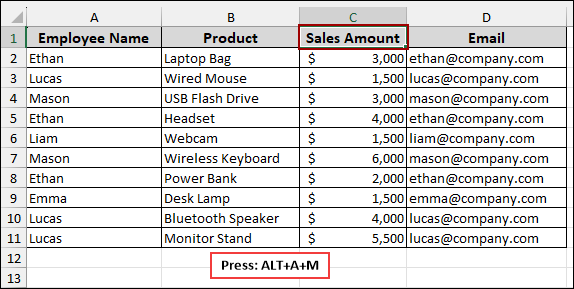
➤ Now, run the Remove Duplicates tool (ALT+A+M).
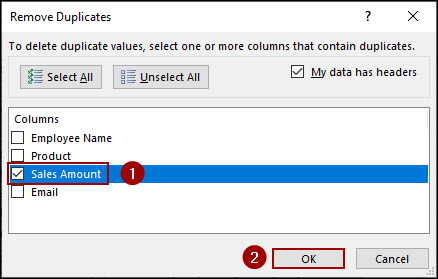
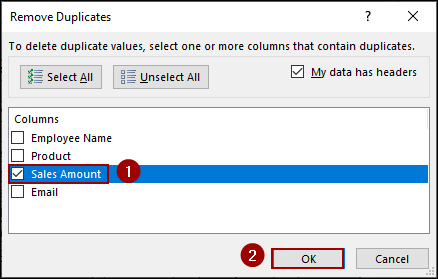
➤ Select Sales Amount in the dialog box and click OK.
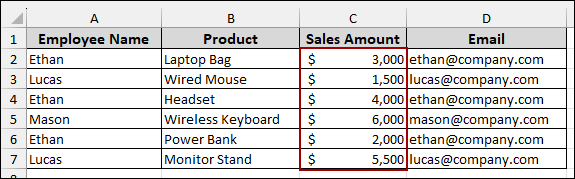
Thus, we have successfully removed duplicates from the Sales Amount column, displaying unique sales amounts.
Excel Doesn’t Recognize Duplicates with Decimal Differences
Excel will treat two numbers as different if their number format is not the same, which is common with values that have different decimal place settings, even if they look the same.
Problem:
Suppose we have a dataset where some sales amounts appear as whole numbers while others, such as 3,000.00 and 1,500.0, have decimal values. While removing duplicates from this column, Excel will not be able to remove them because Excel recognizes them as different data types.
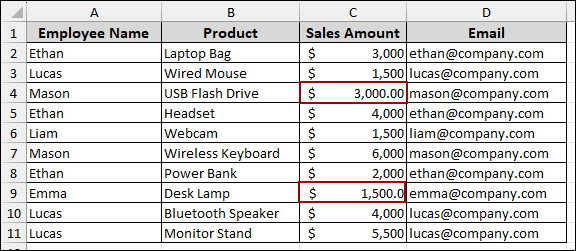
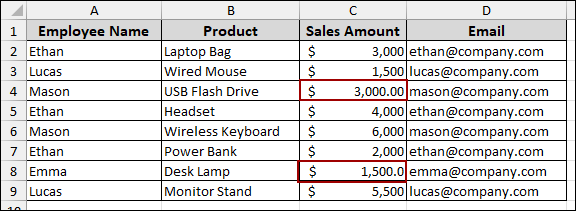
After applying the Remove Duplicates tool, 3000.00 in cell C4 and 1500.0 in cell C8, which are duplicates, are not removed because Excel sees them as different data types.
Solution:
To solve this, we need to remove decimal places from the cells.
➤ Choose the cells with decimal values.
➤ Go to Home > Number and click the Decrease Decimal icon.
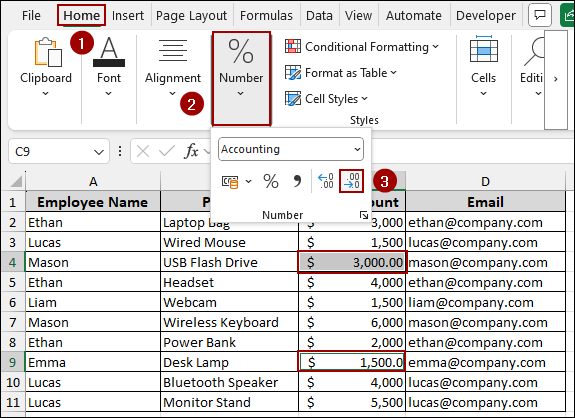
Thus, the decimal values will be removed.
➤ Click Data > Data Tools > Remove Duplicates.
➤ Checkmark the Sales Amount box and click OK.
As a result, we will get the unique sales amount, confirming that the Remove Duplicates is working properly.
Duplicates Spread Across Multiple Rows Not Working
When you use the Remove Duplicates tool on a dataset spanning multiple columns, Excel will not be able to find duplicates. As we selected multiple columns together, Excel is checking the entire row for an identical match.
Problem:
Suppose you have a list of products in two columns named Product List and New Product. Here, we will clean up the data based on the entries in the “Product List” and “New Product” columns.
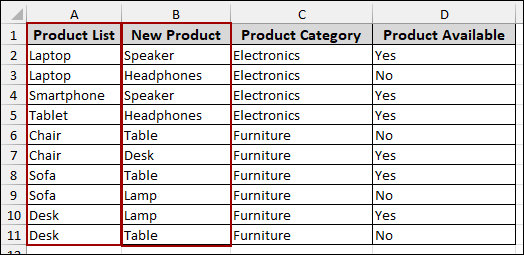
➤ Go to the Data tab.
➤ In the Data Tools group, click Remove Duplicates.
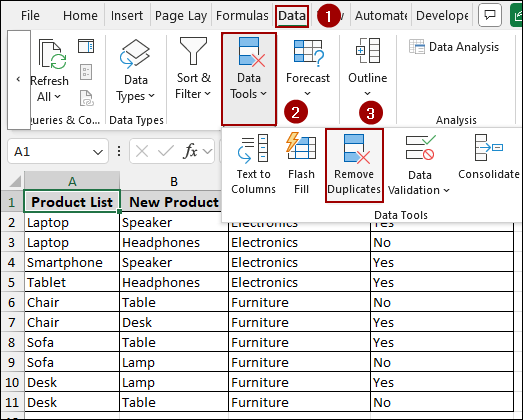
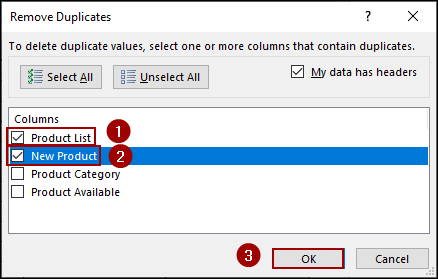
➤ Select both the Product List and New Product columns and click OK.
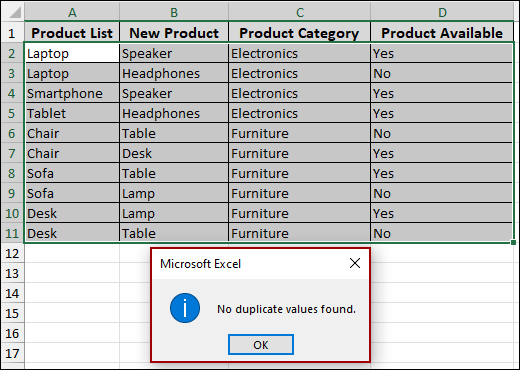
As a result, Excel will report a failure, No duplicate values found.
Solution:
To fix this, you need to decide which single column holds the values you want to make unique. Alternatively, you can copy the data into a single column and remove the duplicates there.
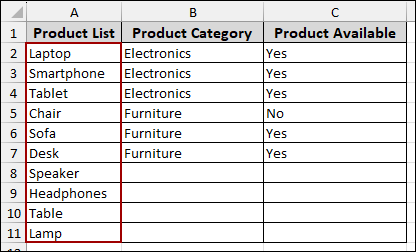
➤ Copy all the data from the New Product column (B2:B11) into a new location, such as column A, starting at row 12.
➤ To apply the Remove Duplicates feature, click Alt + A + M .
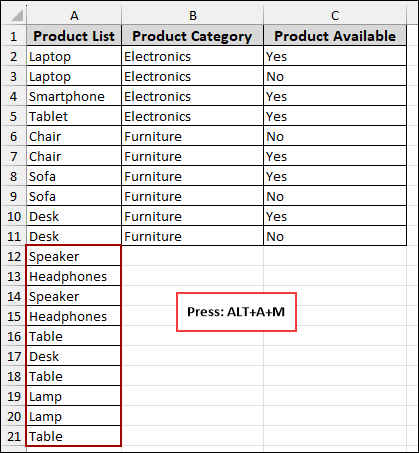
➤ Select Product list and click OK.
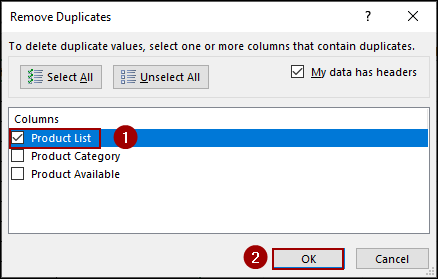
Thus, you will get the unique values from the column by ensuring the Remove Duplicates tool works properly.
Remove Duplicates Doesn’t Work on Merged Cells
The Remove Duplicates tool is incompatible with merged cells. If your data range contains merged cells, the tool will fail to clear duplicates.
Problem:
Consider a dataset with some products listed in columns A and B. In cell B3, we have a merged cell.
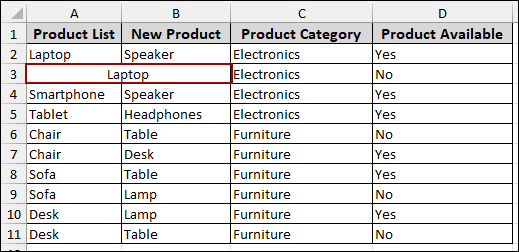
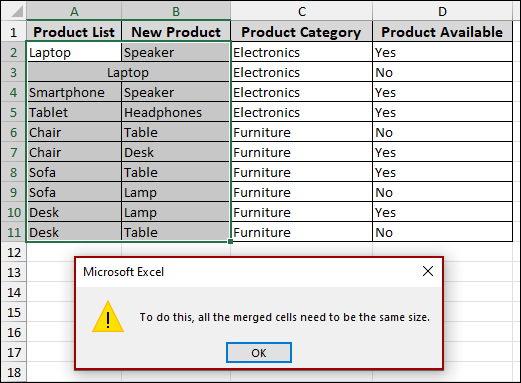
If we apply the Remove Duplicates feature, we will get the error message that explicitly states: “To do this, all the merged cells need to be the same size“.
Solution:
Before using the tool, you must unmerge all cells within the dataset.
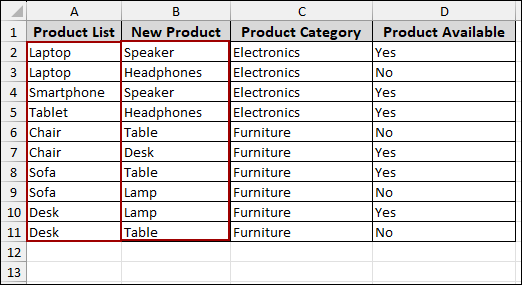
➤ Now, run the Remove Duplicates tool by pressing Alt + A + M .
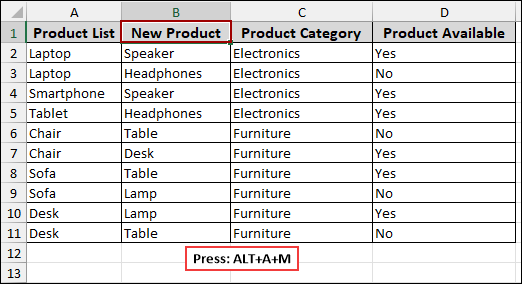
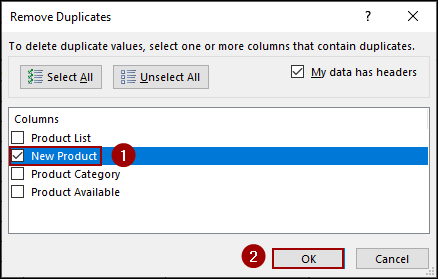
➤ Choose New Product and click OK.
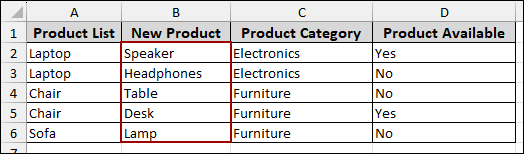
The Remove Duplicates tool is now working properly on unmerged data, eliminating duplicates and providing unique data.
Frequently Asked Questions
Why does Excel say “No duplicate values found” when I know there are duplicates?
This almost always means the duplicates aren’t exact matches. Check for extra spaces, different number formats, or numbers accidentally stored as Text.
Does the Remove Duplicates tool work on hidden data?
No, the tool does not ignore hidden rows. If you filter your data before running the tool, the duplicates in the hidden rows will still be considered and potentially removed, which can lead to data loss.
Can I run the Remove Duplicates tool on a protected sheet?
No, you must unprotect the worksheet first, as the tool modifies the data by deleting rows.
Concluding Words
Above, we have explored common reasons and provided solutions regarding Remove Duplicates not working in Excel. By cleaning extra spaces using the TRIM function, standardizing all number formats, you can prevent the tool from failing. You also need to check for merged cells before applying this feature. If you face any other issues, don’t hesitate to share them in the comments section below.