The “Loop without Do” error in VBA occurs when your code has a Loop statement without a corresponding Do. This is a syntax-related error that tells VBA it can’t find the start of the loop structure. It commonly appears when a Do or Loop line is accidentally deleted, misspelled, or placed in the wrong order.
In this article, we will look at the main reasons behind this error and demonstrate practical ways to fix it. You’ll learn how proper structure, indentation, and debugging techniques help prevent it from happening in your VBA projects.
Steps to correctly pair Do and Loop statements
➤ Press Alt + F11 to open the VBA Editor.
➤ Go to Insert >> Module to add a new module.
➤ Observe the faulty code that triggers the error:
Sub ShowHighScorers_Error()
    Dim i As Long
    i = 2
    ' "Do" accidentally removed
    While Cells(i, 3).Value <> ""
        If Cells(i, 3).Value > 80 Then
            MsgBox Cells(i, 1).Value & " scored above 80"
        End If
        i = i + 1
    Loop   ' <-- "Loop without Do" error appears here
End Sub
➤ Run the code and notice the “Loop without Do” error because the Loop has no matching Do.
➤ Fix the code by correctly pairing Do with Loop:
Sub ShowHighScorers_Fixed()
    Dim i As Long
    i = 2
    Do While Cells(i, 3).Value <> ""
        If Cells(i, 3).Value > 80 Then
            MsgBox Cells(i, 1).Value & " scored above 80"
        End If
        i = i + 1
    Loop
End Sub
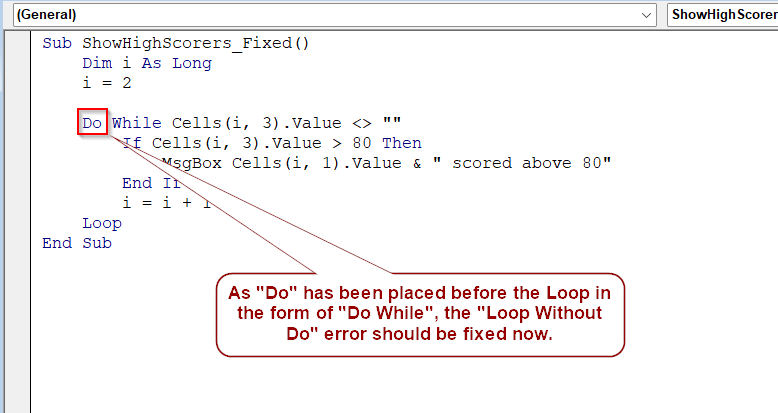
➤ Running the fixed code will loop through all students and display names of those who scored above 80.
Correctly Pairing Do and Loop Statements
This is the most common cause of the “Loop without Do” error. In VBA, every Loop must have a matching Do statement. If you accidentally remove or misspell the Do, Excel will throw the error before execution.
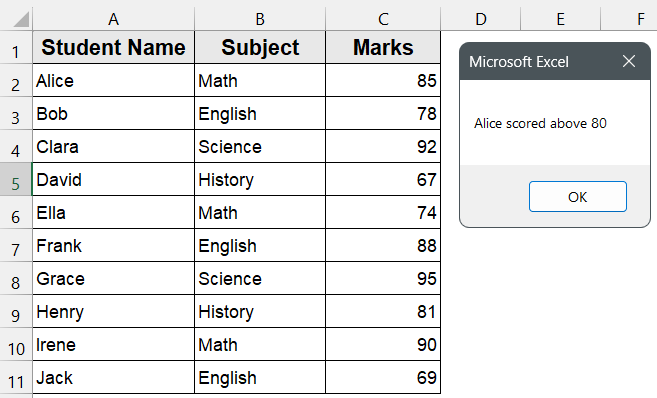
This is the dataset that we will use to demonstrate all the methods:
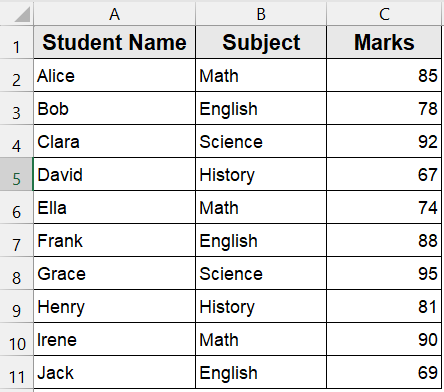
Using our student dataset, let’s say we want to loop through all students and display the names of those who scored more than 80 marks.
Steps:
➤ Press Alt + F11 to open the VBA Editor.
➤ Go to Insert >> Module to add a new module.
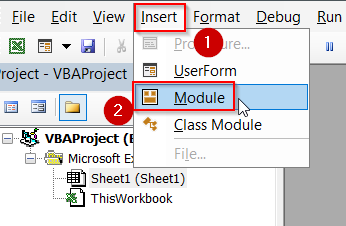
➤ First, paste this faulty code that will trigger the “Loop without Do” error:
Sub ShowHighScorers_Faulty()
    Dim i As Long
    i = 2
    ' Missing "Do" before "Loop"
    Do While Cells(i, 3).Value <> ""
        If Cells(i, 3).Value > 80 Then
            MsgBox Cells(i, 1).Value & " scored above 80"
        End If
        i = i + 1
    Loop
End Sub
Did you spot the issue? The Do While is there, but in some cases, people mistakenly delete or comment out “Do” while editing, or leave just the “Loop” part behind. Let’s simulate that:
Sub ShowHighScorers_Error()
    Dim i As Long
    i = 2
    ' "Do" accidentally removed
    While Cells(i, 3).Value <> ""
        If Cells(i, 3).Value > 80 Then
            MsgBox Cells(i, 1).Value & " scored above 80"
        End If
        i = i + 1
    Loop   ' <-- Error appears here
End Sub
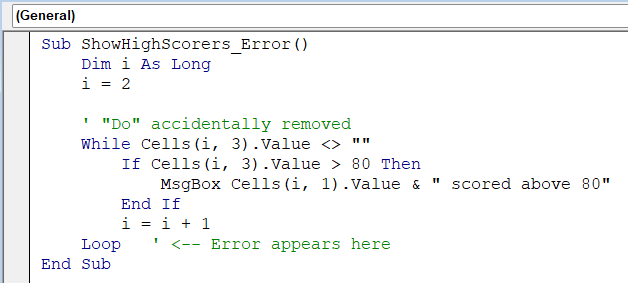
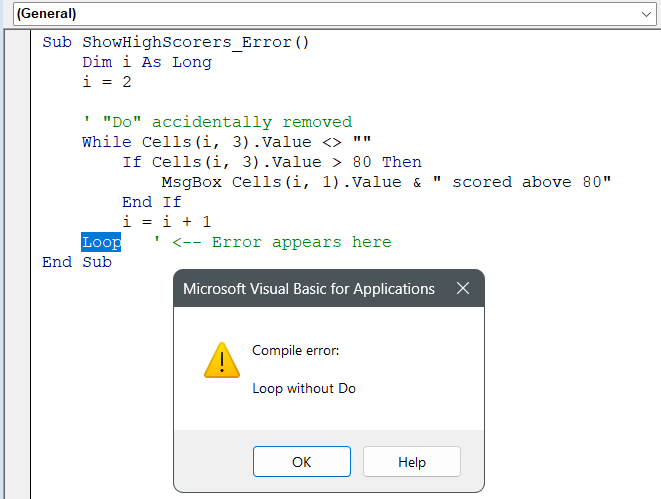
➤ When you try to run this, VBA will show the “Loop without Do” error because the Loop has no matching Do.
➤ Now let’s fix it properly:
Sub ShowHighScorers_Fixed()
    Dim i As Long
    i = 2
    Do While Cells(i, 3).Value <> ""
        If Cells(i, 3).Value > 80 Then
            MsgBox Cells(i, 1).Value & " scored above 80"
        End If
        i = i + 1
    Loop
End Sub
➤ The code should run properly now
➧ If you accidentally replace Do While with just While, VBA won’t recognize the loop structure.
➧ Adding the correct Do before the While or Until condition ensures VBA executes the loop without error.
Use For…Next Instead of Do…Loop When Iterating Fixed Ranges
Sometimes, the “Loop without Do” error occurs when you use a Do loop unnecessarily for a range that has a fixed start and end point. In such cases, replacing the Do…Loop structure with a For…Next loop is a cleaner and error-free alternative.
We’ll use our student dataset again to find and display all students who scored below 70.
Steps:
➤ Press Alt + F11 to open the VBA Editor.
➤ Go to Insert >> Module to add a new module.
➤ First, paste this faulty code that triggers the error:
Sub ShowLowScorers_Error()
    Dim i As Long
    ' Accidentally using Loop without Do
    i = 2
    While i <= 11
        If Cells(i, 3).Value < 70 Then
            MsgBox Cells(i, 1).Value & " scored below 70"
        End If
        i = i + 1
    Loop   ' <-- Error: Loop without Do
End Sub
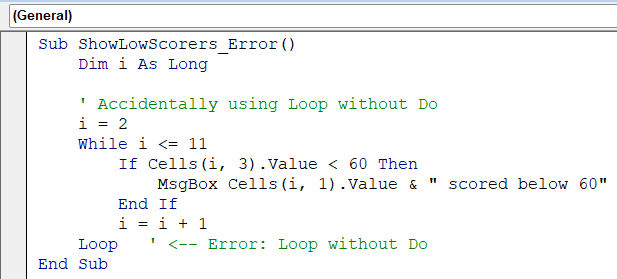
This code produces the “Loop without Do” error because there’s no Do statement before the Loop.
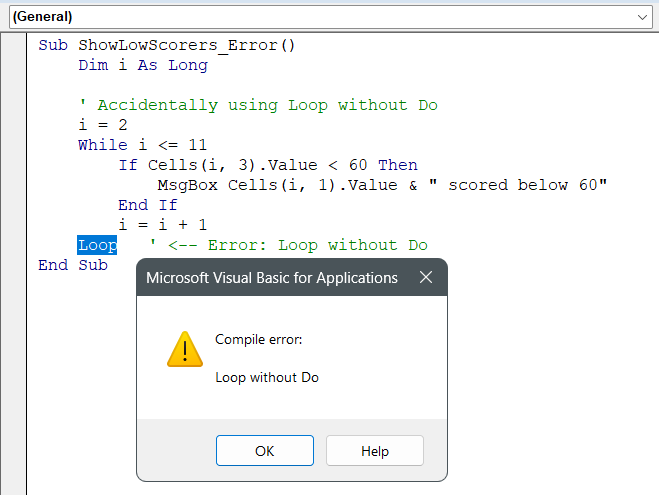
➤ Now let’s fix it properly by replacing the Do…Loop structure with a For…Next loop, which is better for looping through a known range.
Sub ShowLowScorers_Fixed()
    Dim ws As Worksheet
    Dim i As Long
    ' Set the worksheet containing the data
    Set ws = ThisWorkbook.Sheets("Sheet1") ' Change Sheet1 to your sheet name
    ' Loop through the student data
    For i = 2 To 11 ' Assuming row 1 has headers
        If ws.Cells(i, 3).Value < 70 Then
            MsgBox ws.Cells(i, 1).Value & " scored below 70"
        End If
    Next i
End Sub
➤ The macro should run perfectly now.
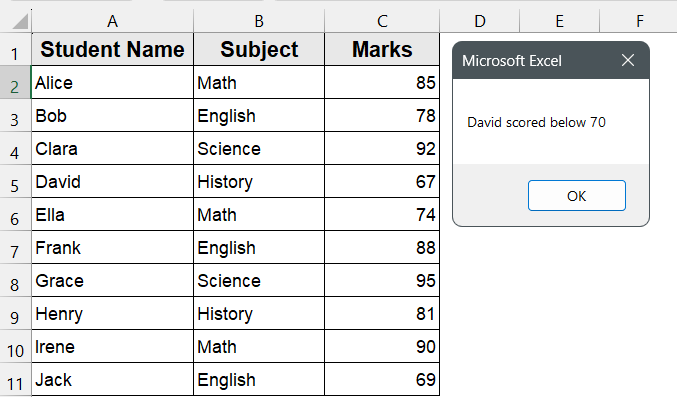
➧ You don’t need a Do or Loop statement, so the “Loop without Do” error cannot occur.
➧ This approach is best when you already know how many rows or items you want to process.
Match Do and Loop Placement Correctly
One common reason for the “Loop without Do” error is that the Loop statement is not properly paired with a Do statement or is placed incorrectly inside another control structure, such as an If or For block. We will focus on checking the alignment of Do and Loop statements to prevent this error in this method.
Using our student dataset, we will first show an example where a Loop is incorrectly positioned within an If statement, which triggers the error. Then, we will demonstrate how to fix it by correctly structuring the loop so that the Do and Loop statements match perfectly, ensuring the code runs smoothly.
Steps:
➤ Press Alt + F11 to open the VBA Editor.
➤ Go to Insert >> Module to add a new module.
➤ Paste this faulty code that causes the error:
Sub DoLoopMisplaced_Error()
    Dim i As Long
    i = 2
    Do While i <= 11
        If Cells(i, 3).Value >= 80 Then
            MsgBox Cells(i, 1).Value & " scored above 80"
            Loop   ' <-- Error: Loop placed inside If block
        End If
        i = i + 1
    Loop
End Sub
Here, the Loop statement is incorrectly placed inside the If block, while its corresponding Do statement is outside.
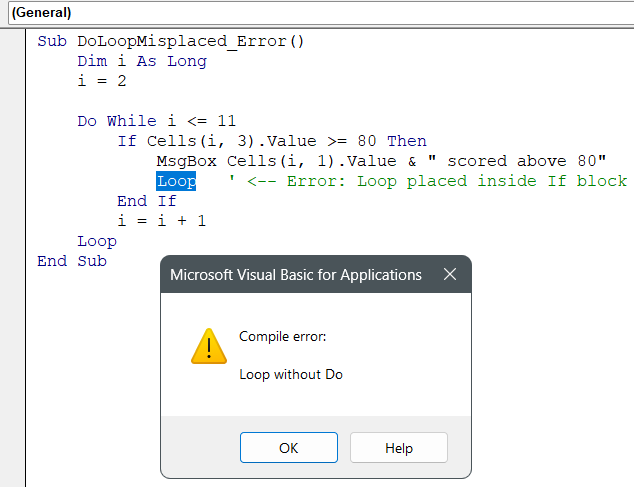
VBA throws the “Loop without Do” error because it doesn’t properly match the pair.
➤ Now here’s the corrected version of the code:
Sub DoLoopMisplaced_Fixed()
    Dim i As Long
    i = 2
    Do While i <= 11
        If Cells(i, 3).Value >= 80 Then
            MsgBox Cells(i, 1).Value & " scored above 80"
        End If
        i = i + 1
    Loop
End Sub
➤ The macro should now run without any errors.
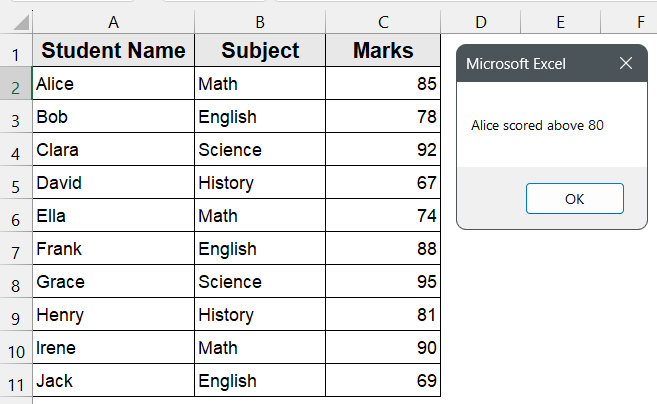
➧ The If condition is nested inside the Do…Loop, not the other way around.
➧ VBA executes the loop correctly for each student without producing syntax or runtime errors.
Downloadable Resources
Get our practice workbook or necessary files that we have worked with to prepare this article.
Loop Without Do Error in VBA.xlsx
Frequently Asked Questions (FAQs)
What causes the “Loop without Do” error in VBA?
This error happens when VBA finds a Loop statement without a corresponding Do. Common reasons include accidentally deleting the Do line, misplacing Loop inside other control structures, or nested loops that are not properly closed.
Can a For…Next loop cause the “Loop without Do” error?
No. For…Next loops are independent of Do…Loop statements. The error only occurs with Do…Loop constructs if they are incomplete or misaligned.
Why didn’t my loop show any results even after fixing the error?
There are two common reasons. The first being, the condition inside the loop was never met (e.g., no marks below 60). The second is, the Cells or Range references were not fully qualified to the correct worksheet. Always specify the sheet to avoid unexpected behavior.
How can I prevent this error in the future?
Always double-check that each Do has a matching Loop, avoid placing loops inside incompatible control structures without proper alignment, and consider using For…Next loops when iterating over a fixed range of cells.
Wrapping Up
The “Loop without Do” error is one of the most common pitfalls in VBA, but it is easy to avoid once you understand its causes. Proper alignment of Do…Loop statements and careful placement within control structures prevent this error from appearing. Additionally, using fully qualified worksheet references ensures your loops operate on the correct data. For many tasks, For…Next loops can serve as a simpler alternative, eliminating the risk of unmatched Do…Loop statements while providing precise control over iterations.