When multiple people work on the same Excel file, it is often necessary to know who is currently editing or viewing it. This is good in workplaces where project tracking, attendance logs, or financial records are updated by multiple team members in real time. Excel provides built-in tools that let you check active users quickly without disturbing their workflow.
To see who is in a shared Excel file, follow these steps:
➤ Open the Excel workbook that has been shared with your team.
➤ Click the Share button in the top-right corner of Excel.
➤ In the Share panel, check the list of people with access.
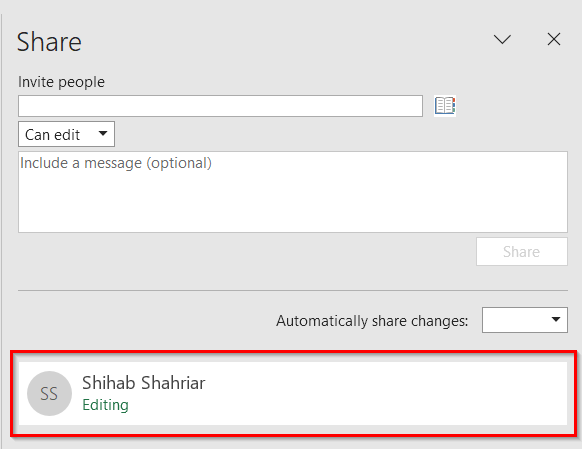
In this article, we will explain methods on how to see who is in a shared Excel file, using the Share window panel and the File option.
What Does It Mean by "Who is in a Shared Excel File"?
It refers to the list of users who currently have the file open, either for editing or viewing.
When an Excel workbook is saved on OneDrive or SharePoint and shared with others, Excel shows active collaborators in real time through the Share panel. Each person’s name appears, with a presence indicator. This feature is very useful and widely used for teams to coordinate better, avoid overlapping edits, and maintain transparency in collaborative projects.
Using Excel’s Share Window Panel to See Who is in a Shared Excel File
The Share Window Panel allows us to check who is currently viewing or editing a shared Excel file. This method is good when multiple team members collaborate on the same dataset, such as project tracking, attendance logs, or financial reports. By using the Share panel, we can see the list of active users without disturbing their work.
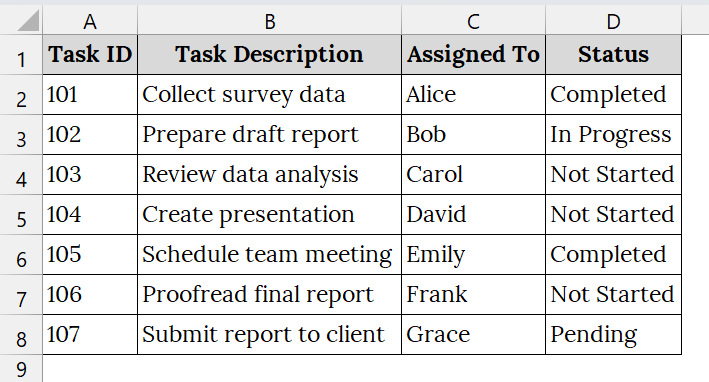
We have a dataset that represents a real workplace collaboration where multiple employees work on project tracking inside a shared Excel file. By checking the Share panel, we will see who is editing, viewing, or inactive in real time.
Steps:
➤ Open the Excel workbook that has been shared with your team. For example, we have taken a Task Progress Tracker.xlsx file.
➤ In the top-right corner of Excel, locate the Share button (usually next to your profile picture). Click on it.
➤ Again, click on Share.
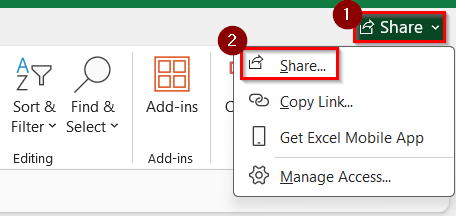
➤ A panel will appear on the right (or sometimes as a pop-up) showing the list of people who have access to the file.
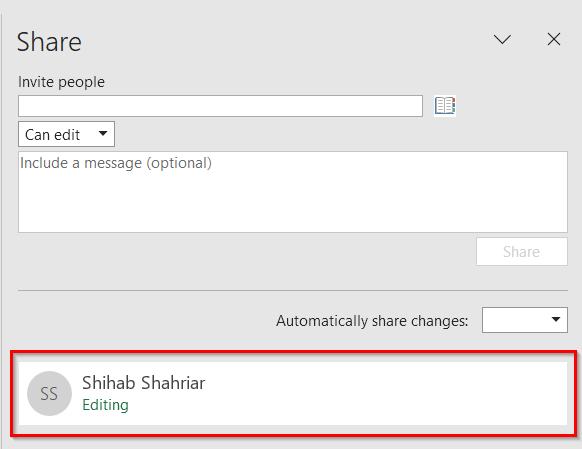
Notes:
➥ This feature only works if the file is stored in OneDrive or SharePoint and shared with others.
➥ If the file is shared via email as an attachment, you cannot see active users.
➥ Always save the file in cloud storage before sharing to enable real-time collaboration.
Use Version History and the Manage Access Option to See Who is in a Shared Excel File
When multiple people work on the same Excel file, it becomes important to know who last modified the file or who has access to it. The File Options method allows us to track file activity without opening the workbook. This is very useful for real-world collaboration, such as project tracking, shared reports, or performance logs.
We have taken an Excel file. We will see the last editor and see the list of collaborators by using Version History and Manage Access..
Steps:
➤ Locate the Excel file from your computer that is saved on OneDrive or SharePoint and shared with others. For example, we have taken a file named Project Task Sheet.xlsx.
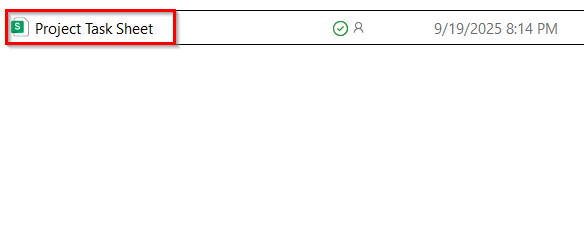
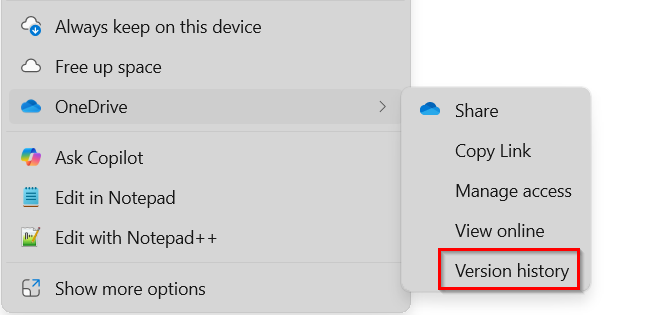
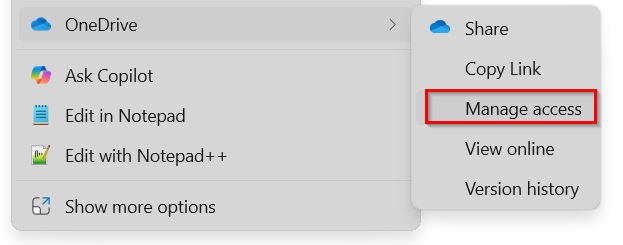
➤ Now, right-click on the Excel file. Then, select OneDrive.
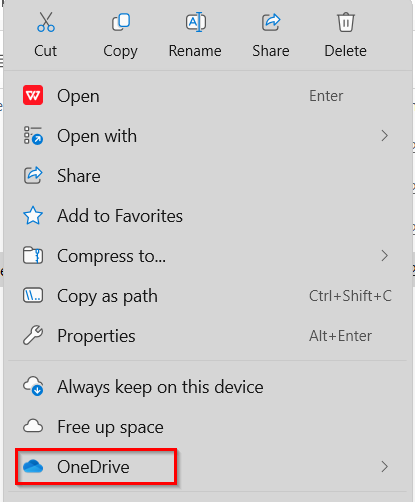
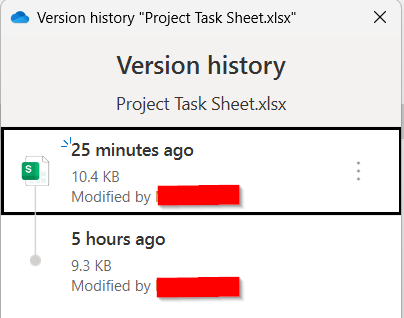
➤ Click on Version History.
➤ This will show you the last modified by ( Author Name).
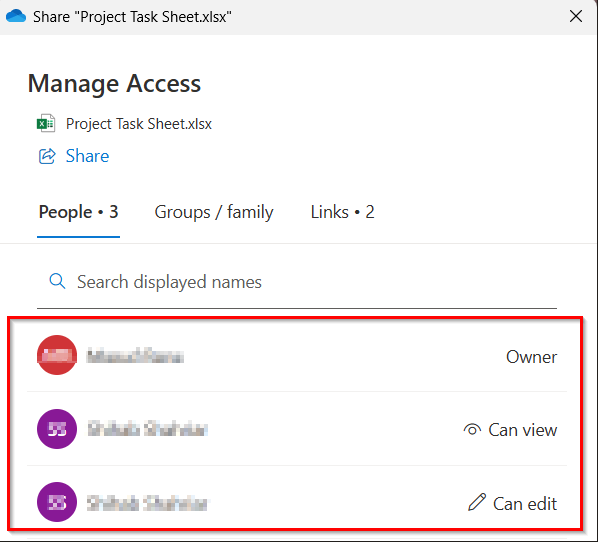
➤ Or, click on Manage Access..
➤ A Send Link Dialog Box will open. In the shared with section, you will see the list of those who have access in this file.
Downloadable Resources
Get our practice workbook or necessary files that we have worked with to prepare this article.
Sample Dataset for Shared File.xlsx
Frequently Asked Questions
Can I see who edited an Excel file if it’s not shared through OneDrive or SharePoint?
No. Real-time tracking only works with files stored in OneDrive or SharePoint. Attachments sent by email will not show active users.
Will the Share panel show if someone is only viewing the file?
Yes. Depending on the Excel version, the panel may display “Currently Editing” or “Viewing” next to the person’s name.
Can I use Version History to track who modified the file?
Yes. Right-click the file, go to Version History, and you’ll see who last modified it along with the time of the edits.
How do I see who a document is shared with?
Right-click the document and click on Share. Here you’ll see the list of people and their permissions (Viewer, Editor, etc.).
How to view shared files in Excel?
In OneDrive / SharePoint, go to Open Excel → File → Open → Shared with Me (shows files others shared with you).
Concluding Words
The easiest way to see who is in a shared Excel file is by using the Share Window Panel method. It allows us to check active users in real time. The File Options method helps us to track file activity without opening the workbook. Also, you can download and use the Excel dataset we have used in this article.