Old Excel files typically use the .xls extension, which was the standard until Excel 2003. From Excel 2007 onward, Microsoft introduced .xlsx, a more advanced and secure format. .xlsx supports larger files, more rows/columns, and better integration with modern tools.
Many businesses and individuals still have data stored in older Excel file formats like .xls. These files may open in newer Excel versions, but they lack modern features, compatibility, and security updates. Converting old Excel files to the new .xlsx format ensures smoother performance, access to advanced features, and better support for large datasets.
To convert old Excel files to the new format, follow these steps:
➤ Open the .xls file in Microsoft Excel.
➤ Click File > Save As and choose Excel Workbook (.xlsx).
➤ Save the file in your desired folder.
In this article, we will explain three methods to convert old Excel files to a new format, including the simple Save As dialogue box and VBA Macro.
Using the Save As Feature to Convert Old Excel Files into Any Format
The Save As method allows you to open an old .xls file and re-save it as a modern .xlsx file. This method is useful when you want to quickly convert a single file.
For this demonstration, we have taken an Excel file that was saved using the old .xls format, and we will convert the file into the modern .xlsx format.
Steps:
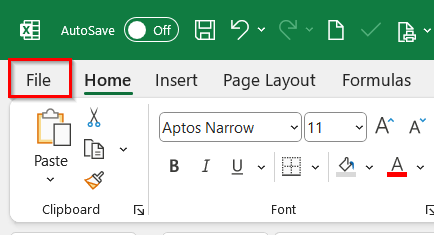
➤ Open the old Excel file and go to the File tab from the Ribbon.
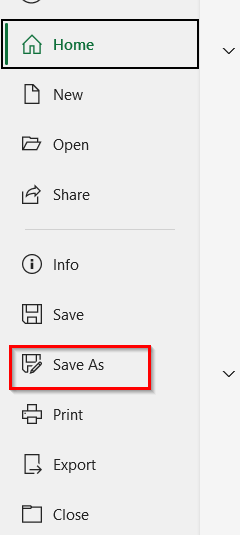
➤ Choose the Save As option.
➤ Select the Browse option to specify the location of the saved file.
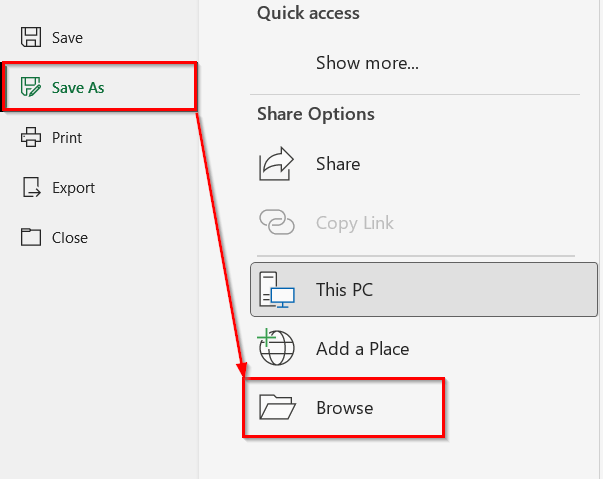
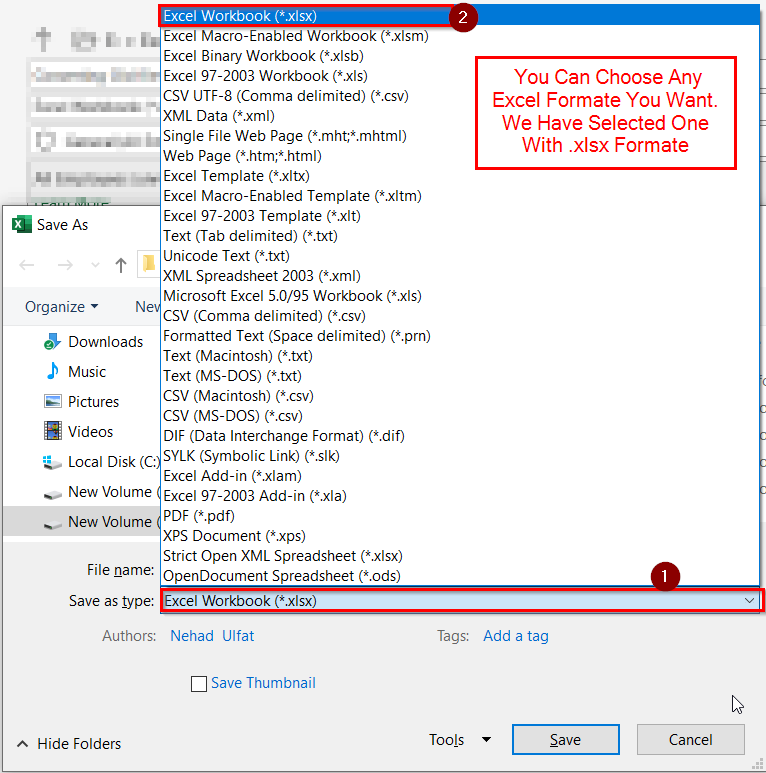
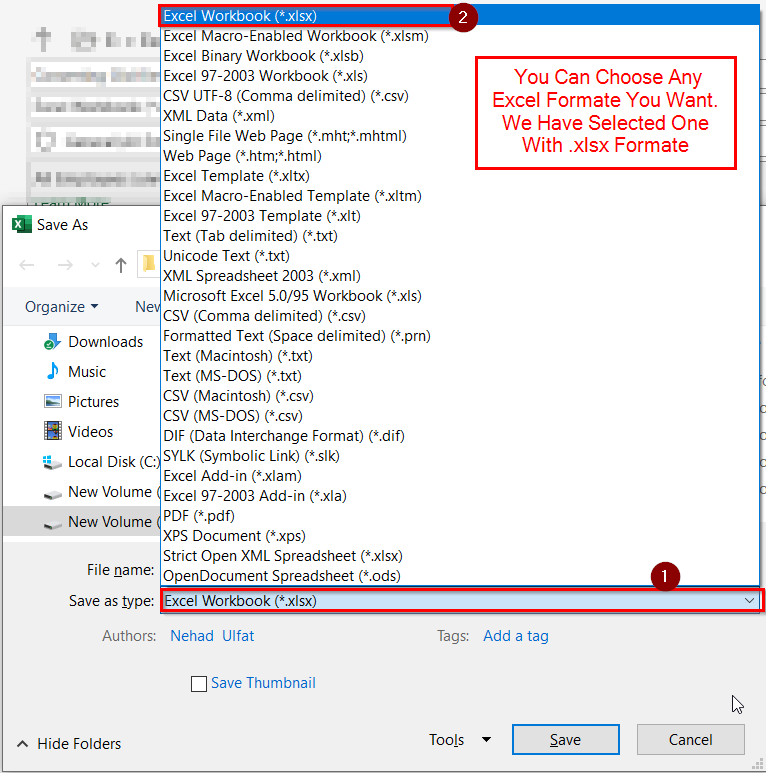
➤ Click on the box next to Save as type text and choose the new format like .xlxs from the dropdown list.
➤ Click the Save option.
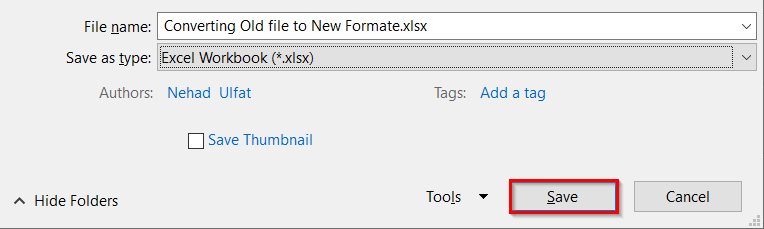
➤ The old Excel file will be converted to the new format as a .xlsx file.
Applying VBA Macro to Convert Old Excel Files to a New Format
A VBA Macro is a short script inside Excel that can automate repetitive tasks. In this case, we can use it to batch convert old .xls files into the newer .xlsx format. This method is useful if you have many historical datasets stored in old formats and want to ensure compatibility with modern Excel.
Steps:
➤ Open your old Excel file and click on the File option from the ribbon.
➤ Click on Options from the bottom left of the window.
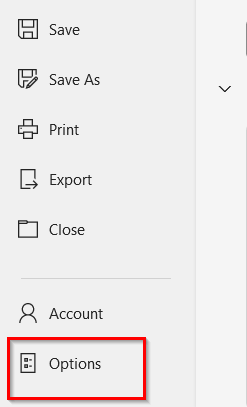
➤ Go to Customize Ribbon and check the Developer tab.
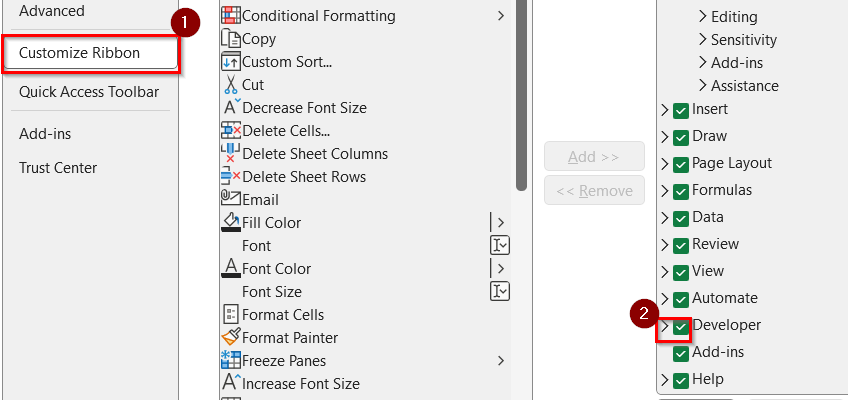
➤ Open the VBA Editor by pressing the keyboard shortcut Alt + F11 .
➤ Click on Insert and then select the Module from the drop-down.
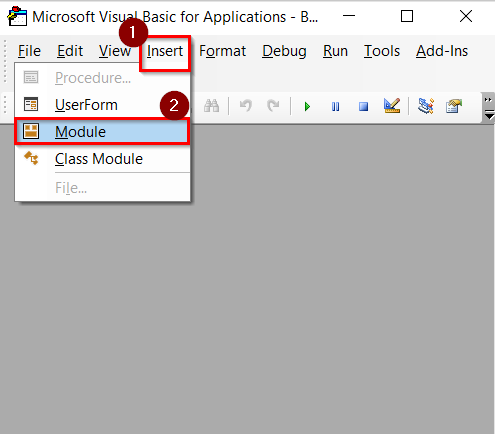
➤ A new bank box will appear. Copy and paste the following VBA code in that blank box.
Sub ConvertXLS_to_XLSX()
    Dim xFd As FileDialog
    Dim xFdItem As Variant
    Dim xFileName As String
    Dim wb As Workbook
    Application.ScreenUpdating = False
    Application.DisplayAlerts = False
    Set xFd = Application.FileDialog(msoFileDialogFolderPicker)
    If xFd.Show = -1 Then
        For Each xFdItem In xFd.SelectedItems
            xFileName = Dir(xFdItem & "\*.xls")
            Do While xFileName <> ""
                Set wb = Workbooks.Open(xFdItem & "\" & xFileName)
                wb.SaveAs Replace(wb.FullName, ".xls", ".xlsx"), 51
                wb. Close False
                xFileName = Dir
            Loop
        Next
    End If
    Application.ScreenUpdating = True
    Application.DisplayAlerts = True
    MsgBox "All files converted successfully!"
End Sub
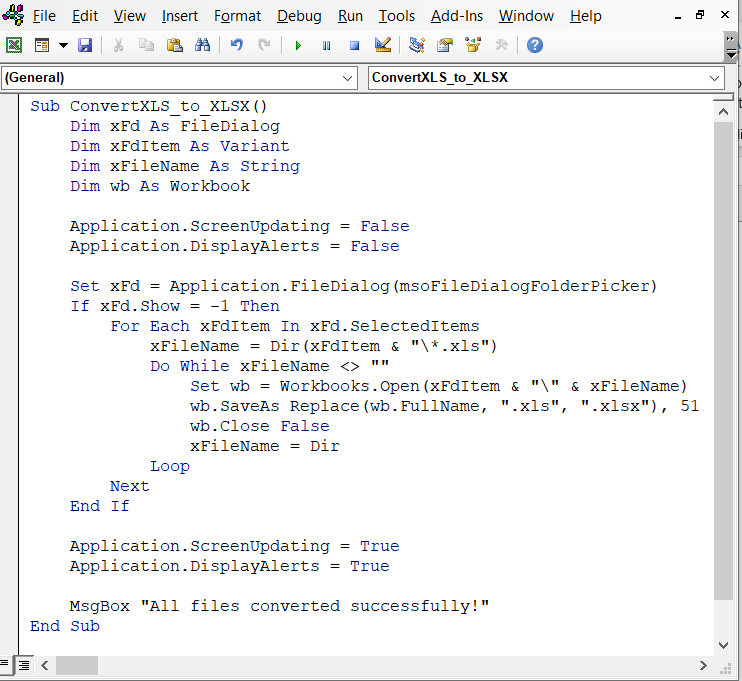
➤ Press Alt + Q to close the VBA editor.
➤ Now press Alt + F8 to open the Macro window.
➤ Select ConvertXLS_to_XLSX and Press Run.
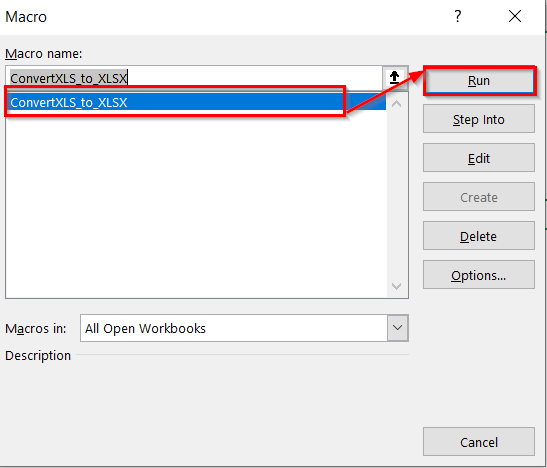
➤ Now the old Excel file will be converted to the new format as a .xlsx file.
Downloadable Resources
Get our practice workbook or necessary files that we have worked with to prepare this article.
Excel Files with Different Formats.zip
Frequently Asked Questions
How to convert old Excel files to the new format?
Open the .xls file in Excel, go to File > Save As, and choose .xlsx as the new format.
How do I change the format of an Excel file?
Go to the “Save As” option in Excel, select the desired format (e.g., .xlsx), and save the file.
Why should I convert XLS to XLSX?
The .xlsx format offers better performance, enhanced features like formulas and pivot tables, higher row limits, and improved compatibility with modern software.
What is the difference between XLS and XLSX files?
- XLS is the older Excel file format used in Excel 97–2003. It stores data in a binary format.
- XLSX is the newer format introduced in Excel 2007. It uses an XML-based (OpenXML) structure, which makes files smaller, more secure, and easier to recover if damaged.
How do I convert Excel 97-2003 to XLSX?
You can easily convert an older .xls file to .xlsx format:
- Open the .xls file in Microsoft Excel.
- Click File > Save As.
- Choose Excel Workbook (*.xlsx) as the file type.
- Click Save.
Is there a way to open an older version of an Excel file?
Yes. Most modern versions of Excel (Excel 2007 and later) can open older .xls files directly.
If you’re using a newer Excel and it won’t open, try:
- Using Excel’s Compatibility Mode.
- Uploading the file to Google Sheets and then saving it in a modern format.
- Installing the free Microsoft Office Compatibility Pack (for older Office versions).
Concluding Words
Converting old Excel files to new formats is essential for keeping your data future-ready. We have described two easy methods that can convert the old Excel files to a new format. Also, we have uploaded the Excel files we have used in this article to demonstrate. You can download and use them to practice.