
In Excel, every time we save or share a file, metadata like the “Last Modified By” property is recorded. It is part of Excel’s built-in metadata stored in the document. This metadata automatically records the name of the last person who saved the workbook. This feature is widely used for collaboration, tracking edits in Teamwork, but many users want to remove it before sending final reports or professional documents to maintain privacy.
To remove the “last modified by” information in Excel, follow these steps:
➤ Open your Excel file and click on the File tab.
➤ Go to Info → Check for Issues → Inspect Document.
➤ Select Document Properties and Personal Information, then remove them.
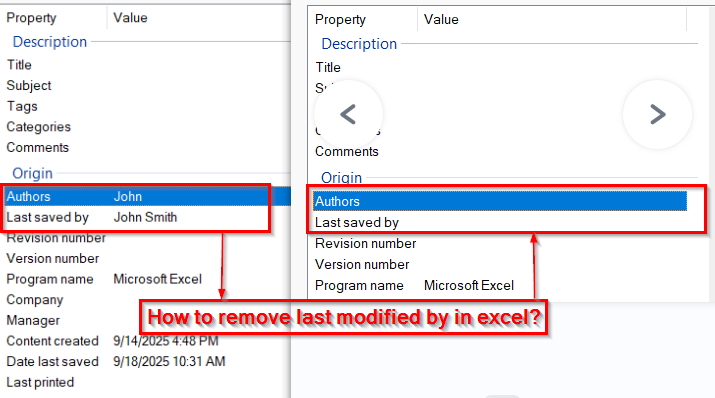
In this article, we will describe how to remove “Last Modified by” information in Excel using the Inspect Document feature, File tab, and Properties option.
Using the Inspect Document Feature to Remove 'Last Modified By' in Excel
The Inspect Document feature is a built-in tool in Excel. It helps us to scan our file for hidden metadata (like Author, Last Modified By, and other personal information) and allows us to remove it.
We have taken a dataset and want to share this file with external auditors. To protect staff privacy, we will use the Inspect Document feature to remove “Last Modified By” and other hidden metadata.
Steps:
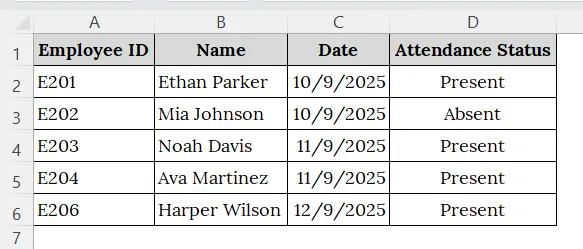
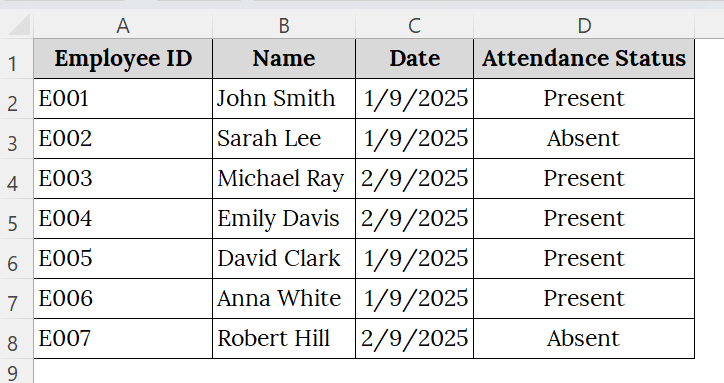
➤ Open your Excel Workbook. Here, we have taken a dataset that contains Employee ID in Column A, Name in Column B, Date in Column C, and Attendance Status in Column C.
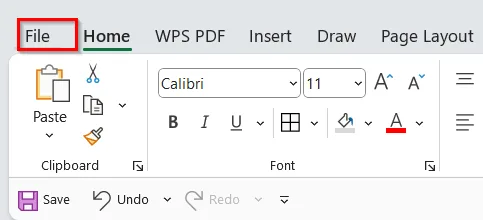
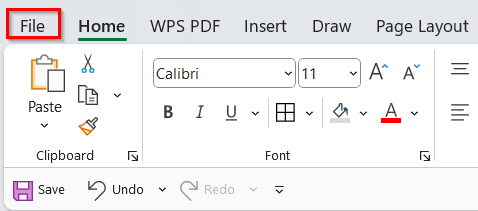
➤ Click the File tab in the top-left corner of the Ribbon.
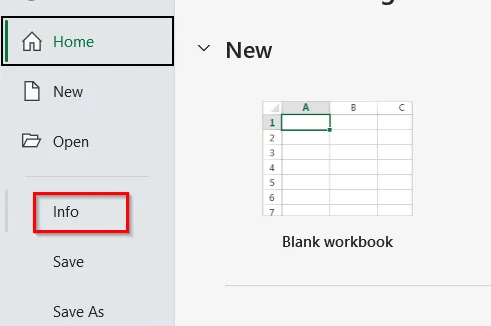
➤ From the left-hand panel, choose Info.
➤In the Info window, look for the Check for Issues button. Click it to open a drop-down menu.
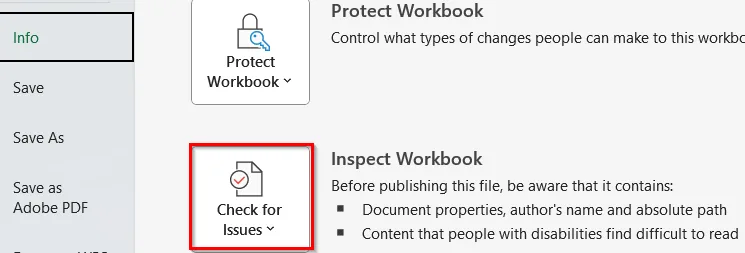
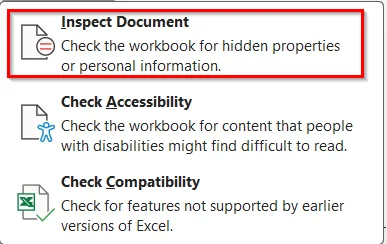
➤ From the menu, choose Inspect Document.
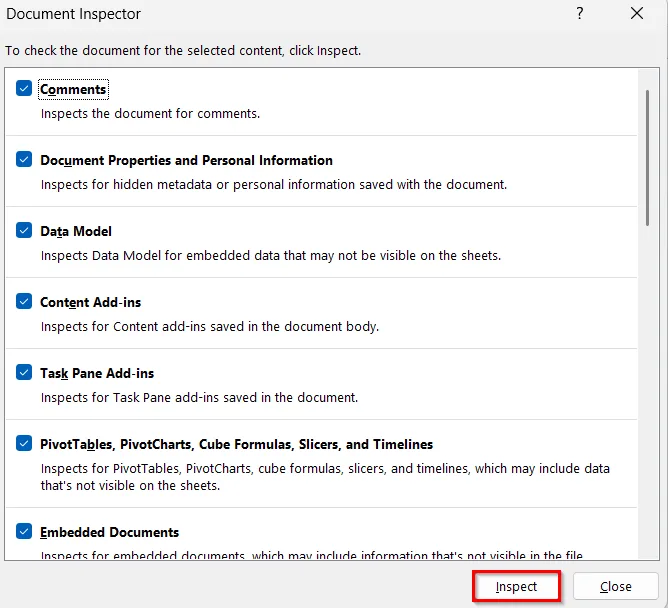
➤ The Document Inspector dialog box will appear. Then, click Inspect.
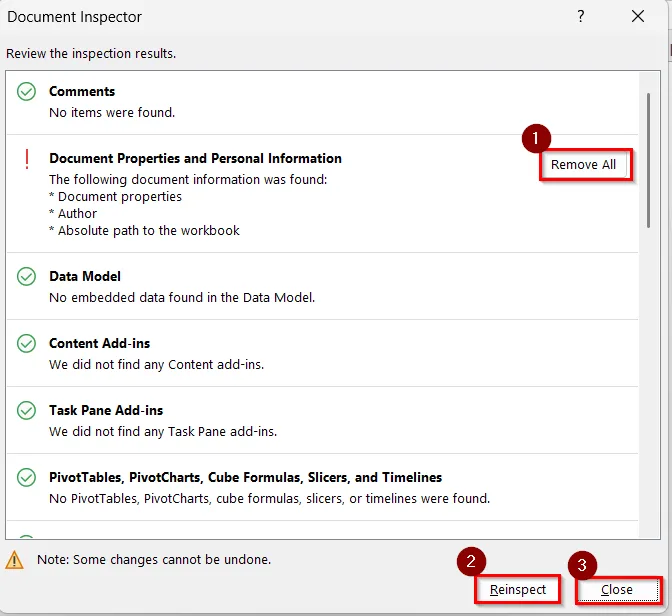
➤ The results will show a warning (!) under Document Properties and Personal Information.
➤ Click Remove All to delete Author, Last Modified By, and related details.
➤ Click Reinspect to confirm that all properties have been removed.
➤ Close the dialog box and return to your workbook.
➤ Now check, it will show no document properties, and personal information was found.
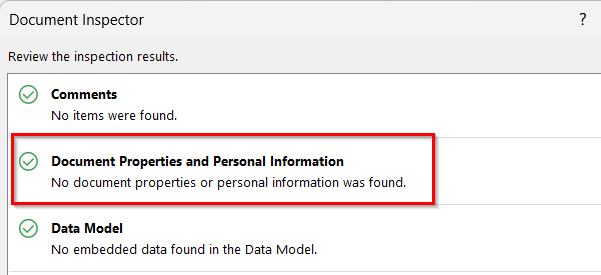
Note:
The Inspect Document tool can also remove comments, hidden rows/columns, headers/footers, and custom XML data.
Use the File Properties Option to Remove 'Last Modified By' Property
The File Properties feature in Windows allows us to remove “Last Modified By” and other user details.
We have the company’s sales department files, where different employees have edited reports. We will use the File Properties feature to remove the last modified by information before sharing the files externally.
Steps:
➤ Open File Explorer on your computer. Navigate to the folder where your Excel workbook is saved.
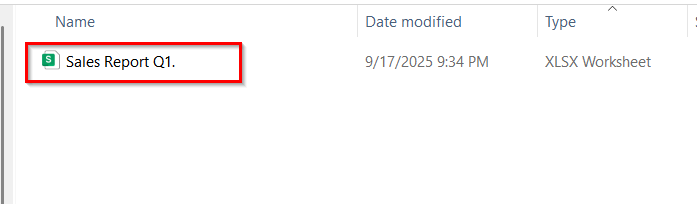
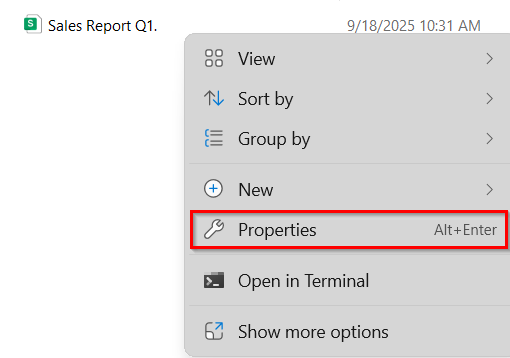
➤ Right-click on the Excel file to open the context menu. Then, click on “Properties”.
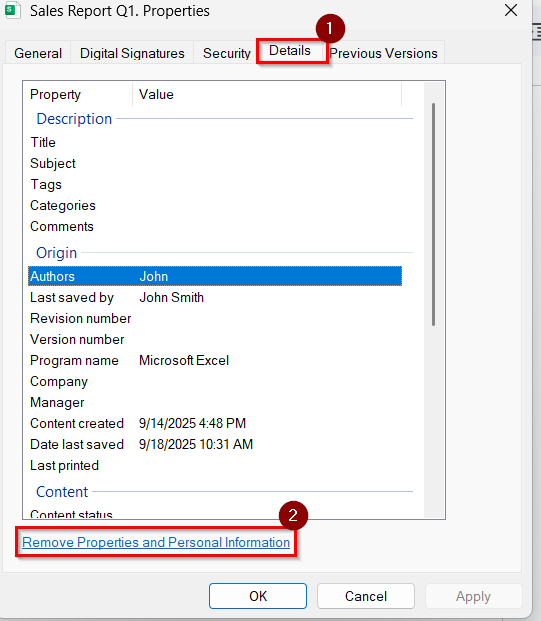
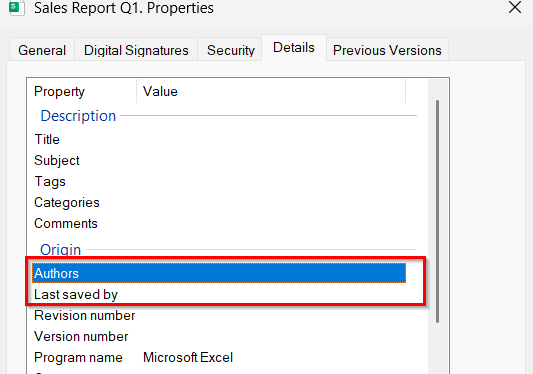
➤ In the Properties dialog box, click the Details tab.
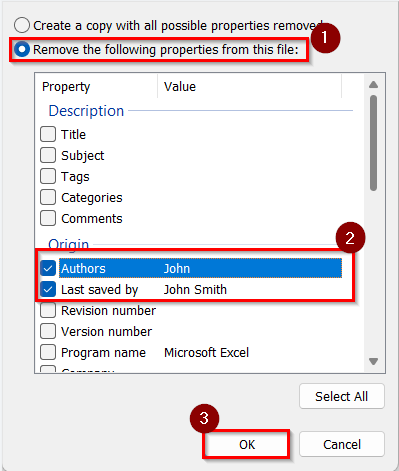
➤ At the bottom of the Details tab, click on Remove Properties and Personal Information.
➤ A new dialog box will open.
➤ Select Remove the following properties from this file. Check Author and Last Saved By (or any other personal details you want to remove).
➤ Then, click OK to confirm.
➤ Now, the file no longer displays “Last Modified By” information.
Remove Last Modified and Author Information Using the Excel Setting
This File Tab option also helps to remove “Last Modified By” (Author) information.
We have an Excel dataset that contains training attendance reports of the different employees. We need to share the training attendance reports with external consultants, but we will use the File Tab method to remove the Author field for professional sharing.
Steps:
➤ Open the Excel workbook.
➤ Click on the File tab located in the top-left corner of Excel.
➤ From the left-side menu, click on Info.
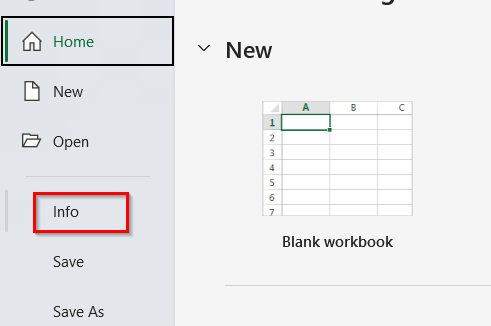
➤This will display document properties on the right-hand side, including Author.

➤ Right-click on the author’s name (e.g., “John”). From the context menu, choose Remove Person.
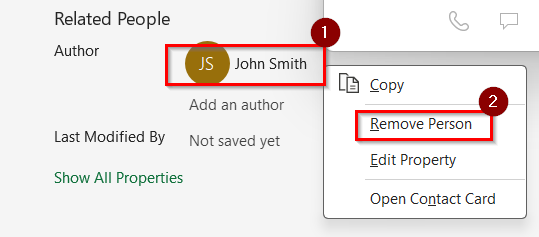
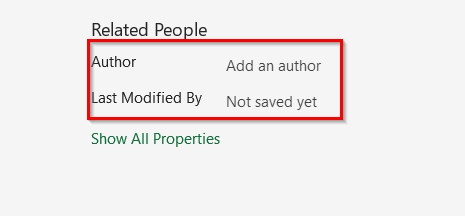
➤ The Author field, along with the last Modified By field, will be removed.
Note:
If multiple authors are listed, repeat the process for each name.
Frequently Asked Questions
Can I permanently stop Excel from saving “Last Modified By”?
No. Excel automatically records it, but you can remove it every time using the Document Inspector.
Does removing it affect my actual worksheet data?
No. Removing “Last Modified By” only deletes metadata, not your spreadsheet content.
Will this also remove other author details?
Yes, when you remove document properties, Excel may also clear author, company name, and other metadata.
Concluding Words
The best method to remove Last Modified By in Excel is using the Inspect Document method. It helps to remove the Last Modified By information easily. We have shared the Excel files used in this article so that you can download and practice with them. Please leave a comment if you encounter any further issues.