
Merging two columns in Excel with a space means combining the contents of two separate cells into a single cell, with a blank space added between the values. For example, combining column A (First Name) and column B (Last Name) results in “John Smith” in one cell instead of two.
To merge two columns in Excel with a space, follow these steps-
➤ Select a new column where you want to place the combined result.
➤ Type the formula: =A2 & ” ” & B2
➤ Press Enter, and drag the fill handle down to apply the formula to the rest of the cells.
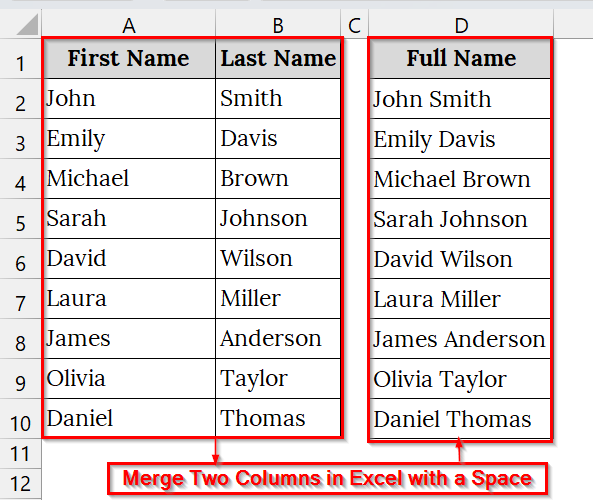
In this article, we will describe how to merge two columns in Excel with a space using the ampersand symbol (&), the CONCAT function, the TEXTJOIN function, and the Flash Fill method.
Using the Ampersand Operator to Merge Two Columns in Excel with a Space
This method uses the ampersand symbol (&) to combine two or more columns in Excel. This is a simple and effective way to combine text values. We use it when we want to combine first and last names, city and state names, or any text values separated by a space, comma, or any character.
We have a dataset of staff attendance where first names and last names are recorded in separate columns. We will merge these two columns into a single full name column, with a space between the first and last names, using the Ampersand (&) Operator.
Steps:
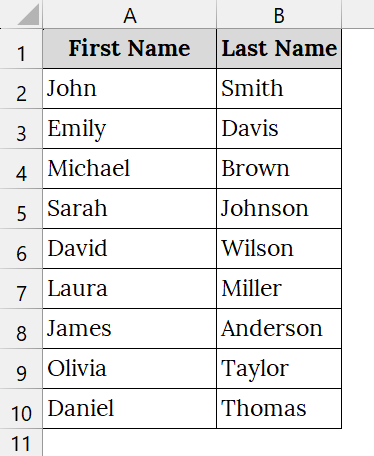
➤ Open your Excel file containing the two columns you want to merge. For example, we have taken a table containing First Name in column A and Last Name in column B.
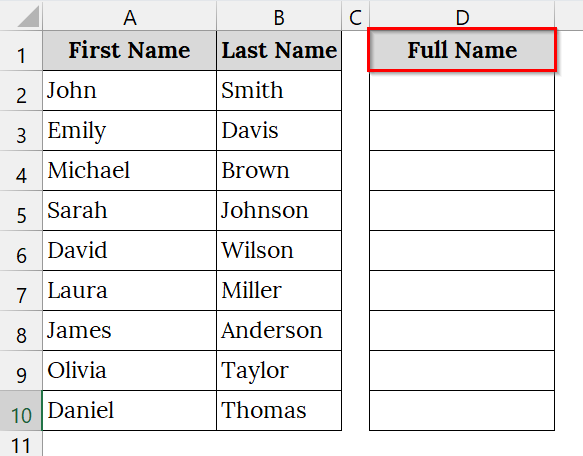
➤ Click on the column where you want to keep the merged data. For example, click on Cell D1 and rename the column header as Full Name.
➤ Click on cell D2 and type the formula:
=A2 & " " & B2
This formula tells Excel to take the text from A2, add a space (” “), and then combine it with the text from B2.
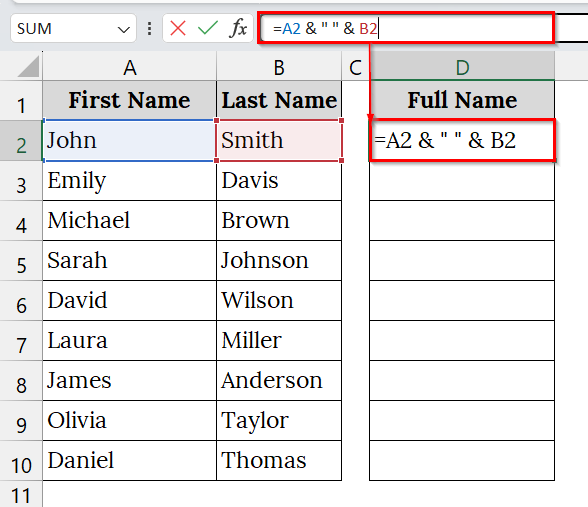
➤ Once you get the correct full name in cell D2, drag the fill handle down to apply the formula to all other rows.
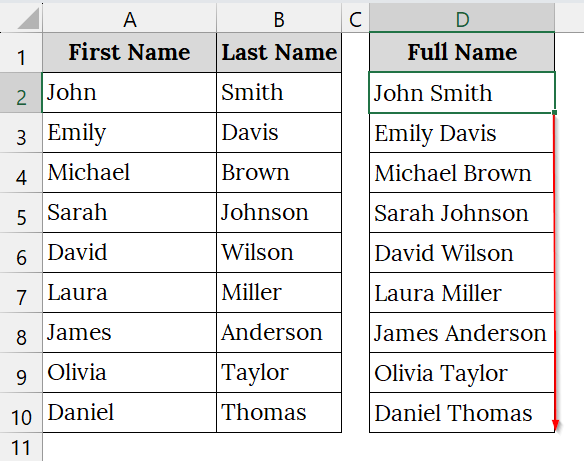
Note:
➥ If you want a comma or dash between two columns instead of a space, you can modify the formula like:=A2 & “, ” & B2 or =A2 & ” – ” & B2
➥ Ensure both cells contain text; if one is empty, Excel will simply display the existing value without an error.
➥ You can combine more than two columns using the same approach, for example: =A2 & ” ” & B2 & ” (” & C2 & “)”
Applying the CONCAT Function to Merge Two Columns with a Space
The CONCAT function in Excel is used to combine text values from multiple cells into one. This is an updated and more powerful replacement for the older CONCATENATE function. We use this method when we want to merge columns like First Name and Last Name into a single column, with a space or any other separator between them. This function works well with text data in structured datasets such as employee names, customer lists, or student records.
We have an Excel file that contains a customer contact list in Excel where the First Name and Last Name of customers are stored in separate columns. We will merge these two columns into a single Full Name column using the CONCAT function so the names appear neatly with a space between them.
Steps:
➤ Open the Excel sheet that contains the two columns you want to merge. Here, we have taken a dataset containing First Name in column A and Last Name in column B.
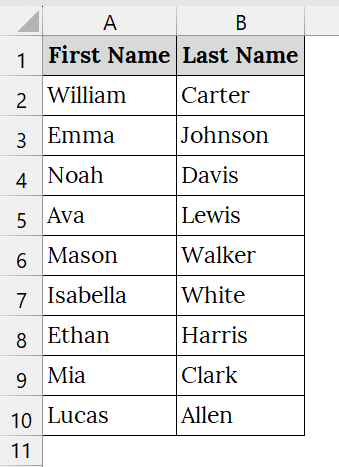
➤ Click on the column where you want to keep the merge results. For example, click on Cell D1 and label this column as Full Name.
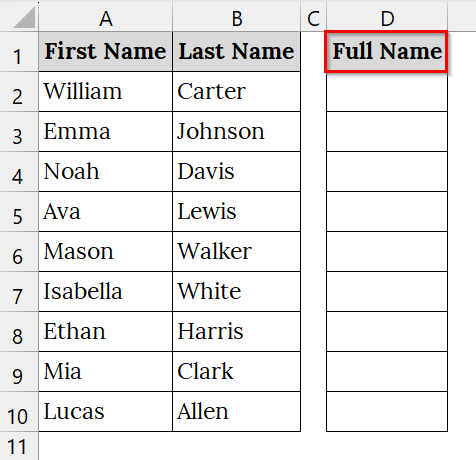
➤ In cell D2, enter the following formula:
=CONCAT(A2, " ", B2)
This formula tells Excel to join the value in A2, add a space (” “), and then combine it with B2.
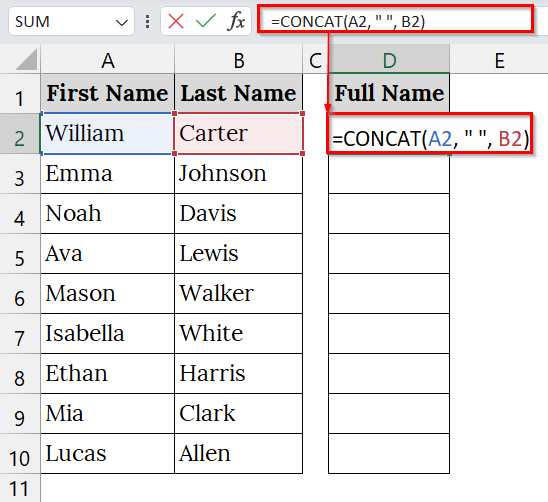
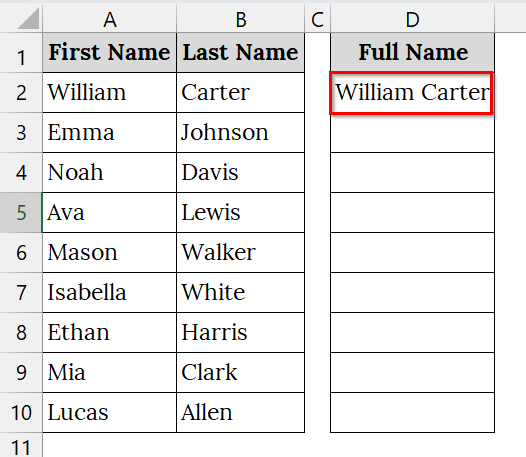
➤ After typing the formula, press Enter. You will now see the merged full name (e.g., William Carter) in cell D2.
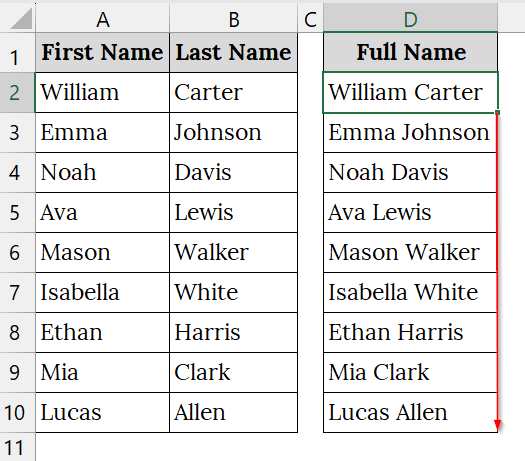
➤ Click on the fill handle and drag it down to apply the formula for the remaining rows.
Note:
➥ CONCAT is available in Excel 2016 and later versions. For older Excel versions, use CONCATENATE instead.
➥ You can also merge more than two columns, for example: =CONCAT(A2, ” “, B2, ” – “, C2). This will combine the first name, last name, and city with a dash in between.
Using the TEXTJOIN Function to Merge Two Columns with a Space
The TEXTJOIN function is a modern Excel function that combines text from multiple cells with a chosen delimiter (like a space, comma, or dash). This is more flexible than CONCAT or &, because we can define the separator once and even ignore empty cells automatically.
We have a dataset that contains an online course enrollment list where First Name and Last Name are recorded separately. We will merge them into a single Full Name column with a space in between using the TEXTJOIN function for cleaner reporting or mailing lists.
Steps:
➤ Open the Excel file that contains the data you want to merge. For example, we have taken a table that contains First Name in column A and Last Name in column B.

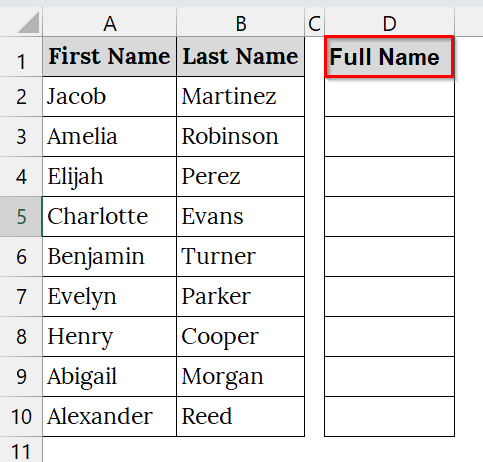
➤ Click on a new Column where you want your merged results. For example, click on cell D1 and rename the column header as Full Name.
➤ Click on cell D2 and type this formula:
=TEXTJOIN(" ", TRUE, A2, B2)
Here:
➥ ” “ → Defines a space as the separator between columns.
➥ TRUE → Tells Excel to ignore blank cells.
➥ A2, B2 → The cells being merged.
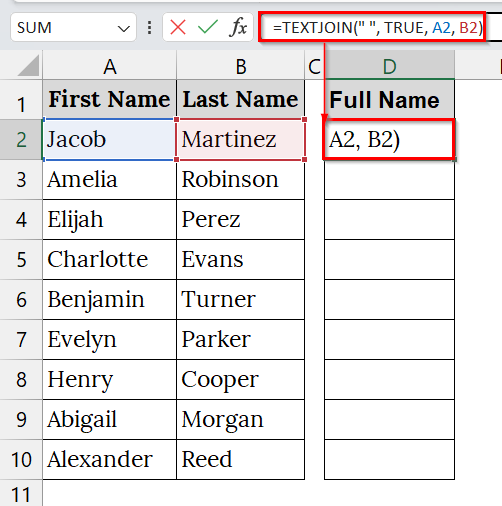
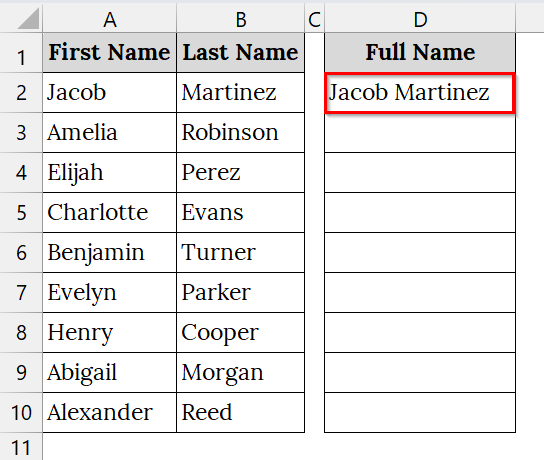
➤ Press Enter. You will see the combined full name (e.g., Jacob Martinez) appear in cell D2.
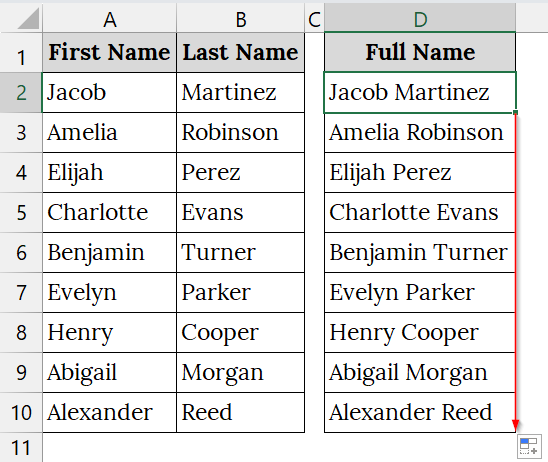
➤ Select the bottom-right corner of cell D2 and drag the fill handle down to copy the formula for all other rows.
Using the Flash Fill Tool to Merge Two Columns with a Space
The Flash Fill tool in Excel can automatically fill in values when it detects a pattern based on user input. This is good for combining two columns like First Name and Last Name with a space without writing any formula. This method is good when our data follows a consistent structure, such as merging customer names, employee IDs, or addresses.
Steps:
➤ Open your Excel file containing the two columns you want to merge. For example, First Name in column A and Last Name in column B.
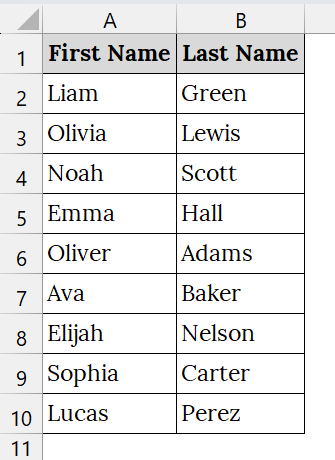
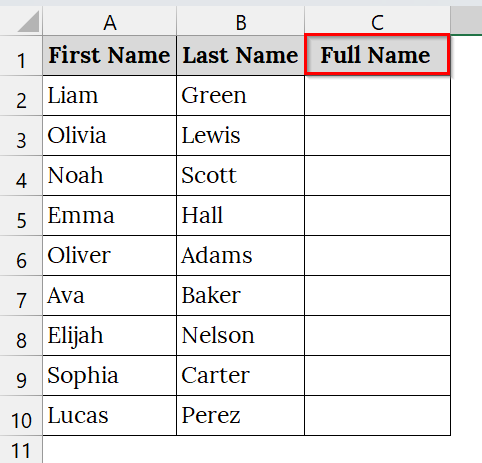
➤ Click on the column where you want to keep the merge results. For example, click on Cell C1 and label this column header as Full Name.
➤ In cell C2, type the first full name exactly as you want it to appear.
For example: Liam Green.
Here, Excel starts learning your pattern.
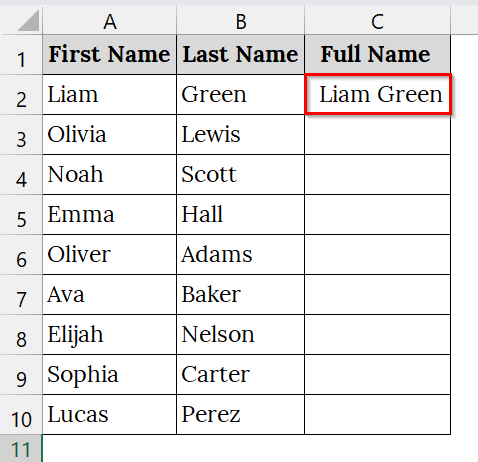
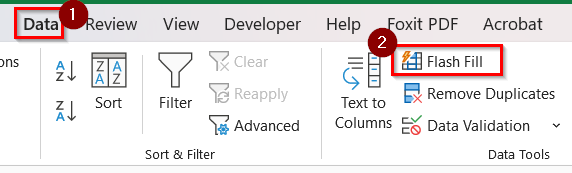
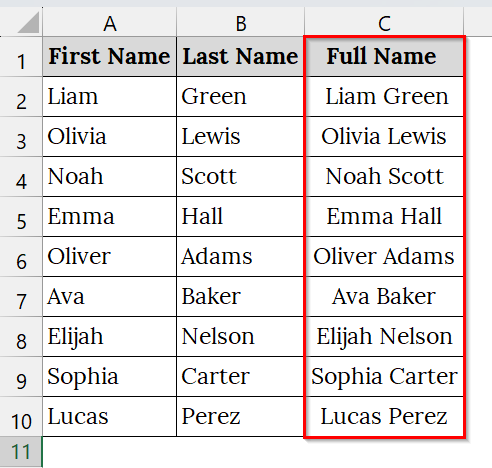
➤ Click on C3 and press Ctrl + E on your keyboard or go to the Data tab → Flash Fill. Excel will automatically fill all remaining cells in the column by combining the first and last names with a space.
➤ Review the filled column to ensure all names are correctly combined. If needed, make manual corrections for any inconsistencies.
Note:
➥ If Flash Fill doesn’t trigger automatically, you can enable it by: File → Options → Advanced → Editing Options → Check “Automatically Flash Fill”.
➥ You can also use it to merge more than two columns (e.g., First Name + Middle Name + Last Name).
Downloadable Resources
Get our practice workbook or necessary files that we have worked with to prepare this article.
Merge Two Columns with Space.xlsx
Frequently Asked Questions
Can I merge two columns without losing data?
Yes. By using the & operator or the CONCATENATE/TEXTJOIN functions, your original data remains intact.
What if I want to add a comma instead of a space?
Simply replace the space in the formula with “, ” (including the quotes):
=A2 & ", " & B2
Can I merge more than two columns at once?
Yes. Use the same method with multiple references, e.g.,
=A2 & " " & B2 & " " & C2
What’s the easiest non-formula method?
You can use Flash Fill (Ctrl + E) to automatically fill merged results after typing an example in the first cell.
Concluding Words
We have described 4 easy and widely used methods to merge two columns in Excel with a space, including the ampersand symbol (&), the CONCAT function, the TEXTJOIN function, and the Flash Fill method. Also, we have uploaded all the datasets used in this article, allowing you to download and use them for practice.