
When working with Excel, many professionals and developers need to automate the process of importing and reading data from text files. Using VBA to read a text file line by line is one of the most efficient ways to handle large datasets, log files, or structured reports directly within Excel. Instead of reading the entire file at once, this technique helps manage memory efficiently and allows Excel to process each line individually.
To read a text file line by line using VBA, follow these steps:
➤ Press Alt + F11 to open the Visual Basic for Applications (VBA) editor in Excel.
➤ Go to Insert → Module and paste your VBA code.
➤ Run the macro using F5 or assign it to a button. The macro will open, read, and process your text file line by line, displaying the results in your worksheet or a message box.
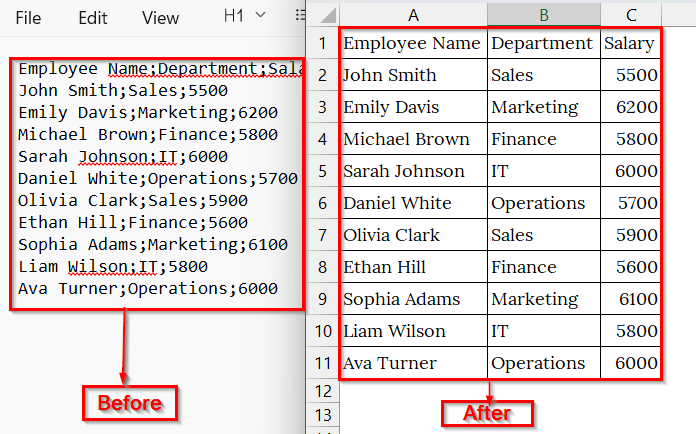
In this article, we will show 5 methods on how to read a text file line by line using VBA in Excel. We will use the display message box and worksheet to read the text file.
Read First Line of a Text File Using VBA in a MsgBox
If we want to read only the first line of a text file using VBA, we can easily do that using VBA. We use this process when we want to check the file header or validate the data structure before importing the full dataset. This approach works best for CSV or TXT files that contain column titles or metadata in the first line.
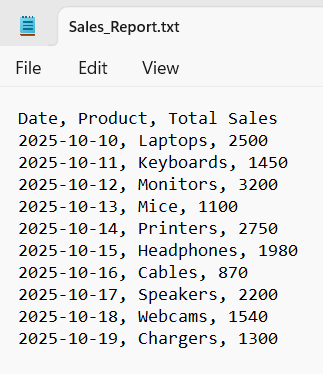
We have a text file that contains a company’s daily sales summary for different electronic products. We will use VBA to read only the first line (header) from the text file and present it in a MsgBox.
Steps:
➤ We have taken a text file named SalesData.txt that contains comma-separated data like product name, units sold, and revenue.
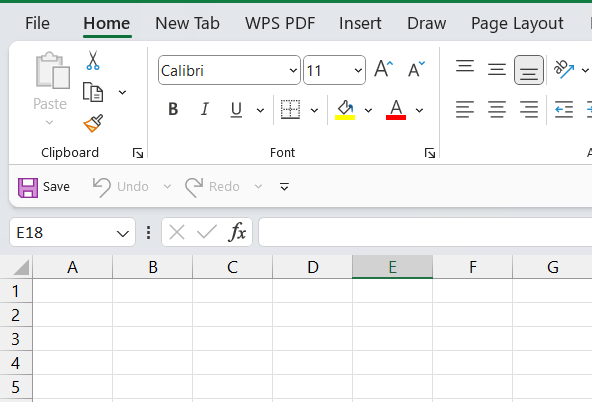
➤ Open a blank Excel worksheet.
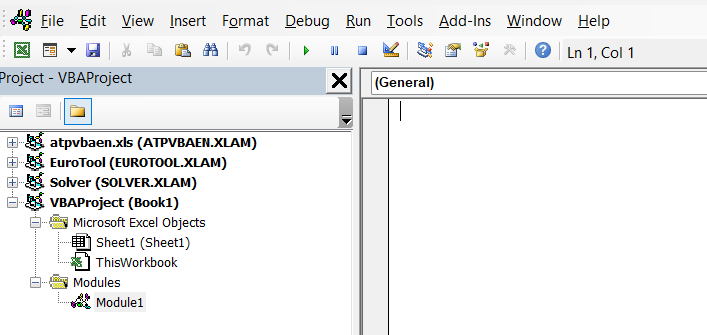
➤ Press Alt + F11 to open the VBA Editor.
➤ From the top menu, go to Insert ➜ Module to create a new module.
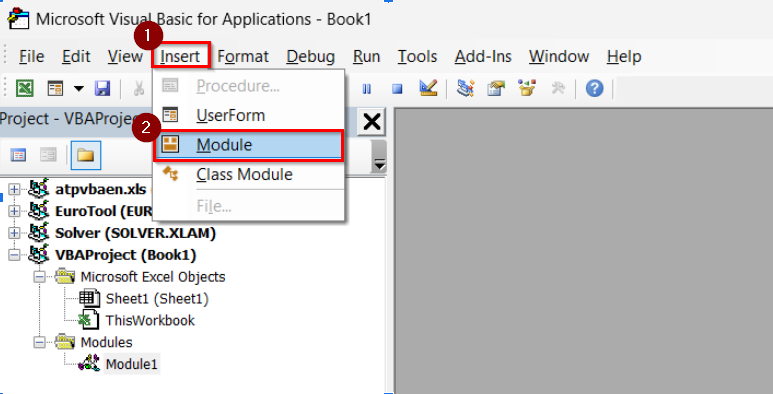
➤ A new code window will open where you will paste your VBA script.
➤ Copy and paste the following VBA code into the new module:
Sub Read_First_Line_AnyFormat()
    Dim FilePath As String
    Dim FileContent As String
    Dim FirstLine As String
    Dim FileNum As Integer
    FilePath = "D:\Excel Folder\79\1\Sales_Report.txt"
    FileNum = FreeFile
    'Read the whole file content
    Open FilePath For Binary As #FileNum
    FileContent = Space$(LOF(FileNum))
    Get #FileNum, , FileContent
    Close #FileNum
    'Find the first line break (handles LF or CRLF)
    If InStr(FileContent, vbCrLf) > 0 Then
        FirstLine = Split(FileContent, vbCrLf)(0)
    ElseIf InStr(FileContent, vbLf) > 0 Then
        FirstLine = Split(FileContent, vbLf)(0)
    Else
        FirstLine = FileContent
    End If
    MsgBox "First Line: " & FirstLine
End Sub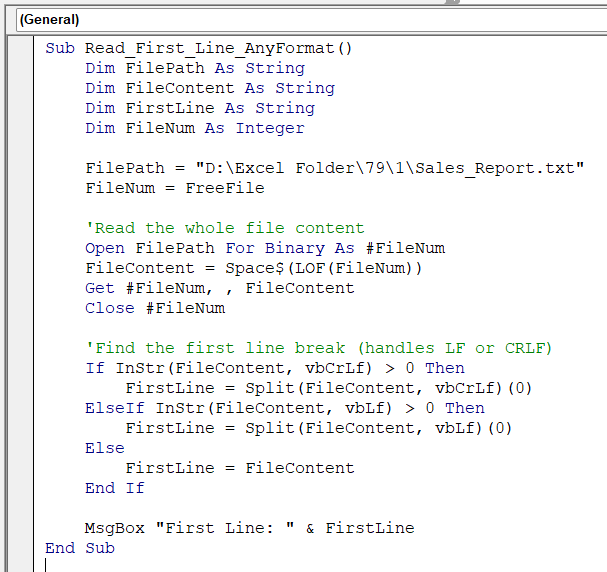
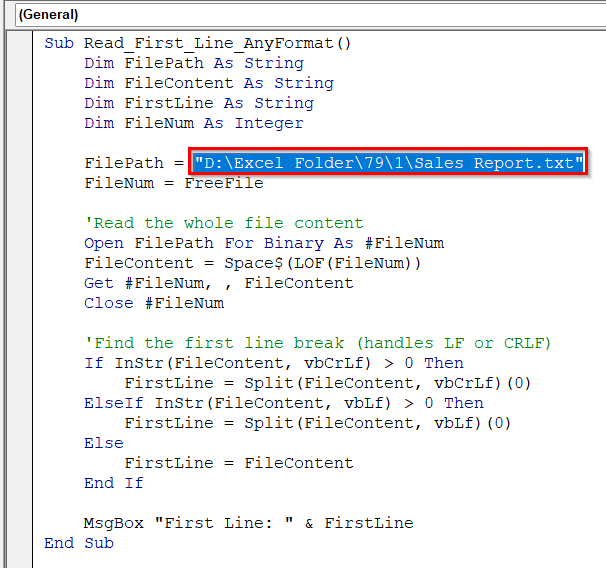
➤ Select the file path in the code.
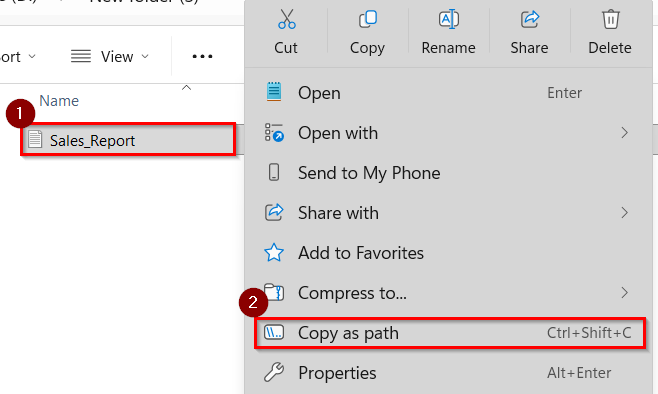
➤ Go to the folder where your text file is saved: Sales_Report.txt.
➤ Hold down the Shift key, right–click on the file, and select Copy as path. This will copy the full directory of your text file, which we will later paste into the VBA code.
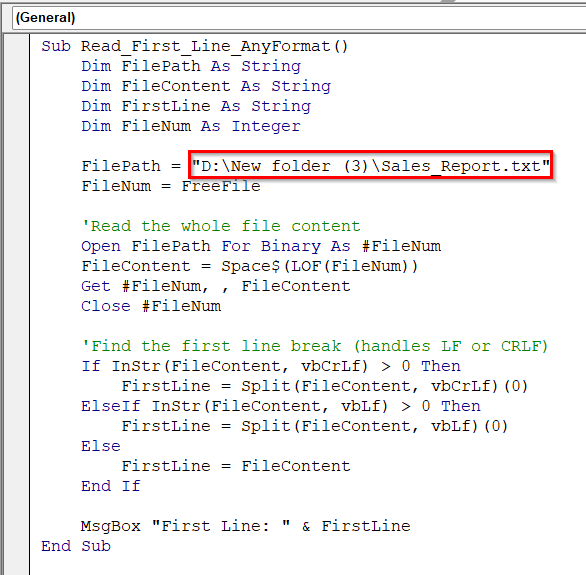
➤ Replace the file path in the code with your own. For example: “D:\New folder (3)\Sales_Report.txt”.
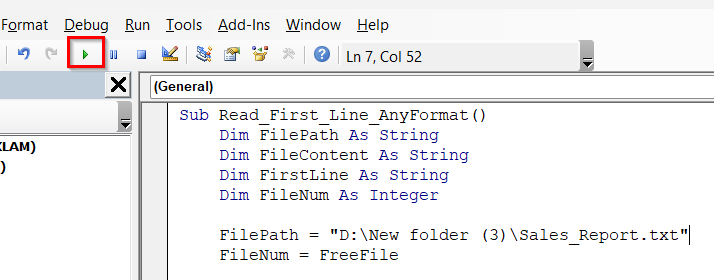
➤ Press F5 or click Run to execute the code.
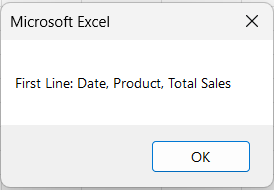
➤ A message box will appear showing the first line of your text file: “Date, Product, Total Sales”.
Read an Entire Text File Line by Line Using VBA
Unlike the first method (which only reads the first line), this one can read every line from a text file and display it using a Message Box. It helps us automatically import a full text file line by line into Excel using VBA.
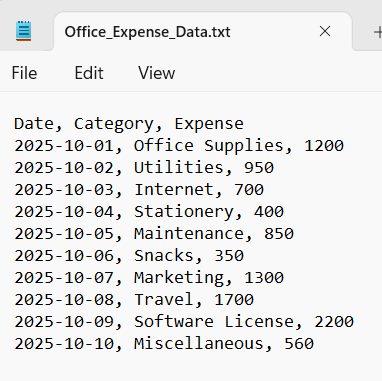
We have a text file that contains a company’s daily expense summary for different purposes. We will use VBA code to read a full text file line by line.
Steps:
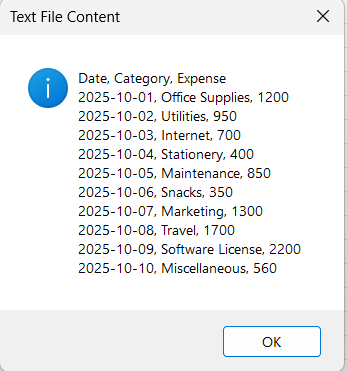
➤ We have taken a text file named Office_Expense.txt that contains comma-separated data of Date, Category, and Expense.
➤ Open a new worksheet.
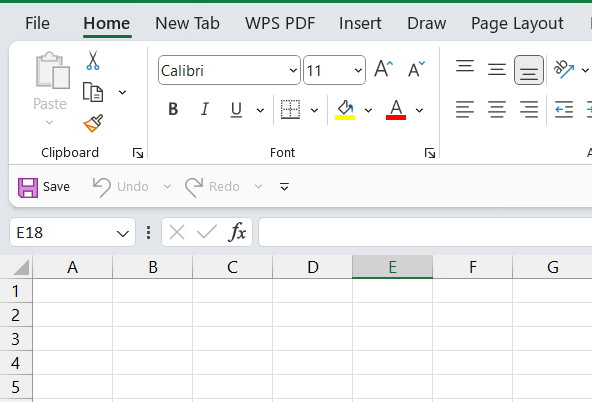
➤ Press Alt + F11 to open the VBA Editor.
➤ From the top menu, go to Insert ➜ Module to create a new module.
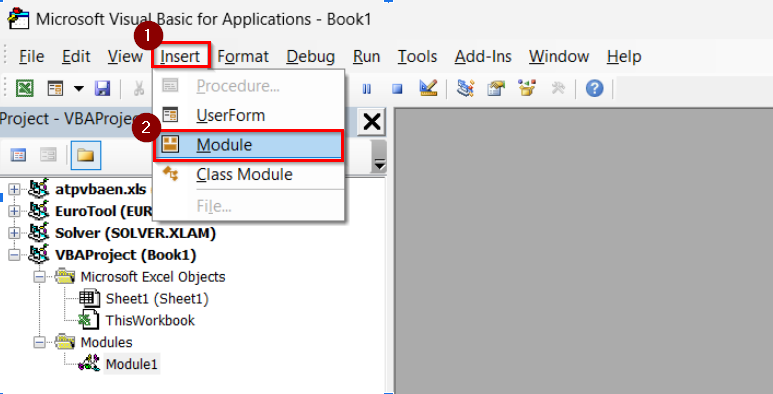
➤ A new code window will open where you will paste your VBA script.
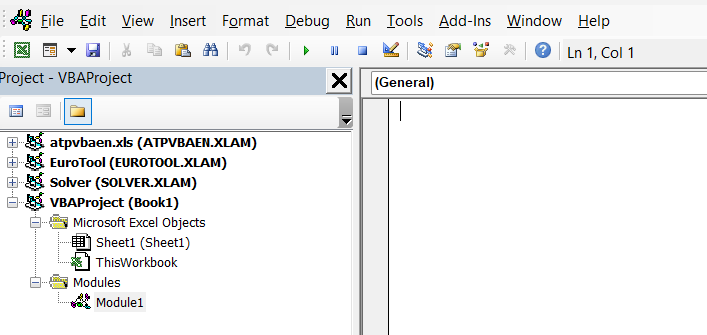
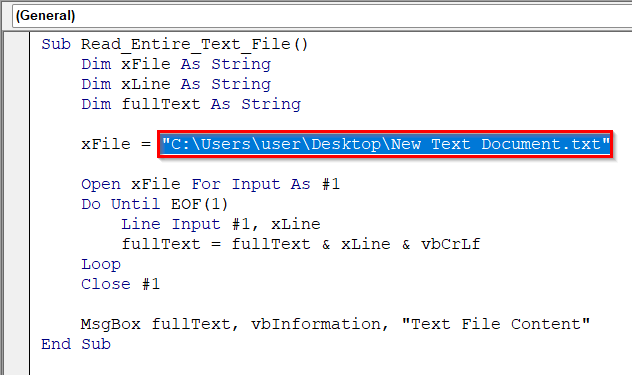
➤ Copy and paste the following VBA code into the new module:
Sub Read_Entire_Text_File()
    Dim xFile As String
    Dim xLine As String
    Dim fullText As String
    xFile = "C:\Users\user\Desktop\New Text Document.txt"
    Open xFile For Input As #1
    Do Until EOF(1)
        Line Input #1, xLine
        fullText = fullText & xLine & vbCrLf
    Loop
    Close #1
    MsgBox fullText, vbInformation, "Text File Content"
End Sub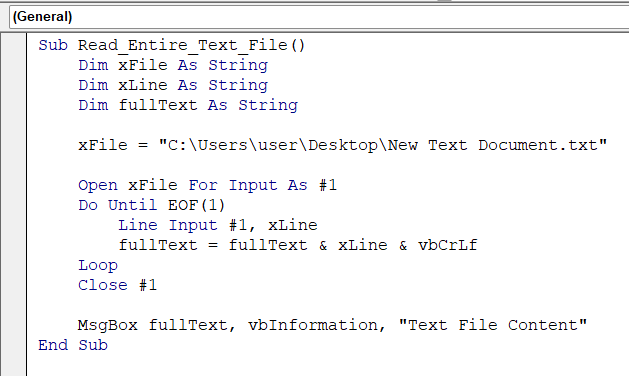
➤ Select the file path in the code.
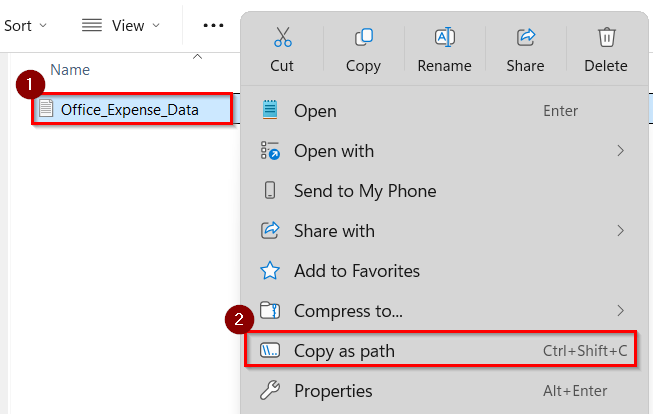
➤ Go to the folder where your text file is saved: Office_Expense_Data.
➤ Hold down the Shift key, right–click on the file, and select Copy as path. This will copy the full directory of your text file, which we will later paste into the VBA code.
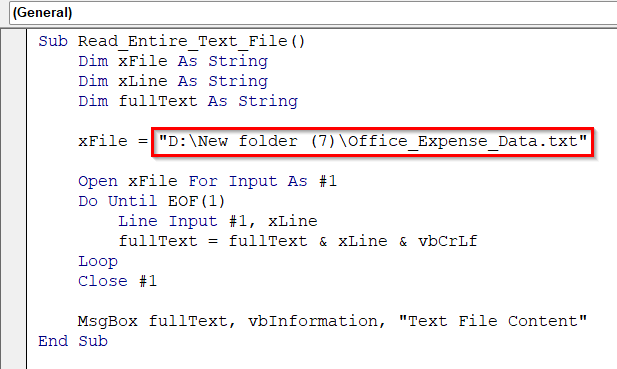
➤ Replace the file path in the code with your own. For example: “D:\New folder (7)\Office_Expense_Data.txt”. Make sure the path includes the .txt file extension.
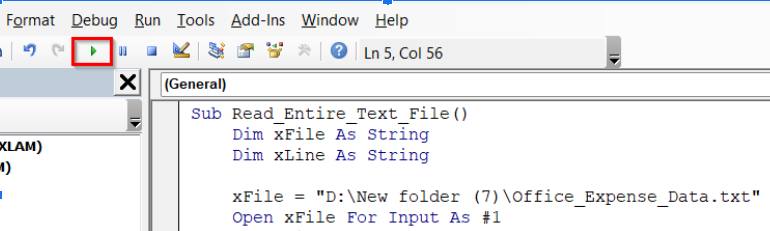
➤ Press F5 or click Run to execute the VBA code.
➤ A message box will appear showing all lines.
Read an Entire Text File Line by Line & Place in Excel Sheet Using VBA
The first two methods only display the text using a Message box, but what if we want the text to be read using the Excel sheet? We can read a text file line by line and separate the text based on a specified delimiter. And then it can automatically split each part into separate columns in Excel. This is useful when our data is stored in a structured text file (like CSV or semi-colon separated values).
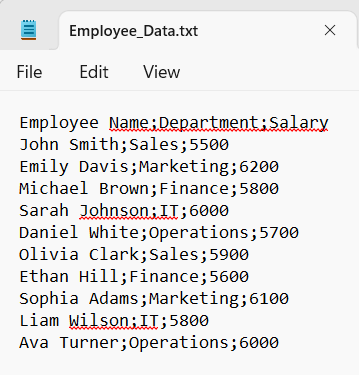
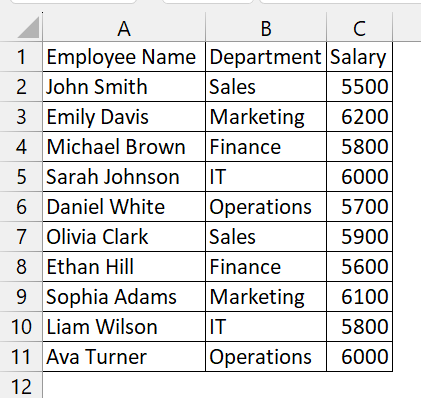
We have a text file that shows a company’s employee details in a text file. We will use VBA to read the text file line by line into Excel and ready for further data analysis or reporting.
Steps:
➤ We have taken a text file named Employee_Data.txt that contains comma-separated data like Employee Name, Department, and Salary.
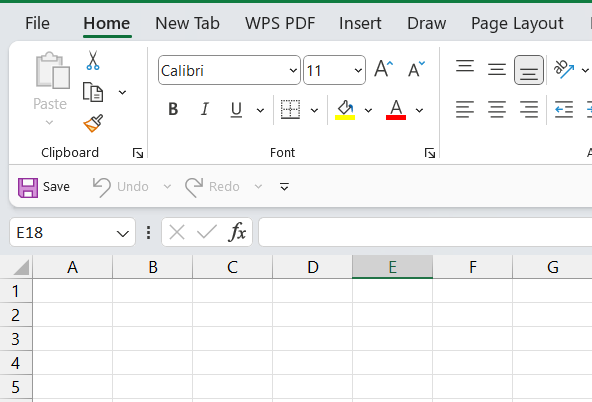
➤ Open a new worksheet.
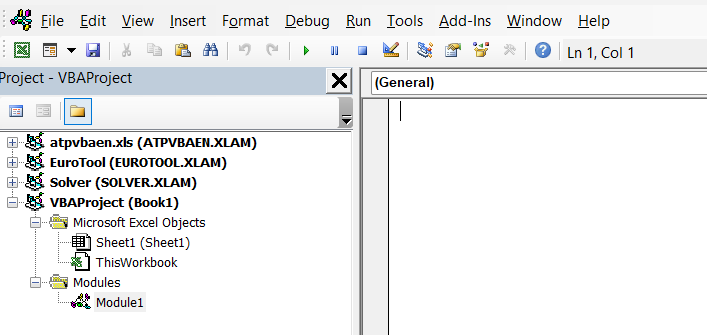
➤ Press Alt + F11 to open the VBA Editor.
➤ From the top menu, go to Insert ➜ Module to create a new module.
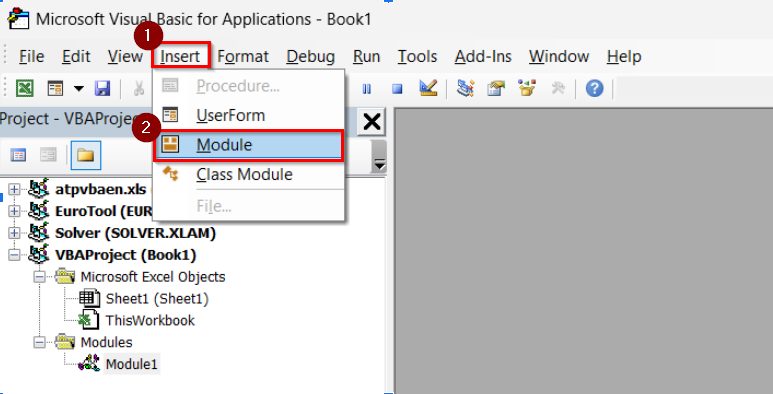
➤ A new code window will open where you will paste your VBA script.
➤ Copy and paste the following VBA code into the new module:
Sub Read_and_Separate_by_Delimiter()
    Dim xLine As String
    Dim xFSO As FileSystemObject
    Dim xTSO As Object
    Dim xLineElements1 As Variant
    Dim xIndex As Long
    Dim z As Long
    Dim xDelimiter As String
    Set xFSO = CreateObject("Scripting.FileSystemObject")
    Set xTSO = xFSO.OpenTextFile("C:\Users\user\Desktop\New Text Document(2).txt")
    xDelimiter = ";"
    xIndex = 1
    Do While xTSO.AtEndOfStream = False
        xLine = xTSO.ReadLine
        xLineElements1 = Split(xLine, xDelimiter)
        For z = LBound(xLineElements1) To UBound(xLineElements1)
            Cells(xIndex, z + 1).Value = xLineElements1(z)
        Next z
        xIndex = xIndex + 1
    Loop
    xTSO.Close
    Set xTSO = Nothing
    Set xFSO = Nothing
End Sub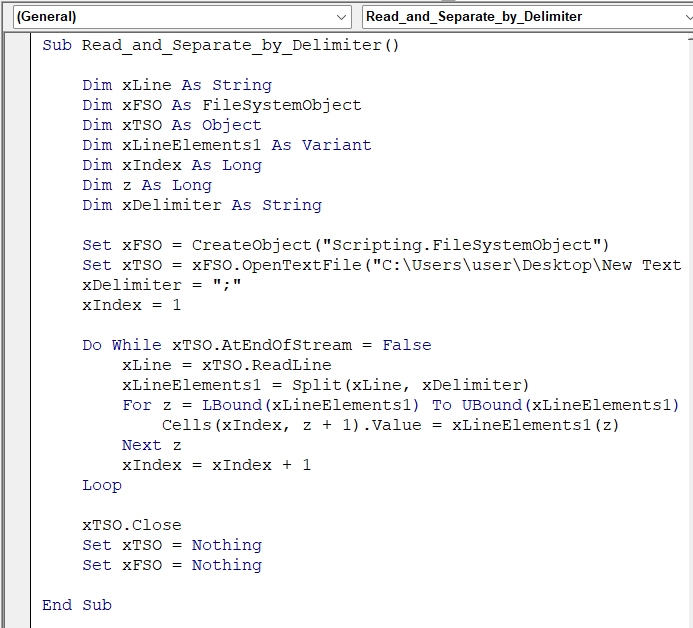
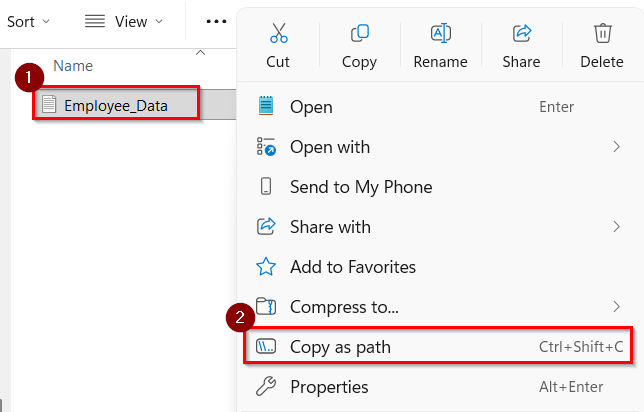
➤ Select the file path in the code.

➤ Go to the folder where your text file is saved: Employee_Data.
➤ Hold down the Shift key, right–click on the file, and select Copy as path. This will copy the file path of your text file.
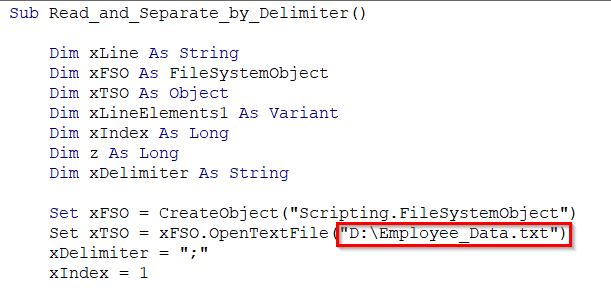
➤ Replace the file path “D:\Employee_Data.txt” in the code with your own. Make sure the path includes the .txt file extension.
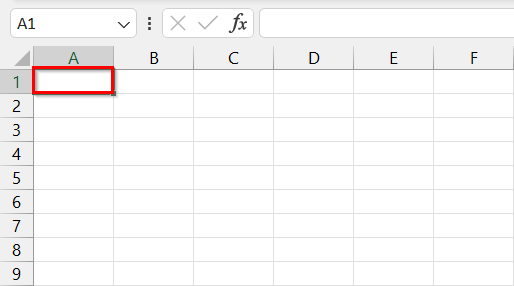
➤ In your Excel sheet, select the starting cell. For example, Cell A1, where you want the imported data to begin.
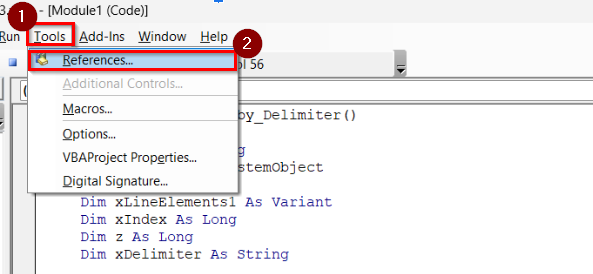
➤ From the VBA menu bar, go to Tools ➜ References.
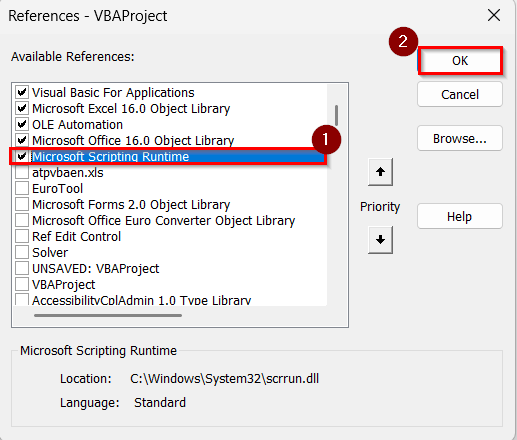
➤ Scroll down and check the box for Microsoft Scripting Runtime to enable the FileSystemObject feature.
➤ Click OK.
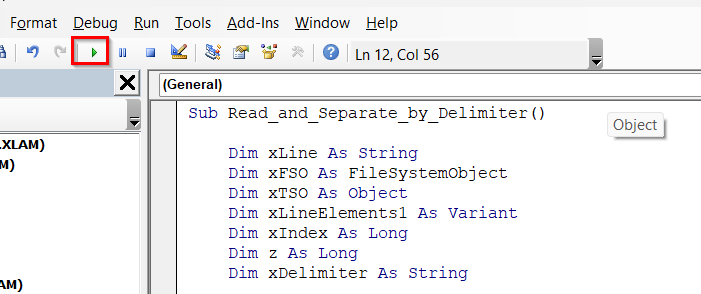
➤ Press F5 or click Run to execute the VBA code.
➤ The macro will read your text file line by line, split the content by semicolons (;), and place them into separate columns.
Note:
➥ You can change the delimiter in this line: xDelimiter = “;”
➥ For comma-separated files, replace it with “,”.
Read Text File Line by Line Using the File Selection Dialogue Box
To make the process even easier, we can open and read a text file directly through a file selection dialogue box window in Excel by using VBA. This is a very efficient way when we want to import text data line by line into Excel cells without manually copying the text file link without copying the text file link again and again.
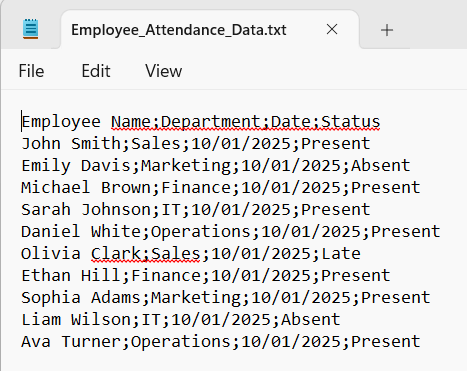
We have a text file that contains employee attendance data for a company. We will use the VBA code to open and read a text file directly into Excel through a file selection dialogue box window.
Steps:
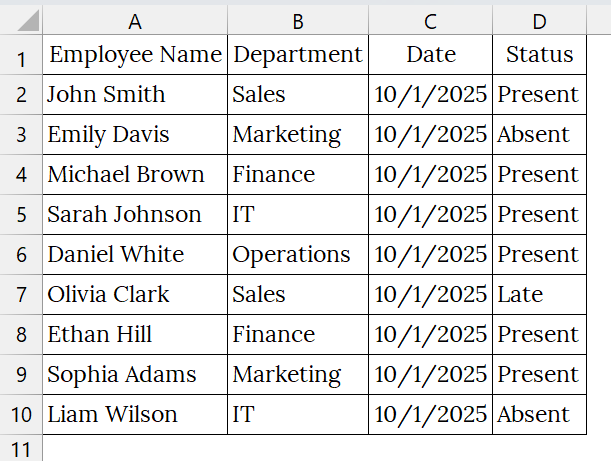
➤ We have taken a text file named Employee_Attendance_Data that contains comma-separated data: Employee Name, Department, Date, and Status.
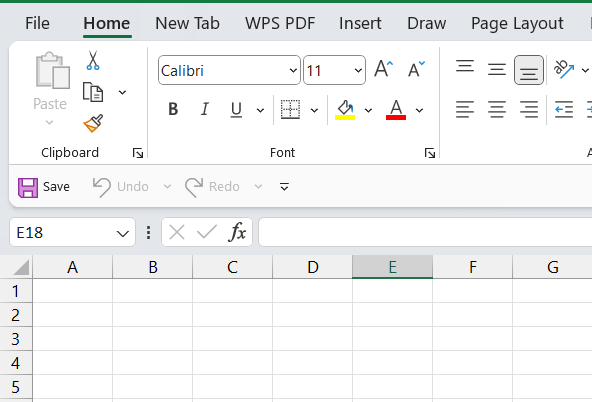
➤ Open a new worksheet.
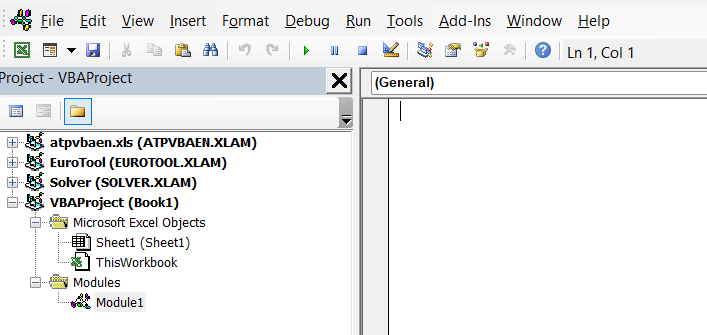
➤ Press Alt + F11 to open the VBA Editor.
➤ From the top menu, go to Insert ➜ Module to create a new module.
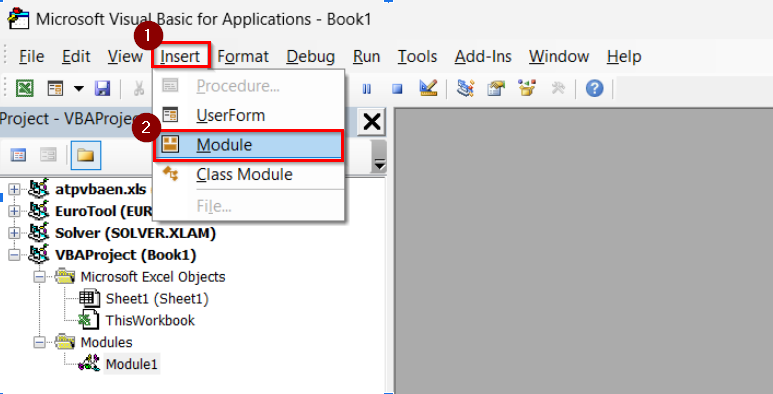
➤ A new code window will open where you will paste your VBA script.
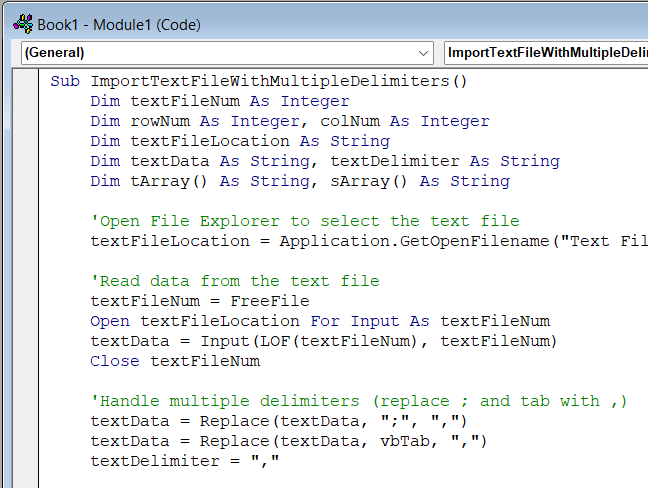
➤ Copy and paste the following VBA code into the module window:
Sub ImportTextFileWithMultipleDelimiters()
    Dim textFileNum As Integer
    Dim rowNum As Integer, colNum As Integer
    Dim textFileLocation As String
    Dim textData As String, textDelimiter As String
    Dim tArray() As String, sArray() As String
    'Open File Explorer to select the text file
    textFileLocation = Application.GetOpenFilename("Text Files (*.txt), *.txt", , "Select Text File to Import")
    'Read data from the text file
    textFileNum = FreeFile
    Open textFileLocation For Input As textFileNum
    textData = Input(LOF(textFileNum), textFileNum)
    Close textFileNum
    'Handle multiple delimiters (replace ; and tab with ,)
    textData = Replace(textData, ";", ",")
    textData = Replace(textData, vbTab, ",")
    textDelimiter = ","
    'Split data into rows and columns
    tArray = Split(textData, vbLf)
    For rowNum = LBound(tArray) To UBound(tArray) - 1
        If Len(Trim(tArray(rowNum))) <> 0 Then
            sArray = Split(tArray(rowNum), textDelimiter)
            For colNum = LBound(sArray) To UBound(sArray)
                ActiveSheet.Cells(rowNum + 1, colNum + 1).Value = Trim(sArray(colNum))
            Next colNum
        End If
    Next rowNum
    MsgBox "Data Imported Successfully!", vbInformation
End Sub➥ It replaces semicolon (;) and tab with comma (,) converting all delimiters into one type.
➥ The data is then split into rows and columns and placed in your active Excel sheet.
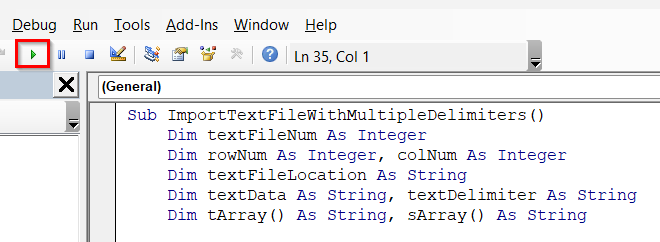
➤ Press F5 or go to Run → Run Sub/UserForm to execute the macro.
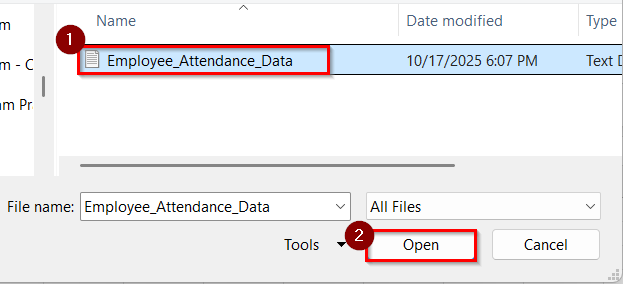
➤ A prompt window will appear asking you to select a text file from your computer.
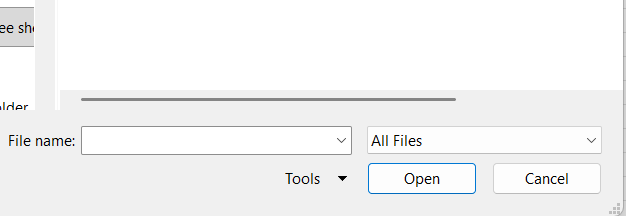
➤ In the prompt window, browse your folder and select the text file you want to import. For example, Employee_Attendance_Data.txt.
➤ Click Open.
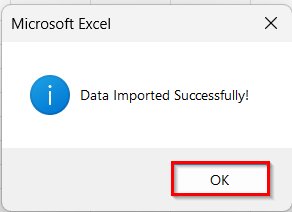
➤ In the message box, it will appear “Data Imported Successfully!”.
➤ Click OK.
➤ The VBA script reads each line from the text file and displays it line by line in Excel, starting from cell A1.
Downloadable Resources
Get our practice workbook or necessary files that we have worked with to prepare this article.
Read Text File Line by Line with VBA.zip
Frequently Asked Questions
Can VBA read large text files efficiently?
Yes. VBA can handle large files effectively using loops like Do Until EOF or While Not EOF that read each line sequentially.
What if my text file uses different delimiters (e.g., semicolon or tab)?
You can use the Split() function in VBA and specify your custom delimiter, such as Split(xLine, “;”).
How can I modify the code to show results in a message box?
Simply replace the cell output line with MsgBox xLine to display each line one by one in a pop-up message box.
Can I import only specific lines from the text file?
Yes, by defining start and end line variables in your loop, VBA can read and extract only a certain range of lines from your text file.
Concluding Words
Using VBA to read text files line by line is an efficient, flexible way to automate text file handling within Excel. With methods such as Line Input, EOF, and FileSystemObject, you can easily extract, filter, and analyze data from any text source line by line. Also, you can download the datasets we have used in this article to practice on your own.