Combining date and text in Excel is a common operation when we want to create readable sentences or dynamic labels such as “Report generated on 26-Oct-2025”. We often need this feature in making reports, dashboards, or invoices, where both text and date need to appear together in one cell.
To combine date and text in Excel, follow these steps:
➤ Select the cell where you want the combined result to appear.
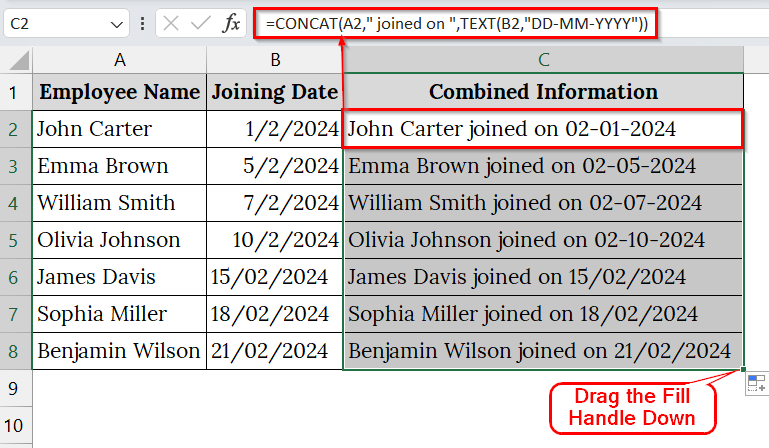
➤ Enter a formula such as =CONCAT(A2,” joined on “,TEXT(B2,”DD-MM-YYYY”))
➤ Press Enter to display the text combined with the current date.
In this article, we will explain how to combine date and text in Excel using the Ampersand (&) Operator, the CONCAT/CONCATENATE Function, the TODAY Function, and the TEXTJOIN function.
Using the CONCAT Function to Combine Date and Text in Excel
The CONCATENATE or the modern CONCAT function is an easy way to join a date with text in Excel. We use this method when we need to display information in a single cell. Compared to the TEXTJOIN function, CONCATENATE doesn’t automatically ignore blank cells, but it works well for combining fixed text with dynamic date values.
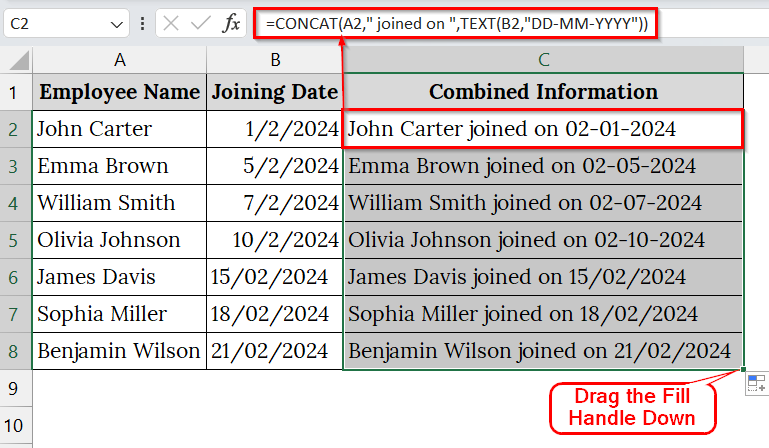
We have a dataset of the HR department that maintains a list of employees and their joining dates. To make the data more readable in reports, we will use the CONCATENATE or CONCAT Function to display both the name and joining date in a single cell with proper date formatting.
Steps:
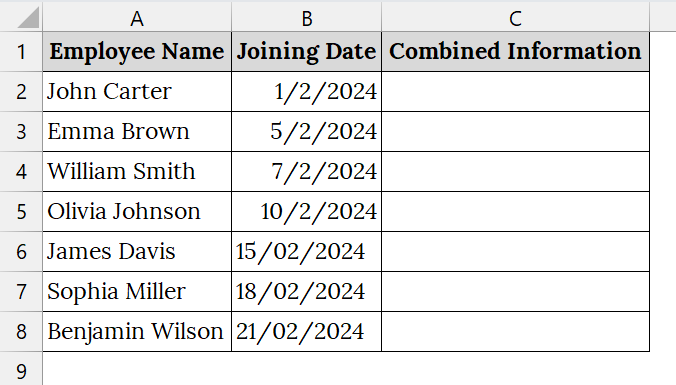
➤ We have taken an Excel sheet that contains Employee in Column A, Joining Date in Column B, and Combined Information in Column C (Blank).
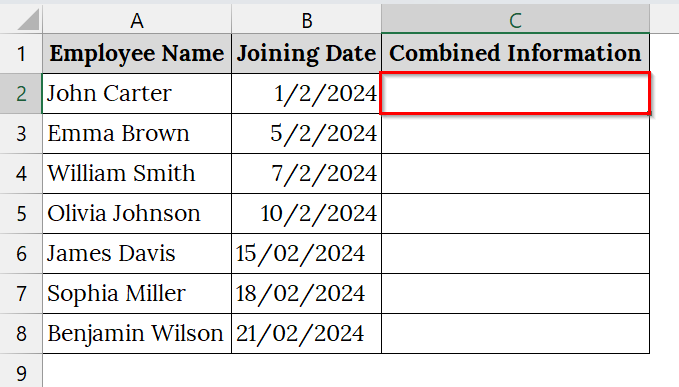
➤ Click on cell C2 or the first empty cell where you want to display the combined result.
➤ Type the following formula in cell C2:
=CONCAT(A2," joined on ",TEXT(B2,"DD-MM-YYYY"))
➤ After pressing Enter, Excel will display the combined information in cell C2.
➤ Use the fill handle to drag down the formula to the rest of the rows.
➤ Now, each cell in Column C will display the employee name combined with their joining date, such as “John Carter joined on 02-01-2024”.
Note:
➥ The TEXT function ensures the date keeps its proper format when combined with text.
➥ You can also use the CONCATENATE function instead of CONCAT, like this:
=CONCATENATE(B5,” joined on “,TEXT(C5,”DD-MM-YYYY”))
➥ The CONCAT function is more modern and recommended for newer versions of Excel (Excel 2016 and later).
Applying the Ampersand (&) Operator to Join Date and Text
The Ampersand (&) operator combines text and date in a single cell. Compared to the TEXTJOIN or CONCAT, it doesn’t require delimiters or function arguments, which makes it ideal for quick merges. We use this method when we want to create readable sentences directly in a single cell.
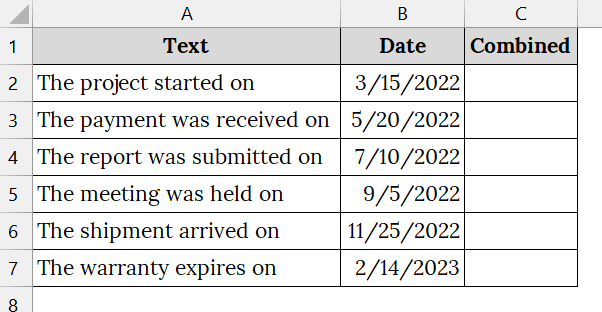
We have a dataset that contains the message of a project with the date in a separate column. We will combine the text and date using the Ampersand (&) operator
Steps:
➤ We have taken a dataset that contains Text in Column A, Date in Column B, and Combined in Column C (Blank).
➤ Select the cell where you want to display the combined text. For example, click on cell C2.
➤ Enter the following formula in cell C2:
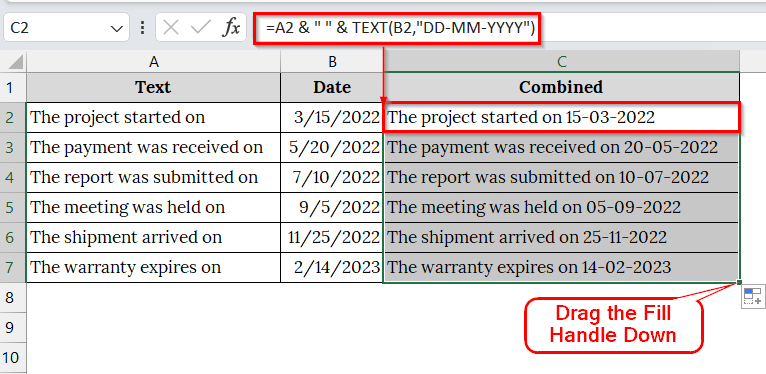
=A2 & " " & TEXT(B2,"DD-MM-YYYY")
➤ Press Enter to apply the formula. Excel will display the combined information in cell C2.
➤ Use the fill handle to drag down the formula through all rows.
➤ Now, each cell in Column C will display the text combined with the date.
Note:
➥ TEXT(B2,”DD-MM-YYYY”) ensures that Excel displays the date correctly instead of a serial number.
➥ You can customize the format (e.g., “MMMM DD, YYYY” for “February 01, 2024”).
➥ This method is simpler than CONCAT or CONCATENATE, especially for shorter formulas.
Combine Text with Current Date Using the TODAY Function
The TODAY function automatically returns the current system date, and when combined with text, it helps create dynamic messages that update daily. This method is usually used when we want our worksheet to reflect the current date automatically without manual updates. Compared to the TEXTJOIN or CONCAT, which rely on fixed cell references, TODAY provides real-time date updates. We use these methods for generating time-sensitive information like daily reports, reminders, or attendance logs that require today’s date to appear alongside descriptive text.
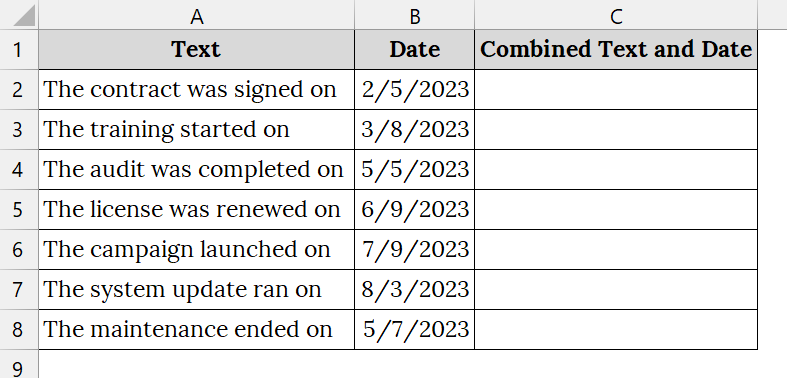
We have a dataset that contains information about a company. We will automatically append today’s date to each text entry to show when the update was last recorded using the TODAY function.
Steps:
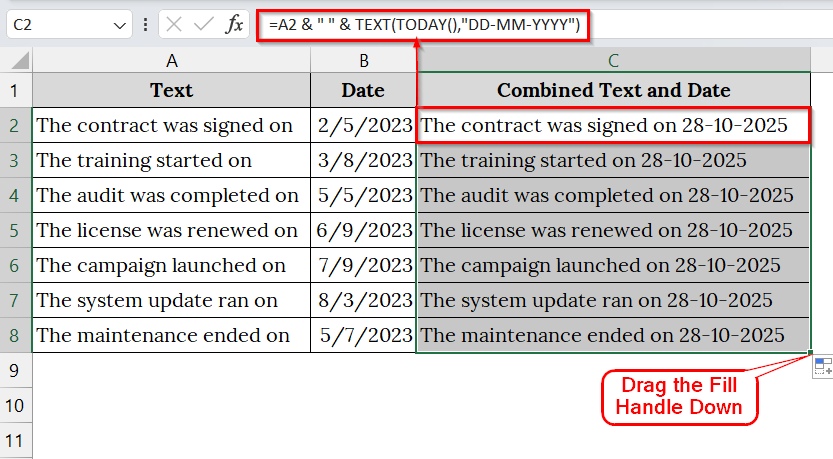
➤ We have taken a dataset that contains Text in Column A, Date in Column B, and Combined Text and Date in Column C (Blank).
➤ Click on cell C2, where you want to display your combined text and today’s date.
➤ Type the following formula into cell C2:
=A2 & " " & TEXT(TODAY(),"DD-MM-YYYY")
➤ Press Enter, Excel will display the combined text and today’s date in cell C2.
➤ Drag the fill handle down to apply the same formula to all rows.
➤ Now, each cell in Column C will display the text combined with the date. The date will automatically update every day you open the workbook.
Note:
The TODAY function always returns the current system date.
Combine Date and Text Using the TEXTJOIN Function
The TEXTJOIN function is an Excel formula that can combine multiple text strings, numbers, or formatted dates into a single cell. The TEXTJOIN function is more efficient than the & or CONCATENATE functions because it can automatically ignore blank cells and allows us to define a delimiter, such as a space or comma.
We have a dataset that contains the delivery record sheet of a logistics company. Each row includes a message about the shipment and the date it was dispatched. We will combine both the text and date in one cell using the TEXTJOIN function.
Steps:
➤ We have taken a dataset that contains Message in Column A, Date in Column B, and Combined Info in Column C (Blank).
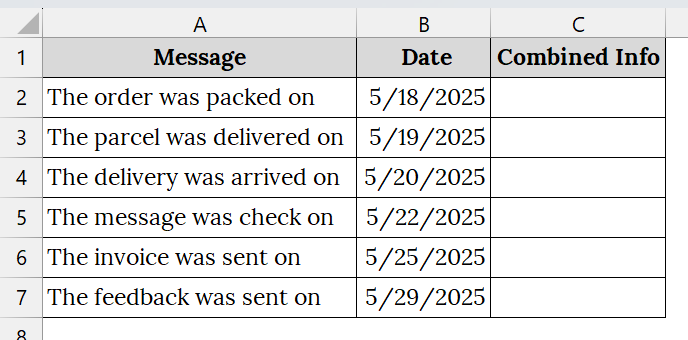
➤ Click on the cell where you want the combined result to appear. For example, click on cell C2.
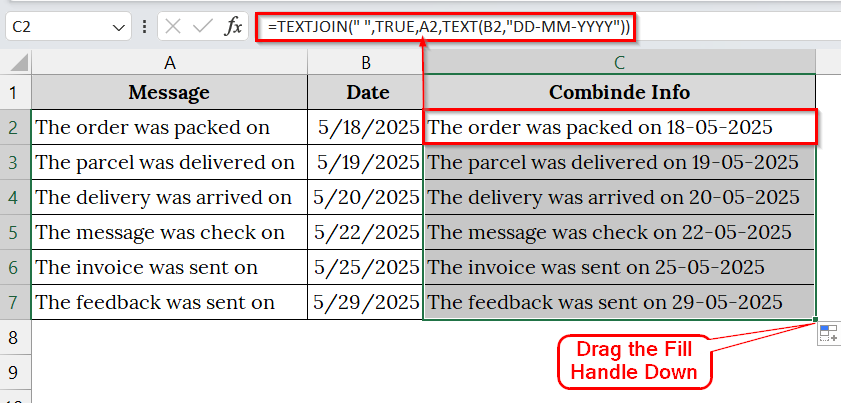
➤ Type the following formula in cell C2:
=TEXTJOIN(" ",TRUE,A2,TEXT(B2,"DD-MM-YYYY"))
➤ After pressing Enter, Excel will display the text with the date in cell C2.
➤ Use the fill handle to drag down the formula through all rows.
➤ Excel will display the text with the date in Column C.
Note:
➥ You can change the date format in the formula by modifying “DD-MM-YYYY” to “MMMM DD, YYYY” for a format like October 15, 2025.
➥ If any cell in column B or C is empty, TEXTJOIN automatically skips it, avoiding awkward extra spaces.
Downloadable Resources
Get our practice workbook or necessary files that we have worked with to prepare this article.
Frequently Asked Questions
Why should I use the TEXT function when combining date and text?
Because Excel stores dates as numbers, the TEXT function ensures the date displays in a readable format like “26-Oct-2025.”
What happens if I don’t use the TEXT function?
Excel will show the date as a serial number (e.g., 45851) instead of a formatted date.
Can I combine date and text from multiple cells?
Yes, use TEXTJOIN or CONCAT, such as =TEXTJOIN(” “,TRUE,A2,TEXT(B2,”DD-MMM-YYYY”)).
How do I make the date update automatically?
Use the TODAY function with text, like =”Report generated on “&TEXT(TODAY(),”DD-MMM-YYYY”).
Concluding Words
Combining text and date in Excel can make your reports more readable and professional. The Ampersand (&) operator offers a quick way to join text and date, and the CONCAT or CONCATENATE functions provide structured control over combining multiple cells. Download the datasets we have used in this article to practice on your own, and let us know your thoughts in the comments section.