
In Excel, it’s common to merge multiple pieces of information, like a product name and its status, into one cell using the CONCATENATE or TEXTJOIN functions. However, many users want to know how to bold part of the merged text, such as emphasizing the product name while keeping the rest normal. This need often arises in professional reports, product catalogs, or dashboards where formatted text improves readability.
To bold text in a concatenate formula in Excel, follow these steps:
➤ Open the Developer tab and go to Visual Basic.
➤ Insert a new VBA module and paste the bolding code.
➤ Run the macro to merge text and automatically bold part of it.
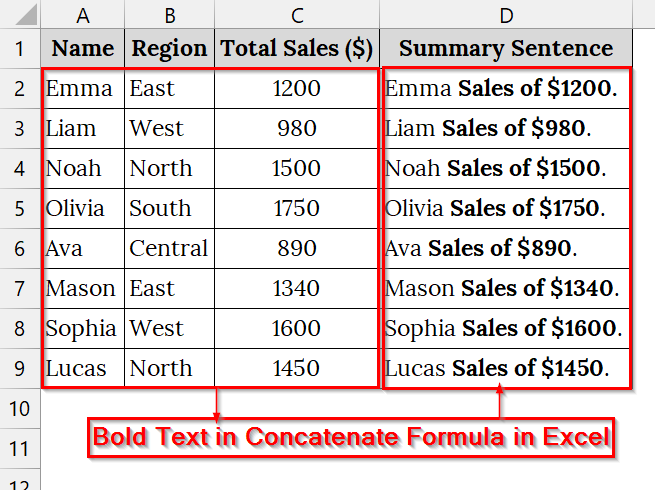
In this article, we will show how to bold text in a concatenated formula in Excel in two different ways.
Applying a VBA Macro to Bold Specific Portions of Text in the Output of the Concatenate Formula
When we need to combine data from multiple cells in Excel but want certain parts to appear bold, Excel’s standard functions like CONCATENATE or TEXTJOIN fall short because they can’t apply text formatting. We use VBA to solve this limitation by automating both the merging and formatting process.
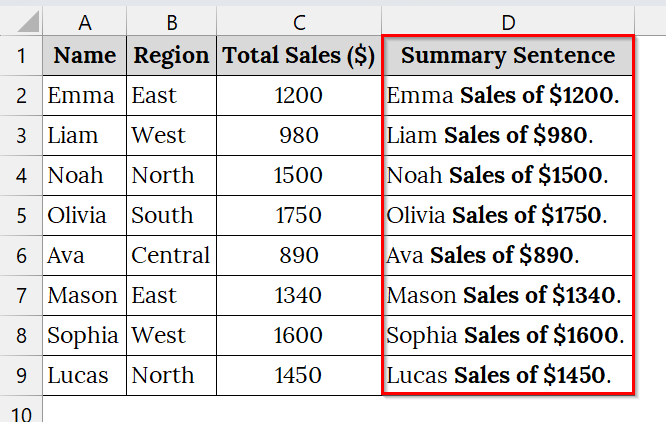
We have a dataset that contains the salesperson’s name and the total sales of a company. We will create a dynamic text summary showing the salesperson’s name and their total sales in a sentence format with the Sales Amount displayed in bold.
Steps:
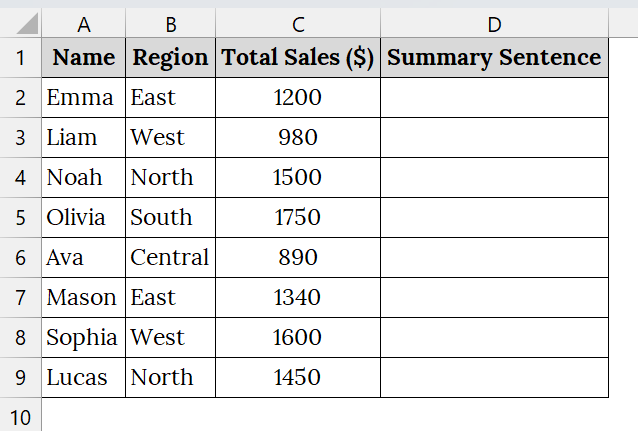
➤ Open your worksheet that contains your data. For example, we have taken a dataset that contains Name in Column A, Region in Column B, Total Sales ($) in Column C, and Summary Sentence (Blank) in Column D.
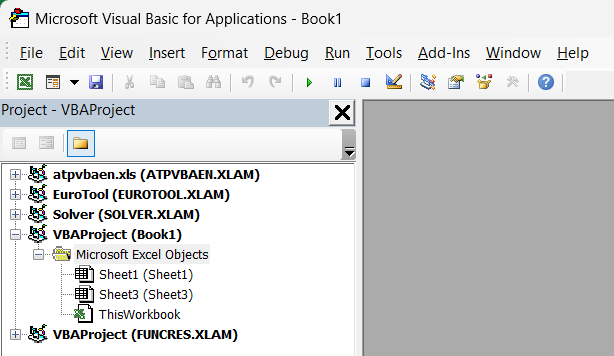
➤ Press Alt + F11 to open the Visual Basic for Applications (VBA) editor in Excel.
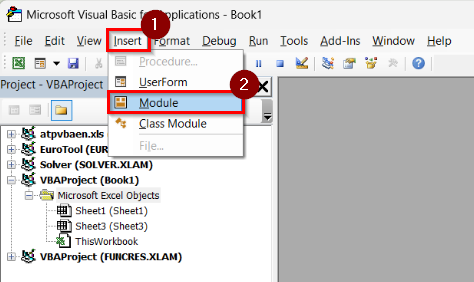
➤ Go to the menu bar → Insert → Module to create a new code module.
➤ A new code window will open where you will paste your VBA script.
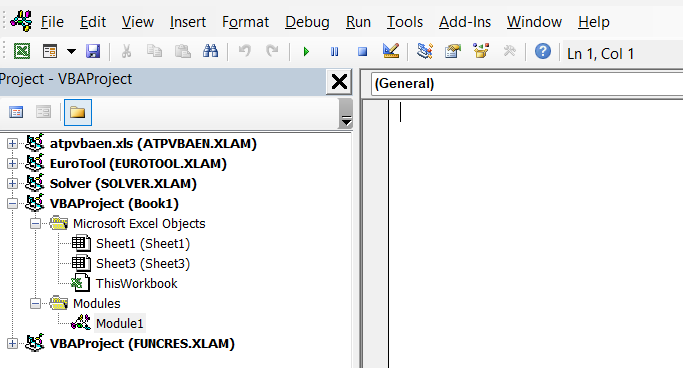
➤ Copy and paste the following code into the module:
Sub BoldConcatenatedText()
Dim ws As Worksheet
Dim i As Integer
Dim nameText As String
Dim salesText As String
Dim combinedText As String
Dim startPos As Integer
Dim boldLength As Integer
Set ws = ThisWorkbook.Sheets("Sheet1")
For i = 2 To 9 'Data rows: 2 to 9
nameText = ws.Cells(i, 1).Value
salesText = ws.Cells(i, 3).Value
combinedText = nameText & " Sales of $" & salesText & "."
With ws.Cells(i, 4)
.Value = combinedText
'Find starting position of "Sales of"
startPos = InStr(.Value, "Sales of")
'Length of bold portion: "Sales of $" + number length
boldLength = Len("Sales of $") + Len(salesText)
'Make "Sales of" and the sales amount bold
.Characters(Start:=startPos, Length:=boldLength).Font.Bold = True
End With
Next i
MsgBox "Concatenation and formatting complete!", vbInformation
End Sub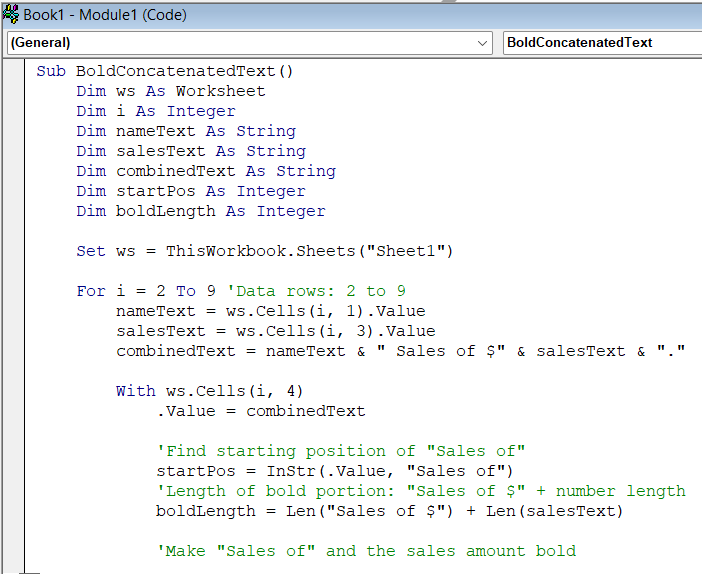
➤ Go back to Excel,
➤ Press Alt + F8 , select BoldConcatenatedText, and click Run.
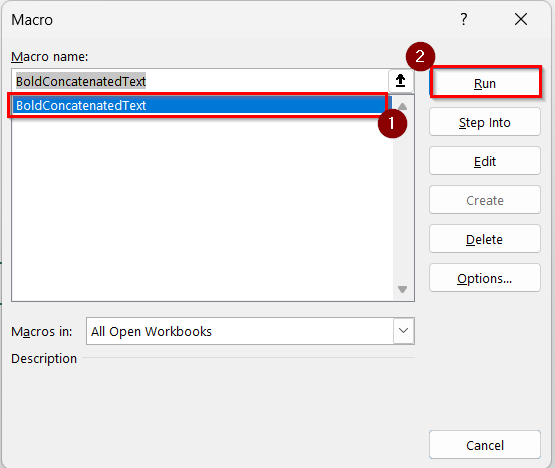
➤ A message box will open as Concatenation and formatting complete!
➤ Click OK.
➤ You will see the concatenated sentences in Column D with bold text.
Using a VBA Macro to Bold Entire Text in the Output of the Concatenate Formula
When we need to apply bold formatting for the entire result, we use this method. We usually use this method to visually emphasize full names in Excel, for printed documents like training rosters, certificates, or ID cards.
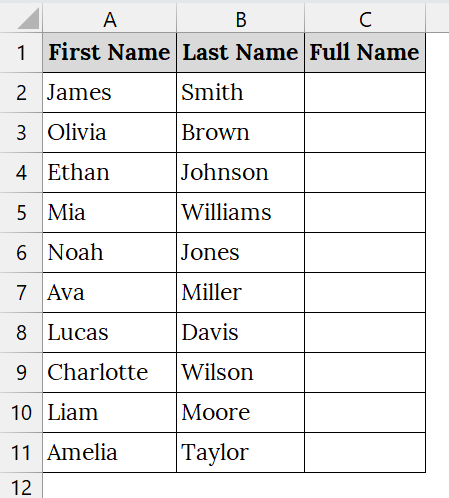
We have a dataset that represents a training participant list. Each full name is generated by combining first and last names. We will use VBA for bold formatting to emphasize in printed certificates.
Steps:
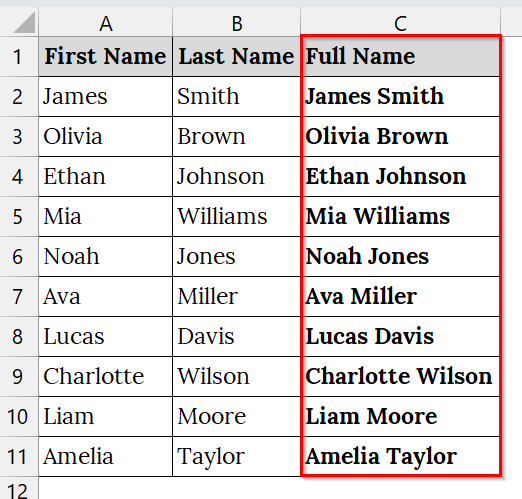
➤ Open your dataset that contains your data. Here, we have taken a dataset that contains First Name in Column A, Last Name in Column B, and Full Name in Column C.
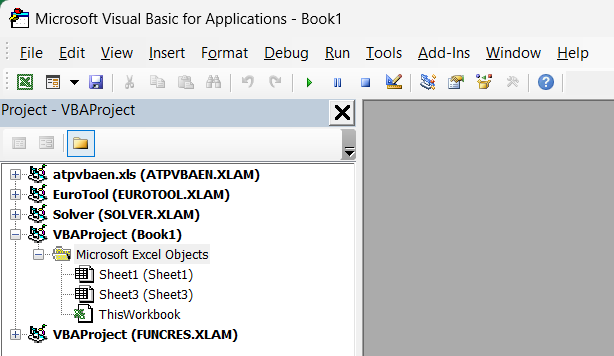
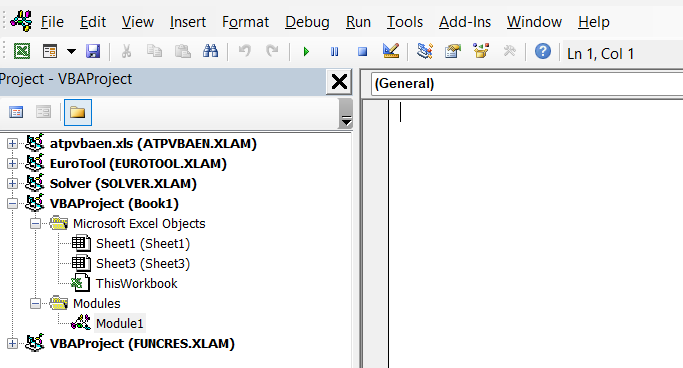
➤ Press Alt + F11 to open the Visual Basic for Applications (VBA) editor in Excel.
➤ Go to the menu bar → Insert → Module to create a new code module.
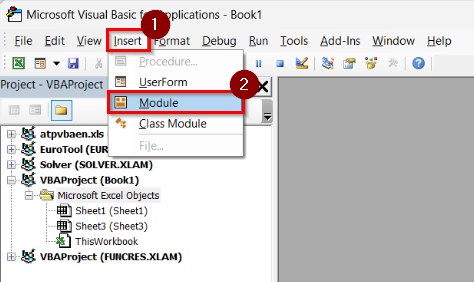
➤ A new code window will open where you will paste your VBA script.
➤ Copy and paste the following code into the module:
Sub Bold_in_Concatenate_range()
Dim ws As Worksheet
Dim i As Integer
Set ws = ThisWorkbook.Sheets("Sheet1") ' Update if your sheet name differs
For i = 2 To 11 ' Adjust range if needed
Dim fullName As String
fullName = ws.Cells(i, 1).Value & " " & ws.Cells(i, 2).Value
With ws.Cells(i, 3)
.Value = fullName
.Font.Bold = True
End With
Next i
End Sub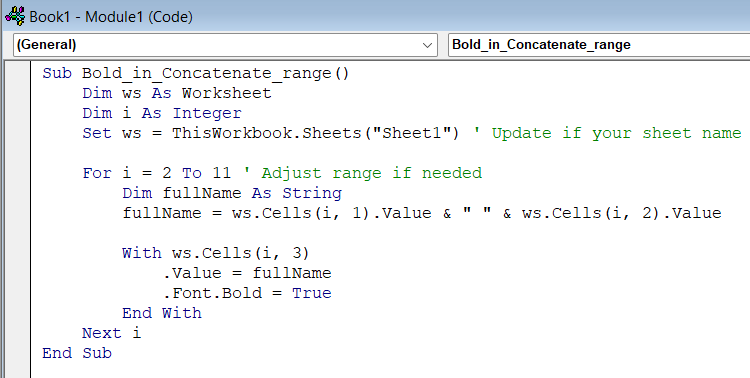
➤ Click Alt + Q to return to your workbook.
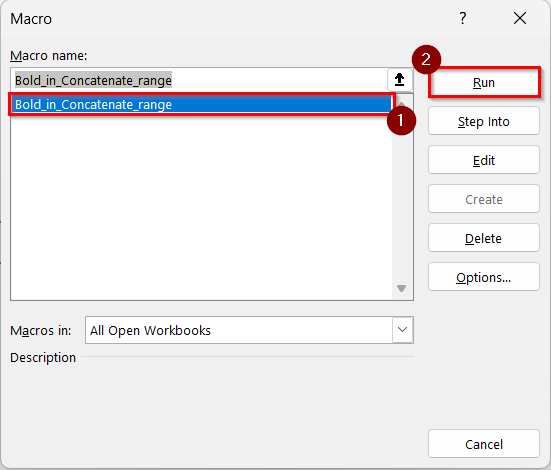
➤ Alt + F8 to open the Macro dialog box. You will see Bold_in_Concatenate_range listed among other macros. Click on Bold_in_Concatenate_range and press Run.
➤ Column C will now display bolded full names for each row.
Downloadable Resources
Get our practice workbook or necessary files that we have worked with to prepare this article.
Bold Text in Concatenate Formula.zip
Frequently Asked Questions
Can I bold text using the CONCATENATE formula alone?
No, Excel formulas like CONCATENATE or TEXTJOIN can only merge text but can’t apply any formatting such as bold, italic, or color.
Do I need to know coding to use the VBA method?
Not necessarily. You can simply copy-paste the given VBA code and run it once from the Developer tab, no advanced coding skills required.
Will the formatting stay if I edit the cell later?
If you change the content, you’ll need to re-run the macro to reapply the bold formatting.
Can this method work in Excel Online or Google Sheets?
No, VBA macros work only in desktop versions of Excel, not in online versions or Google Sheets.
Concluding Words
Apply the VBA-Based Bold Concatenate Method, and you can thus enhance your Excel data presentation just by carefully merging text with bold emphasis exactly where needed. You can download the text files and datasets we have used in this article to practice on your own.