Pulling the same cell from multiple sheets into a master column in Excel is a simple way to consolidate information without copying data manually. For instance, if you have six monthly sales reports where each sheet stores the total sales in a specific cell, you can extract those values into one column on a master sheet. This helps you compare performance across months and create summary reports easily.
In this article, you’ll learn how to pull the same cell from multiple sheets into a master column using different methods.
Here’s how to to pull the same cell from multiple sheets into a master column in Excel:
➤ Open your workbook that contains the monthly sales sheets named Jan, Feb, Mar, Apr, May, and Jun.
➤ In a new sheet, rename it as Master Sheet to create your summary table.
➤ In Column A, list the sheet names from A2 to A7.
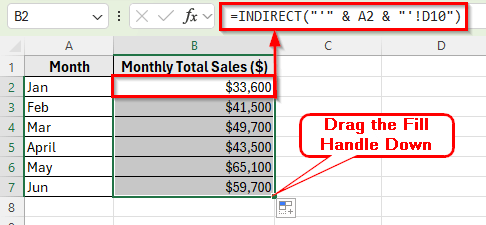
➤ Click on cell B2 and enter the following formula:
=INDIRECT(“‘” & A2 & “‘!D10”)
➤ Press Enter. The formula will display the value from cell D10 of the Jan sheet, which represents that month’s total sales.
➤ Drag the fill handle from B2 down to B7 to copy the formula for all months. You’ll now see the total sales from each sheet displayed in the Master sheet under column B.
Using the INDIRECT Function to Pull the Same Cell from Multiple Sheets
In the following dataset, we have monthly sales reports stored in six separate sheets named Jan, Feb, Mar, Apr, May, and Jun. Each sheet follows the same layout. Column A lists the product names, Column B shows the Units Sold, Column C contains the Price per unit, and Column D calculates the Total Sales for each product. The overall Monthly Total Sales is displayed in cell D10 of every sheet.
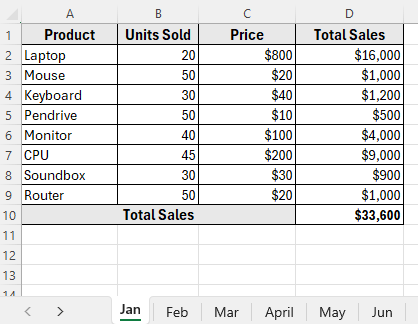
We’ll use this dataset to demonstrate how to pull the same cell from multiple monthly sheets into a master column in Excel.
The INDIRECT function is the simplest and most effective way to pull the same cell from multiple sheets into a master column. It allows you to build a cell reference dynamically based on a sheet name. Once set up, you can easily update or expand your list of sheets without rewriting formulas.
Here’s how to do it:
➤ Open your workbook that contains the monthly sales sheets named Jan, Feb, Mar, Apr, May, and Jun.
➤ In a new sheet, rename it as Master Sheet to create your summary table.
➤ In Column A, list the sheet names from A2 to A7.
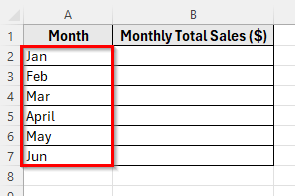
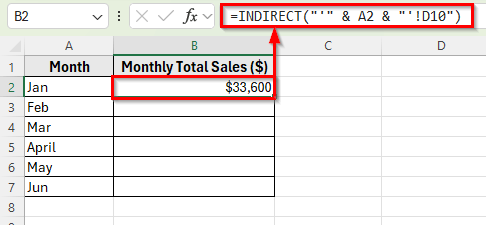
➤ Click on cell B2 and enter the following formula:
=INDIRECT("'" & A2 & "'!D10")
➤ Press Enter. The formula will display the value from cell D10 of the Jan sheet, which represents that month’s total sales.
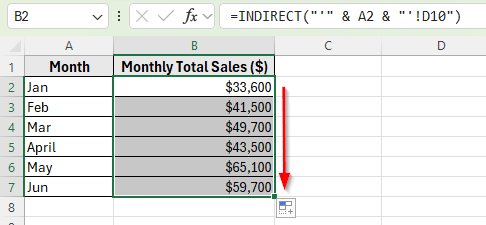
➤ Drag the fill handle from B2 down to B7 to copy the formula for all months. You’ll now see the total sales from each sheet displayed in the Master Sheet under column B.
Using the Consolidate Feature to Pull the Same Cell from Multiple Sheets into a Master Column
Another easy way to collect the same cell values from multiple sheets is by using Excel’s Consolidate feature. It allows you to combine data from several ranges into one place without typing any formulas.
In this method, our goal is to pull the same cell from all six monthly sheets to combine the Product and Units Sold columns into the master sheet.
Here’s how to do it:
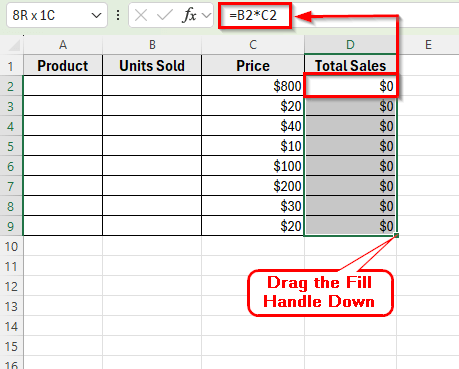
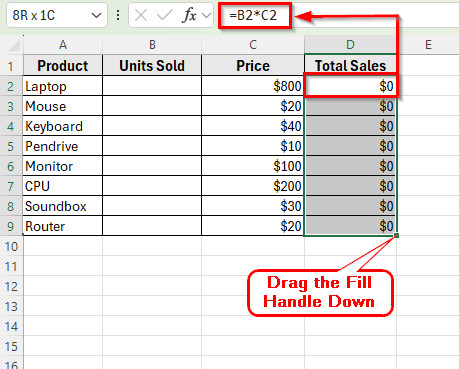
➤ Go to the Master sheet and create a table with the same columns as the monthly sheets: Product, Units Sold, Price, and Total Sales. Keep the Price column filled with the same unit price, and leave the other cells empty for now.
➤ In cell D2, enter the formula =B2*C2. This ensures that once data is pulled into the master table, the total sales will update automatically.
➤ Click on the cell where you want to display the first value, such as A2.
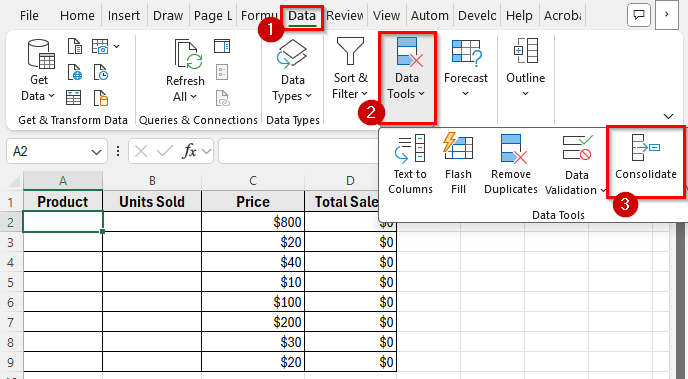
➤ Go to the Data tab and click Consolidate in the Data Tools group.
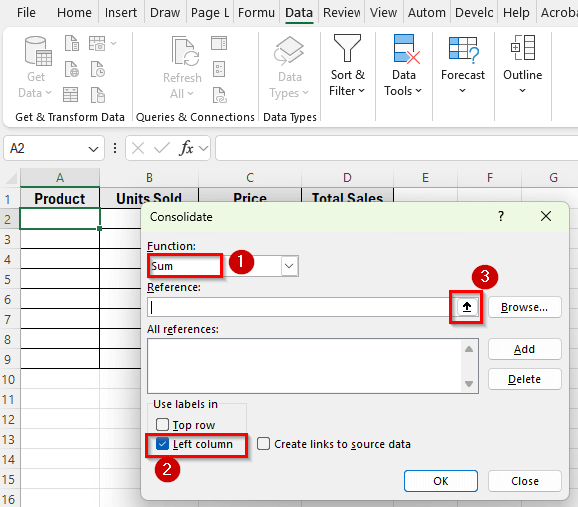
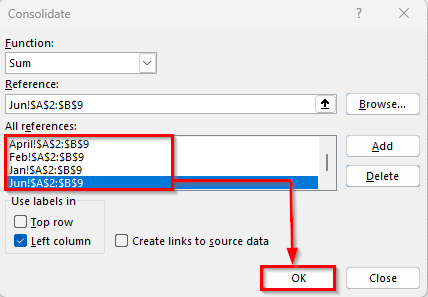
➤ In the Consolidate window, choose Sum as the Function. Even if you’re not summing, this step is required.
➤ Check the Left column in Use labels in.
➤ Click the Reference box, then use the arrow icon to minimize the window.
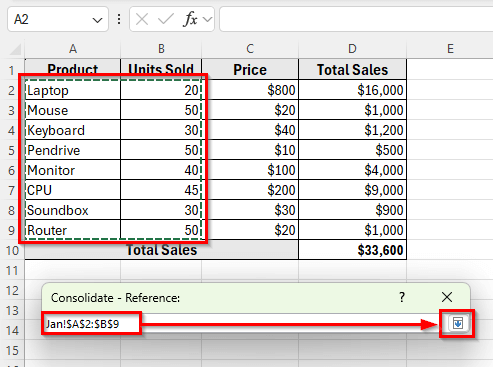
➤ Go to the first sheet Jan and select A2:B9 which contains Product name and number of Unit Sold.
➤ Click the arrow again to return to the Consolidate window.
➤ Next, click Add to include the reference.
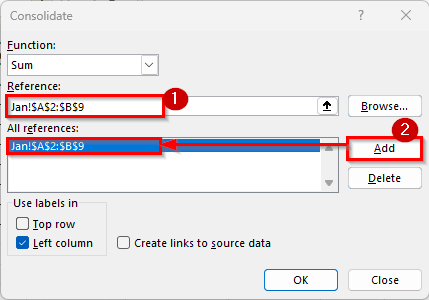
➤ Repeat this process for the remaining sheets Feb, Mar, Apr, May, and Jun, clicking Add after each one.
➤ Once all sheet references are listed in the All references box, click Ok.
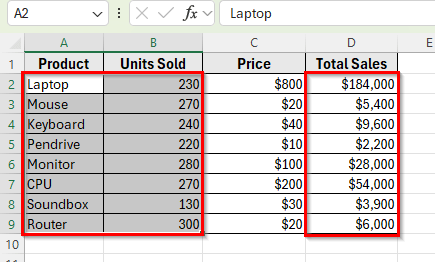
➤ Excel will now pull data for the same cells across all sheets into your Master sheet, neatly displaying the combined values in one table.
Using the 3D Reference to Summarize the Same Cell Across Sheets
If you want to calculate the total or average of the same cell across multiple sheets, Excel’s 3D reference feature is a great option. It allows you to refer to the same cell or range in several sheets at once.
Here’s how to do it:
➤ Open the Master Sheet in Excel. This time, keep only the Units Sold and Total Sales columns empty.
➤ In cell D2, enter the formula =B2*C2. This ensures that once data is pulled into the master table, the total sales will update automatically.
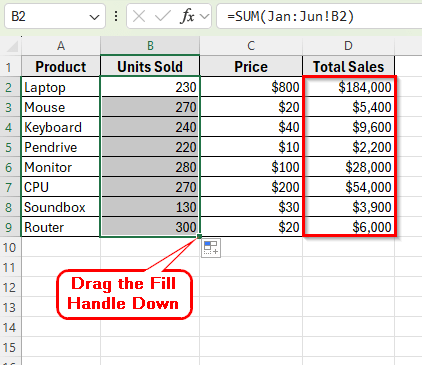
➤ Click on cell B2 where you want to display the combined total Unit Sold of all months.
➤ Enter the following formula:
=SUM(Jan:Jun!B2)
➤ Press Enter. Excel will now calculate the total of cell B2 from every sheet between Jan and Jun.
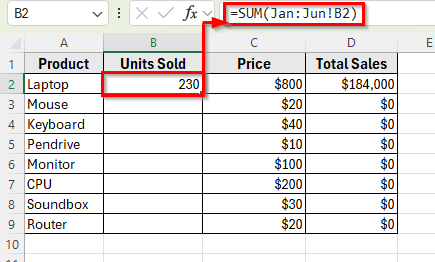
➤ Drag the fill handle down to copy the formula for the rest of the rows.
Downloadable Resources
Get our practice workbook or necessary files that we have worked with to prepare this article.
Pull Same Cell from Multiple Sheets into Master Column.xlsx
Frequently Asked Question
Can I pull data from hidden sheets too?
Yes, both formula-based and VBA methods can extract data from hidden sheets. The formulas will still reference those sheets, and the VBA code loops through all sheets unless you specifically exclude them.
What happens if a sheet is renamed?
If a sheet name changes, any formula referencing it will break. In that case, you’ll need to update the formula with the new sheet name. Power Query and VBA methods can handle renamed sheets more easily if you refresh or adjust the script.
Can I pull data from a specific cell range instead of one cell?
Yes, you can modify the references to include ranges like D5:D10 instead of a single cell. Power Query or VBA methods work best for pulling multiple cells or ranges.
Do I need to refresh the master sheet manually?
For formulas, Excel updates automatically when source sheets change. For Power Query, you’ll need to click Refresh All. In the VBA method, simply rerun the macro to update the master sheet.
Wrapping Up
Pulling the same cell into a master column is a great way to keep your reports organized and save time in Excel. You can use simple formulas for quick consolidation, Power Query for dynamic data management, or VBA for full automation.
Each method helps you combine key values across multiple sheets without manual copying. Once set up, your master sheet will always show an accurate summary of all your monthly reports in one place.