
Importing text files into Excel can be simple when the file uses one type of delimiter such as a comma or tab. But it becomes a bit challenging when the file contains multiple delimiters like commas, semicolons, pipes, or spaces mixed together. In such cases, Excel may not correctly separate the data into columns on the first try.
In this article, we’ll learn how to import a text file with multiple delimiters into Excel using different methods.
Here’s how to import a text file with multiple delimiters using the Legacy Text Import Wizard:
➤ Open your Excel file.
➤ Go to Data >> Get Data >> Legacy Wizards >> From Text (Legacy).
➤ Select your text file and click Import.
➤ Choose Delimited, then select Comma, Semicolon, or type a custom delimiter like |.
➤ Check Treat consecutive delimiters as one.
➤ Set each column’s data format, then click Finish and choose the destination cell.
➤ Excel will now separate the data correctly using all selected delimiters.
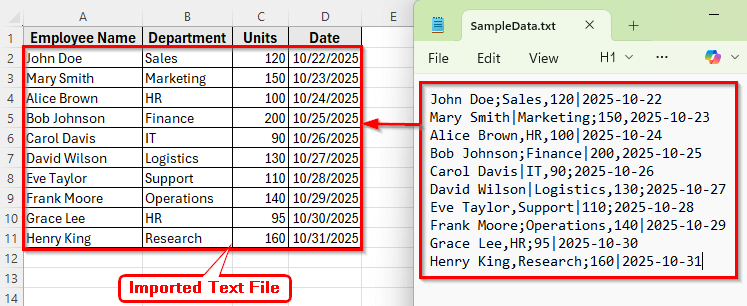
Using the Text Import Wizard to Import Text File with Multiple Delimiters
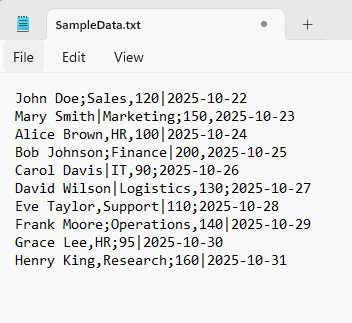
In the following example, we have sample employee records stored in a text file. Each line contains a mix of delimiters such as commas, semicolons, pipes, and spaces. The goal is to import this text file into Excel and correctly split the data into separate columns. Save this text file in your computer as a .txt file, for example, SampleData.txt.
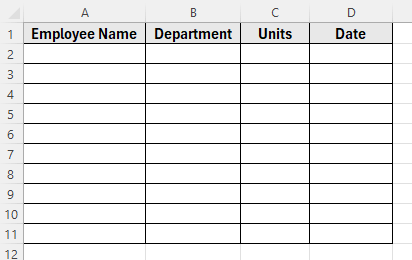
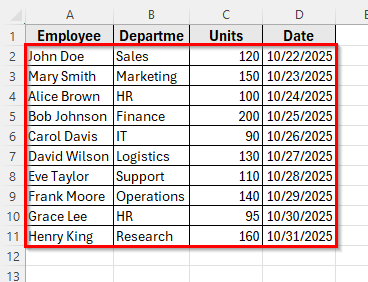
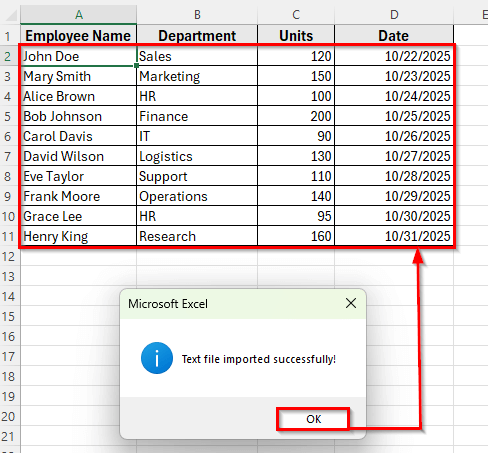
The Excel file includes four types of information in four columns: Employee Name, Department, Units, and Date. We’ll import this text file and split it into those four columns in Excel despite the mix of delimiters.
The Text Import Wizard is one of the easiest ways to bring data from a text file into Excel. It allows you to select multiple delimiters at once, such as commas, semicolons, pipes, or spaces. This method works best when you have a known set of delimiters that appear consistently in your file.
Here’s how to do it step by step:
➤ Open Excel and go to the Data tab on the ribbon.
➤ Click Get Data >> Legacy Wizards >> From Text (Legacy).
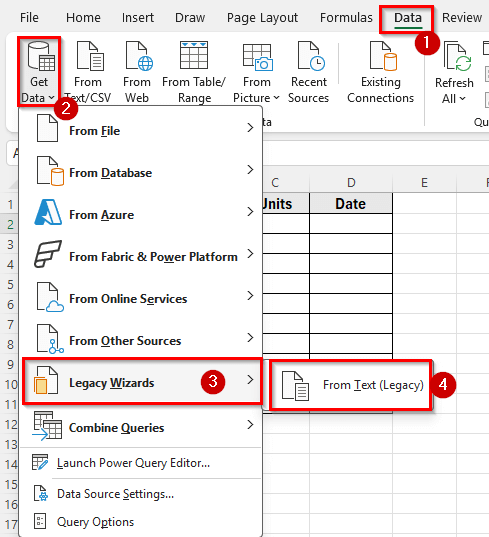
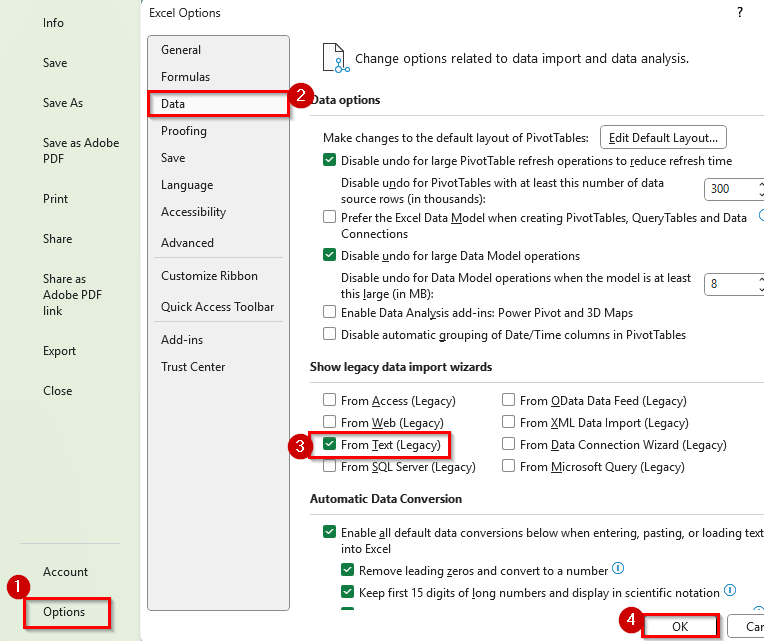
➤ If you don’t see this option, go to File and click Options >> Data >> check From Text (Legacy) under Show Legacy Data Import Wizards and click OK.
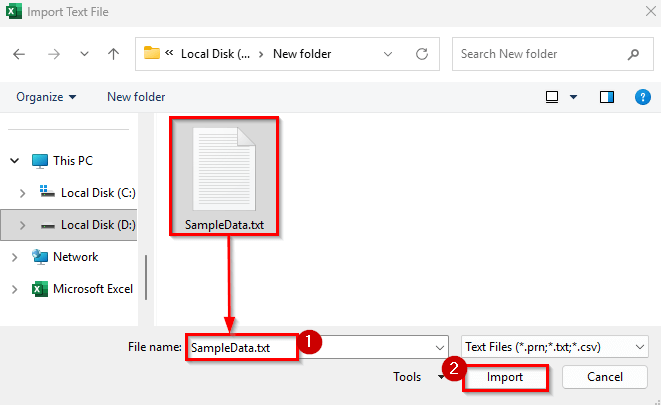
➤ Locate your text file, for example, SampleData.txt, and click Import.
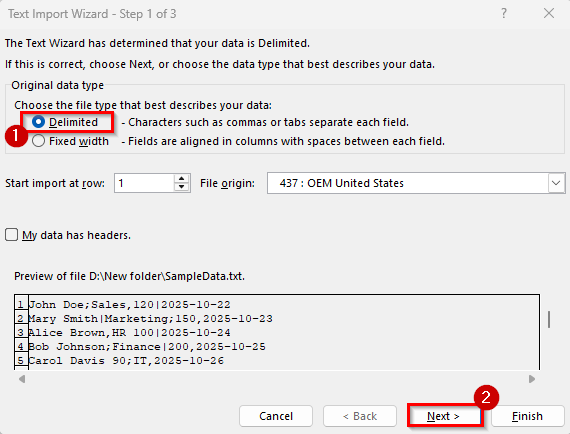
➤ In Step 1 of the wizard, choose Delimited and click Next.
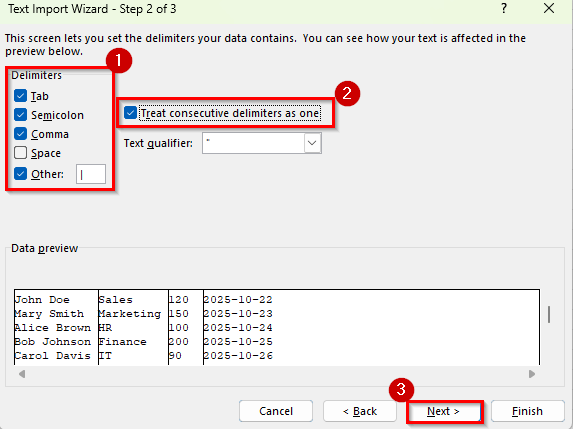
➤ In Step 2, check multiple delimiters such as Comma, Semicolon, and Other. Type the pipe symbol |in Other if used in your file.
➤ You can also check Space if your data contains gaps between values. This ensures Excel separates all the fields correctly, even when different delimiters are used in the same line.
➤ Also, check the box for Treat consecutive delimiters as one to handle extra spaces or repeating symbols.
➤ Click Next to move to Step 3 of the wizard.
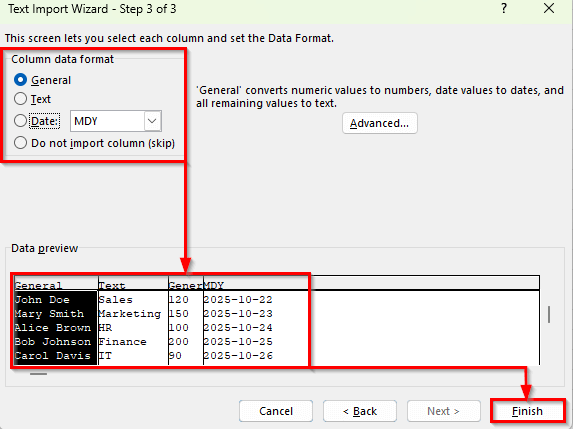
➤ Choose the correct Column Data Format for each column:
- Column 1 >> General (Employee Name)
- Column 2 >> Text (Department)
- Column 3 >> General (Units)
- Column 4 >> Date (Date)
➤ Click Finish.
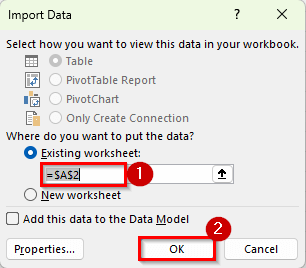
➤ In the Import Data window, check Existing Worksheet and select where you want to place the data. For example, cell A2.
➤ Click Ok.
➤ After you complete these steps, Excel will separate the data into columns using all the selected delimiters.
Import Text File with Multiple Delimiters with Power Query
Power Query, also known as Get & Transform Data, is a modern and flexible way to import text files into Excel. It allows you to clean and split your data using advanced options.
Here’s how to do it step by step:
➤ Open Excel and go to the Data tab.
➤ Click Get Data >> From File >> From Text/CSV.
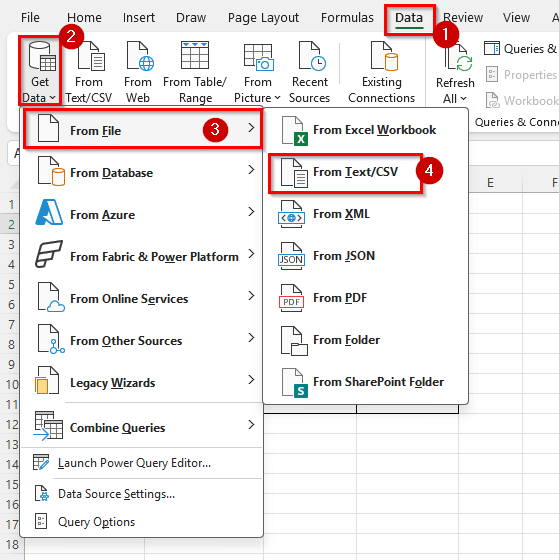
➤ Select your text file, for example, SampleData.txt, and click Import.
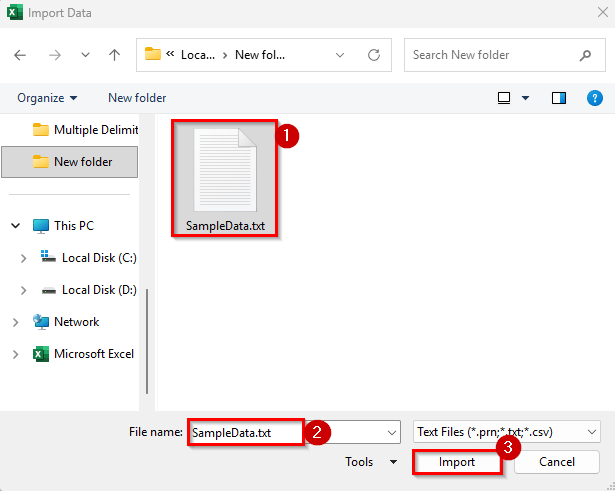
➤ A preview window will appear showing how Excel reads your file. Click Transform Data to open the Power Query Editor.
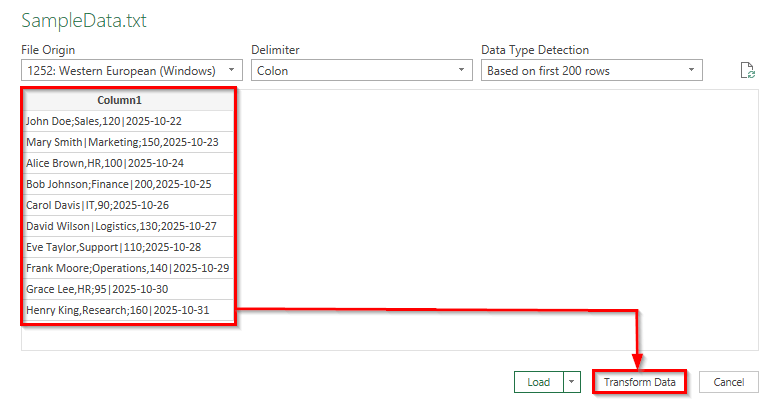
➤ In the Power Query Editor, you may notice that the data is still combined in one column because Excel cannot detect multiple delimiters at once. To fix this, we’ll replace all delimiters with one standard delimiter such as a comma.
➤ Go to the Home tab and click Replace Values.
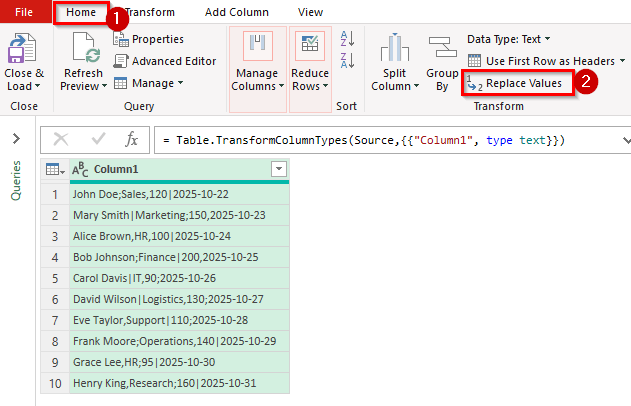
➤ In the dialog box, replace ; with ,

➤ Repeat this step to replace | and spaces with ,

➤ This makes all rows use a single consistent delimiter.
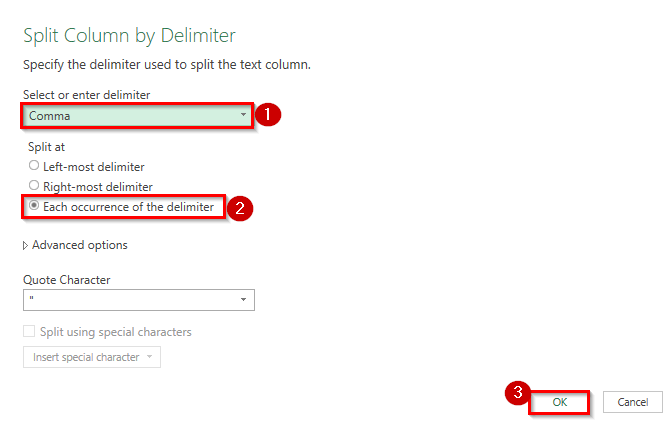
➤ Once all delimiters are replaced, select the column, then go to Home >> Split Column >> By Delimiter.
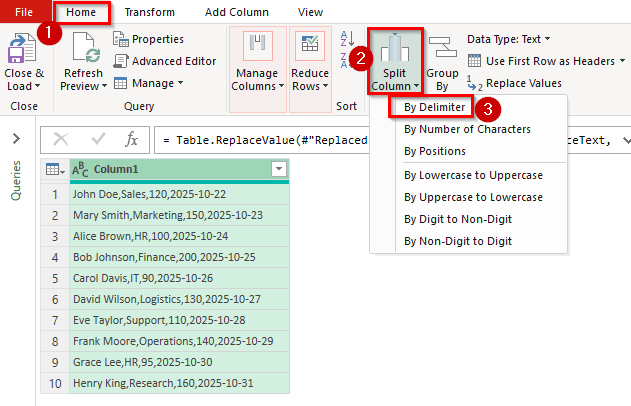
➤ Choose Comma ( , ) as the delimiter.
➤ Select Each occurrence of the delimiter under Split options.
➤ Click OK to split the data into separate columns.
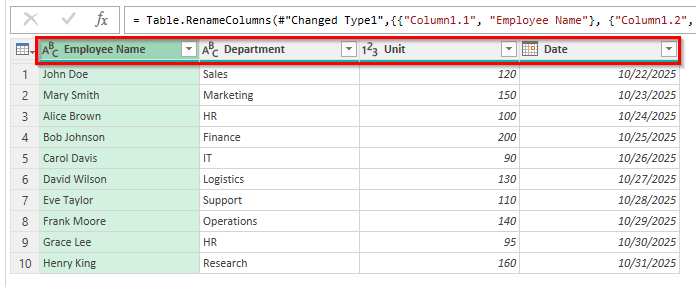
➤ Rename the columns as Employee Name, Department, Units, and Date.
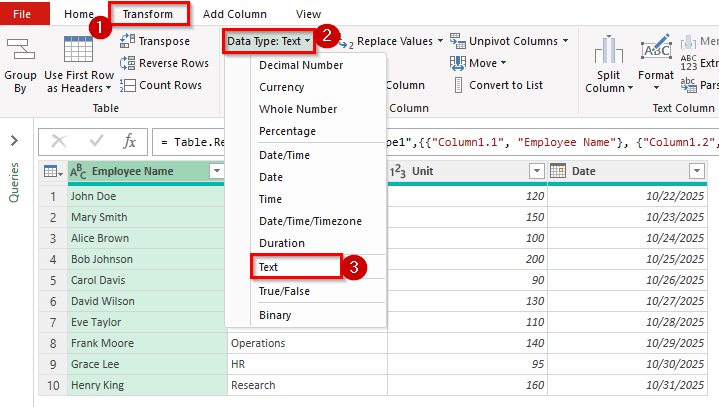
➤ Go to the Transform tab and set the Data Types correctly:
Employee Name >> Text
Department >> Text
Units >> Whole Number
Date >> Date
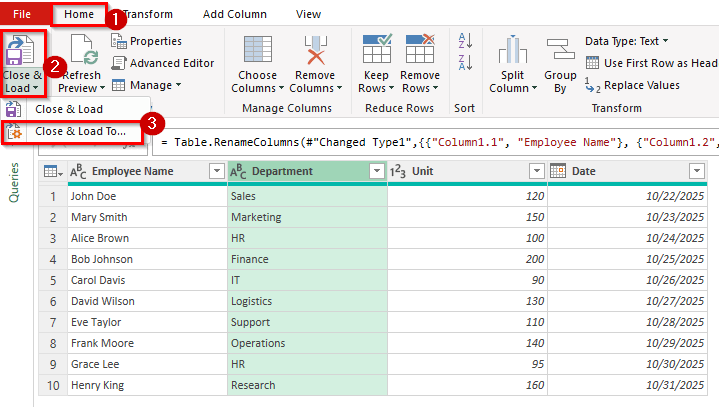
➤ Click Home >> Close & Load >> Close & Load To… to load the cleaned data back into your Excel worksheet.
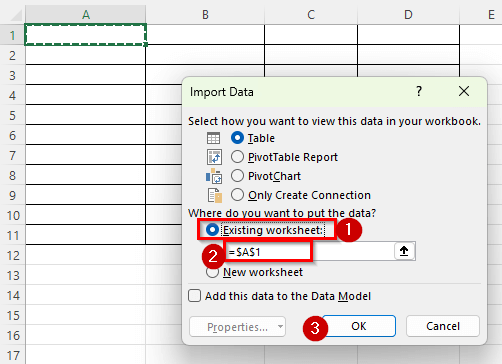
➤ Check Existing Worksheet and type the cell where you want the imported table to appear, for example, =$A$1.
➤ Finally, click OK. Excel will load the transformed data into your selected worksheet location.
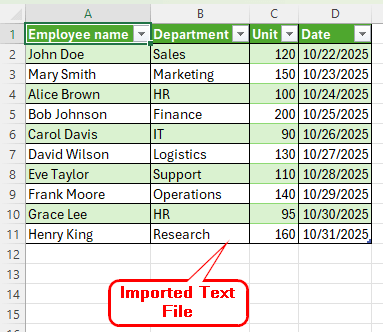
➤ After applying these steps, Excel will automatically separate the text data into four columns, even though the original file contained different delimiters.
Applying VBA to Import Text File with Multiple Delimiters
When your text file contains inconsistent or complex delimiters, Excel formulas or built-in tools may not separate the data correctly. In such cases, using a VBA script is the most flexible option. With just a few lines of code, you can automatically replace multiple delimiters with a single one and split the data into columns.
Here’s how to do it step by step:
➤ Open Excel and press Alt + F11 to open the VBA Editor.
➤ In the VBA window, click Insert >> Module.
➤ Copy and paste the following VBA code into the module:
Sub ImportTextFileMultipleDelimiters()
    Dim FilePath As String
    Dim FileContent As String
    Dim LineData As String
    Dim RowNumber As Long
    Dim SplitValues As Variant
    Dim Item As Variant
    ' Update the file path below
    FilePath = "D:\New folder\SampleData.txt"
    Open FilePath For Input As #1
    RowNumber = 2
    Do While Not EOF(1)
        Line Input #1, LineData
        ' Replace multiple delimiters with a comma
        LineData = Replace(LineData, ";", ",")
        LineData = Replace(LineData, "|", ",")
        ' Split line by comma
        SplitValues = Split(LineData, ",")
        ' Write split data into cells
        Dim Col As Integer
        Col = 1
        For Each Item In SplitValues
            Cells(RowNumber, Col).Value = Trim(Item)
            Col = Col + 1
        Next Item
        RowNumber = RowNumber + 1
    Loop
    Close #1
    MsgBox "Text file imported successfully!", vbInformation
End Sub 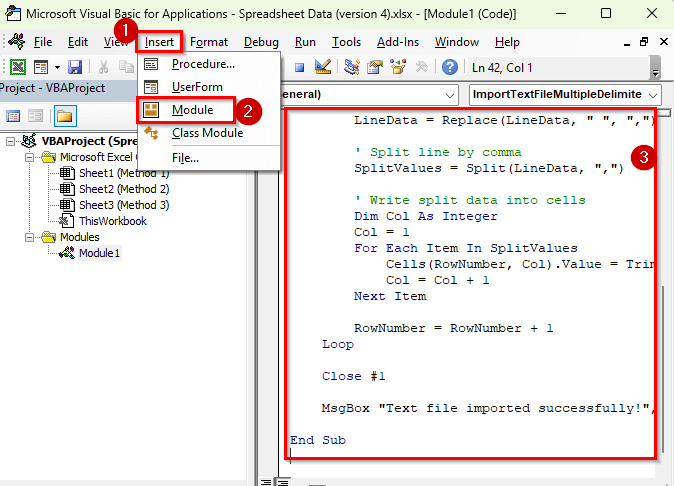
➤ Update the FilePath in the code with the actual location of your SampleData.txt file.
➤ Press Run >> Run Sub/UserForm F5 to run the macro.
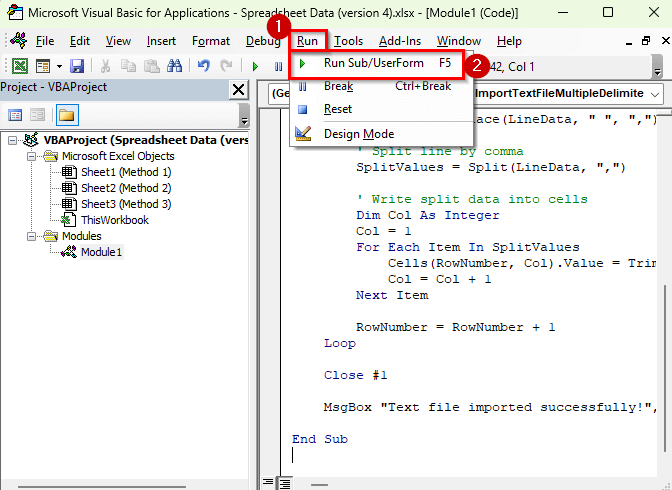
➤ A confirmation prompt will appear, click Ok. Excel will import the text file, replace all delimiters with commas, and split the data into separate columns.
Downloadable Resources
Get our practice workbook or necessary files that we have worked with to prepare this article.
Import Text File with Multiple Delimiters.xlsx
Frequently Asked Question
How do I import a text file into Excel with delimiters?
You can import a text file using Excel’s Power Query option. Go to the Data tab, click Get Data >> From Text/CSV, and select your file. Excel will automatically detect the delimiter. You can also choose the correct one manually such as comma, semicolon, or tab in the preview window. Then, click Load to bring the data into your worksheet.
Why does my text file not split correctly in Excel?
This usually happens when the wrong delimiter is selected during import. Make sure you choose the correct delimiter such as comma, semicolon, or pipe, that separates your data in the text file. You can preview the split before loading it into Excel.
Can I save my import settings for future use?
Yes. When you use Power Query or VBA, Excel saves your transformation steps. You can simply refresh the query to import and clean updated text files without repeating the setup.
Wrapping Up
Importing text files into Excel becomes challenging when they contain mixed delimiters or inconsistent formatting. Knowing how to handle such files helps ensure your data is clean, structured, and ready for analysis.
This process is especially useful when you receive reports or logs saved as text files, as it saves time and reduces manual editing. Once the data is imported correctly, you can easily sort, filter, and perform calculations without worrying about misplaced or merged information.