Adding text to multiple cells in Excel is a quick way to make your data more descriptive and easier to understand. It’s useful when you want to include additional information in several cells at once without typing it repeatedly. Excel provides different tools that let you add text efficiently, saving time and keeping your worksheet organized.
In this article, you’ll learn how to add text to multiple cells in Excel using simple formulas, Flash Fill, and VBA methods.
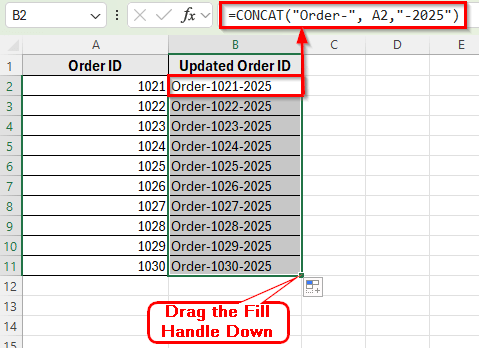
Here’s how to add text to multiple cells in Excel:
➤ Click on cell B2 beside your first value in Column A.
➤ Type the following formula:
=CONCAT(“Order-“, A2,”-2025″)
➤ Press Enter, and you’ll see Order–1021-2025 appear in the cell.
➤ Drag the fill handle down to apply the same formula to all rows.
➤ Now every cell in column B displays the added text before the original value.
Using Ampersand (&) Operator to Add Text to Multiple Cells in Excel
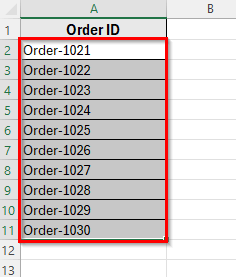
In the following dataset, we have a list of Order IDs in Column A. We want to add the text Order– before each ID in Column B to make them more descriptive.
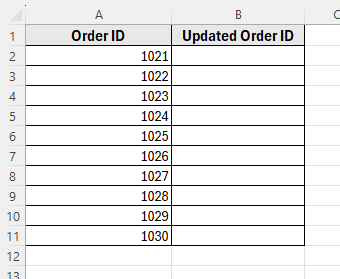
The easiest way to add text to multiple cells in Excel is by using the Ampersand (&) operator. It allows you to combine or join text with existing cell values without changing the original data. You can use it to add text either before or after the contents of a cell.
Here’s how to do it step by step:
Add Text Before Values (Prefix)
➤ Open your dataset in Excel.
➤ Click on cell B2 next to your first value in Column A.
➤ Type the following formula in the formula bar:
="Order-" & A2
➤ Press Enter. The cell will now display the text Order–1021.
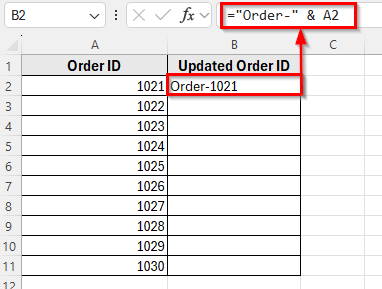
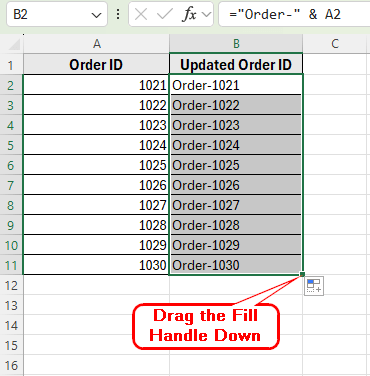
➤ Drag the fill handle down to copy the formula to the rest of the cells.
➤ Now all the cells in column B will show the same added text pattern.
Add Text After Values (Suffix)
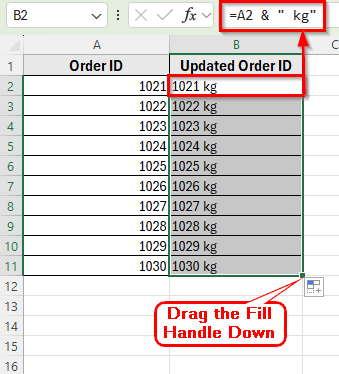
➤ Click on cell B2 next to your first value in Column A.
➤ Type the following formula:
=A2 & " kg"
➤ Press Enter. The result will appear as 1021 kg in cell B2.
➤ Drag the fill handle down to apply the formula to all rows in the column.
➤ Now all your values have the added text after them.
Applying CONCAT Function to Add Prefix and Suffix Text
Another simple way to add text before and after existing values is by using the CONCAT function. This function is designed to join two or more text strings together, making it perfect for adding text to existing values.
Here’s how to do it step by step:
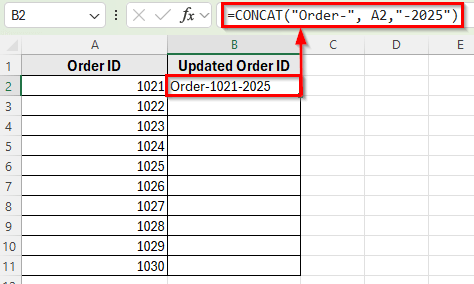
➤ Click on cell B2 beside your first value in Column A.
➤ Type the following formula:
=CONCAT("Order-", A2,"-2025")
➤ Press Enter, and you’ll see Order–1021-2025 appear in the cell.
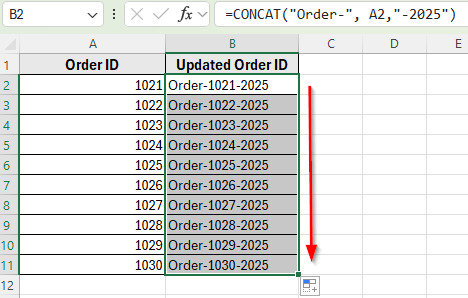
➤ Drag the fill handle down to apply the same formula to all rows.
➤ Now every cell in column B displays the added text before the original value.
Add Text to Multiple Cells Using Flash Fill
Excel’s Flash Fill feature can automatically detect patterns and fill the rest of the cells based on an example you provide. This method does not require formulas and works well when you want to add text to multiple cells quickly.
Here’s how to do it step by step:
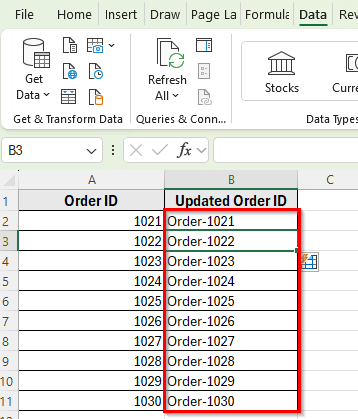
➤ In cell B2, manually type the first value with the text added, for example Order-1021.
➤ Move to cell B3 and go to the Data tab.
➤ Click Flash Fill in Data Tools.
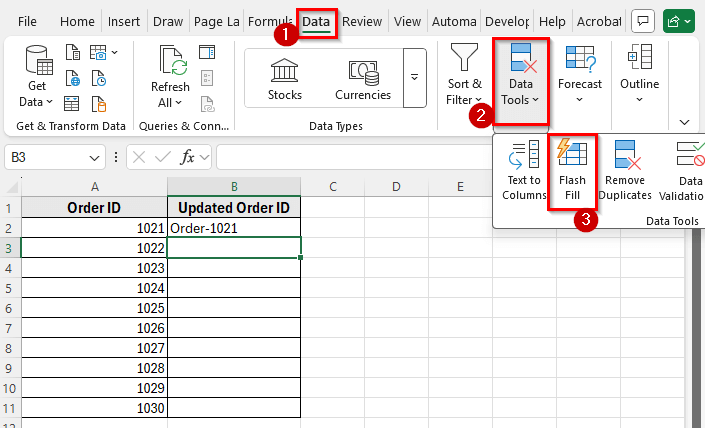
➤ Excel will detect the pattern and fill the column with the same pattern.
➤ All the selected cells will now have the added text applied consistently.
Using the REPLACE Function to Add Text in Multiple Cells
The REPLACE function in Excel is another effective way to add text to multiple cells, especially when you want to insert text at a specific position inside each cell. It’s useful for adding prefixes, suffixes, or extra text within existing strings.
Here’s how to do it step by step:
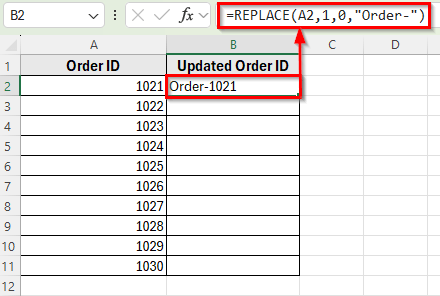
➤ Click on cell B2 in your dataset.
➤ Type the following formula:
=REPLACE(A2,1,0,"Order-")
➤ Press Enter, and you’ll see the text Order–1021 in cell B2.
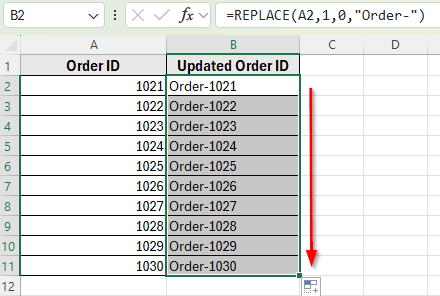
➤ Drag the fill handle down to apply the same formula to the rest of the rows.
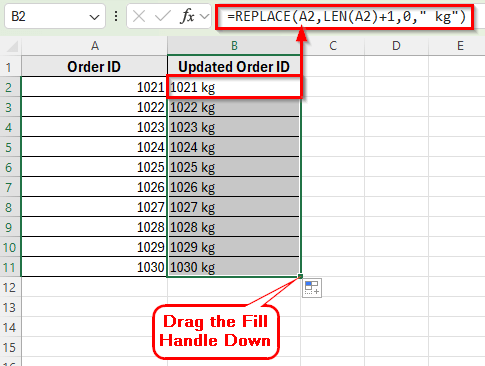
➤ To add text at the end of the cell instead of the beginning, use this version:
=REPLACE(A2,LEN(A2)+1,0," kg")
➤ This formula inserts the text kg right after the last character in each cell.
Using the SUBSTITUTE Function to Add Text in Multiple Cells
The SUBSTITUTE function is another powerful tool in Excel that lets you add or replace specific text within multiple cells. SUBSTITUTE function looks for existing characters or words and replaces them with new text.
Here’s how to do it step by step:
➤ Click on cell B2 in your dataset.
➤ Type the following formula:
=SUBSTITUTE(A2,"10","Order-10")
➤ Press Enter, and the result will appear as Order–1021 in cell B2.
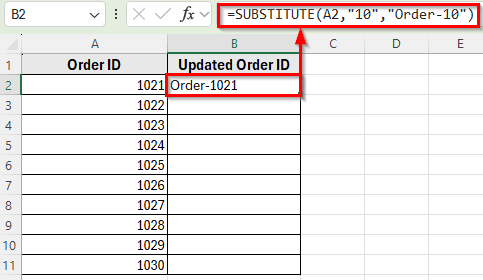
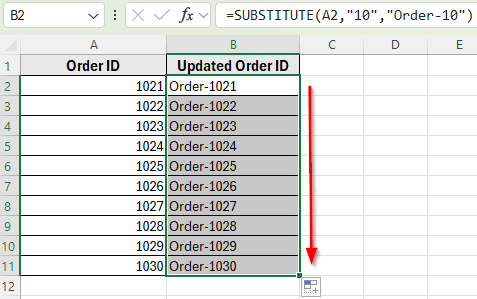
➤ Drag the fill handle down to apply the formula to all the rows.
Add Text to Multiple Cells Using VBA
For large datasets or repetitive tasks, using a VBA script can save a lot of time. VBA allows you to automatically add text to multiple cells with a single click, without using formulas or Flash Fill.
Here’s how to do it step by step:
➤ Press Alt + F11 to open the VBA editor.
➤ Go to Insert >> Module to create a new module.
➤ Copy and paste the following code into the module window:
Sub AddTextToMultipleCells()
    Dim cell As Range
    Dim addText As String
    addText = "Order-" 'Change this text as needed
    For Each cell In Selection
        If cell.Value <> "" Then
            cell.Value = addText & cell.Value
        End If
    Next cell
End Sub 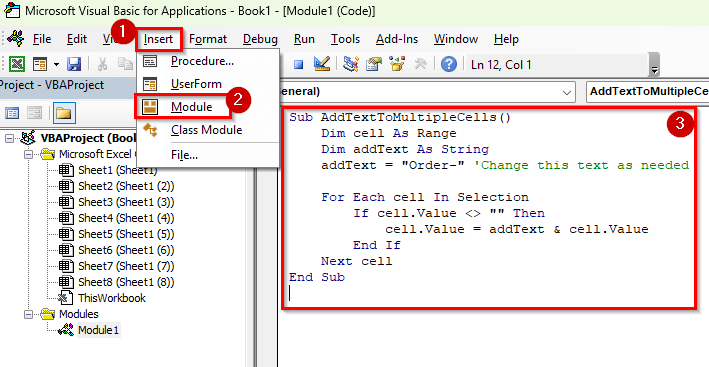
➤ Close the VBA editor.
➤ In your Excel worksheet, select the cells you want to update, for example A2:A11.
➤ Press Alt + F8 , select AddTextToMultipleCells, and click Run.
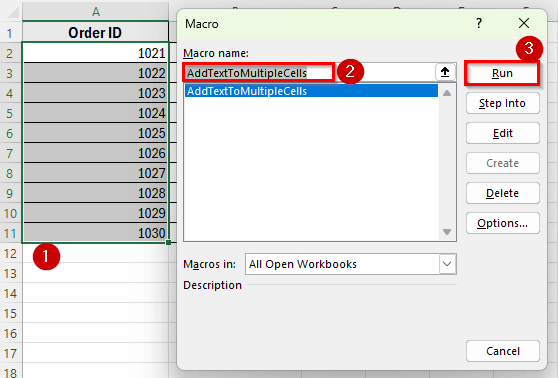
➤ All selected cells will now have the text added instantly.
Downloadable Resources
Get our practice workbook or necessary files that we have worked with to prepare this article.
Add Text to Multiple Cells.xlsx
Frequently Asked Questions
How do I add the same text to multiple cells at once in Excel?
You can use the Ampersand Operator, CONCAT, or REPLACE functions and drag it down to apply the same prefix to all cells. These functions are simple and don’t require any advanced Excel features.
Can I add text both before and after existing values?
Yes. Use a function like CONCAT function to add text to both prefix and suffix at the same time. For example, use this formula:
=CONCAT("Order-",A2,"-2025")
What’s the difference between CONCAT and REPLACE functions?
The CONCAT function joins text strings together, making it perfect for adding prefixes or suffixes. The REPLACE function allows you to insert or replace text at a specific position within the cell.
Can VBA add text to many cells automatically?
Yes. A VBA macro can instantly add text to hundreds of cells at once. You just need to select the range and run the macro, and Excel will update all selected cells automatically.
Wrapping Up
Adding text to multiple cells in Excel helps you keep your data more organized and meaningful. It can make labels clearer, add context to values, or prepare information for reports and analysis.
This simple skill saves time and ensures consistency across large datasets. Once you understand how to do it efficiently, you can easily customize your worksheet to match your needs and improve overall data presentation.