Hard-coding in Excel refers to manually entering a specific value or text directly into a formula rather than referencing another cell. It’s a way of locking your data so it remains fixed regardless of future changes in the worksheet. Hard-coding is commonly used when dealing with permanent values like tax rates, commission percentages, or fixed fees that won’t be updated often.
In this article, you’ll learn everything you need to know about hard-coding in Excel including what it means and how to use it. You’ll also explore three practical methods to apply hard-coded values or text directly into your formulas and cells, ensuring your data remains stable and consistent across calculations. Let’s get started.
Steps to hard code in Excel:
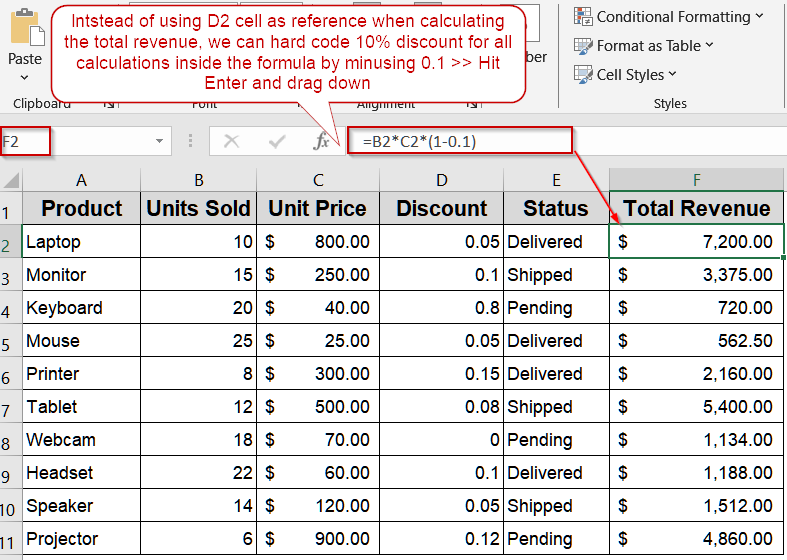
➤ Click on the cell where you want to calculate Total Revenue (for example, F2).
➤ Instead of referencing the Discount column (D2), directly include a fixed discount or markup in the formula.
➤ Use the following formula:
=B2*C2*(1-0.10)
Here, 0.10 (10%) is hard-coded as the discount value.
➤ Press Enter to apply the formula and drag it down to other rows if needed.
What Is Hard-Coding in Excel?
Hard-coding in Excel refers to directly entering a fixed value or text into a formula or cell instead of referencing another cell for that value. When you hard-code, the data you type remains constant, meaning it won’t automatically adjust if other parts of your worksheet are updated. This makes it ideal for constants such as tax rates, commission percentages, or fixed service fees that don’t change frequently.
For example, instead of writing a formula like =A1*0.10, which takes its base value from cell A1, a hard-coded version would be =500*0.10. In this case, the number 500 is permanently stored in the formula. Even if the data in cell A1 changes, your calculation will still use 500. This stability is the key advantage of hard-coding, though it also means you’ll need to manually update the formula if the fixed value ever changes.
Enter Fixed Values Directly into Formulas
This is the most straightforward approach to hard-coding in Excel. Instead of linking your formula to another cell for tax, discount, or markup values, you can directly type the fixed number or percentage inside the formula. This ensures your calculation remains constant, even if data in other cells changes.
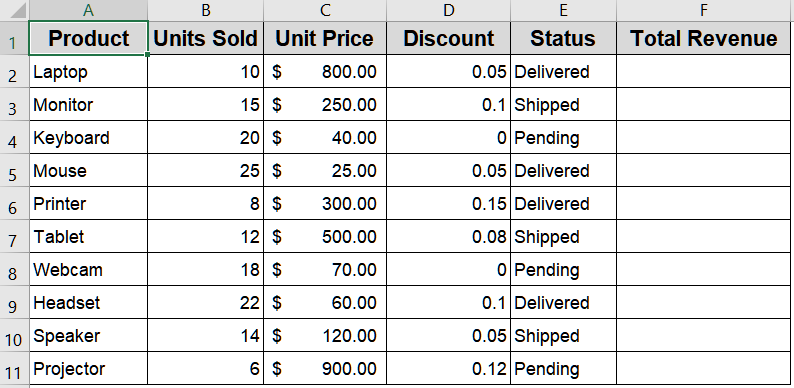
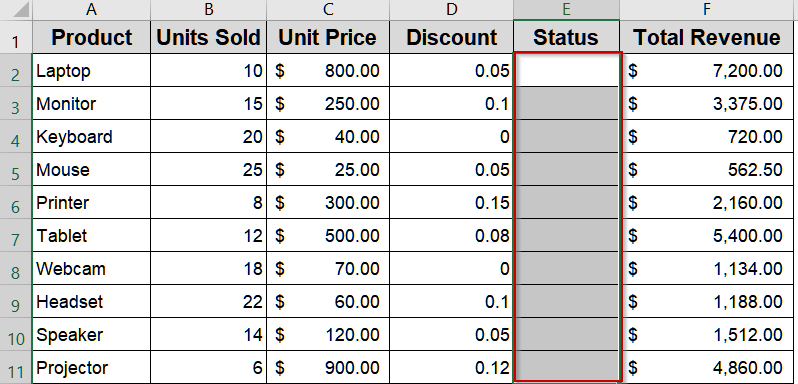
We’ll use the dataset below that lists different electronic products with their units sold, unit price, discount rate, delivery status, and a blank Total Revenue column to demonstrate hard-coding techniques in Excel:
Steps:
➤ Click on the cell where you want to calculate Total Revenue (for example, F2).
➤ Instead of referencing the Discount column (D2), directly include a fixed discount or markup in the formula.
➤ Use the following formula:
=B2*C2*(1-0.10)
Here, 0.10 (10%) is hard-coded as the discount value.
➤ Press Enter to apply the formula and drag it down to other rows if needed.
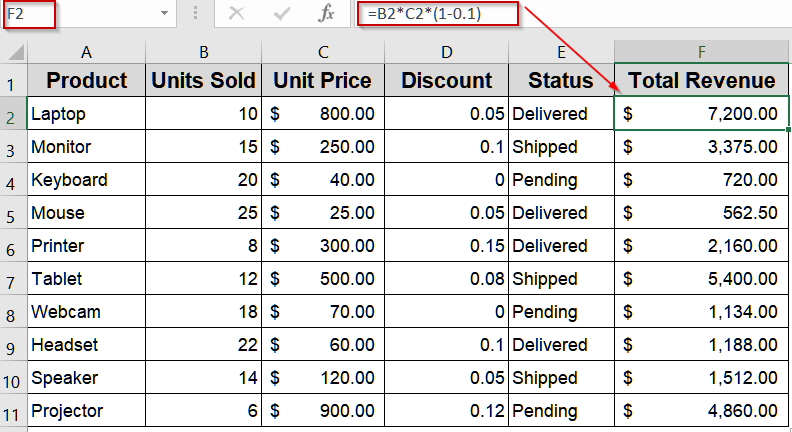
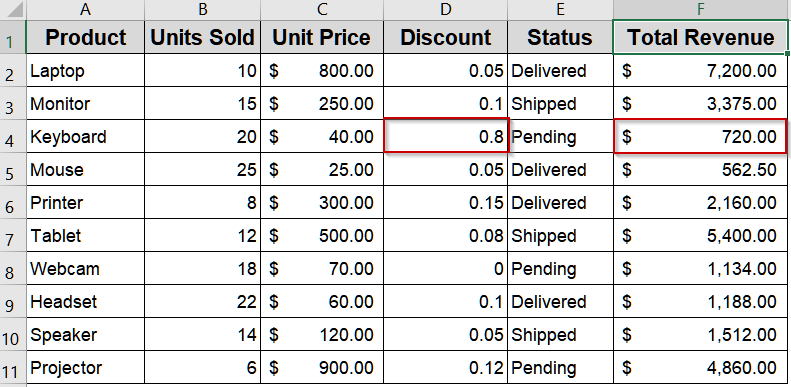
Even if the discount column or other values are updated later, your calculation will not change and it will always use the fixed rate you typed.
Hard-Code Text Using Custom Cell Formatting
You can also hard-code text in Excel cells so a specific word or label (like “Delivered”) always appears automatically. This method doesn’t require typing text repeatedly; instead, you apply a Custom Format that embeds the word into the cell display.
Steps:
➤ Select the Status column (E2:E11).
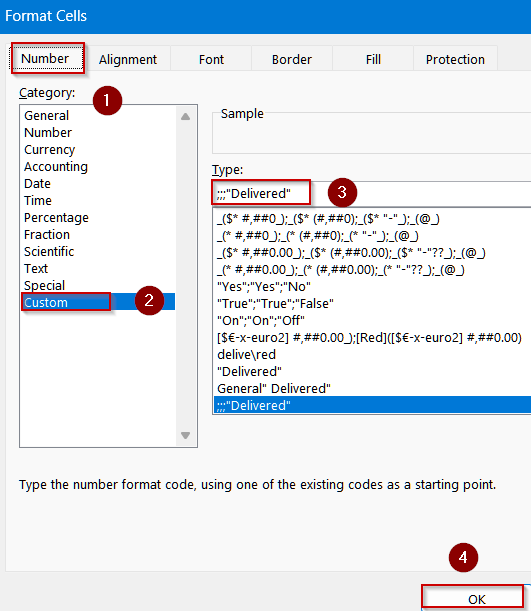
➤ Press Ctrl + 1 on your keyboard to open Format Cells.
➤ In the Number tab, click Custom.
➤ In the Type field, enter the following text:
;;;”Delivered”
➤ Click OK to confirm.
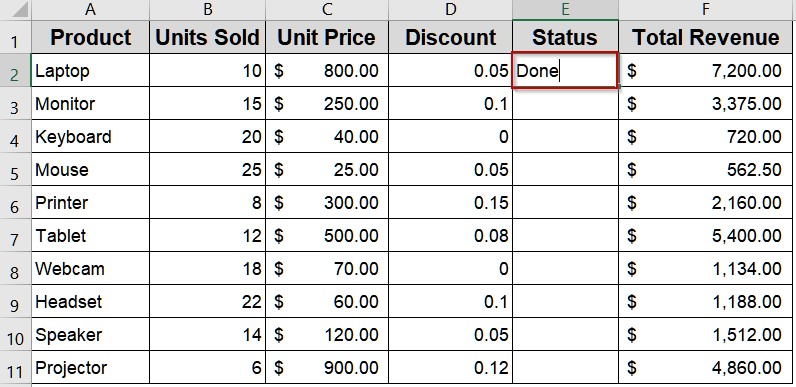
➤ Now type anything like Done in Column E and press Enter.
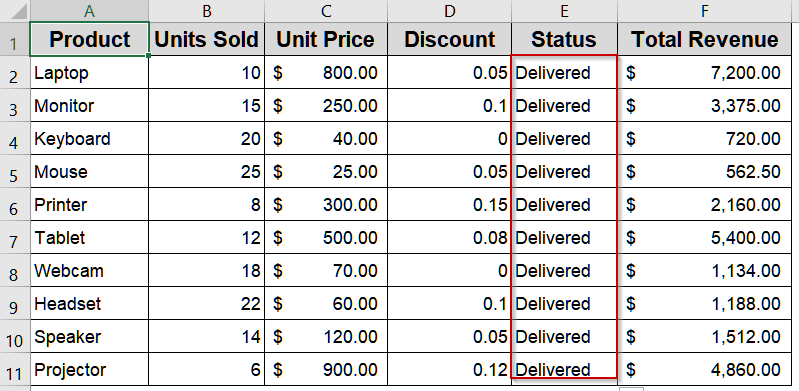
Now, every cell in that column will automatically display “Delivered” no matter what you type.
Lock Values Using Paste Special by Converting Formulas to Values
If you’ve already calculated total revenue using formulas but want to freeze the results so they never change, you can use the Values option from Paste Special . This converts all formulas into their final numbers which makes them fully hard-coded.
Steps:
➤ Select the cells in the Total Revenue column (F2:F11) that contain your formulas.
➤ Press Ctrl + C to copy the cells.
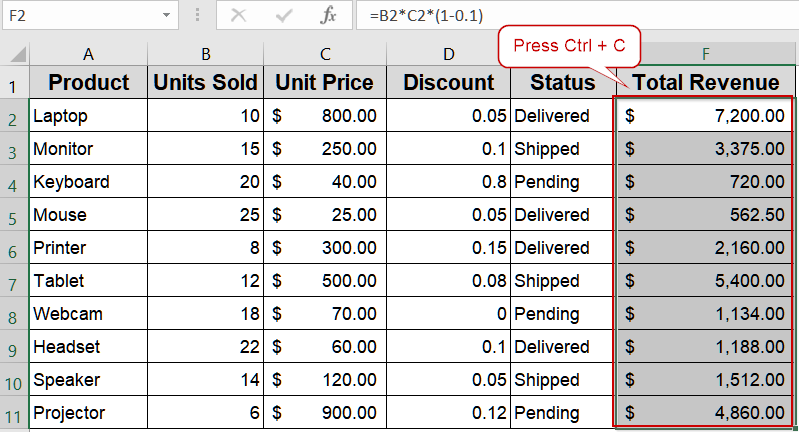
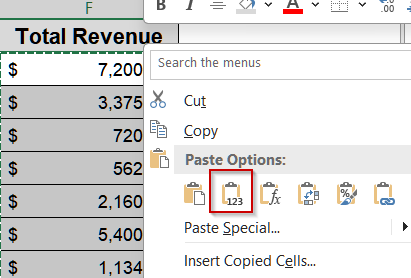
➤ Right-click on the same cells, choose Paste Values under Paste Options.
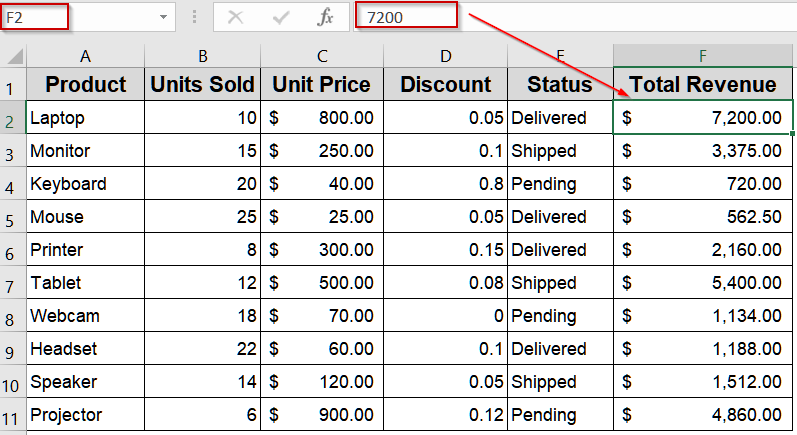
The formulas are replaced with their calculated numbers, so the values are now hard-coded.
Downloadable Resources
Get our practice workbook or necessary files that we have worked with to prepare this article.
Frequently Asked Questions
What is the purpose of hard-coding in Excel?
Hard-coding allows you to lock values directly into a formula so that results don’t change when other cells are modified. It’s especially useful when working with permanent or fixed constants in business calculations.
Why do most professionals avoid excessive hard-coding?
While convenient, excessive hard-coding reduces flexibility. If a rate or value changes, you must manually adjust every formula containing that fixed value instead of updating one linked cell which increases time and error risk.
Can hard-coding be applied to both numbers and text?
Yes, hard-coding works for both. You can embed numbers in formulas (like =A1*1.1) or apply fixed text using custom formats. It’s ideal for static labels, fixed pricing, or predefined status values.
How can I identify hard-coded formulas in large spreadsheets?
You can spot hard-coded formulas by scanning for numbers or text embedded directly within formulas. Excel’s auditing tools or add-ins like Inquire help trace and highlight formulas containing static values for review.
What’s the best practice when mixing hard-coded and referenced data?
It’s best to use hard-coding only for constants that never change and rely on cell references for dynamic inputs. This approach keeps your spreadsheet more flexible, scalable, and easier to update later.
Wrapping Up
In this tutorial, you learned how to hard code in Excel using three practical methods including typing fixed values directly in formulas, embedding text with custom formatting, and converting formulas to values via Paste Special. While hard-coding can make certain calculations simpler and static, remember to use it carefully, especially when your data might change later. Feel free to download the practice file and share your feedback.