An absolute cell reference in Excel allows you to lock both the column and row of a cell in a formula. This ensures that the reference always points to the same cell, even when you copy the formula to other rows or columns. Absolute references are essential when working with fixed values like hourly wages, tax rates, or bonuses in calculations.
In this article, we’ll explain absolute cell references with clear, step-by-step examples, including payroll calculations and overtime computations. We’ll also provide a sample dataset to make learning practical and easy. Let’s get started.
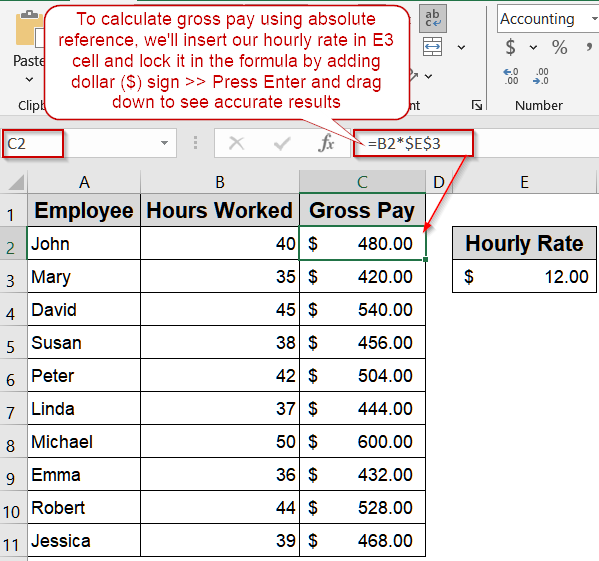
Steps to use absolute cell reference in Excel:
➤ Suppose the Hourly Rate is in cell E3.
➤ Select the first cell where you want to calculate gross pay, for example C2.
➤ Enter this formula: =B2*$E$3
Here, B2 is a relative reference that adjusts for each employee’s hours, while $E$3 is absolute, locking the hourly wage with the dollar sign so it doesn’t change when copied.
➤ Press Enter to calculate John’s gross pay.
➤ Drag the fill handle down from C2 to C11 to apply the formula for all employees.
What is an Absolute Cell Reference in Excel?
An absolute cell reference in Excel is a cell reference that remains fixed, no matter where you copy the formula. It uses dollar signs to lock the row, column, or both. For example, $A$2 locks both the column (A) and row (2), ensuring the formula always refers to that specific cell.
For instance, if you have a formula =B2*$E$3 in cell C2, $E$3 is absolute, so when you copy the formula down the column, the reference to E3 does not change. This ensures that all calculations use the same fixed value consistently.
Making Calculations Using Absolute Cell Reference
When working with Excel, you often need to calculate values that involve a fixed number, such as an hourly wage, tax rate, or standard price. Absolute cell references are essential in these situations because they lock a specific cell, ensuring that Excel does not change the reference when copying formulas across multiple rows or columns. This prevents errors and maintains consistency, especially when calculating employee gross pay, totals, or other repeated computations where one value must remain constant.
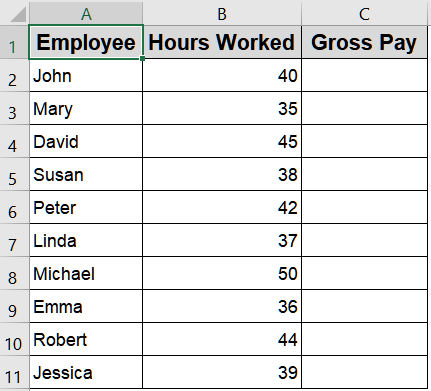
We’ll use the following dataset that lists employees with their worked hours to calculate gross pay using absolute references in Excel:
Steps:
➤ Suppose the Hourly Rate is in cell E3.
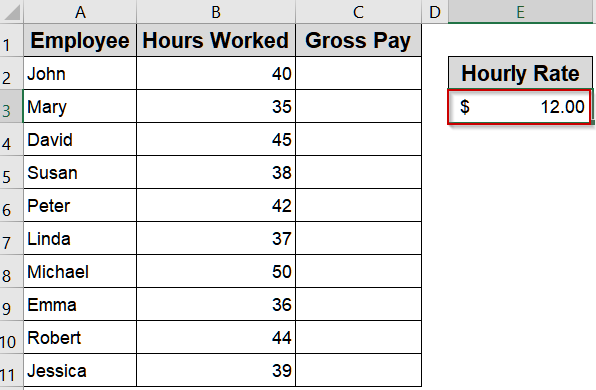
➤ Select the first cell where you want to calculate gross pay, for example C2.
➤ Enter this formula:
=B2*$E$3
Here, B2 is a relative reference that adjusts for each employee’s hours, while $E$3 is absolute, locking the hourly wage with the dollar sign so it doesn’t change when copied.
➤ Press Enter to calculate John’s gross pay.
➤ Drag the fill handle down from C2 to C11 to apply the formula for all employees.
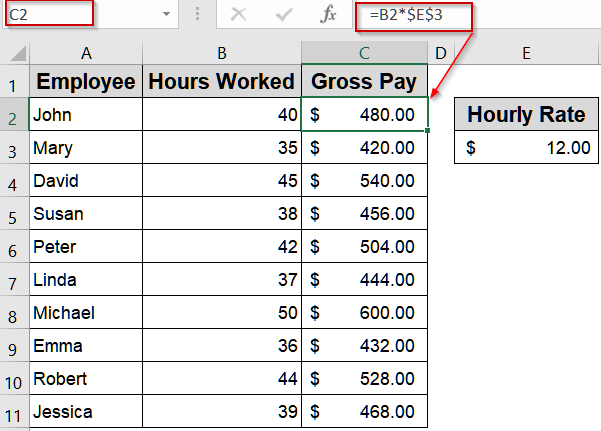
The formula in C3 automatically adjusts to B3*$F$3, in C4 to B4*$F$3, and so on, keeping calculations accurate for each employee.
Locking Multiple Cells in a Formula with Absolute Reference
In many Excel calculations, you often need to combine several values, such as hourly pay and bonuses, into a single formula. Using absolute references for the fixed components ensures that these values remain constant when the formula is copied across multiple rows. This approach is essential for maintaining accuracy in payroll sheets, financial models, or any dataset where certain constants must not change, while allowing other parts of the formula to adjust dynamically for each row.
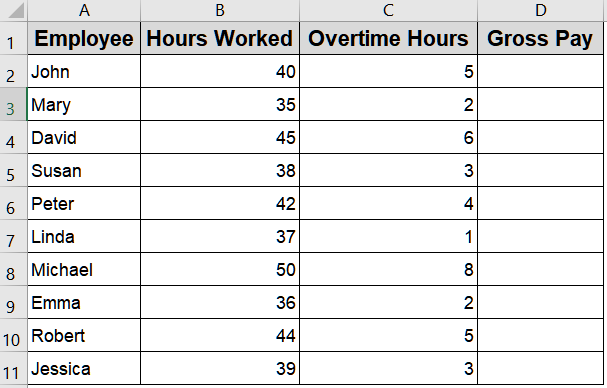
We’ll use the following dataset that lists employees with their regular and overtime hours to calculate gross pay using absolute references in Excel:
Steps:
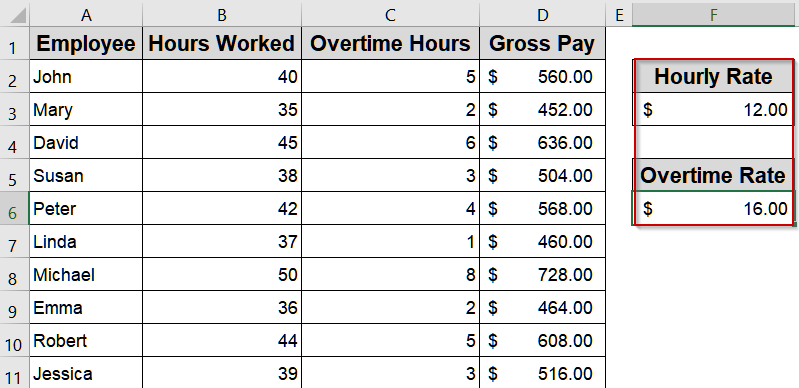
➤ Suppose the hourly rate and overtime rate for all employees are in the cell F3 and F6.
➤ Select the first cell for the combined calculation, for example D2.
➤ Enter this formula:
=B2*$F$3 + D2*$F$6
Here, both $F$3 and $F$6 are absolute references, keeping the hourly wage and overtime rate fixed, while B2 and C2 adjust row-wise for each employee.
➤ Press Enter.
➤ Drag the fill handle down from D2 to D11 to calculate gross pay plus bonus for all employees.
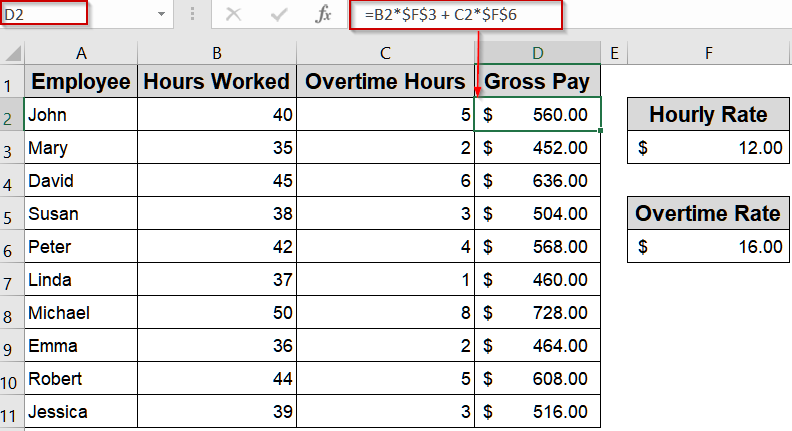
The formula automatically adjusts relative references for each row while keeping fixed values locked, giving accurate totals for all employees.
Downloadable Resources
Get our practice workbook or necessary files that we have worked with to prepare this article.
Frequently Asked Questions
What is an absolute cell reference in Excel?
An absolute cell reference locks both the column and row of a cell in a formula, ensuring the reference remains constant even when the formula is copied to other rows or columns, preventing calculation errors.
How do I create an absolute cell reference?
To create an absolute reference, place a dollar sign $ before both the column letter and row number, for example $F$3. This locks the reference so Excel always refers to that exact cell when copying formulas.
Why should I use absolute references in formulas?
Absolute references are useful when you have fixed values, such as hourly wages or bonus rates. They prevent Excel from changing the reference when copying formulas, ensuring calculations remain consistent across multiple rows and columns.
Can I mix absolute and relative references in a formula?
Yes. Mixed references allow you to lock either the row or column while letting the other part adjust. For example, $A1 locks the column, and A$1 locks the row, creating flexible formulas for dynamic worksheets.
Is there a shortcut to apply absolute references quickly?
Yes. While editing a formula, select the cell reference and press F4 . This cycles through relative, absolute, and mixed reference types, making it easy to apply the correct reference style without manually typing dollar signs.
Wrapping Up
In this tutorial, we explored absolute cell references in Excel and how they help lock critical values like hourly wages and overtimes. Using absolute references ensures accurate calculations when formulas are copied across rows and columns. Practice with the sample dataset to master this essential Excel skill.