Excel formulas can save significant time and reduce errors when performing repetitive calculations. One of the most efficient features for this is the relative cell reference, which automatically adjusts formulas based on their new location.
In this article, we’ll explore how relative references work, demonstrate practical examples with a sample dataset, and show step-by-step methods to efficiently make calculations using relative references in Excel. Let’s get started.
Steps to use relative cell reference in Excel:
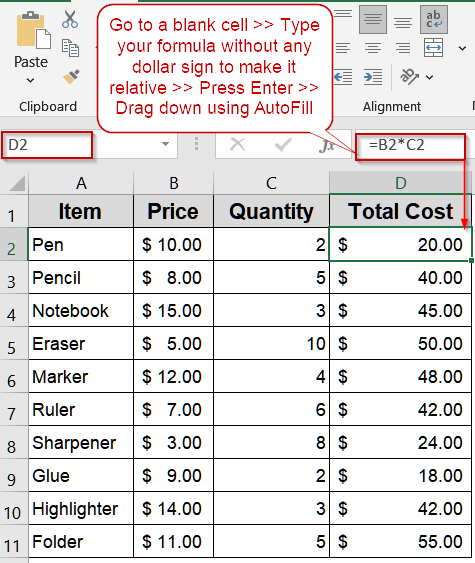
➤ Select the first cell where you want the calculation, for example D2.
➤ Enter the formula: =B2*C2
Here, both B2 and C2 are relative references, so they will adjust automatically when copied to other rows.
➤ Press Enter.
➤ Drag the fill handle from D2 down to D11 to calculate totals for all items.
What is a Relative Cell Reference in Excel?
A relative cell reference in Excel is a type of cell reference that changes automatically when a formula is copied to another cell. Unlike absolute references, relative references do not have dollar signs, which means both the row and column adjust according to the new position of the formula.
For example, if you enter =A2+B2 in cell C2 and then copy the formula down to C3, Excel automatically updates it to =A3+B3. This behavior allows formulas to adapt dynamically, making it easy to perform calculations across multiple rows or columns without manually editing each formula.
Basic Calculation with Multiple Relative References
Relative references are essential for performing simple arithmetic operations that repeat across rows or columns. They make it possible to use the same formula pattern without manually editing each one. This method shows how to calculate totals automatically by copying formulas down your dataset using more than one cell reference. It’s the most common and practical use of relative cell referencing in Excel.
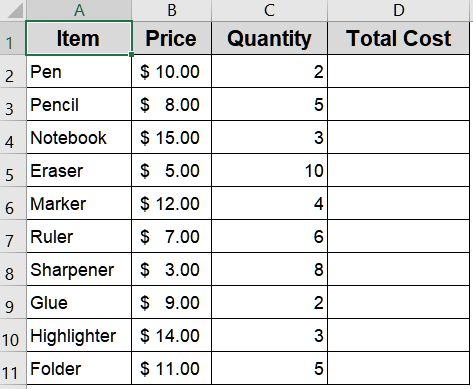
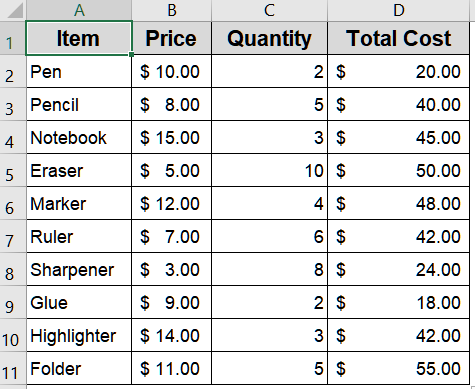
We’ll use the following dataset containing different product information:
Steps:
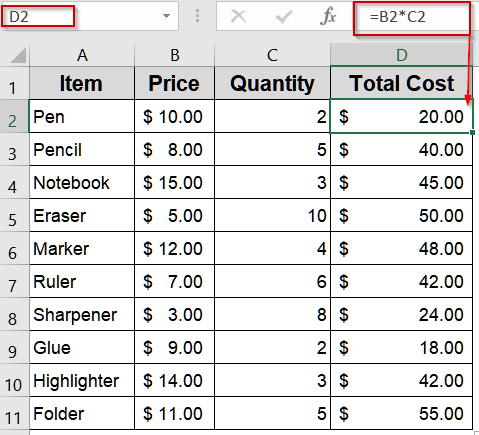
➤ Select the first cell where you want the calculation, for example D2.
➤ Enter the formula:
=B2*C2
Here, both B2 and C2 are relative references, so they will adjust automatically when copied to other rows.
➤ Press Enter.
➤ Drag the fill handle from D2 down to D11 to calculate totals for all items.
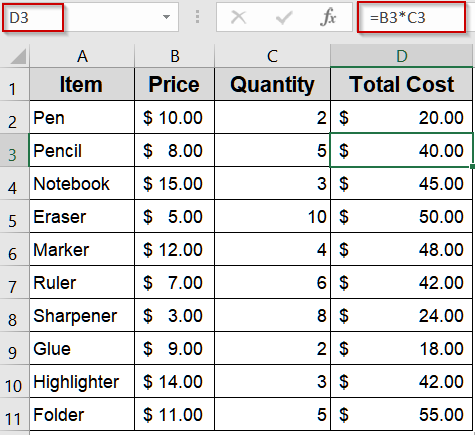
Now, Each row calculates the total cost using the cells in the same row. For example, in D3, the formula automatically becomes B3*C3.
Copying Formulas Across Rows Using a Single Relative Reference
When working with commissions or bonuses, you often need to apply the same formula to multiple employees. Relative references make this simple, automatically adjusting for each row when copied. This method shows how Excel dynamically updates each formula to match its corresponding data using a single cell reference with a fixed value. We’ll use the dataset below for demonstration:
Steps:
➤ In cell E2, enter this formula to calculate a 10% commission:
=D2*10%
➤ Press Enter.
➤ Drag the formula down from E2 to E11.
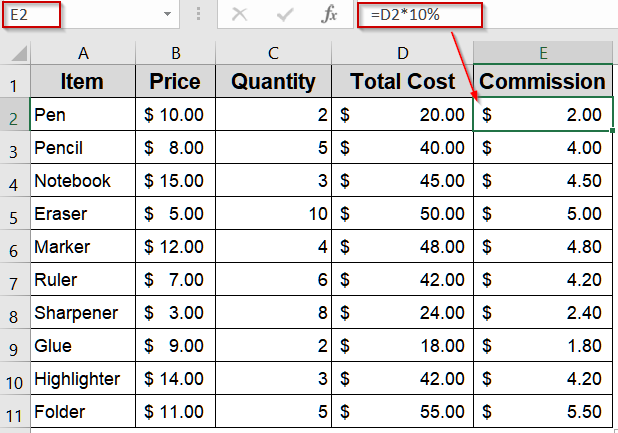
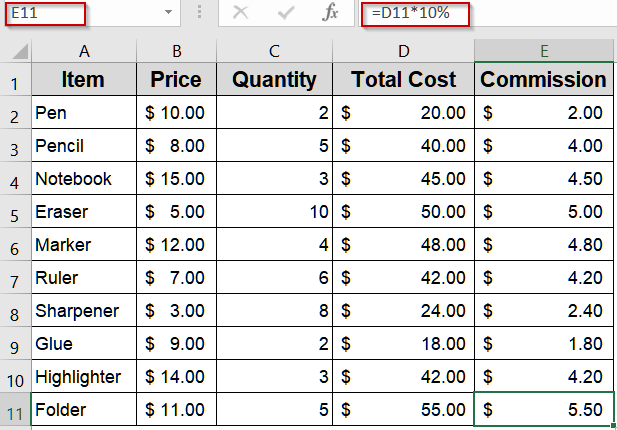
Excel changes each formula reference as you move down the rows, ensuring every employee’s commission is calculated using their specific sales amount.
Downloadable Resources
Get our practice workbook or necessary files that we have worked with to prepare this article.
Relative Cell Reference Example.xlsx
Frequently Asked Questions
What is a relative cell reference in Excel?
A relative cell reference automatically adjusts when a formula is copied to another cell. It always refers to the cell in the same position relative to the formula’s new location, making repeated calculations efficient and error-free.
How do I use relative references in formulas?
To use a relative reference, simply type the cell coordinates without dollar signs, like =A2+B2. When you copy the formula to another row or column, Excel automatically updates the references according to the new position.
When should I use relative references?
Relative references are best for calculations that repeat across rows or columns, such as totals, price lists, payroll, or inventory, where each row or column should calculate based on its own corresponding cells.
How do relative references differ from absolute references?
Absolute references use dollar signs, like $A$2, which lock the row and column. Relative references adjust automatically. Relative references are dynamic, while absolute references remain constant when copied, giving flexibility for different calculation needs.
Can I mix relative and absolute references in one formula?
Yes. Mixing relative and absolute references, like =A2*$B$1, allows part of the formula to adjust for each row while keeping a fixed value constant, combining flexibility and precision in your calculations.
Wrapping Up
In this tutorial, we explored how relative cell references in Excel allow formulas to adjust automatically when copied across rows or columns. Using relative references saves time, reduces errors, and is ideal for dynamic datasets like price lists, payroll, or inventory. Feel free to download the practice file and share your feedback.