In Excel, formulas automatically calculate values but sometimes, you need those results stored as plain text instead. For instance, when you’re preparing reports, exporting data, or preventing further recalculations, converting a formula’s output into a text string ensures stability and readability.
In this article, you’ll learn eight practical ways to convert formula results to text strings in Excel ranging from quick manual techniques to formula-based and VBA-powered methods. Let’s get started.
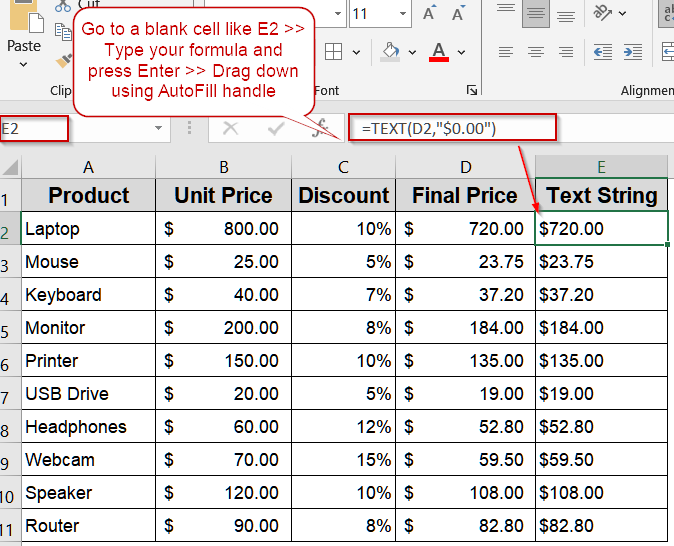
Steps to convert formula result to text string in Excel:
➤ Select a blank cell.
➤ Type one of the following formulas based on your needs:
=TEXT(B2*(1-C2),”0.00″)
➤ Press Enter and drag down using AutoFill.
➤ The result appears as formatted text, even though the formula remains active in the cell.
Converting Formula Results Using Copy and Paste Feature
One of the simplest ways to turn formula results into text is by using Excel’s Copy and Paste Values feature. This method replaces formulas with their displayed results instantly and works perfectly for quick conversions without using any function or code. It’s especially useful when you want to “freeze” calculated results before sending a file or generating a report.
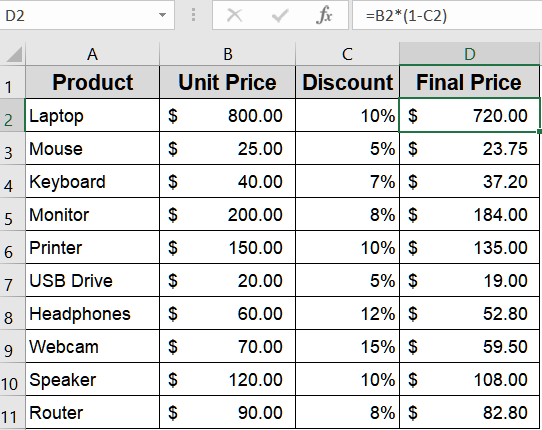
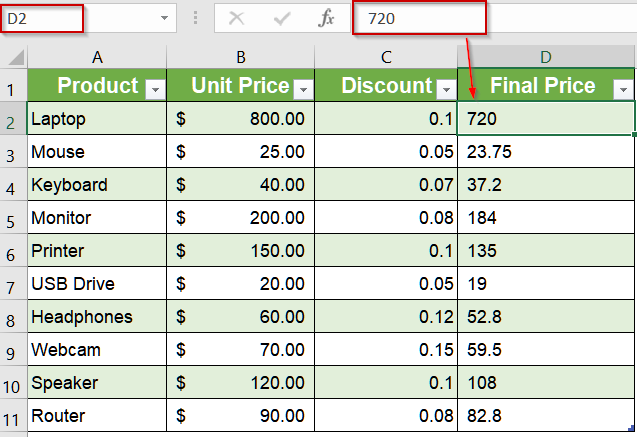
We’ll use the following dataset of item prices and discounts for demonstration:
Steps:
➤ Select all cells containing formulas in column D.
➤ Press Ctrl + C to copy them.
➤ Right-click the same range and choose Paste Values from the Paste Options menu.
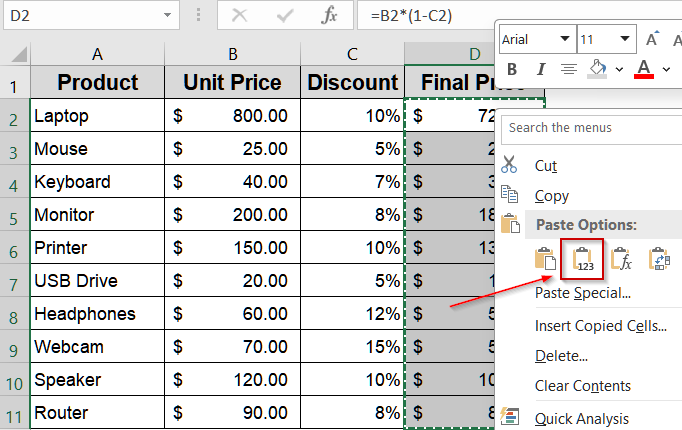
➤ The formulas are instantly replaced by their static text results.
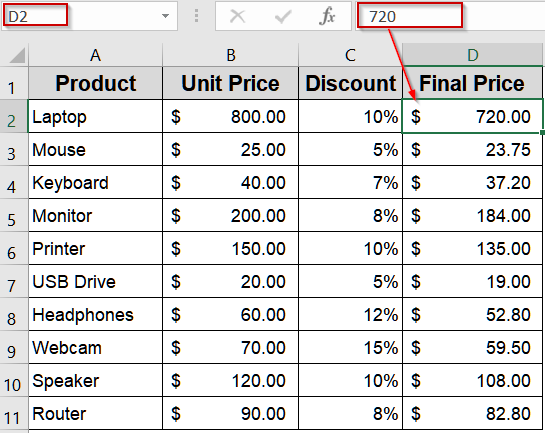
Formatting Outputs Using the TEXT Function
The TEXT function allows you to show formula results as formatted text without removing the formula. It’s especially helpful for displaying dates, currency, or numbers in a specific text format while keeping the underlying formula active.
Steps:
➤ Select a blank cell.
➤ Type one of the following formulas based on your needs:
=TEXT(B2*(1-C2),"0.00")
➤ Press Enter and drag down using AutoFill.
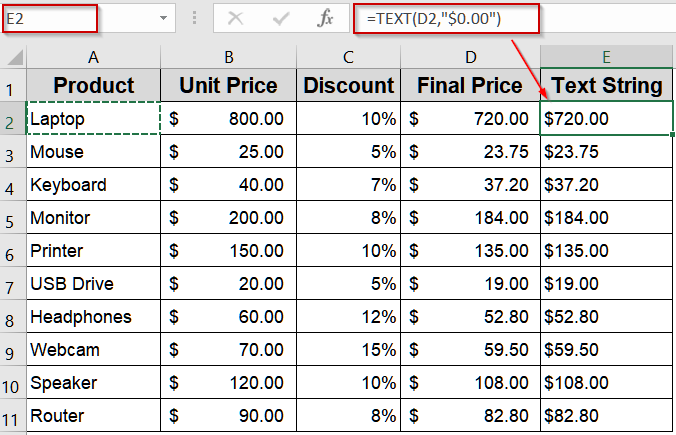
The result appears as formatted text, even though the formula remains active in the cell.
Triggering Conversion with a Keyboard Shortcut
Excel also allows quick formula-to-text conversion using a handy keyboard shortcut combination. This method is ideal for those who prefer a fast, mouse-free workflow. With just a few keystrokes, you can turn your formula-driven results into plain text while preserving formatting.
Steps:
➤ Select the range with formulas (for example, D2:D11).
➤ Press Ctrl + C to copy the formulas.
➤ Without clicking anywhere else, press Shift + F10 .
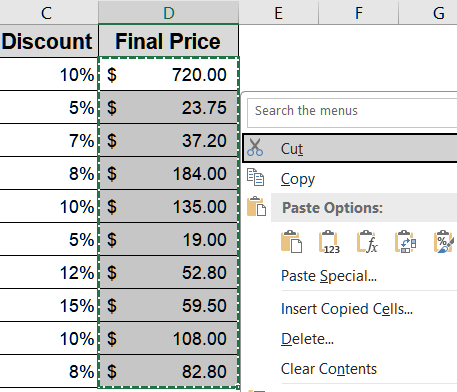
➤ Press V on your keyboard to apply Paste Values.
➤ Press Enter to confirm. The cells now show plain text values instead of formulas.
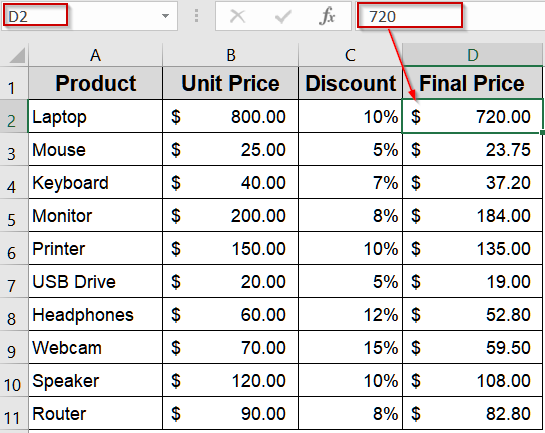
Dragging Values Using Mouse Action
Excel also supports an intuitive, manual method to replace formulas with their text values by dragging. This method suits smaller datasets where you want more control and direct visual confirmation during conversion.
Steps:
➤ Select the cells containing formula results.
➤ Move your cursor to the border of the selection until it turns into a four-arrow icon.
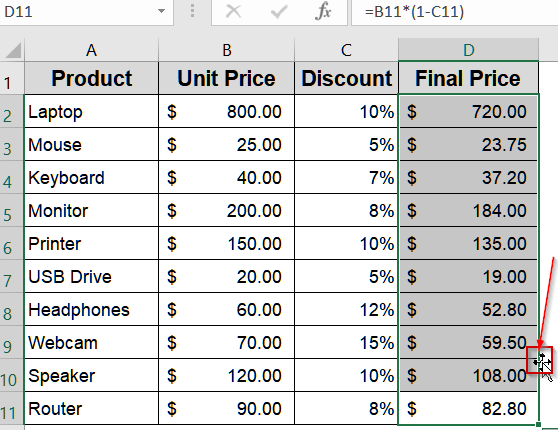
➤ Hold Right-click, drag slightly to a new location, and release.
➤ Choose Copy Here as Values Only from the context menu.
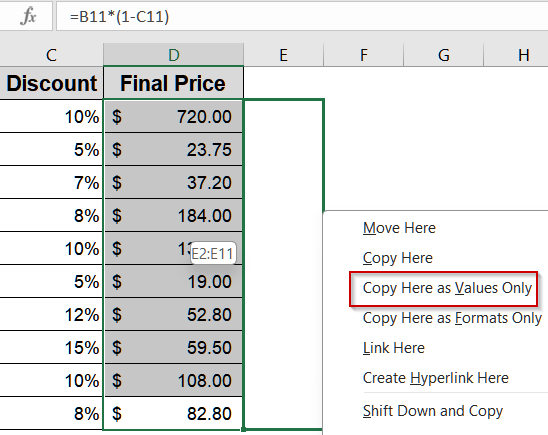
➤ The copied cells now show only the text output, not the formulas.
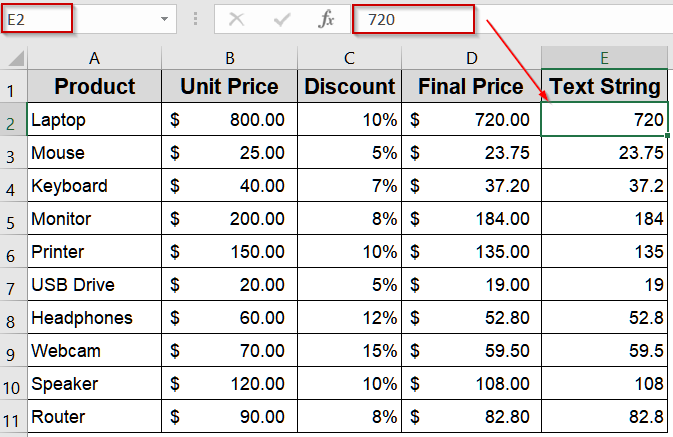
Combining Results As a Text String with CONCAT or CONCATENATE Functions
The CONCAT and CONCATENATE functions let you merge text with formula results, effectively turning numeric or calculated outputs into text strings. This method is great when you need to create readable labels, such as price statements or invoice descriptions.
Steps:
➤ Select a cell and type this formula if you’re using modern Excel:
=CONCAT("The final price of ",A2," is $",TEXT(D2,"0.00"))
➤ Alternatively, type this formula in E2 cell if you’re using legacy Excel:
=CONCATENATE("The final price of ",A2," is $",TEXT(D2,"0.00"))
➤ Press Enter and drag down.
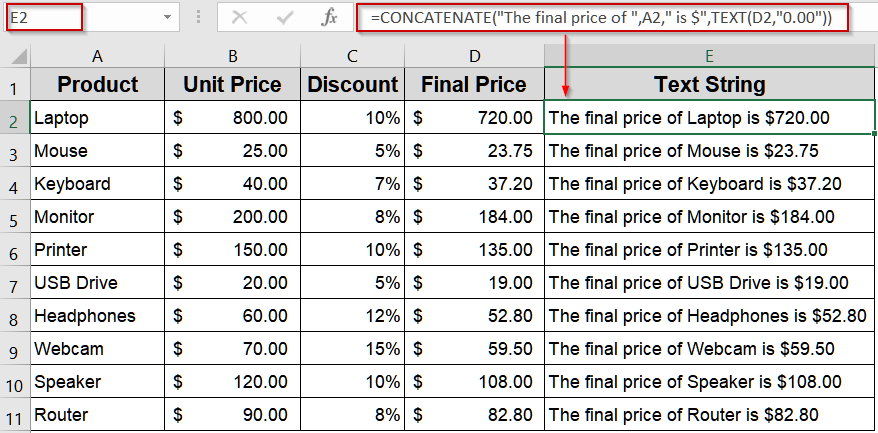
Excel combines the product name with its formatted price into a single text string, such as “The final price of Monitor is $450.00”
Turning Formulas into Static Text Using Find and Replace Feature
Another quick and practical way to convert formulas into text is by using Excel’s Find and Replace tool. This method works by modifying the formula syntax so that Excel treats the formulas as plain text instead of performing calculations. It’s especially useful when you want to review or share formulas in their text form rather than their numeric results.
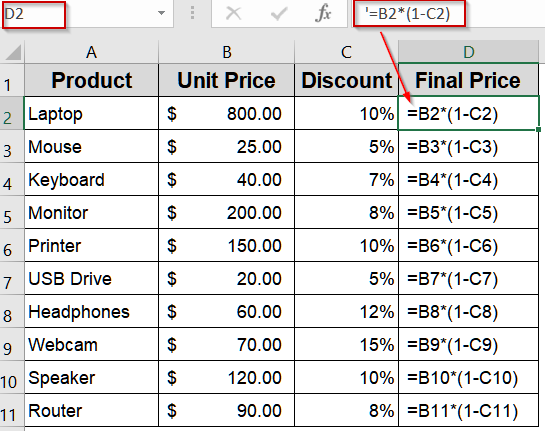
Unlike Copy and Paste Values, this approach keeps the formulas visible but disables their functionality by adding a special character like an apostrophe at the beginning of each formula.
Steps:
➤ Select the entire range of cells that contain the formulas you want to convert.
➤ Press Ctrl + H to open the Find and Replace dialog box.
➤ In the Find what field, type: =
➤ In the Replace with field, type an apostrophe followed by an equal sign: ‘=
➤ Click Replace All.
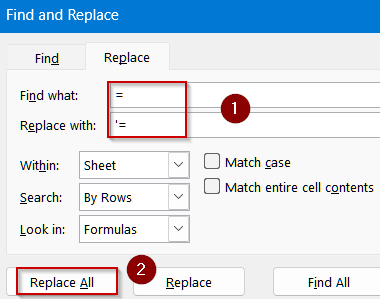
Excel instantly adds an apostrophe before each formula, turning them into text strings that display exactly as they appear in the formula bar.
Transforming Results with Power Query
Power Query offers a more advanced and structured approach to converting formula results into text. It’s best suited when you want to process data systematically before bringing it back into Excel. Power Query can extract, convert, and reformat your formulas’ results efficiently.
Steps:
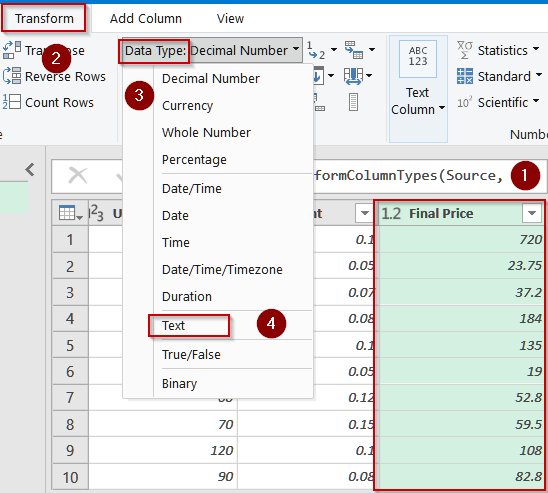
➤ Select your dataset and go to Data >> Get & Transform Data >> From Table/Range.
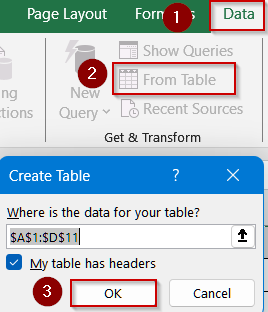
➤ In the Power Query window, select the formula result column.
➤ Go to Transform >> Data Type >> Text to convert the column.
➤ Click Close & Load to return the processed data to Excel as plain text.
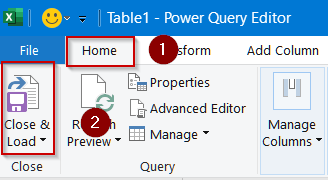
Now you will find your formatted data in a brand new sheet.
Automating Conversion via Excel VBA
If you frequently need to convert formula results to text, VBA (Visual Basic for Applications) can automate the process completely. This method is perfect for large datasets or repetitive tasks. A short VBA macro can instantly transform formula results into static text across your workbook.
Steps:
➤ Press Alt + F11 to open the VBA editor.
➤ Click Insert >> Module and paste this code:
Sub ConvertFormulaToText()
    Dim cell As Range
    For Each cell In Selection
        cell.Value = cell.Text
    Next cell
End Sub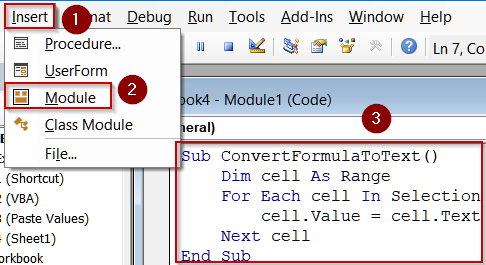
➤ Close the editor and return to Excel.
➤ Press F5 key to run the macro.
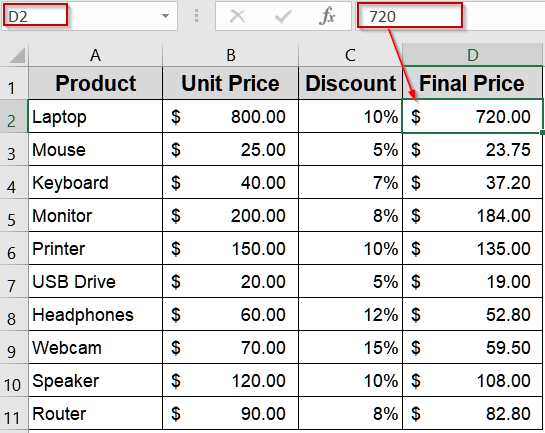
Now your formulas are instantly converted to text values.
Downloadable Resources
Get our practice workbook or necessary files that we have worked with to prepare this article.
Convert Formula Result to Text String.xlsx
Frequently Asked Questions
Why would I need to convert formula results to text in Excel?
You might need to convert formula results to text to prevent recalculation, share static values, export to other programs, or lock finalized results for presentation, reporting, or documentation purposes without affecting original calculations.
Does converting formulas to text remove the underlying formula permanently?
Yes. Once you convert formulas to text, Excel removes the formula link entirely and replaces it with the resulting static text. To avoid data loss, always create a backup before performing value or text conversions.
Can I reconvert text values back into formulas later?
Not automatically. After conversion, Excel treats text values as plain strings, so formulas won’t recalculate. However, you can manually re-enter or paste the original formula if you’ve saved a separate copy beforehand.
Which method is best for converting large datasets efficiently?
For large datasets, the VBA method works best because it automates the entire conversion process. Power Query is another strong choice when you want flexible control and transformation options before reloading data into Excel.
Does the TEXT function actually remove the formula?
No, the TEXT function doesn’t remove formulas, it only displays numeric or date-based results as formatted text within the same cell. The formula remains active, but its displayed output appears as text visually.
Wrapping Up
In this tutorial, you explored eight different ways to convert formula results into text strings in Excel starting from quick manual methods to advanced automation using VBA and Power Query. Whether you’re preparing reports, exporting data, or freezing calculations, these techniques ensure your formulas stay intact visually but no longer calculate dynamically. Feel free to download the practice file and share your feedback.