
QR codes are widely used in businesses and daily operations for encoding information such as text, URLs, or product details. By using Excel’s built-in functions and tools, we can effortlessly generate QR codes within our dataset.
Follow the steps below to generate QR codes in your Excel dataset:
➤ Start by selecting the cell where you want to display the QR code and enter the following formula:
=IMAGE(“QR_Code_Generator_URL”&A2)
➤ Replace “QR_Code_Generator_URL” with a valid external QR code generator link.
➤ Replace “&A2” with the cell reference containing the text, URL, or product code that you want to convert into a QR code.
➤ And finally, double-click the fill handle to fill all rows with the generated QR code.

In this article, we will learn 3 different methods for generating QR codes in Excel.
Generate QR Code Using IMAGE Function with External Link
In the sample dataset, we have a worksheet called “Website Info” containing various website links in column A. By combining the IMAGE Function with an external QR code generator URL, we will display the generated QR code in column B. The modified dataset will be stored in a separate “IMAGE Function” worksheet.
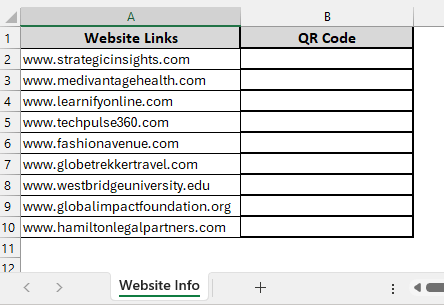
The IMAGE Function in Excel is a powerful feature that lets users insert images directly inside cells, making them part of the worksheet. We can combine it with a QR code generator URL to create and display QR codes based on the values stored in specific cells.
Steps:
➤ Head to the IMAGE Function worksheet and in cell B2, paste the following formula:
=IMAGE("<a href="https://api.qrserver.com/v1/create-qr-code/?size=100%C3%97100&data=%22&A2" target="_blank" rel="noopener">https://api.qrserver.com/v1/create-qr-code/?size=100×100&data="&A2</a>)
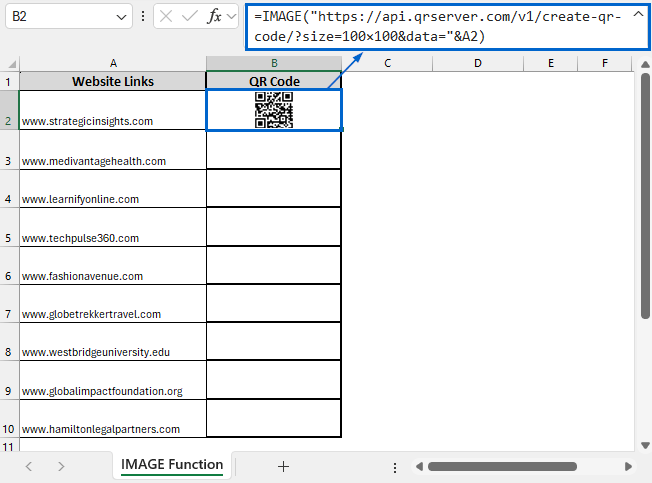
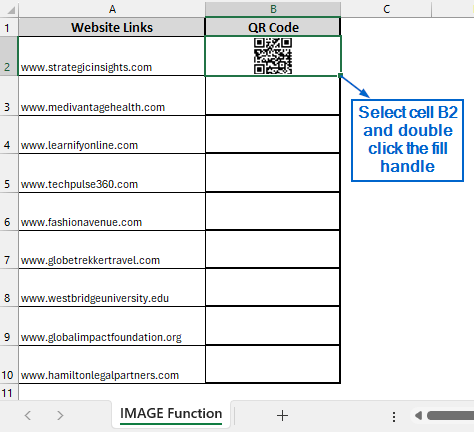
➤ Then, select cell B2 again and double-click the fill handle to apply the formula across entire column.
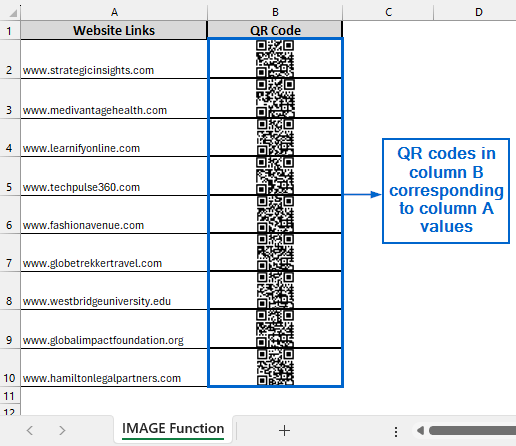
➤ QR codes corresponding to the values in column A should now be visible in column B.
Use Office Add-ins to Generate QR Code
The add-ins feature in Excel provides users with a range of powerful tools and extensions that they can use to enhance the functionality of their dataset. By using Microsoft-verified Office Add-ins, we can easily generate QR codes for a dataset in Excel.
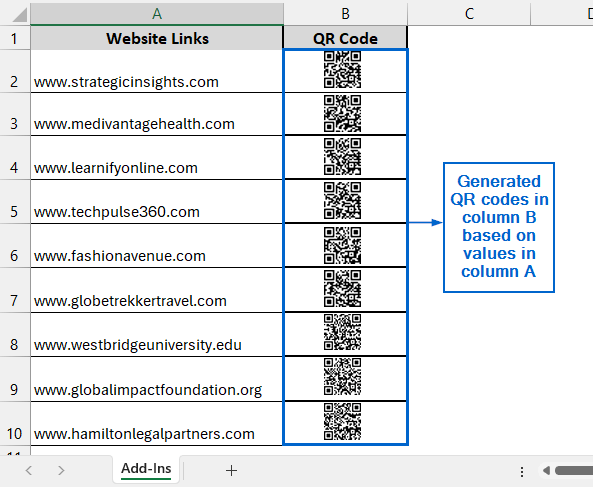
Working with the same dataset, we will now use Office Add-ins to generate QR codes in column B based on the website links in column A. The updated dataset will be stored in a separate “Add-Ins” worksheet.
Steps:
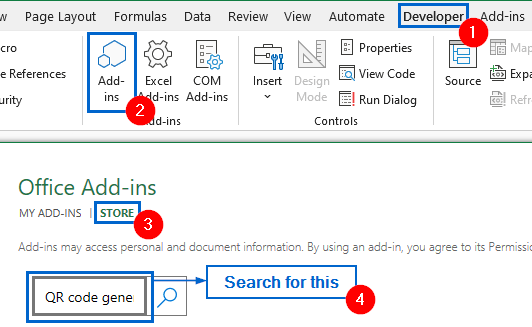
➤ Open the Add-Ins worksheet and from the main menu, navigate to Developer >> Add-ins >> Store and search for a QR code generator.
Note:
In our case, we used the QR4Office QR code generator, but you can choose any other trusted QR code Add-in that suits your needs.
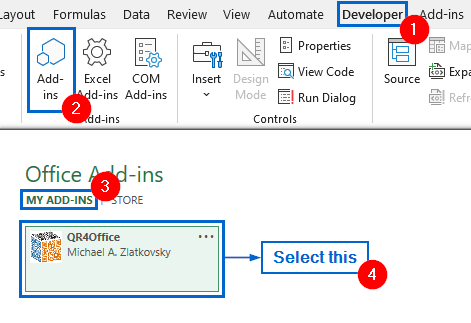
➤ Next, head to Developer >> Add-ins >> MY ADD-INS and select the QR code generator.
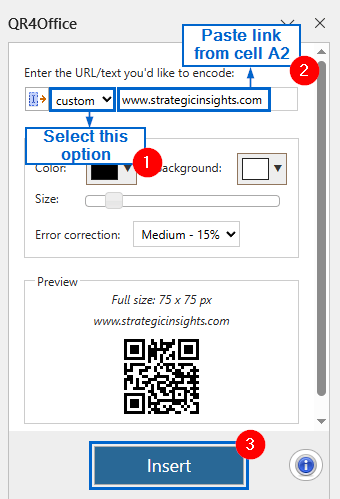
➤ Now, copy the content of cell A2, then in the QR4Office panel choose “Custom” as the text type, paste the copied link, and click on “Insert”.
➤ A QR code will now be generated for the value in cell A2.
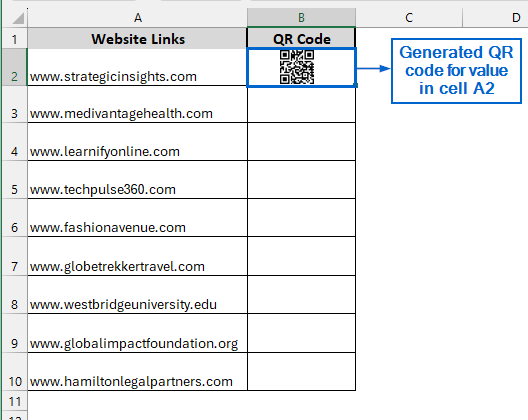
➤ Repeat the same process for range A3:A10.
➤ The corresponding QR codes for all values in column A should now appear in column B.
Use VBA Editor to Generate QR Codes Automatically
Excel’s VBA Editor is a powerful tool that allows users to write, edit, and manage macros, automating repetitive tasks. Using VBA, we can create a custom macro that automatically generates QR codes by sending data from Excel cells to an online QR code generator API.
Working again with the same dataset, this time we will use the VBA Editor to create a custom function for generating QR codes in column B. We will display the updated dataset in a separate “VBA Editor” worksheet.
Steps:
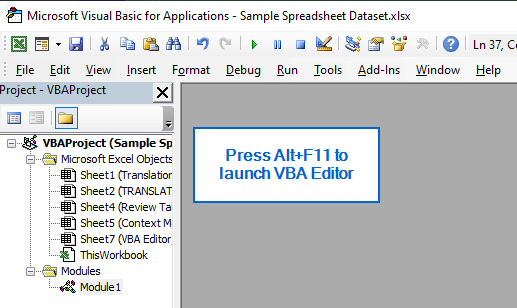
➤ Open the VBA Editor worksheet and press Alt + F11 to launch the VBA Editor window.
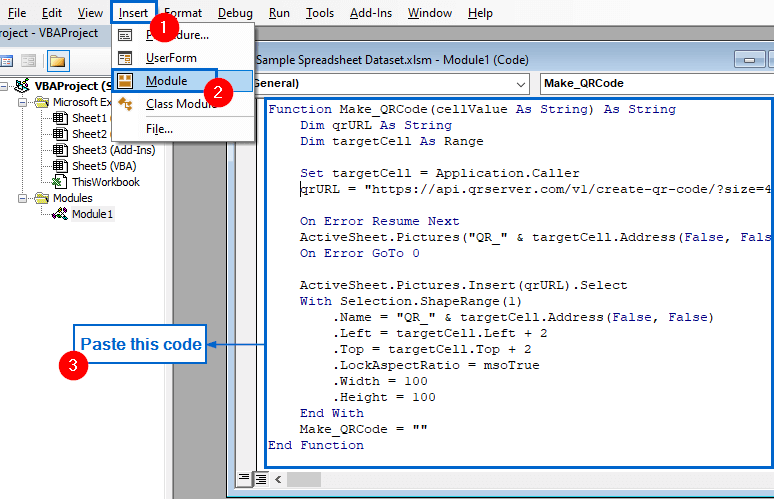
➤ From the main menu, head to Insert >> Module then paste the following code:
Function Make_QRCode(cellValue As String) As String
    Dim qrURL As String
    Dim targetCell As Range
    Set targetCell = Application.Caller
    qrURL = "https://api.qrserver.com/v1/create-qr-code/?size=44x44&data=" & cellValue
    On Error Resume Next
    ActiveSheet.Pictures("QR_" & targetCell.Address(False, False)).Delete
    On Error GoTo 0
    ActiveSheet.Pictures.Insert(qrURL).Select
    With Selection.ShapeRange(1)
        .Name = "QR_" & targetCell.Address(False, False)
        .Left = targetCell.Left + 2
        .Top = targetCell.Top + 2
        .LockAspectRatio = msoTrue
        .Width = 100
        .Height = 100
    End With
    Make_QRCode = ""
End Function
Note:
This VBA code creates a custom “Make_QRCode” function that generates a QR code for a cell’s value and inserts it directly into the worksheet using an online QR code generator service.
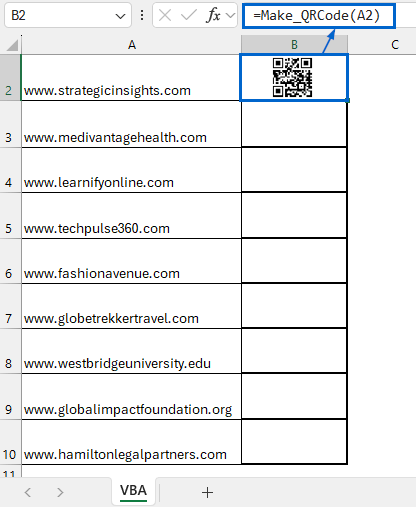
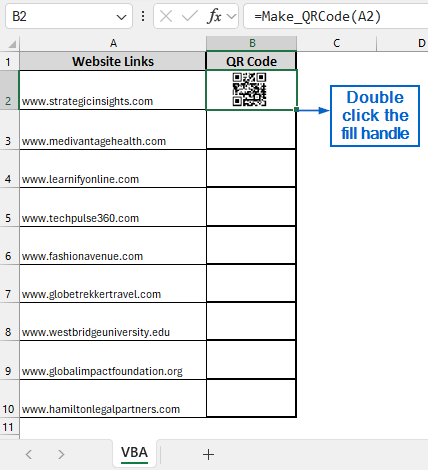
➤ Next, in cell A2 type the following formula:
=Make_QRCode(A2)
Note:
This formula uses the Make_QRCode() function on cell A2, automatically generating a QR code for the value contained in that cell.
➤ Select cell A2 again and double-click on the fill handle to copy the formula across column B.
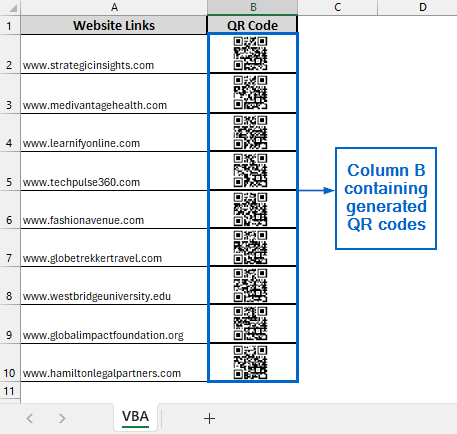
➤ Column B should now display the QR codes for each entry in column A.
Frequently Asked Questions
Can I Change the Size of Generated QR Codes In Excel?
Yes, you can easily alter the size of generated QR codes for all three methods. In the IMAGE Function and VBA method, simply adjust the “size=” parameter in the formula or macro to your preferred dimensions. For the Add-ins method, you can resize the QR codes by using the size slider from the QR4Office panel.
Which Method is Best Suited for Generating QR Codes in Large Datasets?
For large datasets, the IMAGE Function method and VBA method would be the most efficient. Both methods allow you to apply a formula or script across multiple rows, generating QR codes automatically without needing to manually insert them.
Concluding Words
Knowing how to generate QR codes in an Excel dataset is a must if you want to streamline data sharing and improve data accessibility. In this article, we have discussed three effective methods of generating QR codes in Excel, including using the IMAGE Function, Office Add-ins and VBA Editor. Feel free to try every method and select one that best fits your needs.