
Excel Pro Tips
How to Create a Floating Text Box in Excel (6 Easy Methods)
Learn step-by-step methods to create a floating text box in Excel using the Insert tab, Shapes, VBA, ActiveX, and more.
Read article


Sazeda Rahman Setu holds a BSc and MSc in Mathematics from National University, providing a strong foundation in analytical and logical thinking for spreadsheet work. Since May 2025, she has gained hands-on experience with Excel and Google Sheets, focusing on formulas, functions, troubleshooting, and step-by-step tutorials. She enjoys creating example datasets and clear guides to help beginners solve spreadsheet problems.
Articles by Sazeda Rahman are developed under the guidance of ExcelInsider’s core training program and are technically reviewed by Nehad Ulfat, lead spreadsheet consultant, to ensure accuracy and user-centric value.
Learn step-by-step methods to create a floating text box in Excel using the Insert tab, Shapes, VBA, ActiveX, and more.
Learn how to reverse a text string in Excel using formulas, VBA, and Power Query with step-by-step methods for all skill levels.

Learn how to auto sort data in Excel using SORT, SORTBY, FILTER, INDEX, and VBA to keep your sheets organized automatically.

Learn how to do a random sort in Excel using RAND, RANDBETWEEN, SORTBY, RANDARRAY, and VBA for quick and easy data shuffling.
Learn how to use advanced sorting in Excel, including sorting by multiple columns, colors, custom lists, and custom value rules.

Learn how to translate Arabic to English in Excel using the TRANSLATE function and Microsoft Translator for quick, accurate results.
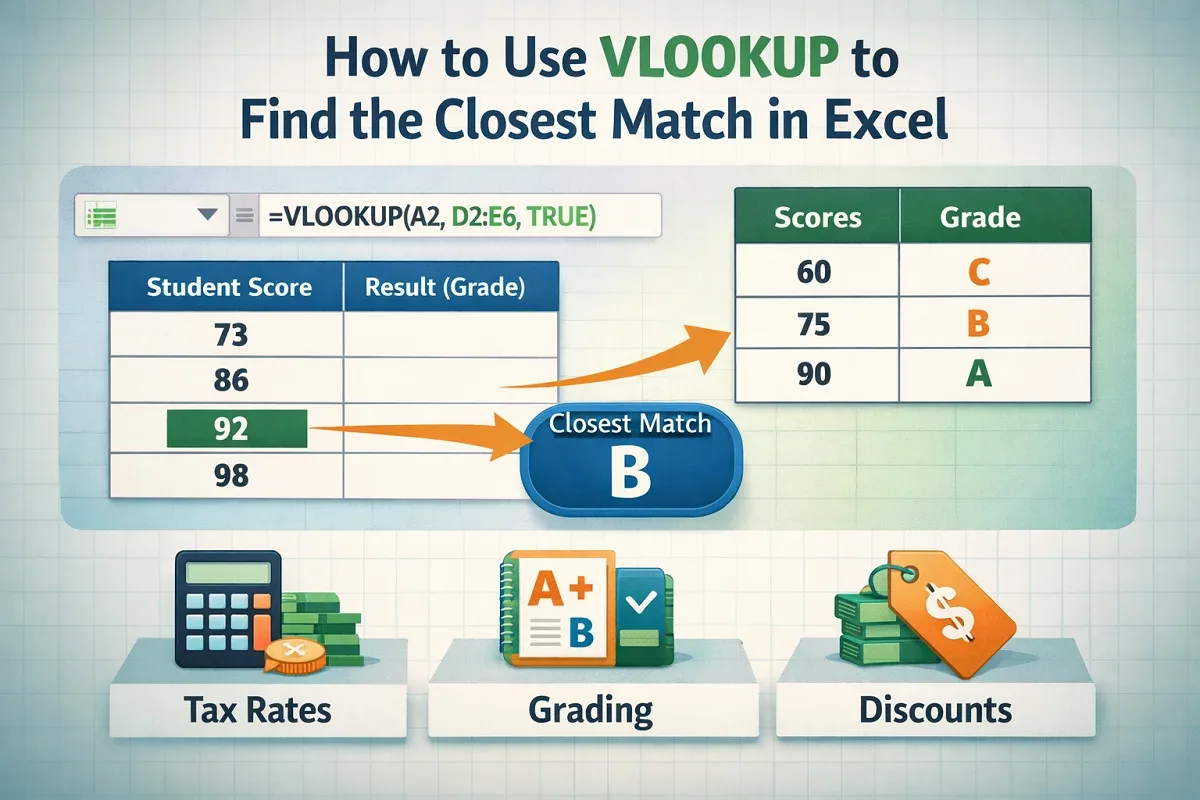
Learn how to use VLOOKUP in Excel to find the closest approximate or partial text match with step-by-step examples and tips.
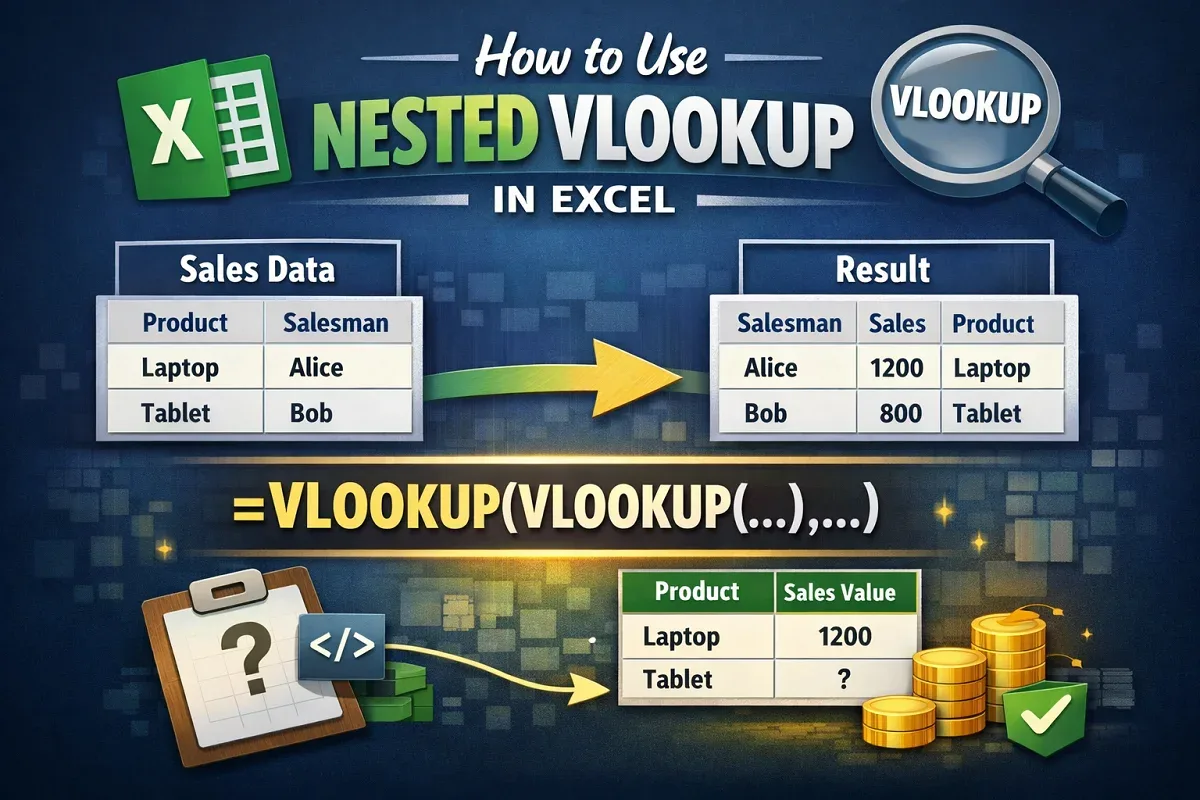
Learn how to use nested VLOOKUP in Excel to find sales values by product and return product details by salesman easily.
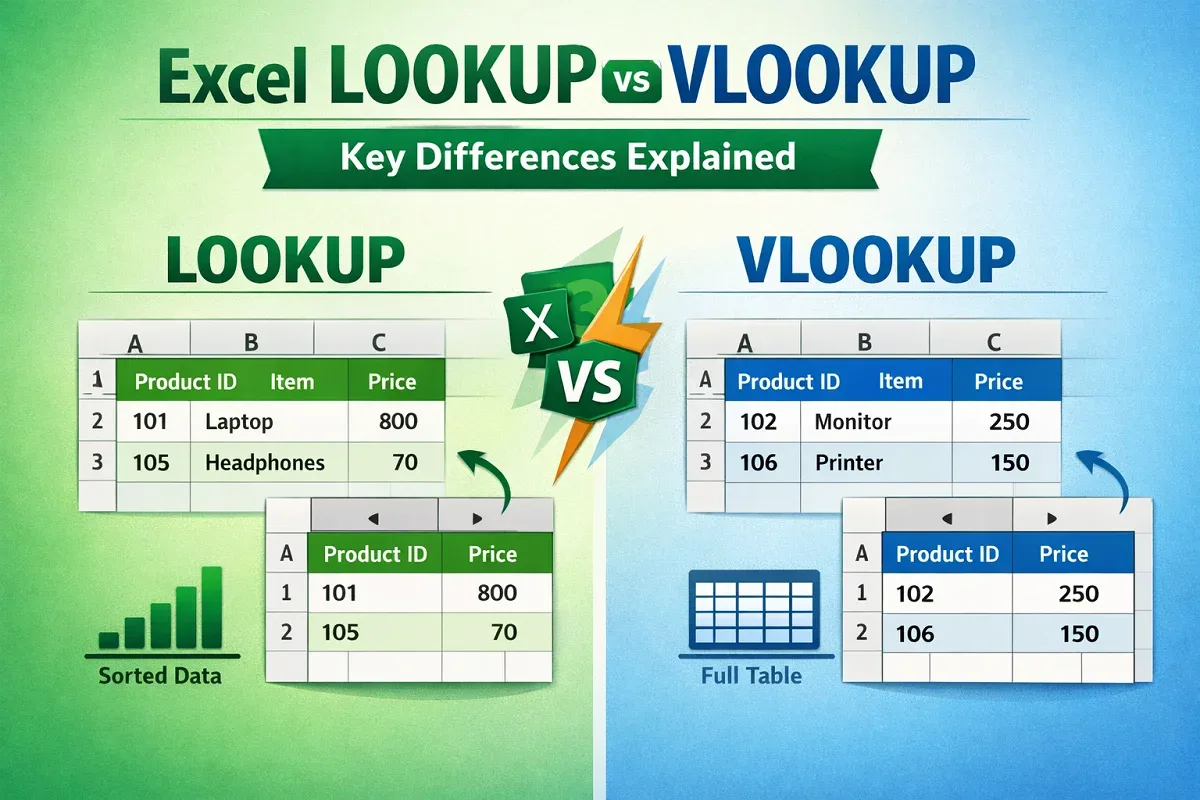
Learn the key differences between Excel LOOKUP and VLOOKUP functions, including how to use each for efficient data searches.

Learn how to convert text to clickable links in Excel using the HYPERLINK function, Paste Special, AutoCorrect, or VBA for bulk conversion.
Learn how to calculate time differences in minutes in Excel using arithmetic, HOUR & MINUTE functions, and the TEXT function.

Learn how to add time in Excel over 24 hours using formulas and custom formatting to correctly sum and display total time values.