When you add time in Excel, the results are usually displayed in the standard 24-hour clock format. This works fine for normal times of day, but it creates problems when the total goes beyond 24 hours. For example, if you add 12 hours and 18 hours, Excel may show 06:00 instead of 30:00 because it resets the clock after a full day.
This can be frustrating when you’re calculating employee shifts, tracking machine run time, or measuring project durations that last longer than a single day. The solution is simple. Use the right custom formatting so Excel can display totals over 24 hours correctly.
In this guide, we’ll walk through step-by-step methods to add time in Excel over 24 hours using formulas and formatting.
Here’s how to add time in Excel over 24 hours:
➤ Open your dataset in Excel.
➤ Click on cell D2 and enter the following formula:
=B2+C2
➤ Press Enter.
➤ Drag the fill handle down to copy the formula for the rest of the rows.
➤ Select the Total Time column, for example, cell range D2:D11.
➤ Right-click and choose Format Cells.
➤ Go to the Number tab and select Custom.
➤ In the Type box, enter: [h]:mm
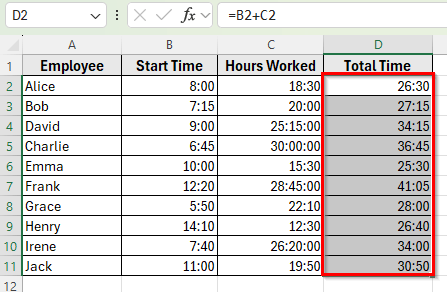
➤ Click OK. Now Excel will display totals properly, such as 26:30, 34:15, or 36:45, instead of resetting them back to the 24-hour clock.
Add Time in Excel Over 24 Hours Using Formula and Custom Format
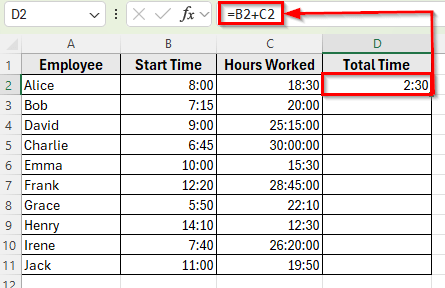
In the following dataset, we are tracking employee work hours across shifts. Column A lists the Employee Names, Column B contains their Start Times, Column C has Hours Worked, and Column D will show the Total Time after adding the hours.
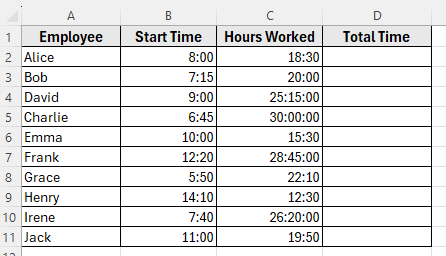
We’ll use this dataset to demonstrate how to add time in Excel over 24 hours.
The most reliable way to add time in Excel that exceeds 24 hours is by combining a simple addition formula with a custom number format. The formula calculates the total correctly, and the format ensures Excel displays the result without resetting after 24 hours.
Step 1: Add Time with a Formula
Let’s calculate total time for each employee by adding the Start Time and Hours Worked.
Here’s how you can do it:
➤ Open your dataset in Excel.
➤ Click on cell D2 and enter the following formula:
=B2+C2
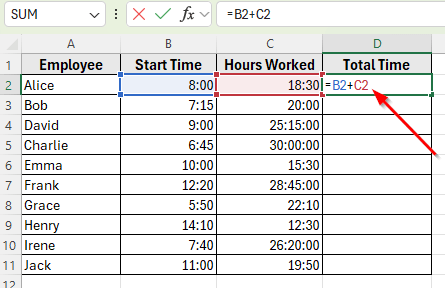
➤ Press Enter. Excel will return a result, but if the total is more than 24 hours, it will reset. For example, 26 hours may appear as 02:00.
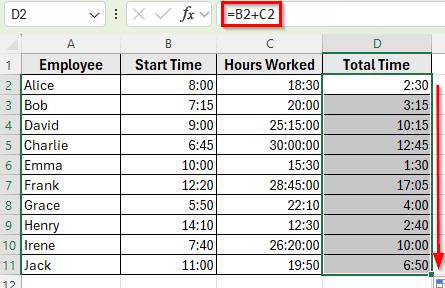
➤ Drag the fill handle down to copy the formula for the rest of the rows. At this point, the totals are calculated correctly but not displayed in the right format.
Step 2: Apply Custom Format
To display results beyond 24 hours, we need to apply a custom format.
Here’s how to do it:
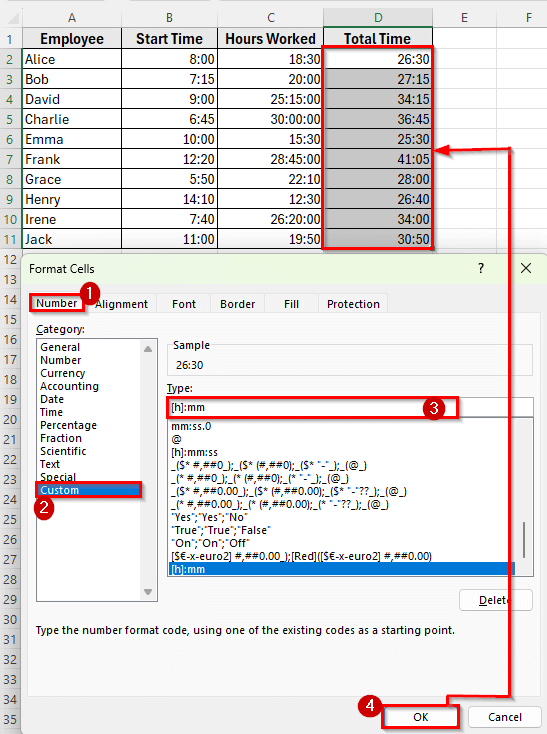
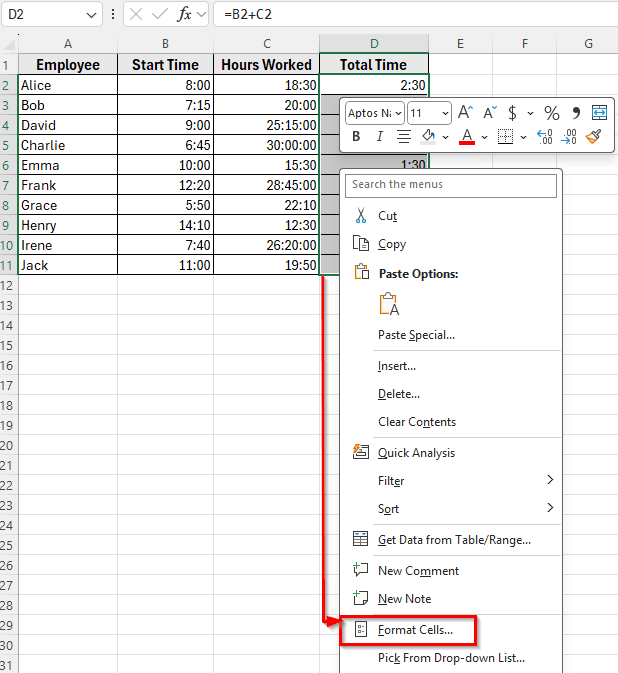
➤ Select the Total Time column, for example, cell range D2:D11.
➤ Right-click and choose Format Cells.
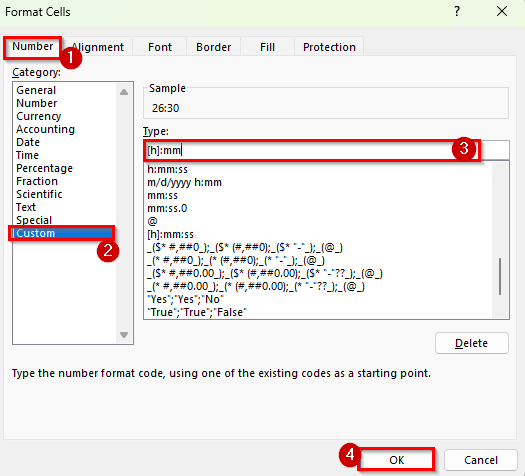
➤ Go to the Number tab and select Custom.
➤ In the Type box, enter: [h]:mm
➤ Click OK.
➤ Now Excel will display totals properly, such as 26:30, 27:15, or 34:15, instead of resetting them back to the 24-hour clock.
Sum Multiple Time Values Over 24 Hours
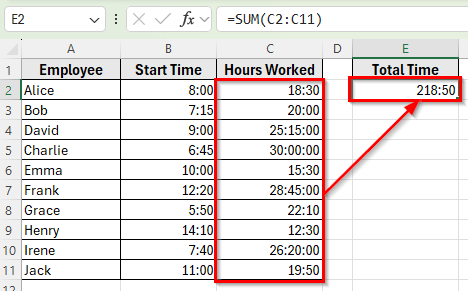
Sometimes you need to total several time values instead of adding hours to a single start time. For example, you may want to know the total number of hours worked by all employees in a week or across shifts. In Excel, you can use the SUM function for this, but you must apply the custom format to show results beyond 24 hours.
Here’s how to do it:
Step 1: Use the SUM Function to Add Total Time
➤ Open your dataset in Excel.
➤ Click on cell E2 and enter the following formula:
=SUM(C2:C11)
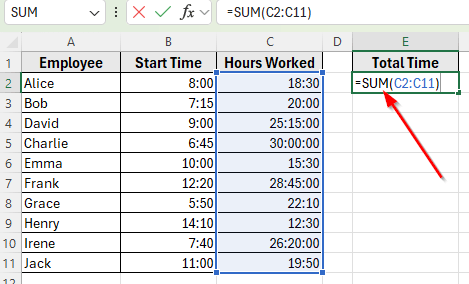
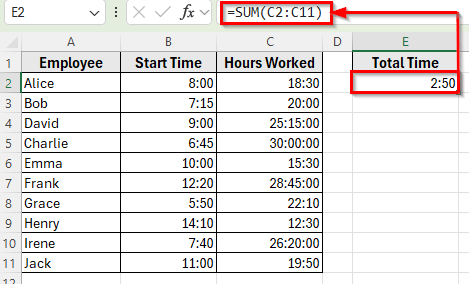
➤ Press Enter. Excel will calculate the sum of all hours worked in Column C. But if the total exceeds 24 hours, it may display only the remainder. For example, 2:50 instead of 218:50.
Step 2: Apply Custom Format
➤ Select cell E2.
➤ Right-click and choose Format Cells.
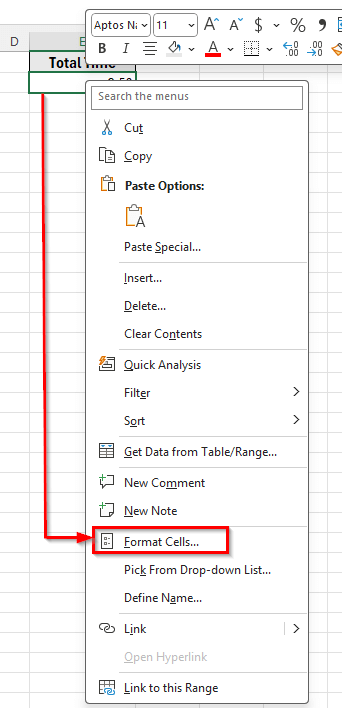
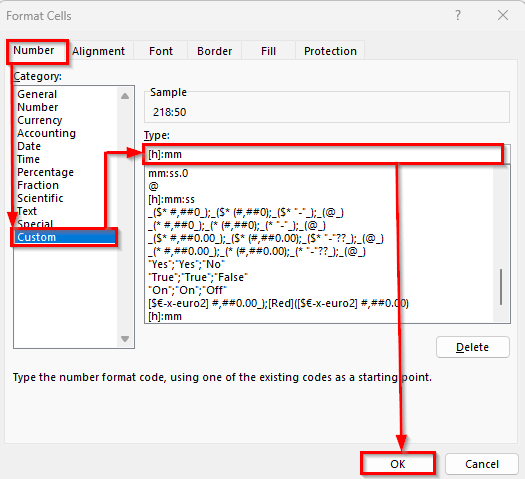
➤ Go to the Number tab and click Custom.
➤ In the Type box, enter: [h]:mm
➤ Click OK.
➤ Now Excel will correctly display the grand total of hours worked, such as 218:50, instead of resetting the clock after every 24 hours.
Downloadable Resources
Get our practice workbook or necessary files that we have worked with to prepare this article.
Add Time in Excel Over 24 Hours.xlsx
Frequently Asked Questions
Why does Excel reset time after 24 hours?
Excel represents time as part of a day, where 1 equals 24 hours, 0.5 equals 12 hours, and so on. When you add up time values, Excel still interprets them within a 24-hour cycle.
That’s why 26 hours appears as 02:00. Excel shows the remainder after one full day. The calculation itself is correct, but the display format needs to be changed to show the full total.
What format should I use to display more than 24 hours?
The most reliable format is [h]:mm. The square brackets around h are important because they tell Excel to keep accumulating hours instead of resetting at 24. Without brackets, Excel will treat the result as clock time.
Can I show both days and hours in my result?
Yes. Use a custom format such as h:mm. This will display results like 1 day 10:30 instead of 34:30. You can adjust the format to show weeks or months if needed.
Wrapping Up
Adding time in Excel over 24 hours is easy once you know how. The key is to use a normal formula for calculation and then apply the [h]:mm format so Excel shows the full result without resetting the clock.
This method works for adding two times, summing a list of hours, or tracking long shifts and projects. With the right format, Excel can handle totals of dozens or even hundreds of hours and display them clearly.