When working with schedules, logs, or task durations, you often need to know exactly how many minutes have passed between two times. Excel can calculate this quickly using simple formulas.
By subtracting the start time from the end time, Excel gives the difference in days. With a small adjustment, you can easily convert that into minutes.
In this article, we’ll show you how to calculate time differences in minutes using different formulas, so you can choose the one that fits your dataset best.
Here’s how to calculate time difference in minutes in Excel using a simple formula:
➤ Open your dataset in Excel.
➤ Click on cell C2 and enter the following formula:
=(B2-A2)*1440
➤ Press Enter.
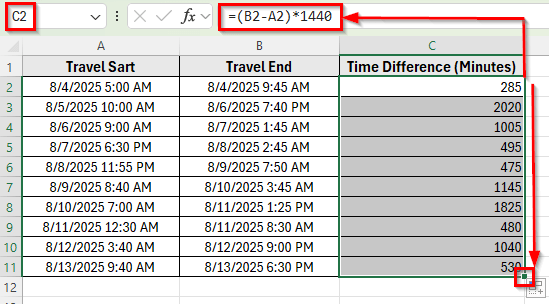
➤ Excel will return the difference in minutes. For example, the time between 8/4/2025 5:00 AM and 8/4/2025 9:45 AM is 285 minutes.
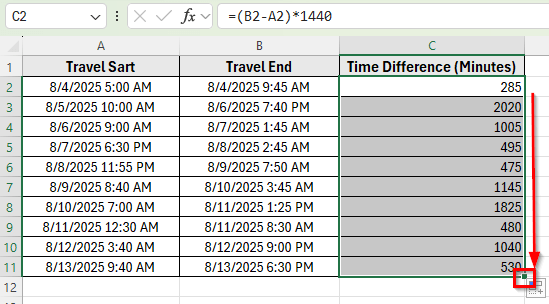
➤ Drag the fill handle down from cell C2 to C11 to apply the formula to the rest of the rows.
Using Arithmetic Multiplication to Convert Time Difference into Minutes
In this updated dataset, we track travel records with both start and end times. Column A lists the Travel Starting date and time, Column B shows the Travel Ending date and time, and Column C will calculate the Time Difference in Minutes.
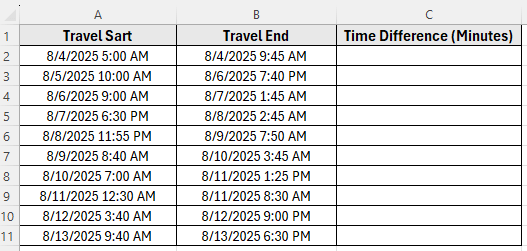
We’ll use this dataset to calculate time differences in minutes using different methods.
The easiest way to calculate the difference between two times in minutes is by subtracting the start time from the end time. Since Excel stores time as a fraction of a day, multiplying the result by 1440 (the number of minutes in a day) gives the total minutes.
Here’s how to do it:
➤ Open your dataset in Excel.
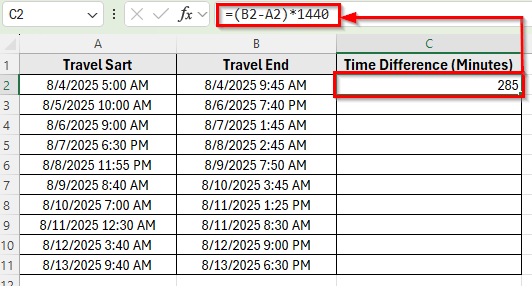
➤ Click on cell C2 and enter the following formula:
=(B2-A2)*1440
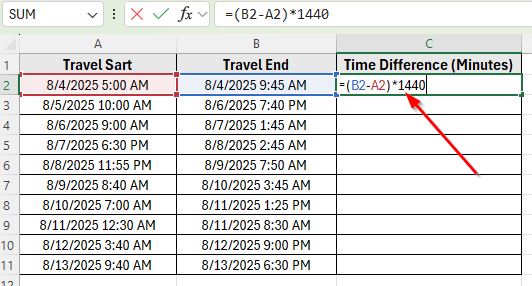
➤ Press Enter.
➤ Excel will return the difference in minutes. For example, the time between 8/4/2025 5:00 AM and 8/4/2025 9:45 AM is 285 minutes.
➤ Drag the fill handle down from cell C2 to C11 to apply the formula to the rest of the rows.
Combining HOUR and MINUTE Functions
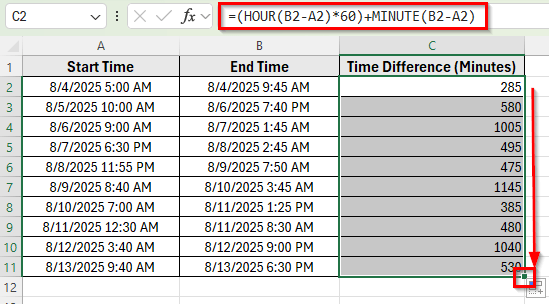
Another way to calculate time differences in minutes is to extract the hours and minutes separately, then convert everything into minutes. This gives you more control over the calculation, especially if you want to see how Excel breaks down the result.
Here’s how to do it:
➤ Open your dataset in Excel.
➤ Click on cell C2 and enter the following formula:
=(HOUR(B2-A2)*60)+MINUTE(B2-A2)
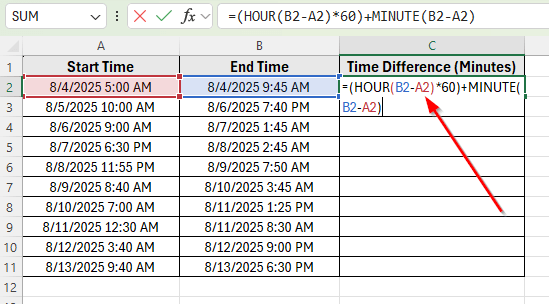
➤ Press Enter.
➤ Excel will return the difference in minutes. For example, the time between 8/4/2025 5:00 AM and 8/4/2025 9:45 AM is 285 minutes.
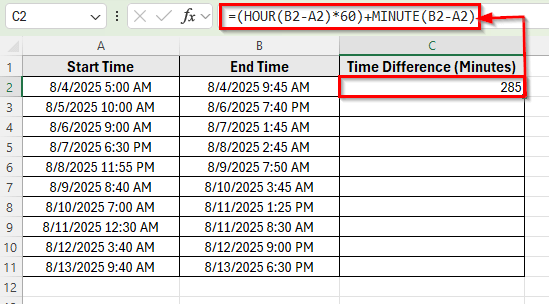
➤ Drag the fill handle down from cell C2 to C11 to apply the formula to all rows.
Using the TEXT Function
The TEXT function is another simple way to calculate time differences in minutes. Instead of returning fractions of a day, it directly formats the result as total minutes. This makes it very convenient when you only need the number of minutes between two times.
Here’s how to do it:
➤ Open your dataset in Excel.
➤ Click on cell C2 and enter the following formula:
=TEXT(B2-A2,"[m]")
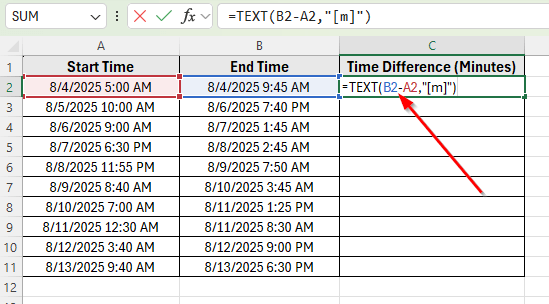
➤ Press Enter.
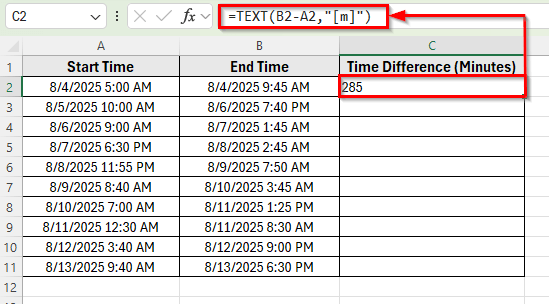
Excel will return the difference in minutes. For example, the time between 8/4/2025 5:00 AM and 8/4/2025 9:45 AM is 285 minutes.
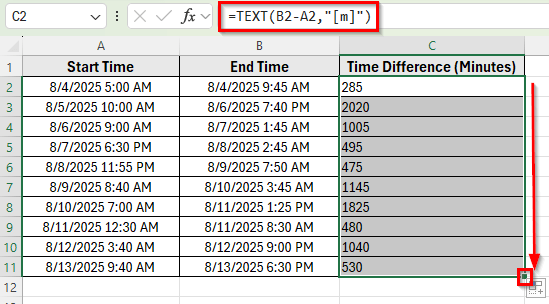
➤ Drag the fill handle down from cell C2 to C11 to apply the formula to the rest of the rows.
Downloadable Resources
Get our practice workbook or necessary files that we have worked with to prepare this article.
Calculate Time Difference in Minutes.xlsx
Frequently Asked Questions
How to calculate time difference in minutes in Excel?
You can subtract the start time from the end time and multiply by 1440. Here’s a simple equation: 24 hours × 60 minutes = 1440 minutes. So, the formula =(B2-A2)*1440 will return the total minutes between two times.
Why does Excel show the result in time format instead of a number?
Sometimes Excel automatically applies a time format to the result. If this happens, change the cell format to General or Number. This will display the correct minute value instead of a clock time.
Wrapping Up
Calculating time differences in minutes in Excel is all about understanding how Excel stores dates and times. Once you apply the right formula, the result becomes simple and easy to use. Correct formatting also plays an important role because it ensures the output appears as minutes rather than as a time value.
By applying these methods, you can simply turn start and end times into exact minute differences. This makes analyzing schedules, travel logs, or task durations much faster and more reliable.