Sometimes you need to solve mathematical equations in Excel, representing two or more equations with the same set of variables. Finding the solution means determining the values for these variables that satisfy all the equations. Solving complex equations can be tedious when done manually. Excel provides solutions based on matrix algebra (like MINVERSE and MMULT functions) and tools like Solver to quickly find these unknown values. In this article, we will guide you through three methods to solve simultaneous equations in Excel.
To solve simultaneous equations in Excel, here is one simple solution by using the MINVERSE and MMULT functions.
➤ Insert the coefficient of the variables in different cells and the constant value.
➤ Apply the formula below.
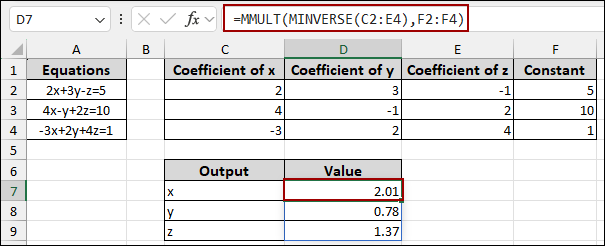
=MMULT(MINVERSE(C2:E4), F2:F4)
➤ Press ENTER to get the variable values for x, y, and z, solving simultaneous equations in Excel.
Solving Linear Equations Using MINVERSE and MMULT Functions in Excel
The fastest way to solve a linear equation in Excel is by utilizing matrix algebra. Specifically, finding the inverse of the coefficient matrix and then multiplying it by the constant matrix. The MINVERSE (Matrix Inverse) and MMULT (Matrix Multiplication) functions are designed to provide this solution.
In this method, first we will separate the equations into two matrices: the Coefficient Matrix (A) and the Constant Matrix (B). The solution matrix (X) is then found by the formula: X equals A inverse times B (X = A⁻¹. B).
Imagine we have some equations in column A, such as 2x+3y-z=5, 4x-y+2z=10, and 3x+2y+4z=1. Now, we will extract the coefficients and then use the formula to get the x, y, and z values.
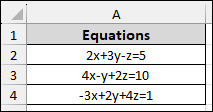
➤ Structure the data by entering the coefficients of x, y, and z into columns C, D, and E, creating a coefficient matrix.
➤ Next, enter the constants into column F.

➤ Prepare a separate section to display the results for x, y, and z.
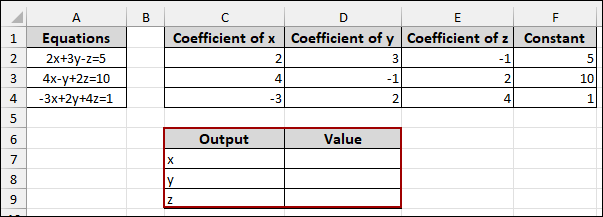
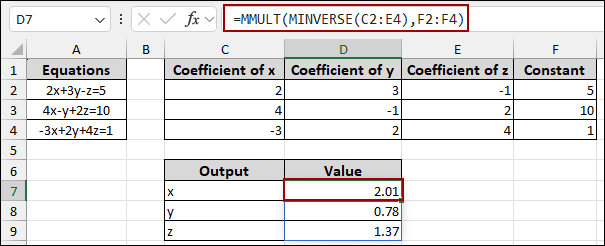
➤ Now, in the first output cell (D7), enter the array formula and press ENTER.
=MMULT(MINVERSE(C2:E4), F2:F4)
Note:
If you are using an older version of Excel, press CTRL+SHIFT+ENTER to apply the array formula.
➥ MMULT(F2:F4): This function then performs matrix multiplication, multiplying the inverse matrix by the 3 × 1 constant matrix (cells F2 to F4).
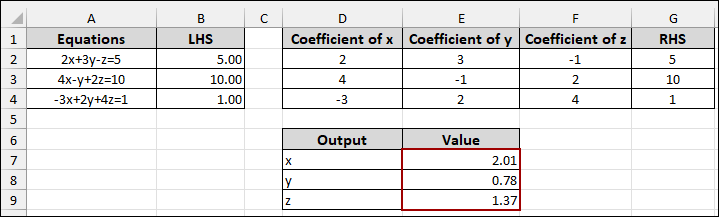
The resulting values in cells D7 to D9 represent the solution for x, y, and z, respectively, which are 2.01, 0.78, and 1.37.
Applying Cramer’s Rule to Solve 3 Equations in Excel
Cramer’s Rule is another matrix-based method that finds the solution of equations by using determinants. For each variable, the solution is calculated as the ratio of two determinants: the determinant of a modified coefficient matrix and the determinant of the original coefficient matrix. The MDETERM (Matrix Determinant) function in Excel is perfect for this method.
To apply Cramer’s Rule for a 3 × 3 matrix, we need to calculate four determinants: the determinant of the original Coefficient Matrix (D) and three modified determinants (Dx, Dy, Dz).
➤ Calculate the determinant of the main coefficient matrix in an empty cell (e.g., A7) using the formula below.
=MDETERM(C2:E4)
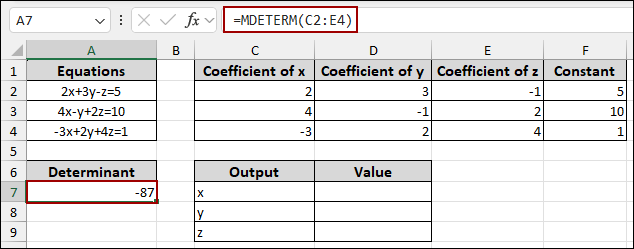
Now, we will calculate Dx, Dy, and Dz and divide them by D using a combined formula.
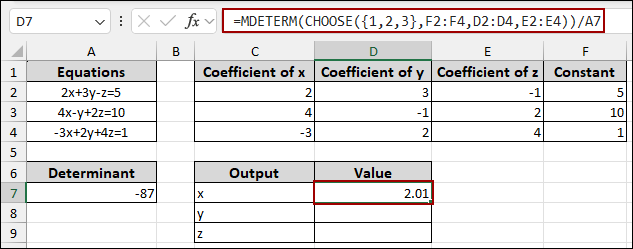
➤ To find the value of x in cell D7, enter the formula and press ENTER.
=MDETERM(CHOOSE({1,2,3}, F2:F4, D2:D4, E2:E4))/A7
Here, the CHOOSE function creates a temporary matrix where the x-coefficients (Column C) are replaced by the Constants (Column F). The MDETERM function finds its determinant (Dx), and dividing by A7 (the original determinant D) provides the value of x, which is 2.01.
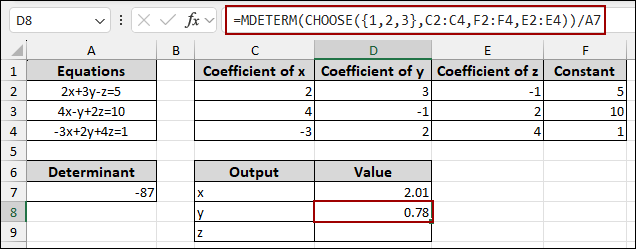
➤ To find the value of y in cell D8 by replacing the y-coefficients (Column D) with the Constants (Column F).
=MDETERM(CHOOSE({1,2,3}, C2:C4, F2:F4, E2:E4))/A7
This formula provides the value for y, which is 0.78.
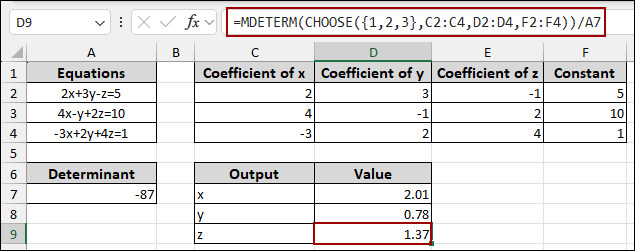
➤ Then, find the value of z in cell D9 by replacing the z-coefficients (Column E) with the Constants (Column F).
=MDETERM(CHOOSE({1,2,3}, C2:C4, D2:D4, F2:F4))/A7
The result gives the value for z, which is 1.37.
Using Solver to Find the Equation Values of X, Y, and Z
Excel’s Solver is used for optimizing and finding a specific result. It works by adjusting variable cells until a set of defined constraints is met. Here, we will make the Left-Hand Side (LHS) of each equation equal to its Right-Hand Side (RHS).
➤ In the Value column (E7:E9), enter an initial guess for x, y, and z, such as 1.00.
These are the variable cells that Solver will change.
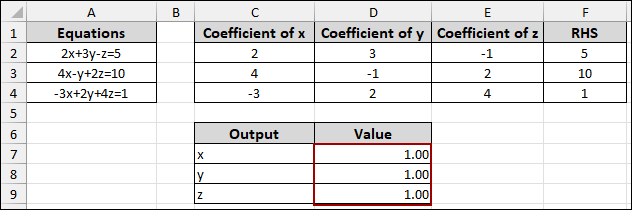
Now, we will create a new column, LHS (Left-Hand Side, column B), to calculate the value of each equation based on the variables in E7:E9.
➤ In cell B2 (for the first equation $2x+3y-z=5$), enter the formula:
=2*E7+3*E8-1*E9
This formula multiplies the coefficients in row 2 by the variable values in E7, E8, and E9.
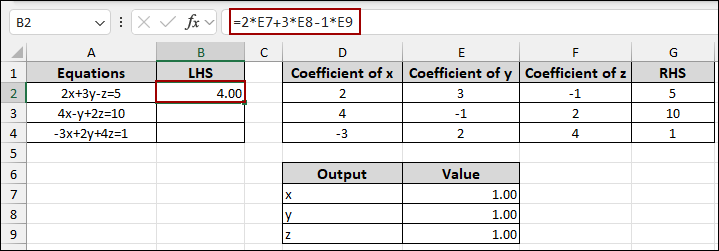
➤ Similarly, enter the LHS formulas for the second equation in B3.
=4*E7-1*E8+2*E9
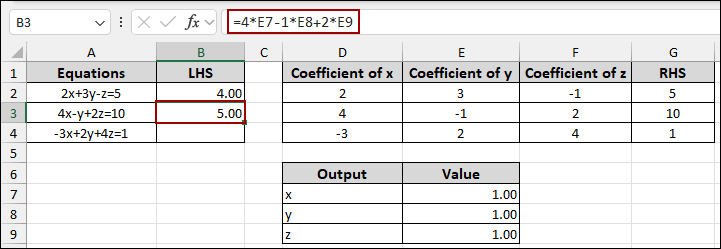
➤ And for the third equation in B4.
=-3*E7+2*E8+4*E9
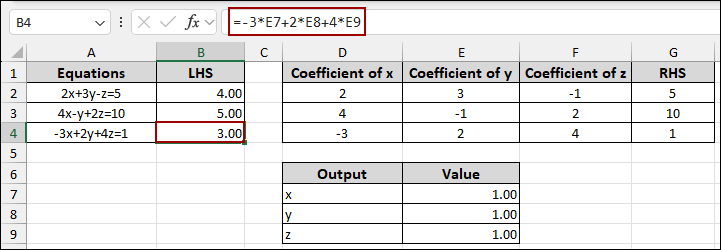
With the setup complete, you can now define the optimization problem for Solver.
➤ Go to the Data tab on the ribbon and click Solver in the Analyze group.
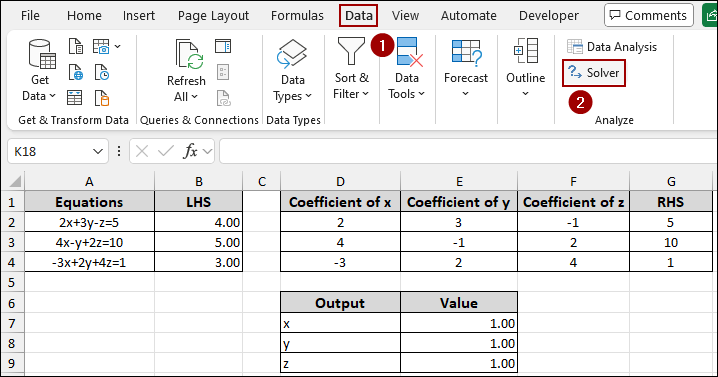
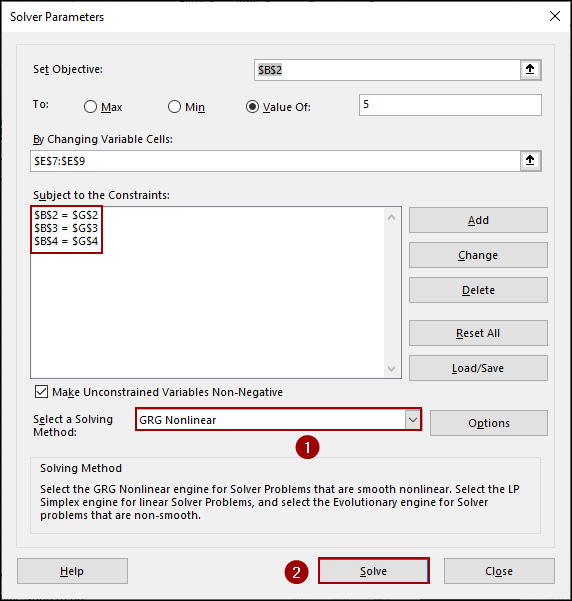
➤ In the Set Objective box, choose cell B2, checkmark Value of and insert 5.
➤ Choose cells (E7:E9) in the By Changing Variable Cells box.
➤ Click the Add button to define the Constraints.
The goal is to set the LHS of each equation equal to its RHS.
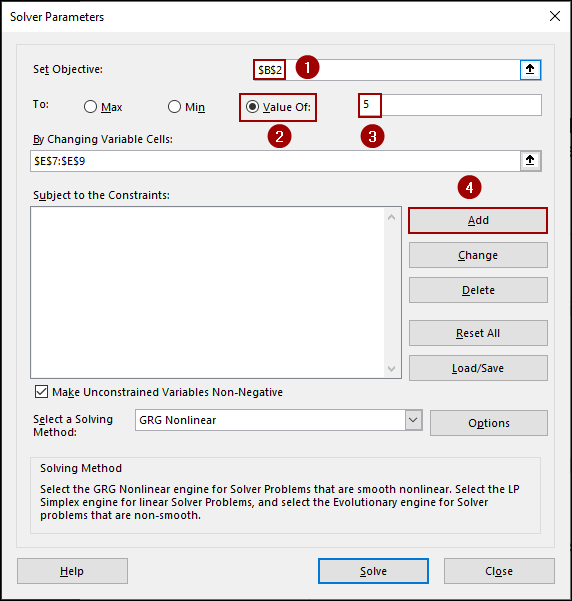
➤ For the first constraints, in the Add constraints box, for cell reference select cell B2, from the drop-down choose equal(=), and define Constraints as G2.
➤ Click Add.
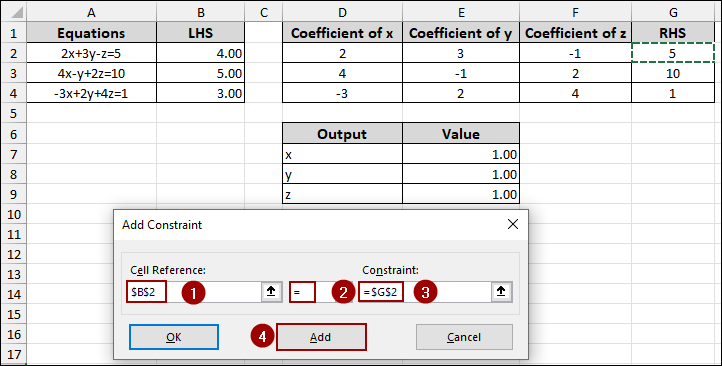
➤ Similarly, choose B3 for Cell Reference, select equal (=), G3 for Constraint and click Add.
➤ Again, choose B4 for Cell Reference, choose equal(=), G4 for Constraint and click Add.
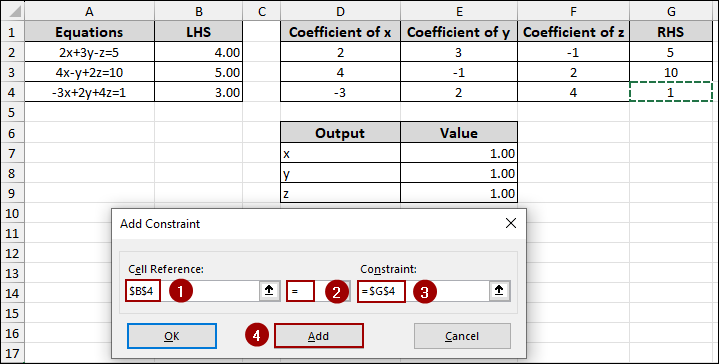
Thus, we will get all the constraints added in the Solver Parameters box.
➤ Set the Select a Solving Method to GRG Nonlinear and click Solve.
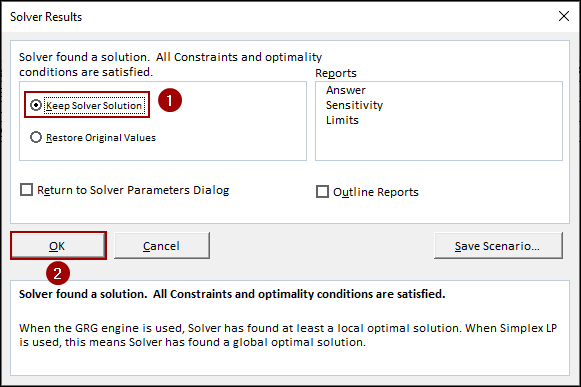
➤ Checkmark Keep Solver Solution and click OK.
Solver will update the values in your variable cells to the solution that satisfies all equations, and the LHS column will now match the RHS column, confirming the result.
Frequently Asked Questions
Why does Solver show “Problem not specified”?
This occurs when you did not set an objective cell or did not define constraints. You must tell Solver what to match or minimize.
Can Goal Seek solve simultaneous equations?
Goal Seek can solve only one variable at a time, so it is useful only for very simple 2-variable problems and not recommended for 3×3 systems.
What if the determinant is zero?
If the determinant is 0, the matrix has no inverse. It confirms that the equations are dependent and that their no unique solution.
Concluding Words
Above, we have explored several methods to solve simultaneous equations in Excel. The MINVERSE and MMULT functions provide a quick solution based on direct matrix inversion and multiplication. If you prefer a classical approach, you can use Cramer’s Rule for the MDETERM function to solve equations through the calculation of determinants. The Solver tool also provides a constraint-based solution for systems of any complexity. If you have any questions, feel free to share them in the comments section below.