GST (Goods and Services Tax) reconciliation is done to know whether the tax collected/paid when purchasing/selling something matches the CRA records of the government. In Excel, we can use various functions and formulas to do the reconciliation at ease. In this article, we will learn how to form a summary sheet with data from CRA, then match the records using different functions provided by Excel. By the end of this article, you will learn several methods to do GST Reconciliation by yourself using Excel.
➤ Download the GST amount data from the CRA website to reconcile.
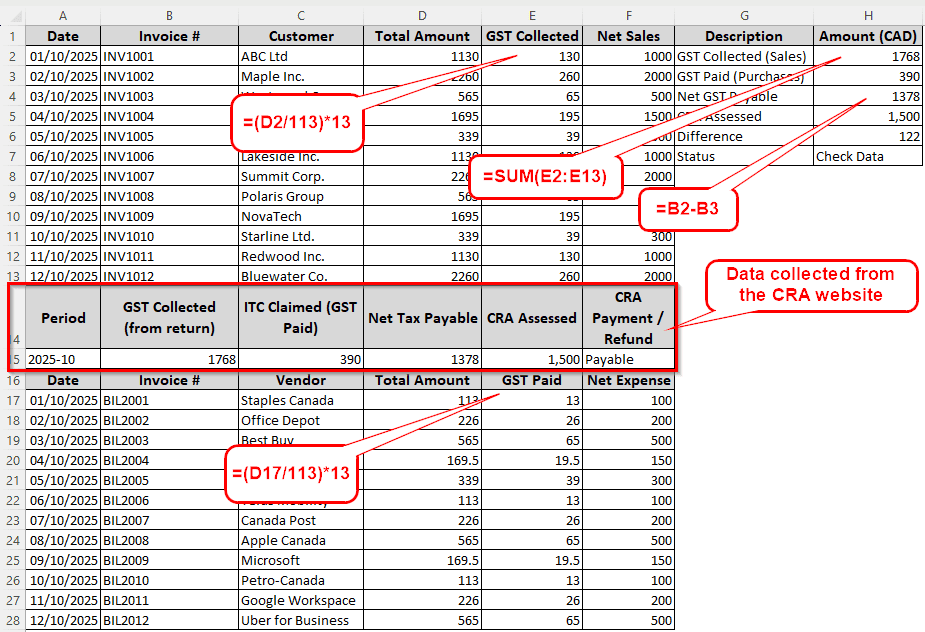
➤ Calculate the GST paid/collected using the following formula:
=(D2/113)*13
➤ Replace D2 with the total amount received/paid from the transaction. 113 and 13 are the indications of 13% tax.
➤ Sum up the GST Collected/Paid using the following formula:
=SUM(E2:E13)
➤ Here, E2:E13 is the range of GST.
➤ Calculate the net GST payable using the following formula:
=B2-B3
➤ Here, B2 is the GST collected amount and B3 is the GST paid amount.
➤ Prepare an adjustment sheet if the values differ between the CRA-assessed amount with your sales/purchases sheets.
Below, you will learn the full process of doing the reconciliation in Excel with different formulas and functions. We suggest that you log in to the CRA My Business Account, download the CSV file, and get your purchases/sales books ready to follow the tutorial and do the GST reconciliation.
Steps to Do GST Reconciliation in Excel
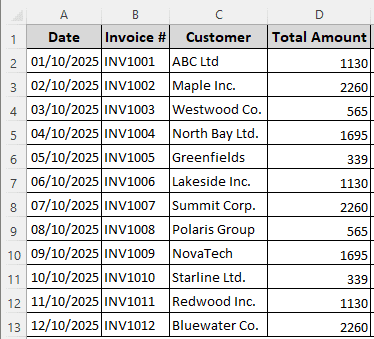
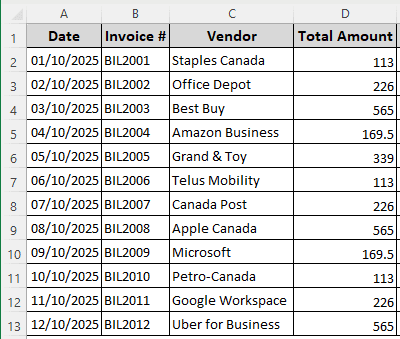
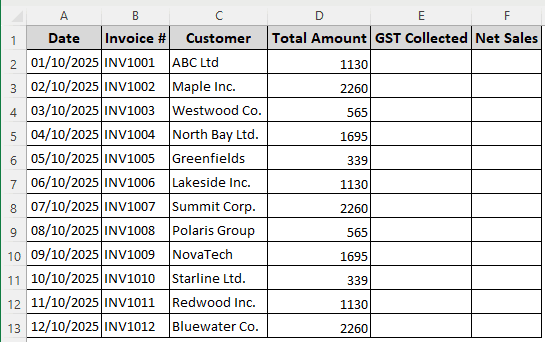
We have the sales and purchases tables of a business here. With the data from these tables, we need to do GST reconciliation according to the laws of Canada.
Sales Data:
Purchases Data:
Step 1: Calculate the GST from Sales & Purchases
First, we have to calculate the GST we paid/collected from our sales and purchases. Follow the instructions below:
➤ Add GST Collected and Net Sales columns to the sales data.
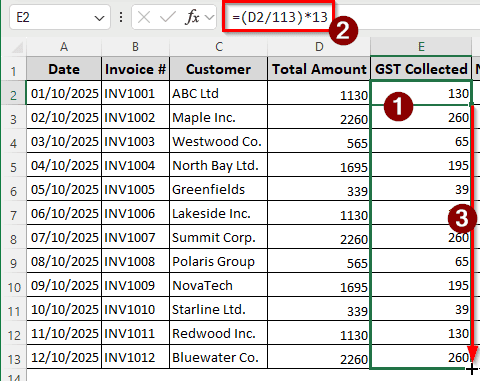
➤ In the E2 cell, insert the following formula and use the autofill handle to fill the column up:
=(D2/113)*13
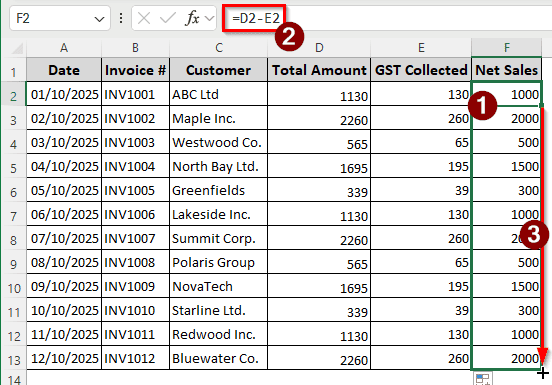
➤ Now, calculate the net sales using the following formula in the F2 cell. Don’t forget to autofill till F13:
=D2-E2
➤ Go to the purchase data and add two columns for GST Paid and Net Expense.
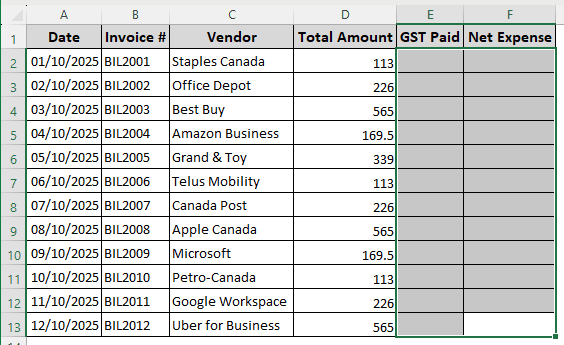
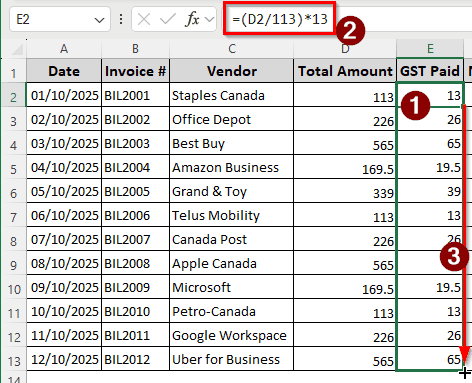
➤ Calculate the GST Paid using the following formula in the E2 cell, then autofill the column:
=(D2/113)*13
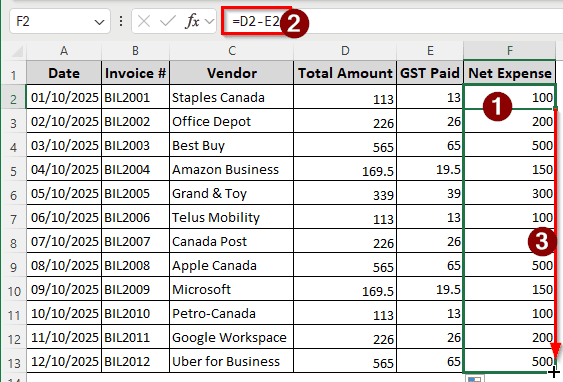
➤ Calculate the net expense with the following formula:
=D2-E2
Step 2: Create a Summary Sheet
First, we need to get the CRA data from the Canada Revenue Agency website. After putting the data into Excel, it will look like the following table.

Let’s create a summary sheet to check the values.
➤ Create a table like the following one:
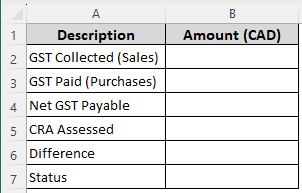
➤ Calculate the total GST collected using the following formula in the B2 cell:
=SUM(Sales!E2:E13)
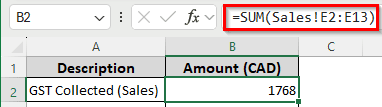
➤ Calculate the GST paid from the purchases using the following formula:
=SUM(Purchases!E2:E13)
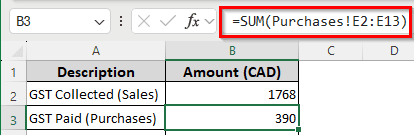
➤ Calculate the net GST payable using the following formula:
=B2-B3
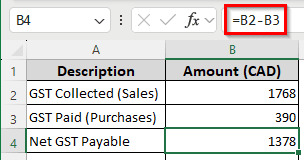
We have to pay the GST we received from sales, only after subtracting the GST we paid while purchasing.
➤ Import the CRA-assessed amount from the CRA sheet:
=CRA!E2
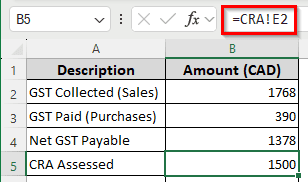
The E2 cell of the CRA sheet contains the CRA-assessed GST amount. We are referencing that cell here to show the amount.
➤ Calculate the GST Difference between assessed and payable using the following formula:
=ABS(B5-B4)
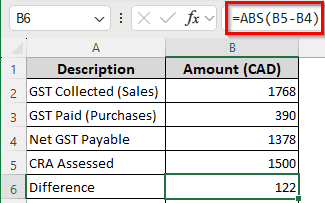
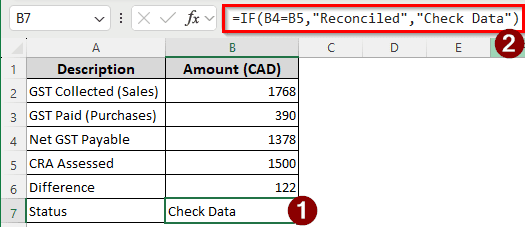
➤ Now, check the reconciliation status in the B7 cell with the following formula:
=IF(B4=B5,"Reconciled","Check Data")
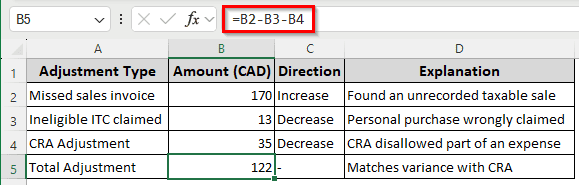
Step 3: Prepare the Adjustments
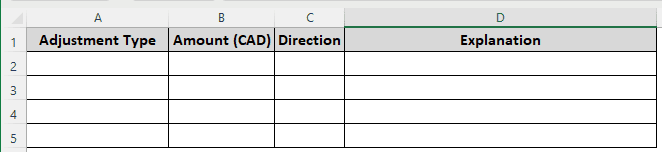
The summary sheet told us that there is a difference between the CRA amount and the GST amount calculated by us. Therefore, we must prepare an adjustment sheet.
➤ Create a table with the following headers:
Adjustment Type, Amount (CAD), Direction, Explanation.
➤ Double-check the sales and purchases, and add the adjustments here.
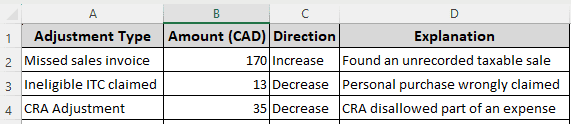
➤ Calculate the total adjustment in the B5 cell using the following formula:
=B2-B3-B4
Frequently Asked Questions
What is a GST reconciliation report?
A GST reconciliation report compares the goods and sales tax collected/paid throughout the year to the business activity done according to the purchase register. In India, it is mandatory to do GST reconciliation as part of audit preparation.
How do you calculate GST?
The formula for GST calculation in Excel is as follows:
=(A1*18%)/100
Here, A1 is the selling price, and 18% is the rate of GST.
How to use AI for GST reconciliation?
There are several methods to use AI for GST reconciliation. You can upload the entire table to GPT-5 or some other LLMs that can perform calculations to do GST reconciliation. You can also use accounting programs that include AI. In Microsoft 365 for business, Excel is available with Copilot, which can help you do GST reconciliation.
Is GST billing software mandatory?
No, you can do it without a dedicated GST billing software. However, it is recommended to use a GST billing software because it keeps track of the transactions better, has less risk of errors, and you can comply with the regulations.
What is CPIN in GST?
When you generate the GST tax challan online, the Common Portal Identification Number (CPIN) is generated. You can use this to pay the GST. After the payment, you will receive the CIN, or Challan Identification Number.
Wrapping Up
In this article, we have learned how to do GST reconciliation in Excel. We hope that you will be able to gather the data and do the reconciliation using this tutorial from now on. We have included the Excel file used to prepare this tutorial for you. Download the file to review the formulas and gain a clear understanding of the reconciliation methods. We will see you next time in another article.