If you have a small business and are looking for a way to record transactions in Excel, look no further. The accounting procedure is a lot less complex for a small business, and even if you don’t have an accounting background, you can easily maintain the accounts for your sole proprietorship business. In this article, we will learn how to maintain accounts for a small business in Excel. We will learn how to record transactions and prepare an income statement at the end.
➤ Create a chart of accounts with all types of transaction names you have in your business.
➤ Record the transactions in a separate sheet while using the account names from the chart of accounts.
➤ Prepare an income statement from the previous tables.
➤ Add the revenues and subtract the expenses to calculate net profit/loss.
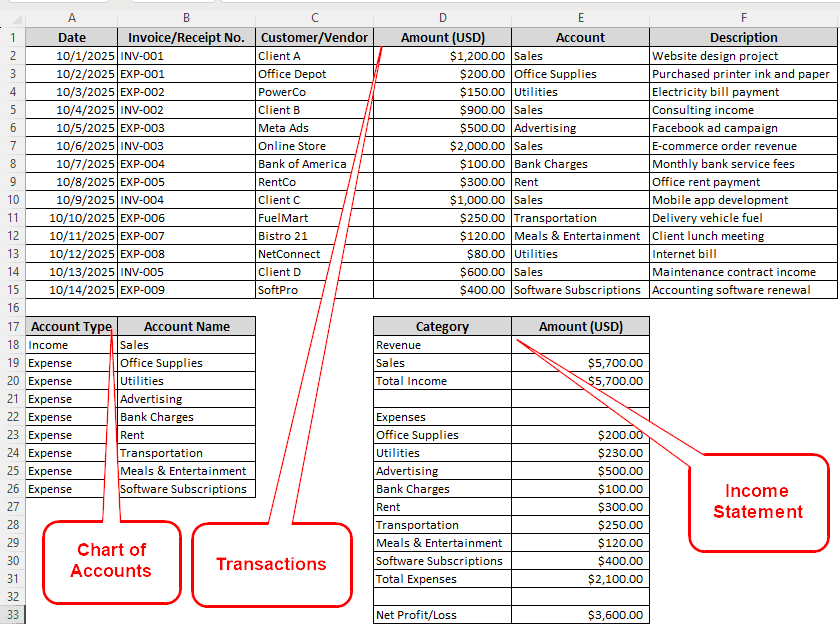
In this article, we will go through a step-by-step guide to maintaining accounts for small businesses in Excel. Get your invoices and receipts ready so that you can follow the tutorial to start bookkeeping with us.
Steps to Maintain Accounts for a Small Business in Excel
We will need three sheets in Excel to prepare accounts for a small business. In each step, we will learn to prepare a sheet that will be useful for preparing the next sheet.
Step 1: Create a Chart of Accounts
First, gather the accounts that you might face in the accounting period. We will make a table with those accounts.
➤ Create a table with two columns: Account Type and Account Name.
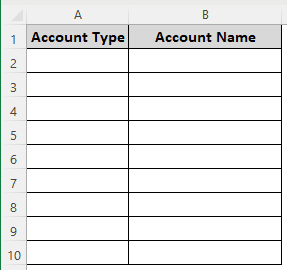
➤ Fill these up with the necessary accounts. There will be two types of accounts: Income and Expense. Add the required names to the table.
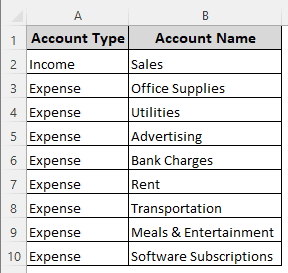
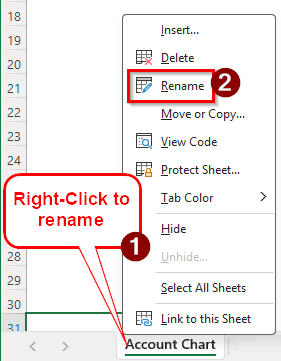
➤ Right-click on Sheet1, and rename it to Account Chart.
Step 2: Record the Transactions
Now that we have the account types ready, we can proceed to record the transactions.
➤ Create a new sheet, rename it to Transactions.

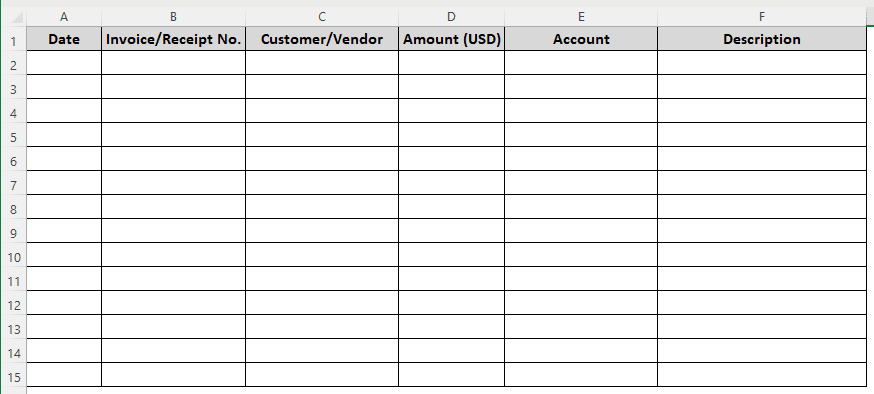
➤ In the Transactions sheet, create a table with six columns with the following titles:
Date, Invoice/Receipt No., Customer/Vendor, Amount (USD), Account, Description
Note:
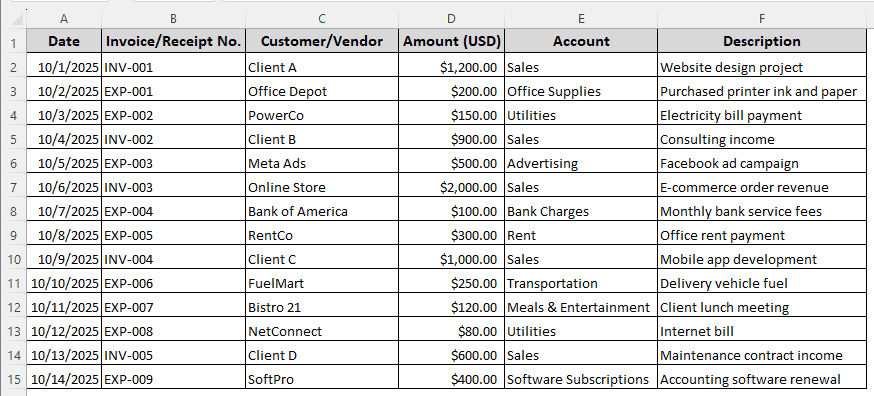
We have added 14 rows here to record the transactions of two weeks, one for each. For your business, you might have multiple transactions per day, and you should prepare the recording book on a monthly basis.
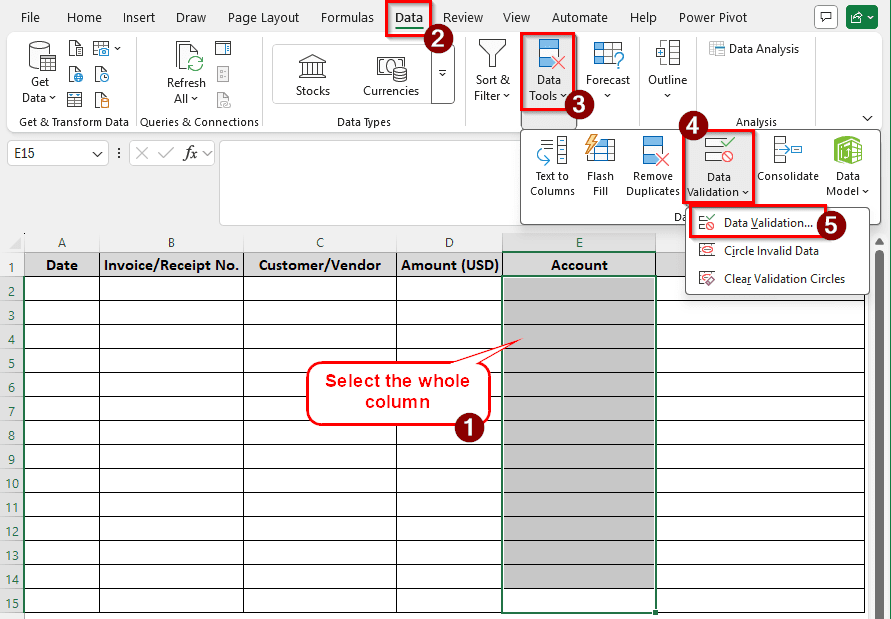
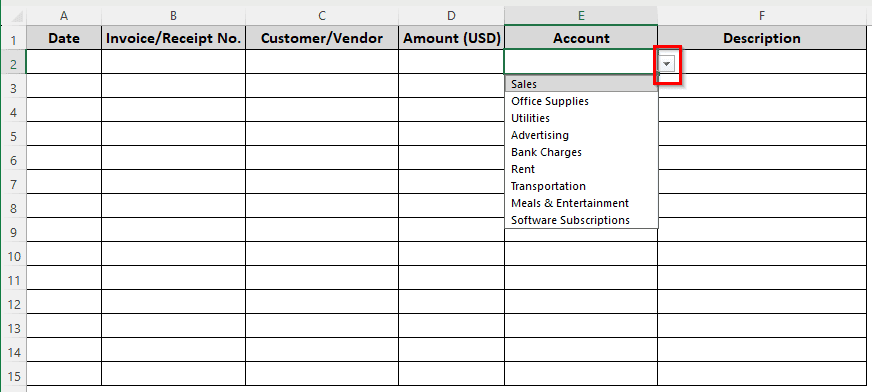
➤ In the Account column, select all of the rows (E2:E15 here), and go to the Data tab of the ribbon. From the Data Tools group, select Data Validation > Data Validation.
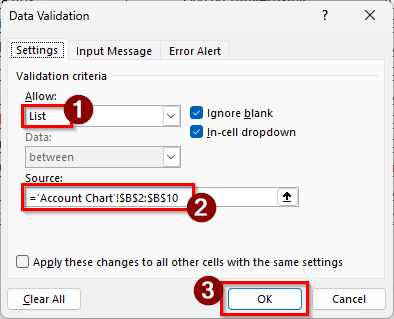
➤ In the Data Validation window, select List in the dropdown box called Allow. Then, in the Source box, insert the following formula and press OK.
='Account Chart'!$B$2:$B$10
➤ We can now select the required account from a dropdown for all of the rows in the Account column.
➤ Now, add the required transactions from the invoices and the receipts you have.
Step 3: Prepare the Income Statement
Finally, we will create an income statement to summarize everything.
➤ Create another sheet for the Income Statement.
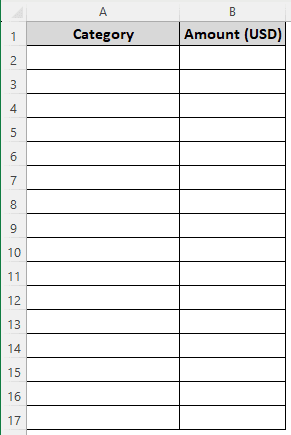
➤ Create a table with two columns, Category and Amount (USD).
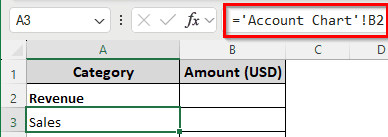
➤ First, we need a section for Revenue. There is only one revenue in the Account Chart. Add that reference in the A3 cell using the following formula:
='Account Chart'!B2
➤ Get the value of Sales in the B3 cell with the following formula:
=SUMIF(Transactions!E:E,"Sales",Transactions!D:D)
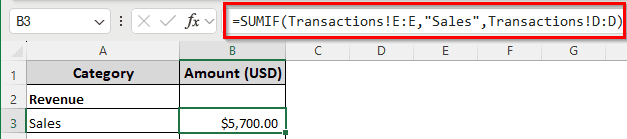
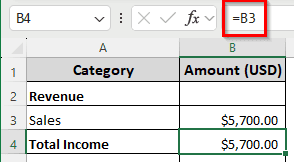
➤ We don’t really need to calculate the total income; we can just use the B3 reference in the B4 cell:
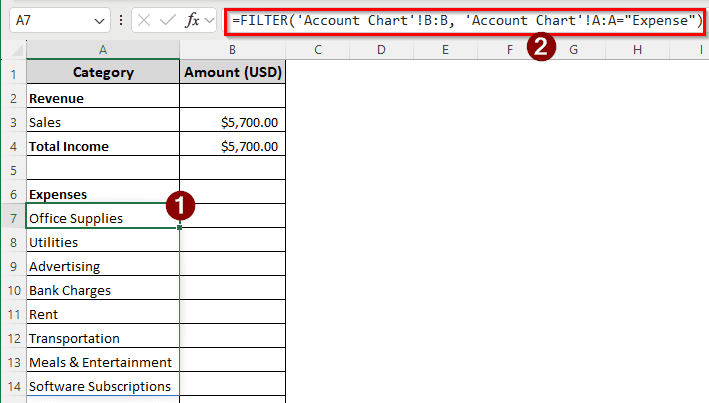
➤ Now, let’s move on to the Expenses section. In the A7 cell, enter the following formula to import the expense accounts:
=FILTER('Account Chart'!B:B, 'Account Chart'!A:A="Expense")
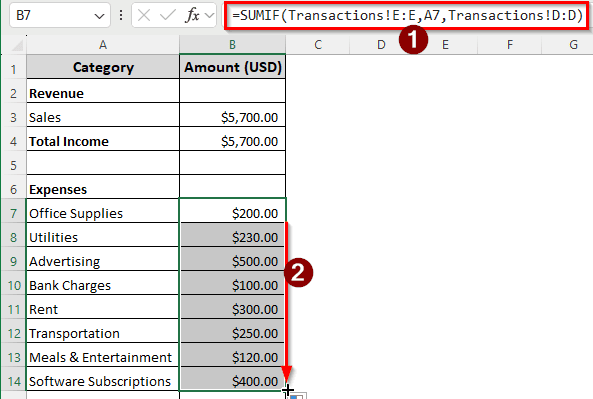
➤ In the B7 cell, insert the following formula and drag the autofill handler till B14:
=SUMIF(Transactions!E:E,A7,Transactions!D:D)
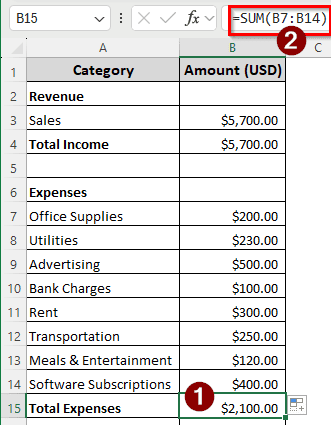
➤ Calculate Total Expenses in the B15 cell using the following formula:
=SUM(B7:B14)
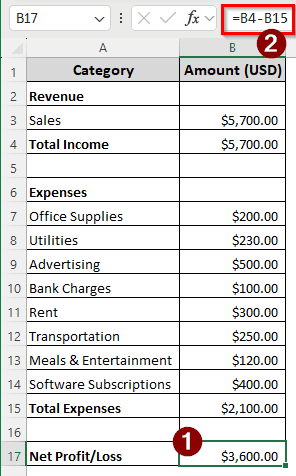
➤ Calculate the net profit/loss using the following formula:
=B4-B15
Frequently Asked Questions
Can I use Excel for small business accounting?
Yes. While professional accountants prefer dedicated programs for their calculations, Excel is more than enough for a small business. Excel provides a lot of functions and formulas that are perfect for accounting tasks.
Which accounting method is best for a small business?
There are essentially two methods of accounting, cash-based and accrual-based. For a small business, cash accounting is good enough. But if you plan to grow soon, you might want to go for accrual accounting, as that method is used in complex business organizations.
Can Excel replace accounting software?
It depends on your requirements. If you have a large enough institution with a lot of transactions happening every day in multiple branches, Excel might not be enough for you. But for a small organization with fewer than 10 employees, or for a sole proprietorship, Excel is a reasonable alternative to the expensive accounting software.
What is the golden rule of bookkeeping?
The rule follows the double-entry accounting method. Therefore, the increase in assets is debited, and an increase in liability or owner’s equity is credited.
Will AI replace Excel?
We cannot talk about the future. For now, AI cannot calculate in general; it uses a calculator inside the model instead of its “Intelligence” to do the calculation. The complex calculations, logics, and accuracy that Excel maintains are not quite possible to replicate by AI. However, Microsoft has just introduced Copilot to Excel, so in the future, AI may be able to replace, or at least complement, Excel.
Wrapping Up
In this article, we have learned how to maintain accounts for small businesses. If you want a simple template for doing the calculations, you are welcome to download the workbook provided here. Simply follow the tutorial to update the transactions and accounts, and you will be good to go. If you need more precision, let us know in the comments, and we will talk about personalized service for your business. See you in another article.