The declining balance depreciation method is an accelerated depreciation method that is used to decline the value of an asset quickly. In this method, the depreciation amount is higher for earlier periods and decreases as the asset’s value approaches its salvage price. In Excel, three functions can be used to calculate the declining balance depreciation. A lot of companies use declining balance methods, so that they have to pay less tax due to higher depreciation. In this article, we will learn all of the formulas that can be used to calculate declining balance in Excel.
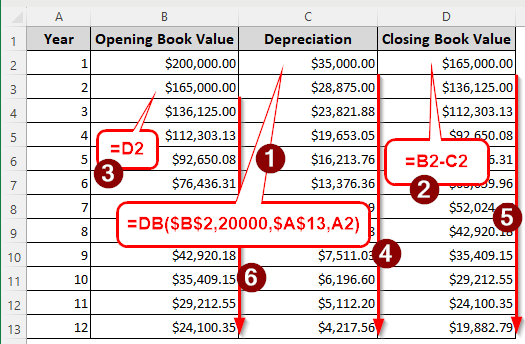
➤ Use the following formula to calculate the depreciation:
=DB($B$2,20000,$A$13,A2)
➤ Here, $B$2 refers to the opening value of the asset, 20000 is the salvage value, $A$13 refers to the total lifetime of the asset in years, and A2 refers to the current year count.
➤ Calculate the closing book value with the following formula:
=B2-C2
➤ Here, B2 refers to the opening value, and C2 refers to the depreciation.
➤ Refer to the opening book value based on the last year’s closing book value and autofill all columns.
=D2
Calculating the depreciation of an asset is a mandatory part of preparing the financial statements. In this article, we will try to make the depreciation calculation easier for you. Let’s begin.
What is Declining Balance Depreciation?
Declining balance depreciation calculates the depreciation in a way so that the value of the asset and the depreciation amount decline as years go by. In this method, the first year’s depreciation is the highest because it is calculated on the full purchase price of the asset. Then, after calculating the depreciation, we subtract it from the asset’s price. In the next year, the depreciation is calculated on the new price of the asset that we obtained by subtracting the previous year’s price.
The amount of depreciation is never the same for every year. The formula for calculating the depreciation is: Book value * Depreciation rate. However, Excel does not need the rate because it calculates that internally.
Using the DB Function to Calculate the Declining Balance Depreciation
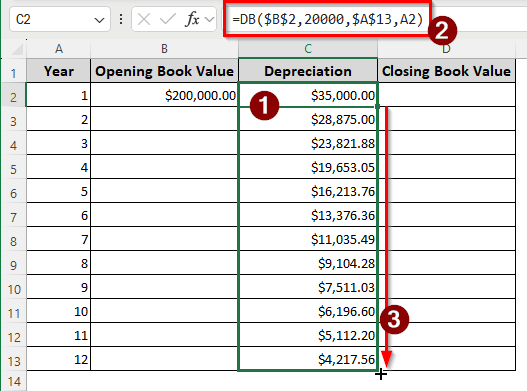
The DB function is the most basic function of calculating the declining balance depreciation. To demonstrate the function, we have a table with the opening book value of an asset, which is $200000. We need to calculate the depreciation for 12 years. Here is how to do it:
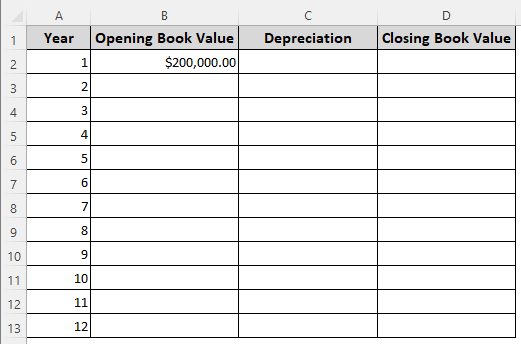
➤ In the C2 cell, enter the following formula, and autofill the whole column.
=DB($B$2,20000,$A$13,A2)
➤ Next, insert the closing book value through the following formula:
=B2-C2
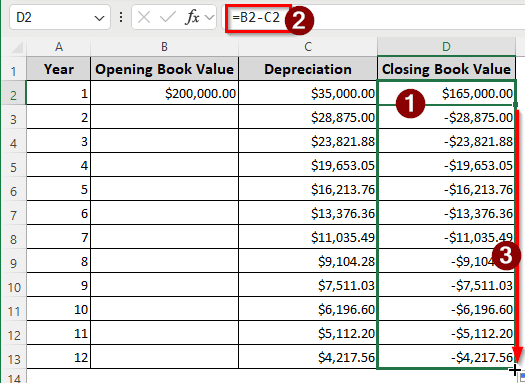
The depreciation value is subtracted from the opening value to get the closing value.
➤ There are negative values on the column for now, but don’t worry. Those will be fixed next.
➤ In the B3 cell, insert the following formula and autofill till B13:
=D2
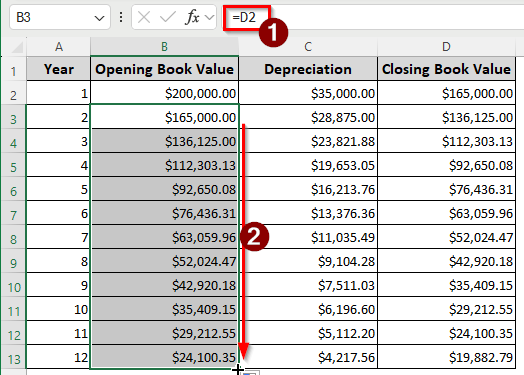
We are referencing the closing book value of the previous year as the opening book value of the current year.
Making Use of the DDB Function to Calculate the Double Declining Balance Depreciation in Excel
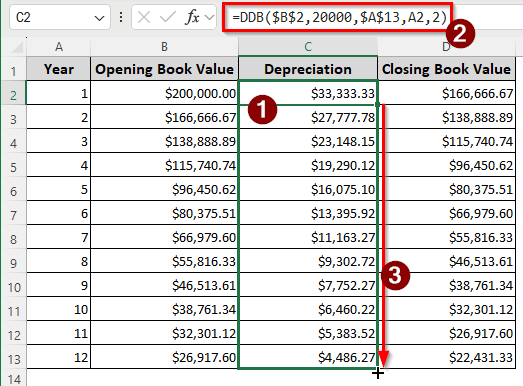
In the DDB function, the declining balance factor is doubled by default. However, we can use different factors as well. Here is how we can make it work.
➤ We will make changes to the table that we made in the previous method. Therefore, only column C will be edited, and the rest will be left as it is.
➤ Insert the following formula made using the DDB function and autofill till C13:
Demonstrating the VDB Function of Calculating Declining Depreciation
The VDB function is not like the other ones. This one can be used to calculate variable declining balance depreciation. For example, if you want to calculate the depreciation for an amount of days, you can do that with this function.
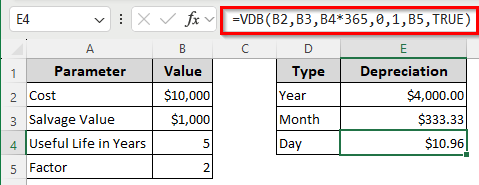
In the following table, we have the cost of the asset, the salvage value, the useful life in years, and the declining factor. Those will be used to calculate the depreciation.
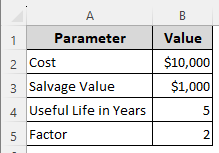
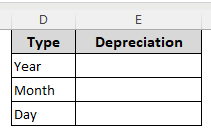
➤ Create a new table for yearly, monthly, and daily depreciation calculation, like the following:
➤ In the E2 cell, calculate the depreciation of one year using the following formula:
=VDB(B2,B3,B4,0,1,B5,TRUE)
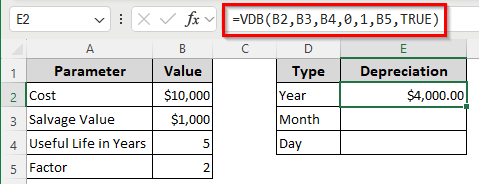
The next parameter is the declining factor from B5. The last parameter asks Excel not to switch to the straight line depreciation method. If we use TRUE, Excel will not switch methods when the depreciation is bigger than the declining balance calculation.
➤ In the E3 cell, use the following formula:
=VDB(B2,B3,B4*12,0,1,B5,TRUE)
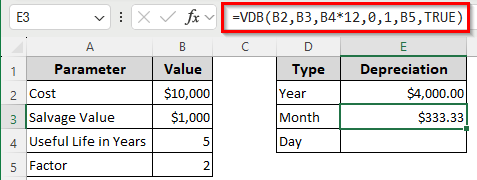
The slightest change we made in this method is, we multiplied the useful life in years by 12 so that Excel counts the useful life in months instead of years. Keeping everything else the same, we get the monthly depreciation as a result.
➤ Finally, to calculate the depreciation of a single day, use the formula below:
=VDB(B2,B3,B4*365,0,1,B5,TRUE)
Frequently Asked Questions
How to calculate decline in Excel?
To calculate the declining percentage in Excel, use the following formula:
=(B2-A2)/A2
Here, B2 is the new value, and A2 is the old value. Make sure to convert the cell to a percentage; otherwise, the result will show up in decimals.
What is the formula for depreciation in Excel?
There are various formulas for depreciation in Excel. The most used one is prepared using the SLN function, which calculates the straight-line depreciation. The formula can be written like the following:
=SLN(A2,B2,C2)
Here, A2 indicates the price of the asset, B2 is the salvage value of the asset, and C2 is the lifetime of the asset in periods/years.
What are two methods of calculating depreciation?
There are actually multiple methods of calculating depreciation, not just two. Some of the methods are the written down value method, the straight line method, the declining balance method, the sum of the years’ digits method, the units of production method, etc.
What is the best way to calculate depreciation?
It depends on the company, use case, asset type, accounting methodology, etc. There is no best way that works for every scenario. Contact the accounting department of your organization to discuss the method you want to use for calculating depreciation.
What is the simplest depreciation formula?
The simplest method would be to divide the cost of the asset by its lifetime. In Excel, the formula can be written like this:
=A2/B2
Here, A2 contains the purchase cost of the asset, and B2 contains the number of years the asset will serve the company.
Wrapping Up
In this article, we have learned how to calculate the declining balance depreciation in Excel using several formulas. All of the formulas have their places in accounting, and you must choose the one that you need the most. The Excel file provided with this article has all of the calculations so that you can follow the tutorial at ease. Until next time, stay tuned.