When working with PivotTables in Excel, you may need to change the source data. But after changing the source data, you might forget to refresh or update it. This will lead to errors and wrong output. Refreshing Pivot Tables manually again and again might feel hectic. Fortunately, Excel provides several methods to automate this process. In this article, we will guide you through two effective methods to automatically update Pivot Table when source data changes in Excel.
To automatically update Pivot Table when source data changes in Excel, here is one simple solution by applying VBA code.
➤ Go to Developer > Visual Basic and double-click on the sheet name containing the source data.
➤ From the first and second drop-down menus, choose Worksheet and Change.
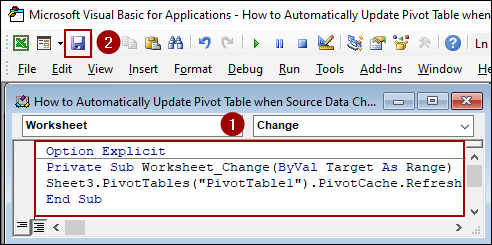
➤ Insert the following code and click Save to automatically update Pivot Table when source data changes in Excel.
Option Explicit
Private Sub Worksheet_Change(ByVal Target As Range)
Sheet3.PivotTables("PivotTable1").PivotCache.Refresh
End Sub
Embedding VBA Code to Update Pivot Table When Source Data Changes in Excel Automatically
Applying a simple VBA code to your source data sheet is the most effective way to ensure your Pivot Table updates instantly when a change occurs in the source data. This method uses the Worksheet_Change event to trigger a refresh.
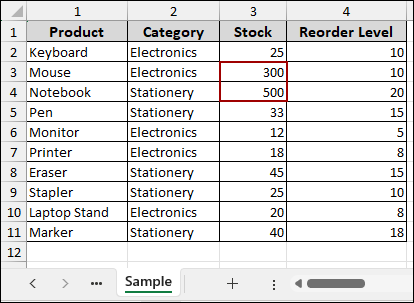
Imagine a sample dataset containing inventory records with columns for Product, Category, Stock, and Reorder Level. Now, we will create a Pivot Table with this dataset and then apply VBA code in the source sheet to automatically update Pivot Table with the changes made in the source sheet.
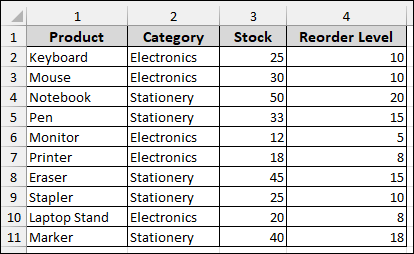
To create a Pivot Table,
➤ Select the dataset, go to the Insert tab, and click PivotTable.
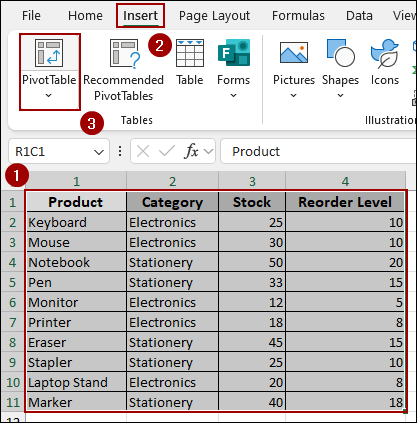
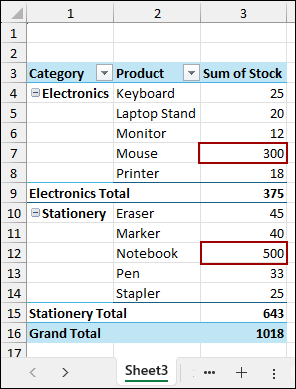
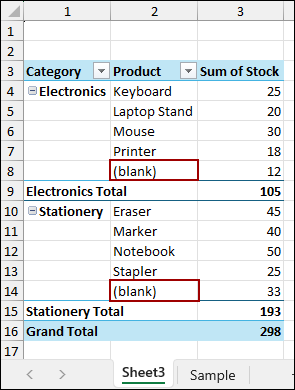
➤ In the resulting Pivot Table, we have placed Category and Product in the Rows area and Sum of Stock in the Values area.

As a result, we will note the default name of the Pivot Table, which is PivotTable1, and place the table in a sheet (e.g., Sheet3).

To automate the refresh process, we need to insert the VBA code into the source data sheet, which is Sample.
➤ Go to the Developer tab and click on Visual Basic.
This will open the Microsoft Visual Basic for Applications window.

➤ In the VBA window, double-click on the sheet name containing the source data (in our case, (Sample)) to open its code module.
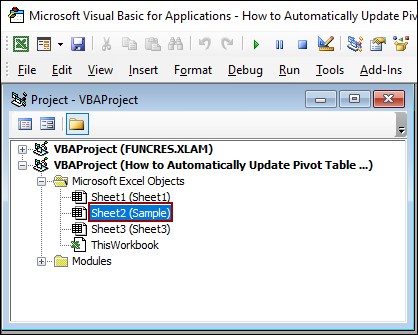
➤ From the first dropdown menu, select Worksheet.
By default, this action generates the Private Sub Worksheet_SelectionChange procedure.
➤ In the second dropdown menu, select Change.

Since we want the refresh to happen when the content changes, not when the selection changes, we must delete the generated Worksheet_SelectionChange code block.
➤ Choose the code below and hit DELETE.

➤ Insert the code below and click Save.
Option Explicit
Private Sub Worksheet_Change(ByVal Target As Range)
Sheet3.PivotTables("PivotTable1").PivotCache.Refresh
End Sub
This code tells Excel that when a change occurs on this sheet, go to Sheet3 and refresh the cache of the Pivot Table named “PivotTable1“.
Now, let’s change some data from the source sheet named Sample and check the automatic update.
➤ Change the Stock value for ‘Mouse’ from 30 to 300, and the ‘Notebook’ value from 50 to 500.
Finally, if you switch over to Sheet3, you will instantly see the Pivot Table update automatically with the changes made in source data.
Alternatively, if you have multiple Pivot Tables, you can use a more general code to refresh all Pivot Tables in the workbook.
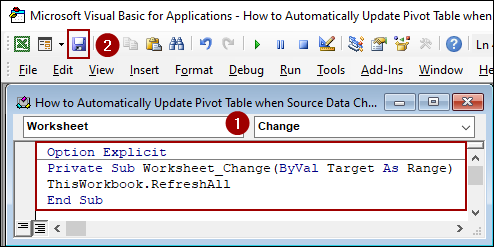
➤ Following the previous method, insert the code below and click Save.
Option Explicit
Private Sub Worksheet_Change(ByVal Target As Range)
ThisWorkbook.RefreshAll
End Sub
This code tells Excel to refresh every single Pivot Table in the entire workbook.
Now, let’s test the automatic update.
➤ Delete data from the Product column for Pen and Monitor.
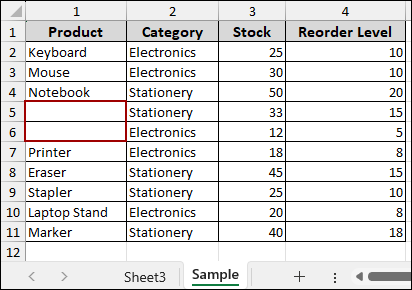
The Pivot Table will automatically refresh, but it will display a (blank) row for Pen and Monitor.
Using PivotTable Options Feature to Refresh Pivot Table When Opening the File
If you don’t need instant, real-time updates and simply want to ensure your Pivot Table always reflects the latest data every time you open the workbook. For this, you can use the built-in PivotTable Options feature.
To set up the automatic refresh upon opening the file.
➤ Select any cell inside your Pivot Table.
➤ Go to the PivotTable Analyze tab on the Ribbon.
➤ In the PivotTable group, click the Options drop-down arrow and select Options.

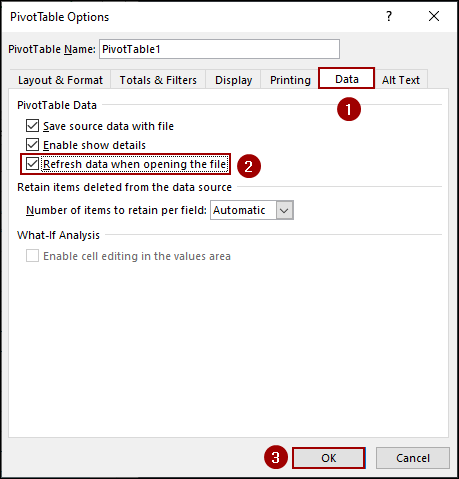
➤ In the PivotTable Options dialog box, select the Data tab.
➤ Checkmark the box next to Refresh data when opening the file.
➤ Click OK.
Now, every time you open this workbook, the Pivot Table will automatically check the source data and update itself.
To check the update happening, let’s delete some data from the Product column.

Switching back to the Pivot Table sheet, you will see that the update did not happen.

➤ Save, close, and reopen the Excel file.
The Pivot Table will automatically refresh, with the blank fields according to the source data changes.

Frequently Asked Questions
Why does my Pivot Table show old data even after refresh?
This happens because Pivot Cache stores previously used data. You need to click PivotTable Options > Data > Uncheck “Save source data with file” and refresh again.
How can I auto-update Pivot Table after I add new rows to my data?
Convert your data into an Excel Table (CTRL + T). Excel Tables expand automatically, and the Pivot Table will recognize new data on refresh.
I get an error when trying to use the VBA code. What did I miss?
You likely forgot to save your workbook as an Excel Macro-Enabled Workbook (.xlsm). VBA code only functions when the workbook is saved in a macro-enabled format. Also, ensure the VBA code is placed inside the specific worksheet module that contains the source data, not a standard module or the ThisWorkbook module.
Concluding Words
Above, we have explored 2 simple ways to automatically update Pivot Table when source data changes in Excel. The VBA Worksheet_Change method provides a real-time refresh, making it ideal for live data entry. For periodic reporting, you can use the Refresh data when opening the file option for a non-VBA solution that ensures refreshing every time the workbook is opened. If you have any questions, please don’t hesitate to share them in the comments section below.