Many professionals and researchers often receive data in PDF format. This PDF file includes monthly reports, invoices, attendance logs, and survey results. Extracting data from multiple PDF files to Excel means transferring structured information, usually tables from several PDFs, into Excel workbooks. This allows for easier sorting, filtering, and analysis.
To extract data from multiple PDF files to Excel, you can follow these simple steps:
➤ Open each PDF file using a PDF reader or Microsoft Word.
➤ Select and copy the table content from the PDF.
➤ Paste the copied table into Excel and format it as needed.
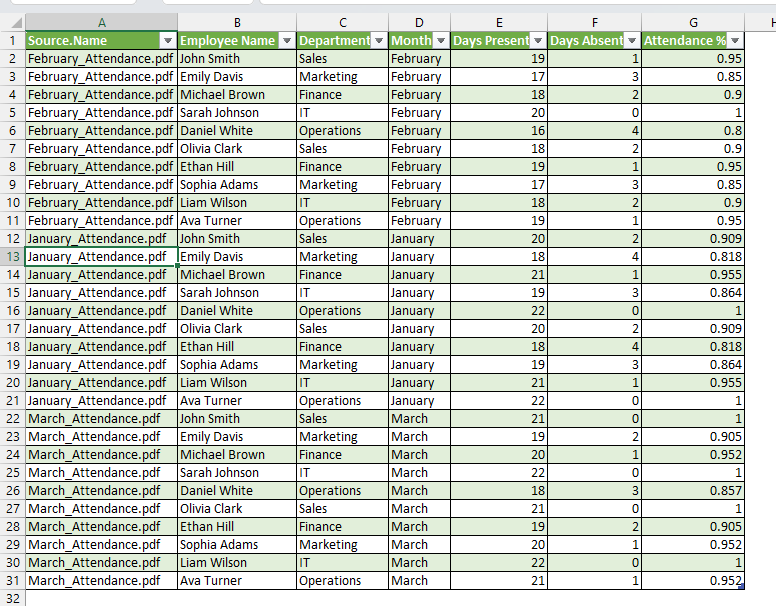
In this article, we will describe how to extract data from multiple PDF files to Excel using the Power Query, Microsoft Word, and the Copy-Paste tool.
Using the Power Query Tool to Extract Data from Multiple PDF Files into Excel
Power Query is a powerful data transformation tool in Excel that allows us to connect to various data sources, like PDF files. So we can use Power Query to import and consolidate data from multiple PDF reports or tables and extract the data into a single Excel worksheet. It works by selecting a folder that contains the PDF files, then identifies the structured tables within each file, and at the end, combines them into a unified dataset. We use this method when we have multiple PDF reports or tables that need to be combined in one Excel worksheet.
We have 3 PDF files that contain attendance records of students for three months. We will use the Power Query tool to extract data from these PDF files into Excel.
Steps:
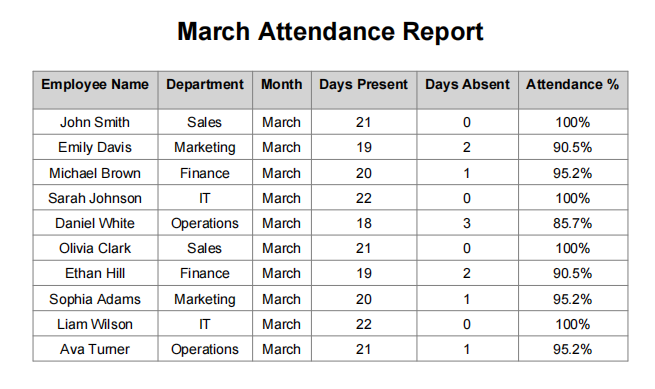
➤ We have 3 PDF files:
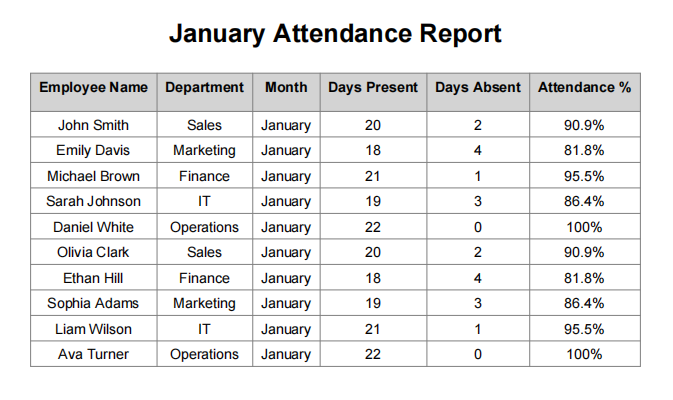
- January Attendance: This PDF file contains the attendance data of the students for January.
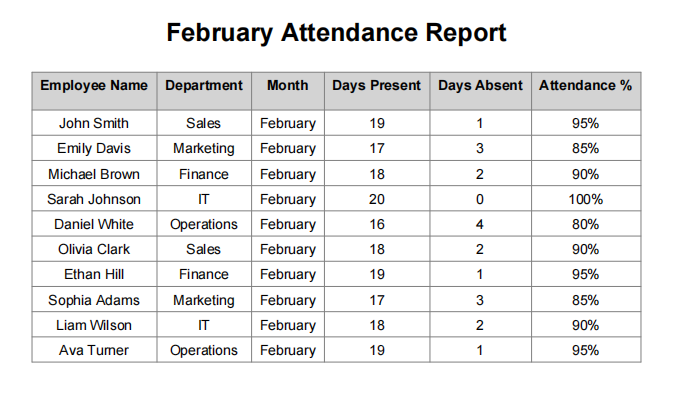
- February Attendance: This PDF file contains the attendance data of the students for February.
- March Attendance: This PDF file contains attendance data of the students for March month.
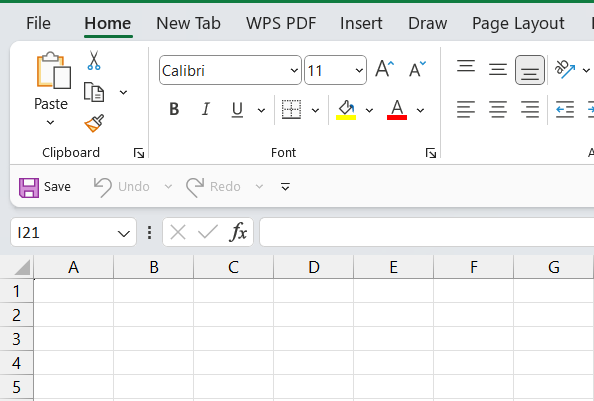
➤ Open a new Excel workbook.
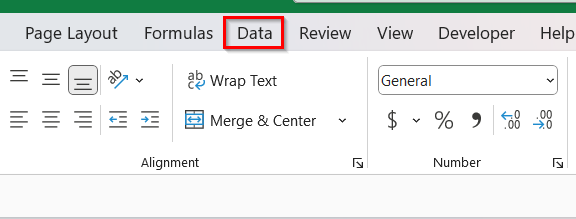
➤ Go to the Data tab on the Ribbon.
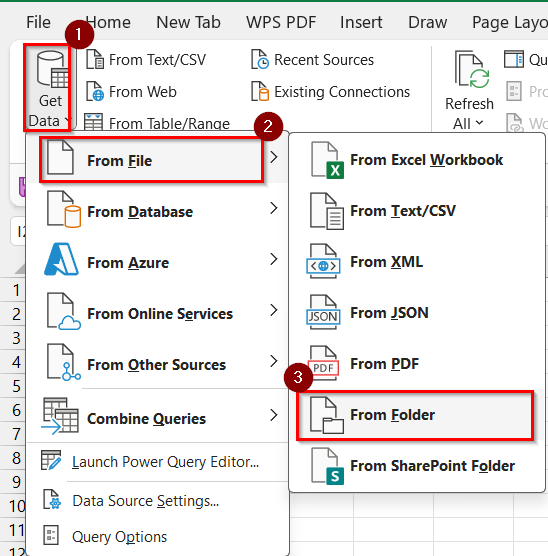
➤ Click Get Data → From File → From Folder. This step allows Excel to access all PDF files stored in the same folder.
➤ A dialog box will appear.

➤ Browse to the folder where your PDF files are saved.
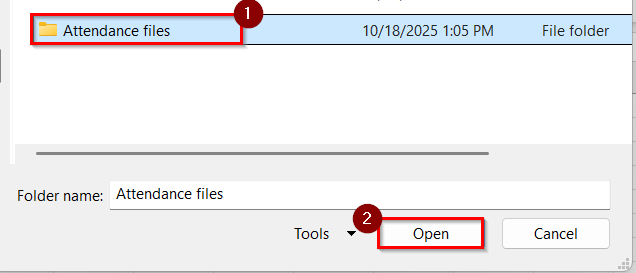
➤ Click on the file, and it will be selected automatically.
➤ Then, click Open.
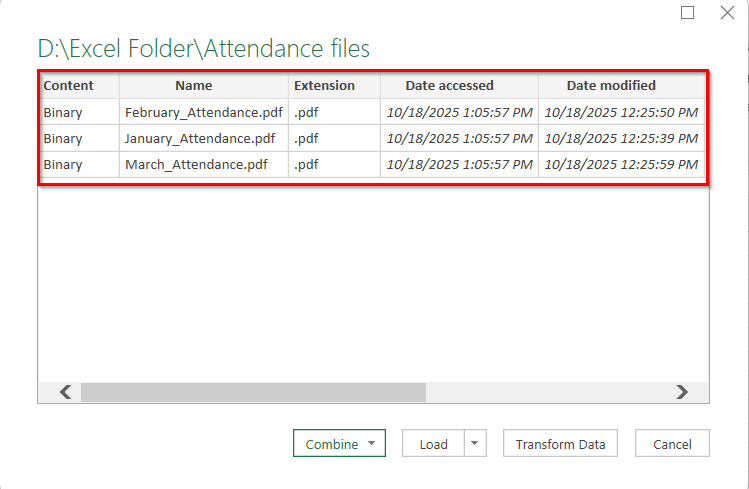
➤ Excel will list all PDF files found in that folder in the Power Query window.
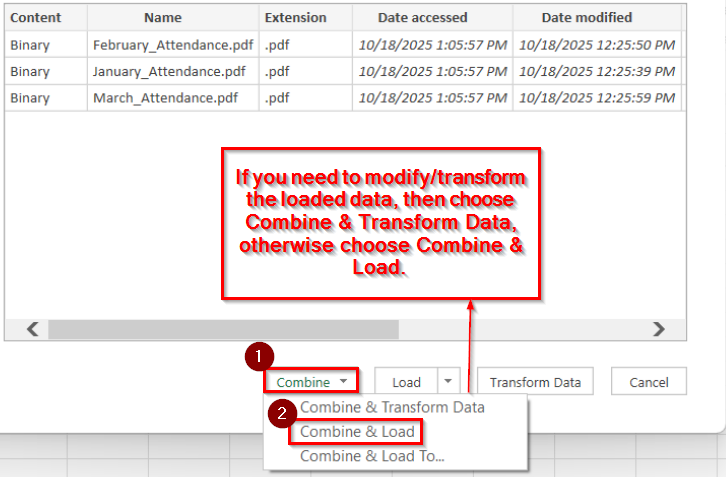
➤ Click the Combine dropdown at the top and choose Combine & Load. This tells Power Query to open and combine all tables from each file.
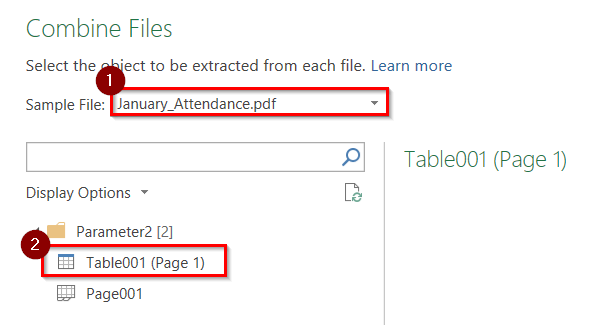
➤ Click on the sample file dropdown arrow.
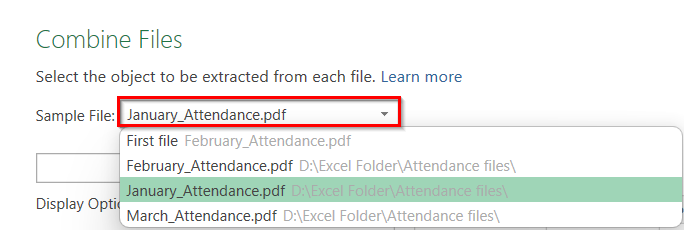
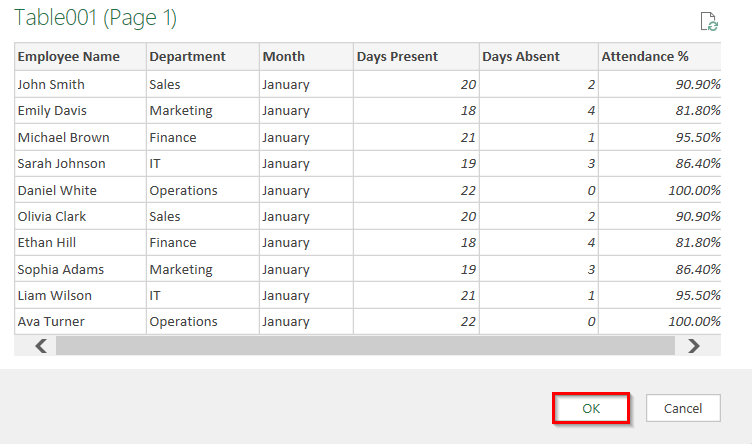
➤ Choose any PDF file that you want to preview. For example, choose January_Attendance.pdf → Table001 (Page 1).
➤ Click OK to confirm.
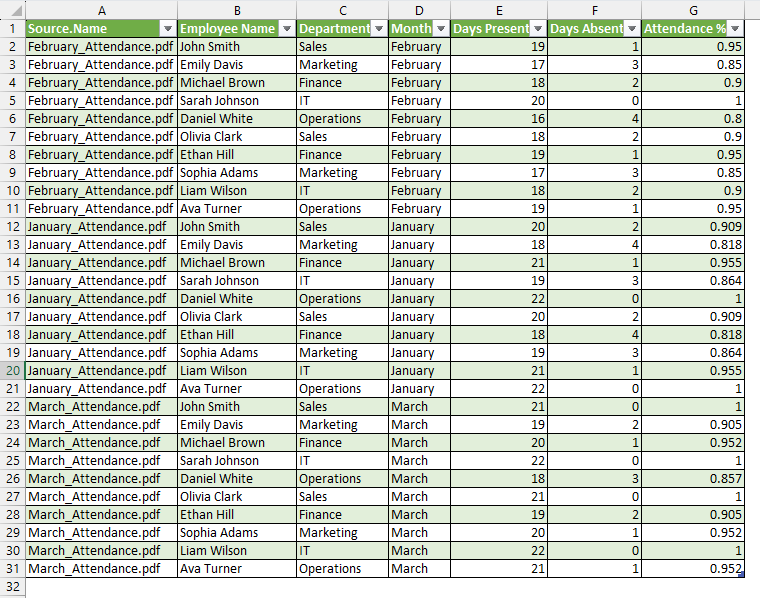
➤ The result will appear in your Excel sheet.
Note:
➥ Make sure all your PDF files are stored in the same folder before starting.
➥ Each PDF should contain similar structured tables (same column names).
➥ If the structure varies, Power Query may prompt you to manually map columns.
Extract Data from Multiple PDF Files to Excel Using Microsoft Word
If you aren’t comfortable with Power Query, we can extract data from multiple PDF files into Excel using Microsoft Word as a converter. We use this process when we have a few reports or tables stored as PDFs and need to analyze or combine them in Excel without being so technical.
We have three monthly employee attendance reports saved as separate PDFs. We will use Microsoft Word as a converter to extract multiple PDF files into Excel for easy analysis.
Steps:
➤ We have another 3 PDF files:
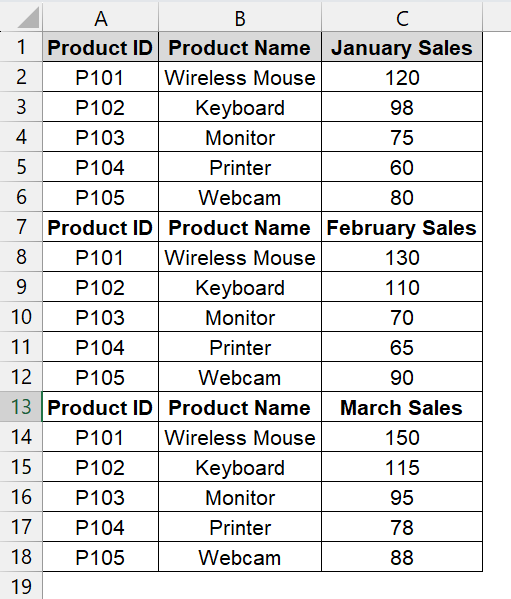
- January PDF file: This January PDF file contains the product sales report for January.
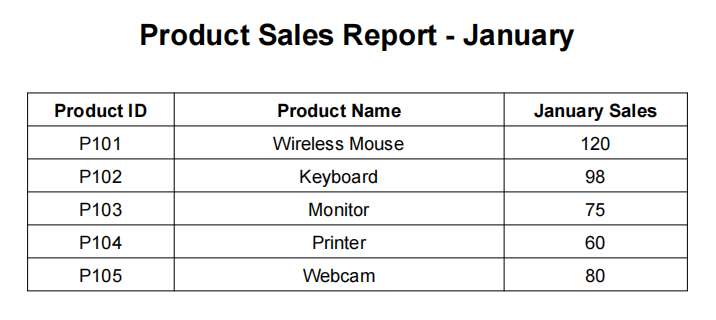
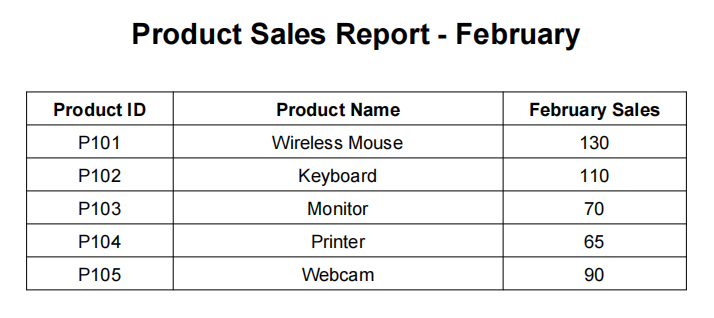
- February PDF file: This PDF file contains a product sales report for February.
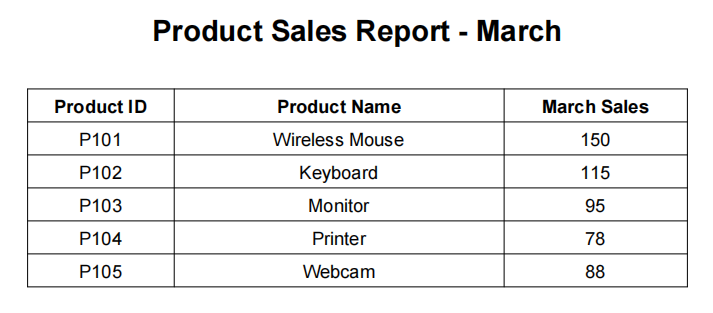
- March PDF file: This PDF file contains product sales reports for March.
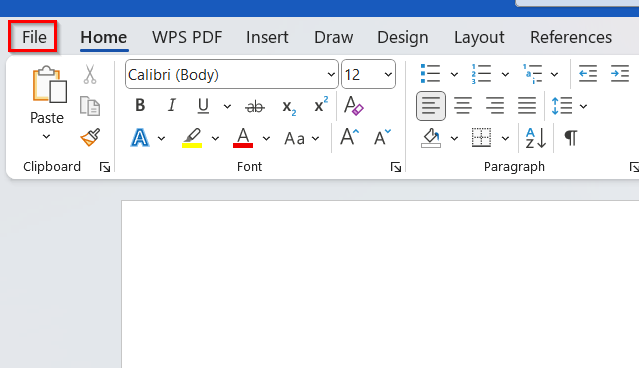
➤ Open Microsoft Word and go to the File tab.
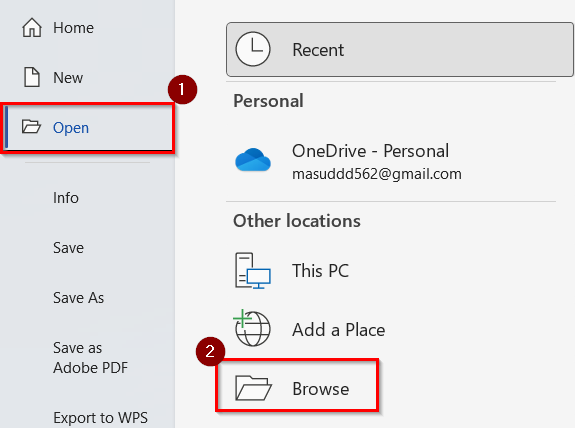
➤ Click Open → Browse.
➤ Then, select the desired PDF file you want to import.
➤ Click Open.
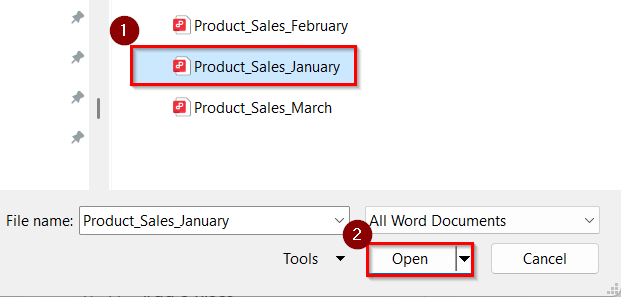
➤ When prompted, Word will notify you that it will convert the PDF into an editable format. Click OK.

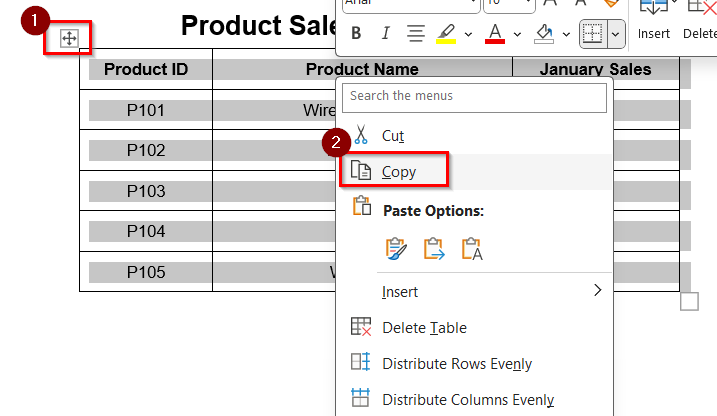
➤ Once the PDF file opens, select the table inside the document. Right-click and choose Copy from the context menu.
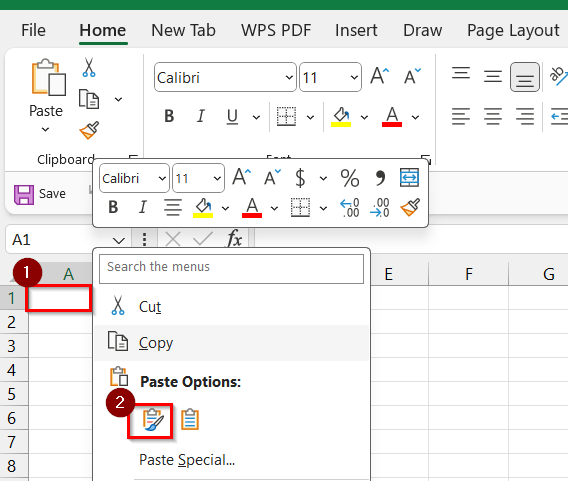
➤ Go to your Excel worksheet and click cell A1.
➤ Right-click and choose Keep Source Formatting (K) under Paste Options. This ensures the table keeps the same layout as in the PDF.
➤ Modify text color, column width, cell alignment, etc, to match the PDF format. You can also use the Wrap Text and AutoFit Columns feature to make the table look clean.
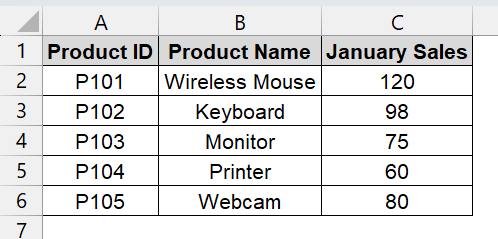
➤ Repeat these steps for each remaining PDF file. Paste each new table below the previous one or on a new worksheet.
➤ After extracting data from multiple PDF files, you can format them as you want.
Note:
➥ Ensure each PDF file has consistent table headers before copying.
➥ If formatting issues occur, try copying using Paste → Match Destination Formatting.
Applying the Copy and Paste Feature to Extract Data from Multiple PDFs
Without using any tool or any intermediary software, we can simply copy tables from PDF files and paste them into Excel. This is best suited for small datasets or when automated tools like Power Query are unavailable.
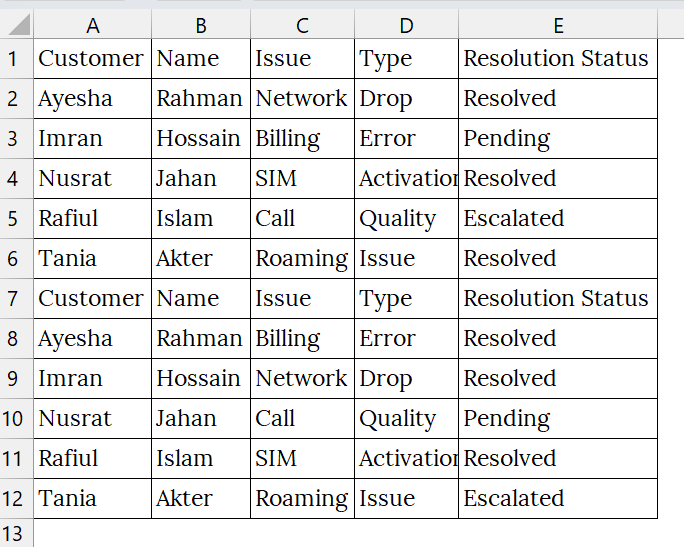
We have two PDFs. Each PDF contains a monthly report of customer service feedback for a telecom company. We will use the Copy and Paste feature to extract data from multiple PDF files to Excel.
Steps:
➤ We have taken 2 PDF files with data for this method:
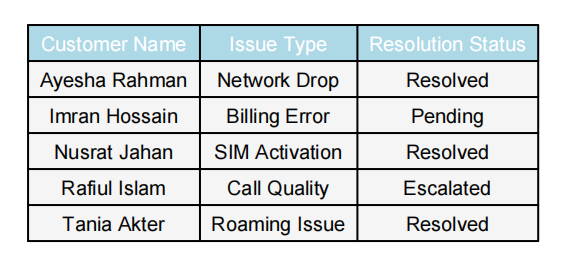
- January PDF file: This PDF file contains Customer Name in Column A, Issue Type in Column B, and Resolution Status in Column C for January.
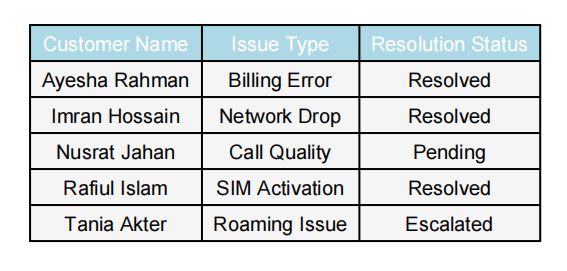
- February PDF file: This PDF file contains Customer Name in Column A, Issue Type in Column B, and Resolution Status in Column C for February.
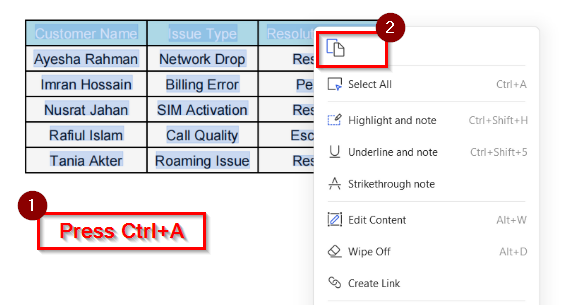
➤ Open your first PDF file using any PDF reader like Adobe Acrobat Reader or your browser.
➤ Click and drag or press Ctrl + A to select the entire table.
➤ Right-click and choose “Copy” or press Ctrl + C .
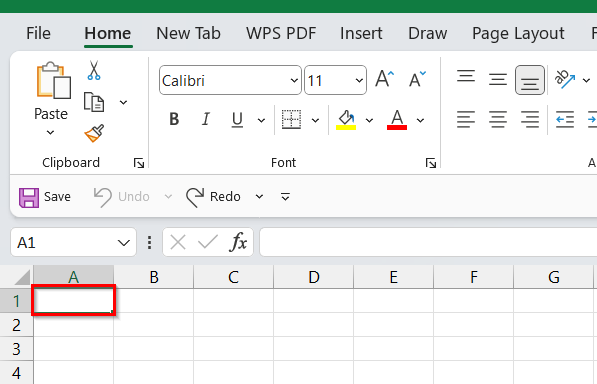
➤ Open Excel and go to your working sheet. Click on cell A1.
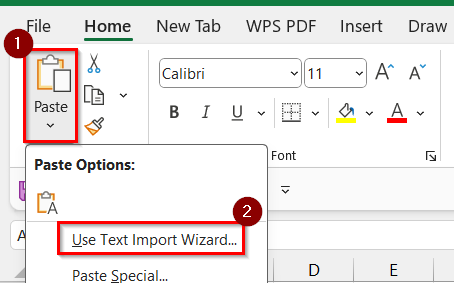
➤ Click on the Drop-down arrow of the Paste button. Choose Use Text Import Wizard…
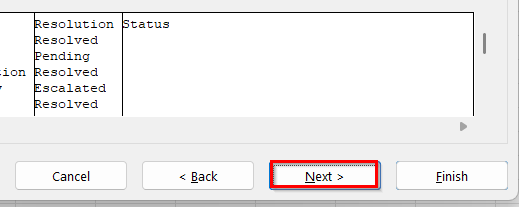
➤ A box will open, click Next.

➤ Again, click Next.
➤ Click Finish.
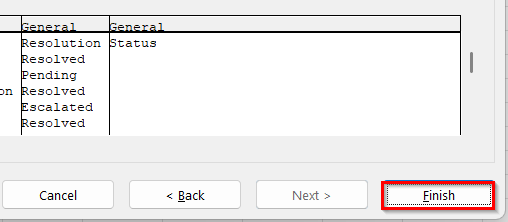
➤ The PDF file’s data will appear in the Excel. You can edit the header, column, and row to adjust like the PDF table.
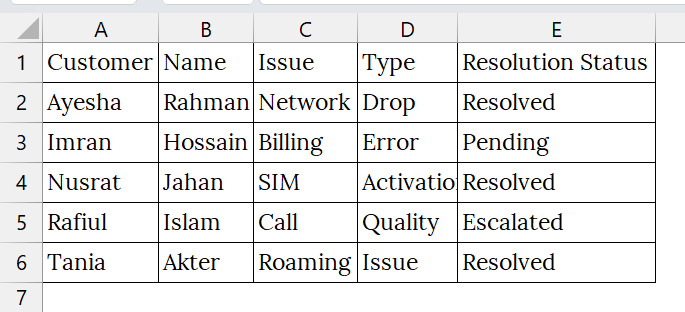
➤ Repeat these steps for each remaining PDF file. Paste each new table below the previous one or on a new worksheet.
Downloadable Resources
Get our practice workbook or necessary files that we have worked with to prepare this article.
Extract Data from Multiple PDF Files.zip
Frequently Asked Questions
Can I extract data from scanned PDFs?
Not directly. You’ll need OCR tools like Adobe Scan or Google Drive OCR to convert scanned images into editable text first.
Is there a way to automate this process?
Yes, Power Query in Excel or Python scripts using libraries like Tabula or PyPDF2 can automate extraction from structured PDFs.
Will formatting be preserved when pasting into Excel?
It depends on the source. Using “Keep Source Formatting” or “Paste Special” helps retain layout.
Can I combine data from all PDFs into one Excel sheet?
Absolutely. Just ensure all tables have the same headers and structure before merging.
Concluding Words
Using the Copy and Paste Tool method, you can quickly extract tabular data from multiple PDF files into Excel without needing advanced software. While manual, this approach is ideal for small datasets and ensures control over formatting. For larger or scanned files, consider using Power Query or Microsoft Word for better efficiency. We have uploaded the PDFs and Excel Files, which you can use to practice.