
Managing multiple Excel sheets can become confusing when your data is scattered across different worksheets, like regional reports, monthly expenses, or student records. Combining them into one workbook helps create a centralized dataset that’s easier to analyze and share. For instance, a company can consolidate “East”, “West”, and “North” region sales into one “MasterData” sheet for easy comparison and analysis.
To combine multiple worksheets into one workbook, follow these steps:
➤ Open your Excel file containing the worksheets you want to merge.
➤ Press Alt + F11 to open the VBA editor.
➤ Insert a new module and paste the provided VBA script that copies all worksheet data into one master sheet.
➤ Run the macro, and a new sheet named MasterData will appear containing all your combined data.
➤ Save your workbook as a Macro-Enabled Workbook (.xlsm).
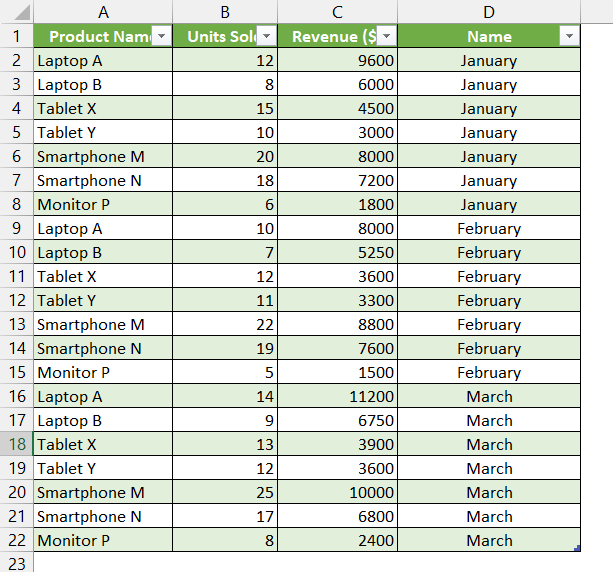
In this article, we will show how to combine multiple worksheets into one workbook using Power Query, Consolidate, and the Excel VBA method.
Using Power Query to Combine Multiple Worksheets Into One Workbook
This method lets us merge data from multiple worksheets within the same workbook into a single, unified table using Power Query. This is good for combining monthly reports, department-wise sheets, or regional sales data into one master dataset.
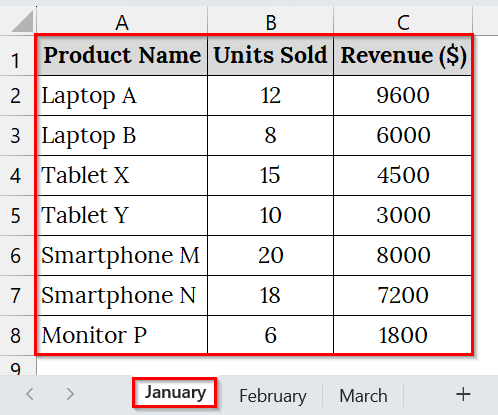
We have a dataset of UrbanTech Electronics that tracks monthly sales in separate worksheets for each month. To analyze quarterly performance efficiently, we will combine all three monthly sheets into a single table using Power Query in Excel.
Steps:
➤ Open the workbook that contains all the worksheets. We have used the following:
January: This sample workbook contains sales data for various electric devices of the month January.
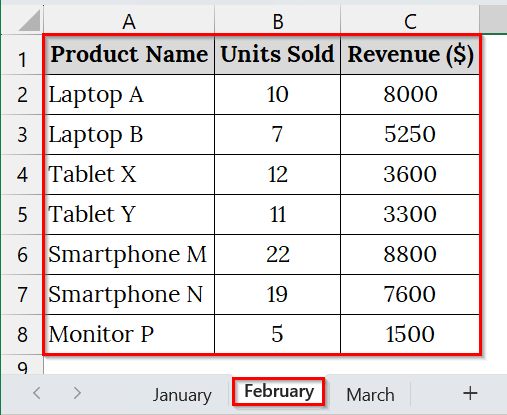
February: This sample workbook contains sales data for various electric devices in February.
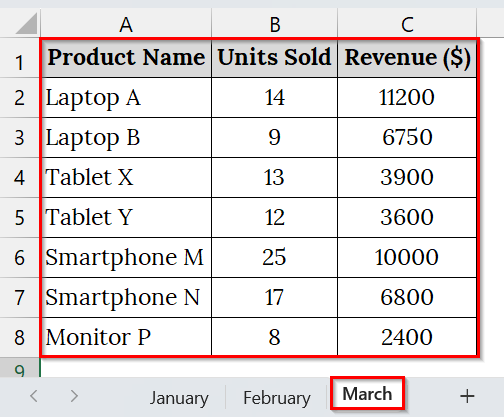
March: This sample workbook contains sales data for various electric devices in March.
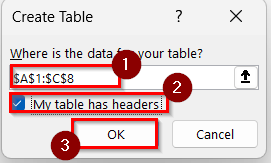
➤ Press Ctrl + T . In the Create Table dialog box, confirm your data range (e.g., $A$1:$C$8) and ensure My table has headers is checked. Repeat this step for all sheets.
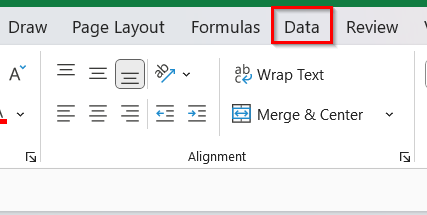
➤ From the Excel ribbon, click on the Data tab.
➤ Under the Get & Transform Data group, select Get Data. From the dropdown menu, choose From Other Sources.
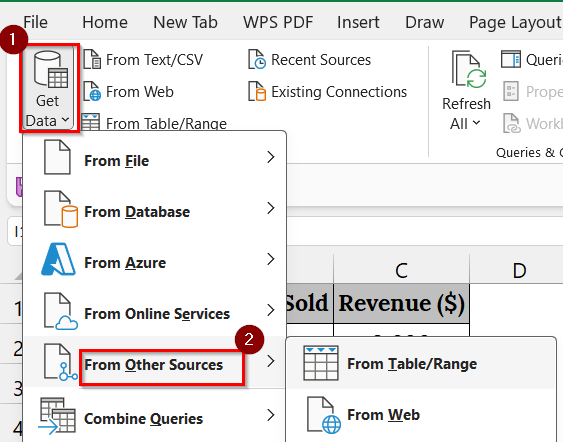
➤ Then, click on Blank Query. This will open the Power Query Editor window.

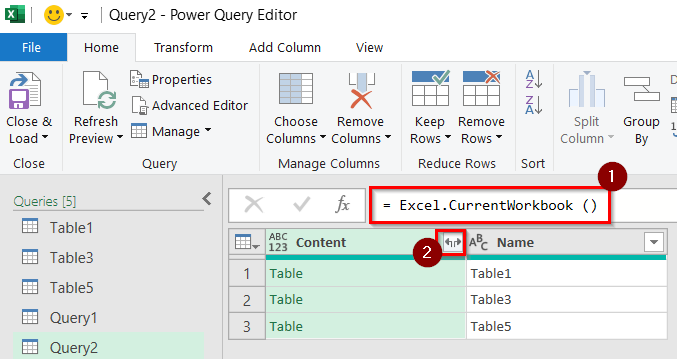
➤ In the Power Query Editor formula bar, type the following formula and press Enter:
=Excel.CurrentWorkbook()
This formula lists all the available tables, named ranges, and worksheet connections in your workbook.
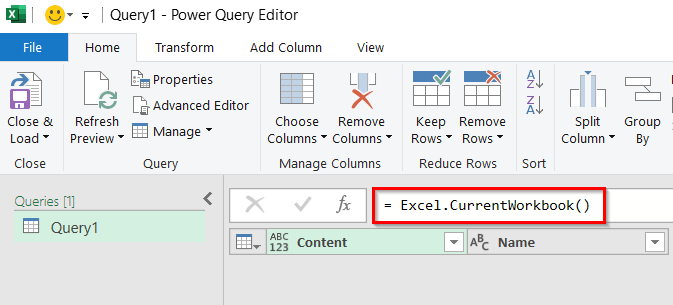
➤ Click the double-pointed arrow (↕) icon on the Content column header.
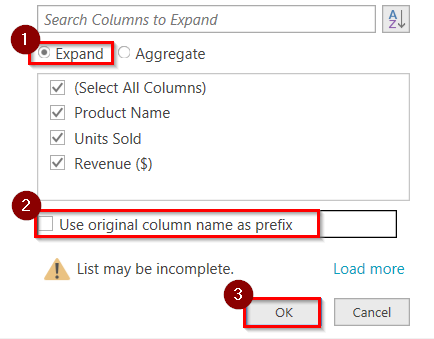
➤ Click on Expand and uncheck the option Use original column name as prefix, then click OK.
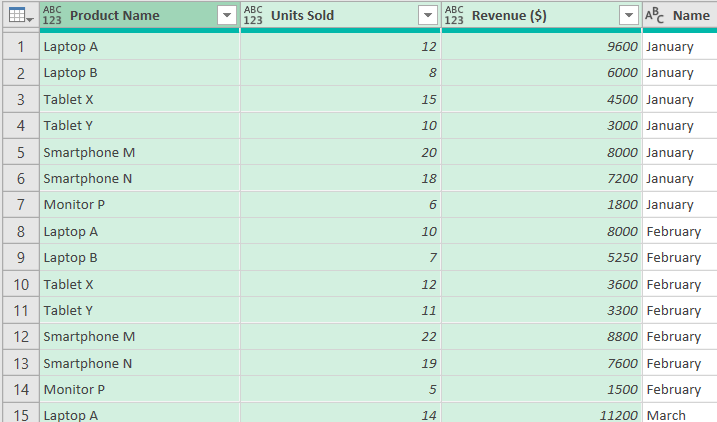
➤ Check the combined dataset to ensure all rows and columns are properly merged. Remove any unnecessary columns or duplicates if needed.
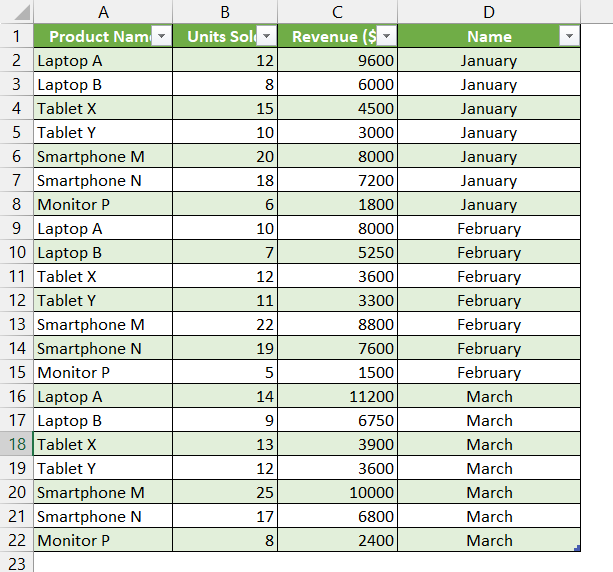
➤ Click Close & Load from the Home tab in Power Query Editor. The combined dataset will appear as a new worksheet in your Excel workbook.
Note:
➥ Power Query formulas are case-sensitive, so make sure to type Excel.CurrentWorkbook() exactly as shown.
➥ If the datasets are formatted as tables in each worksheet, Power Query will recognize them more efficiently.
➥ You can refresh the query later if new data is added to any worksheet.
Merge Multiple Worksheets into One Workbook with the Consolidate Tool
The Consolidate Tool in Excel helps to combine and summarize data from multiple worksheets into one master worksheet. We use it when different branches, departments, or months maintain separate datasets that share the same structure (e.g., same headers like “Product,” “Units Sold,” and “Revenue”). This is good for creating total summaries or aggregations such as sum, average, or count.
We have taken a dataset of a Company that shows monthly product sales separately in different branches. We will combine all worksheets into one summary sheet using the Excel Consolidate Tool.
Steps:
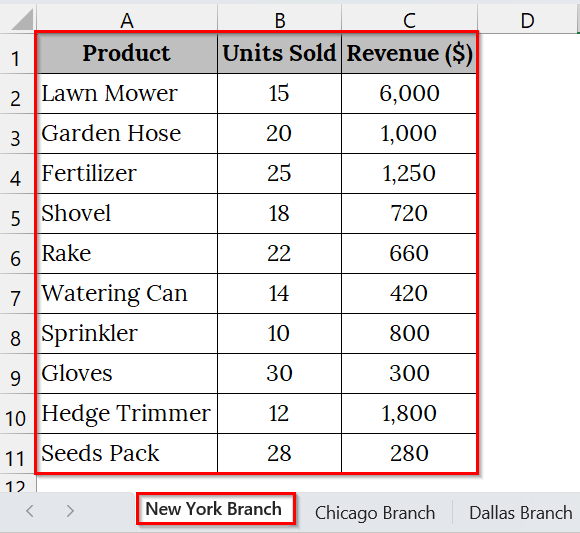
➤ Open your Excel file that contains multiple worksheets. For example, we have taken a dataset that contains three branch worksheets (e.g., New York, Chicago, Dallas).
New York Branch: This sample workbook contains sales data for various products of the New York Branch.
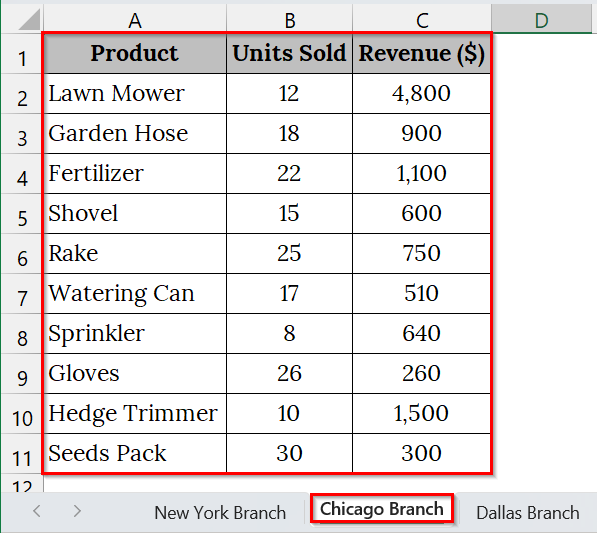
Chicago Branch: This sample workbook contains sales data for various products of the Chicago Branch.
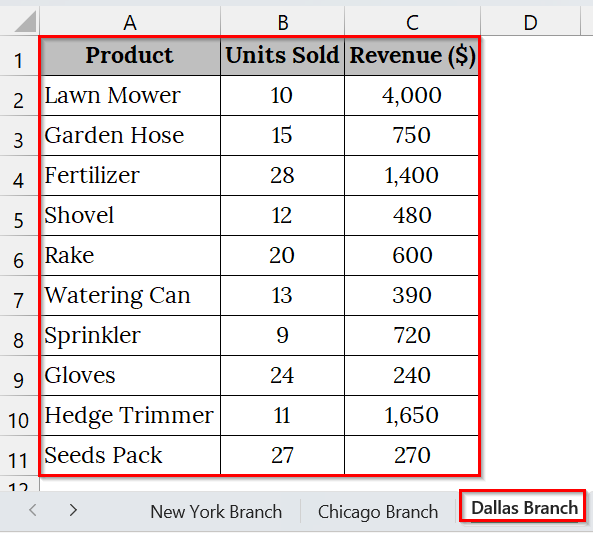
Dallas Branch: This sample workbook contains sales data for various products of the Dallas Branch.
➤ Insert a new blank worksheet and name it “Summary.” Ensure there are enough blank rows and columns to hold the combined data.

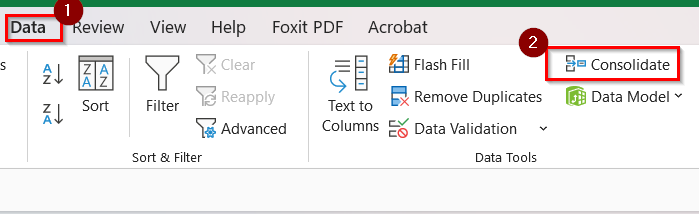
➤ On the Excel ribbon, click on the Data tab. In the Data Tools group, click Consolidate.
➤ In the Consolidate dialog box, choose a function from the Function dropdown. For example, select Sum to add up the data from each worksheet.
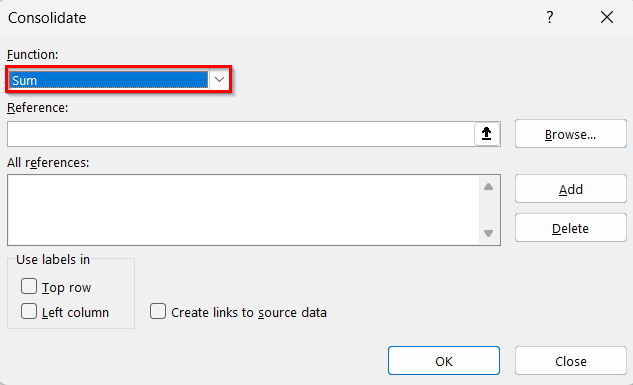
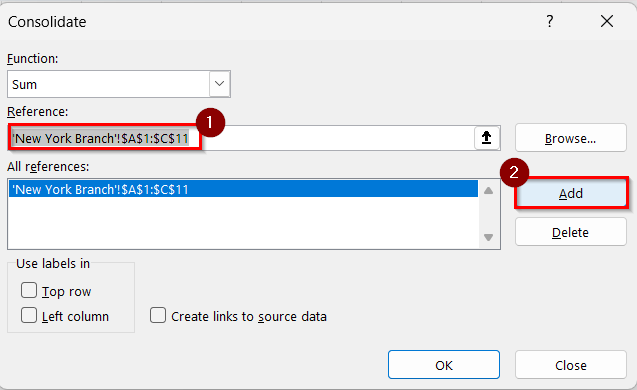
➤ Click on the Reference box → then the Expand Dialog icon → select the range of data (e.g., A1:C11) from the first worksheet (New York). Then click Add.
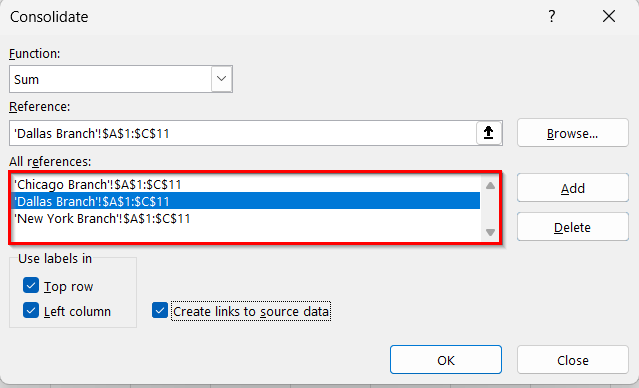
➤ Repeat this step for the Chicago and Dallas sheets. Ensure all sheets are added.
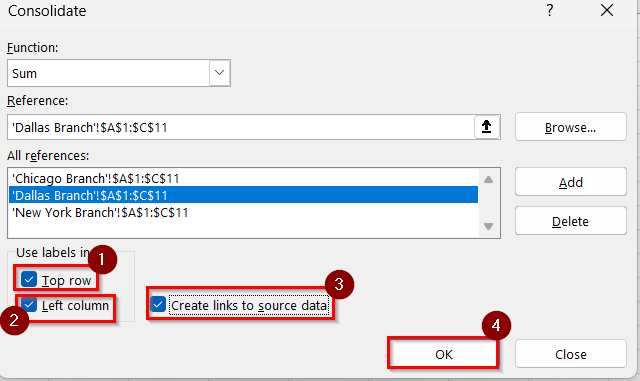
➤ Under Use labels in, check both the Top row and Left column so Excel uses headers and row labels properly.
➤ If you want the summary to update automatically when the source data changes, check the box Create links to source data.
➤ Click OK.
➤ The combined totals from all branches will appear in the Summary worksheet.
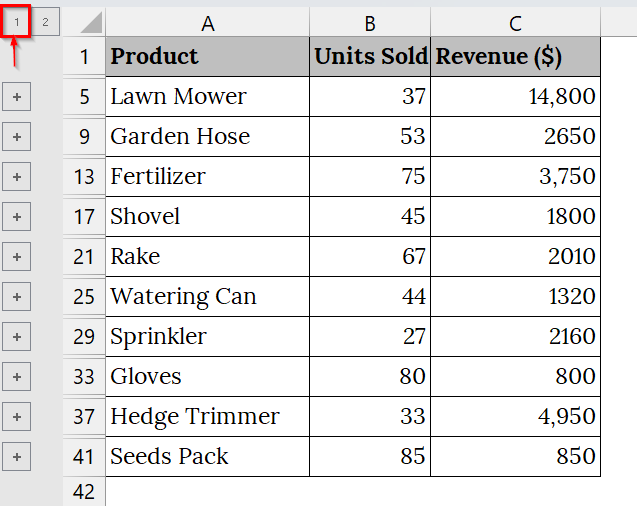
Note:
➥ All worksheets must have the same column headers and data order for the Consolidate Tool to work correctly.
➥ If you use “Create links to source data,” Excel will automatically update totals when the original worksheets are edited.
➥ Make sure there are no merged cells or missing headers in the source data.
Combine Multiple Worksheets into One with the Move or Copy Feature
This method involves using Excel’s built-in Move or Copy feature to merge worksheets from different workbooks into one consolidated file. This is good when we want to manually combine multiple sheets without using VBA or Power Query.
We have taken separate Excel worksheets for three different months, January, February, and March, each containing employee attendance data. Now, we will combine all three worksheets into one single workbook for record keeping and summary analysis. We will use Excel’s Move or Copy feature to merge them manually.
Steps:
➤ Open the folder that contains your workbooks. For example, we have taken three different workbooks.
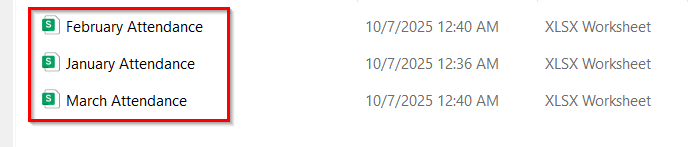
➤ Now, open the workbooks that you want to combine. For example, open January Attendance.xlsx.
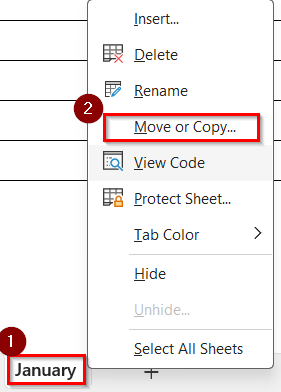
➤ Then, right-click on the sheet tab you want to move. From the context menu, select Move or Copy.
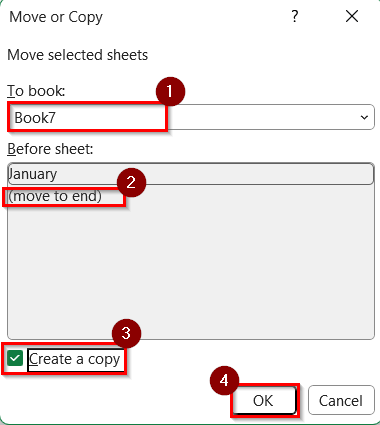
➤ In the Move or Copy dialog box:
➥ Under To book heading, select the destination workbook (e.g., Book7).
➥ Under the Before sheet heading, choose where you want the sheet to appear (e.g., move to the end).
➥ If you want to keep the sheet in the original workbook as well, check the box “Create a copy” before pressing OK.
➤ Repeat Steps 2–4 for all other sheets (e.g., January, February, March, etc.) until they are all in the same workbook.

Note:
➥ Ensure all workbooks are open simultaneously to make the “To book” dropdown available.
➥ You can rename sheets after combining to maintain clarity (e.g., rename to “Jan”, “Feb”, “Mar”).
➥ This method does not merge data into one sheet; it collects multiple sheets into a single workbook.
➥ To merge all data into one sheet, use VBA or Power Query instead.
Excel VBA to Combine Multiple Worksheets into One Workbook
The VBA (Visual Basic for Applications) method automates the process of merging data from multiple Excel workbooks into one consolidated workbook. This is good when we need to frequently combine data (like monthly reports or branch data) and want to avoid repetitive manual copying.
We have taken an Excel file that shows monthly data in separate Excel workbooks. We will use Excel VBA (Visual Basic for Applications) to automatically combine data from multiple worksheets within one workbook into a single master sheet.
Steps:
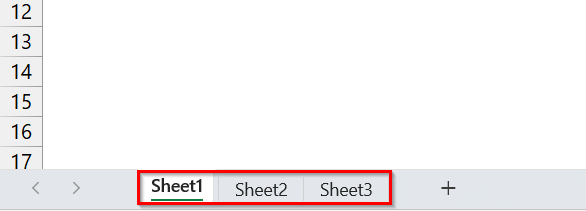
➤ Open the Excel file containing multiple worksheets that you want to combine. For example, we have taken “Sheet1”, “Sheet2”, and “Sheet3”.
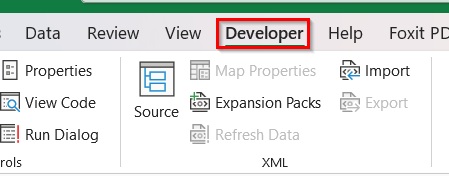
➤ Click on the Developer tab from the Ribbon.
➤ If the Developer tab is not visible: Click File → Options → Customize Ribbon. Tick the Developer checkbox and click OK.
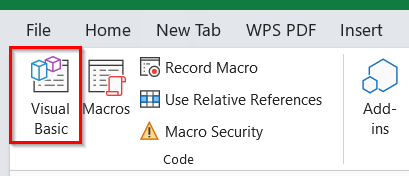
➤ Click on Visual Basic or press Alt + F11 to open the Visual Basic for Applications window.
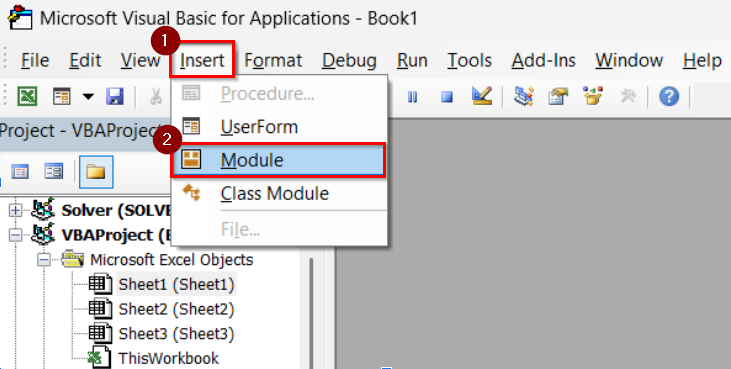
➤ Then, click Insert → Module to add a new module.
➤ Copy and paste the following VBA script into the module window:
Sub CombineSheets()
Dim ws As Worksheet
Dim masterWs As Worksheet
Dim lastRow As Long, masterLastRow As Long
Set masterWs = ThisWorkbook.Sheets.Add
masterWs.Name = "MasterData"
For Each ws In ThisWorkbook.Worksheets
If ws.Name <> masterWs.Name Then
lastRow = ws.Cells(ws.Rows.Count, "A").End(xlUp).Row
masterLastRow = masterWs.Cells(masterWs.Rows.Count, "A").End(xlUp).Row + 1
ws.Range("A1:C" & lastRow). Copy masterWs.Cells(masterLastRow, "B")
masterWs.Cells(masterLastRow, "A").Resize(lastRow, 1).Value = ws.Name
End If
Next ws
End Sub
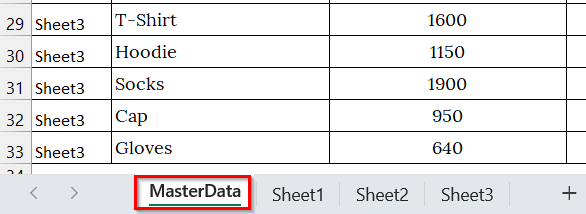
This code loops through every worksheet, copies data from each (columns A to C), and appends it into one “MasterData” sheet with an added column for the sheet name.
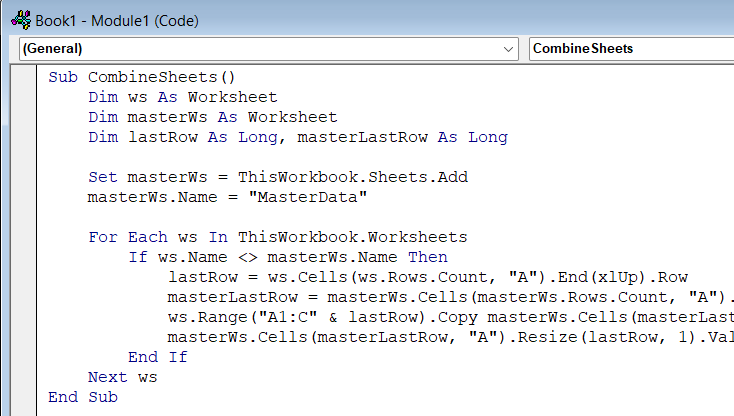
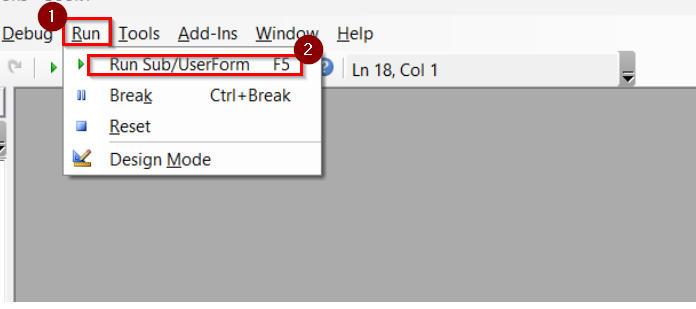
➤ Run the VBA Script and Close the editor.
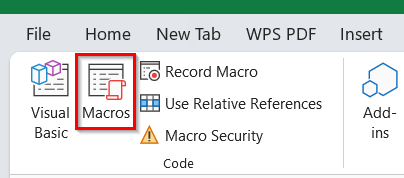
➤ Go back to Excel → Developer tab → Macros.
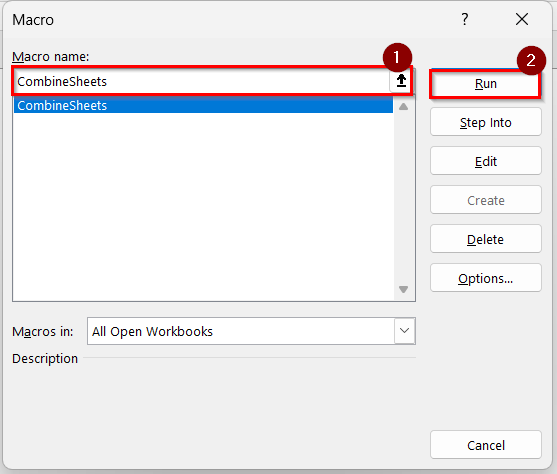
➤Select CombineSheets → Run.
➤ Now, you will see a new sheet named MasterData created automatically with all the combined data.
Note:
➥ Make sure all worksheets have identical column headers (e.g., Date, Salesperson, Sales Amount).
➥ You can adjust the column range in the code (“A1:C”) depending on your dataset width.
➥ Always save your workbook as a Macro-Enabled Workbook (.xlsm) before running VBA.
Downloadable Resources
Get our practice workbook or necessary files that we have worked with to prepare this article.
Combine Multiple Sheets into One Workbook.zip
Frequently Asked Questions
Can I combine worksheets without using VBA?
Yes. You can use Power Query (Data tab → Get & Transform Data → Combine Queries) to merge worksheets without writing code.
Does the VBA method work if column headers differ?
No. All worksheets must have the same headers (e.g., Date, Name, Sales Amount) for the macro to merge correctly.
Will the formatting remain the same after combining?
Basic formatting (like numbers, dates, and text) is preserved, but styles or colors may not be copied.
What file format should I use to save the combined workbook?
Always save your file as an Excel Macro-Enabled Workbook (.xlsm) to retain VBA functionality.
Can I update the master sheet automatically when data changes?
Yes, but you’ll need to re-run the VBA macro or set a trigger event in VBA to refresh the data automatically.
Concluding Words
Combining multiple worksheets into one workbook saves time, reduces manual errors, and streamlines reporting. The Power Query, Consolidate, and Excel VBA methods are a fast, automated way to consolidate our data into a single master sheet. We have uploaded all the datasets used in this article, allowing you to download and use them for practice.