
In Excel, we translate hex-based product codes, configuration values, or digital identifiers into binary format for system compatibility or diagnostics. The built-in HEX2BIN function handles short hex values, while VBA macros are used for longer strings. This process is essential for preparing data for digital systems that require binary input. Here, Hex stands for a Hexadecimal number.
To convert Excel hex to binary, follow these steps:
➤ Enter your hexadecimal values in a column.
➤ Use the HEX2BIN function to convert each hex value to binary.
➤ For long hex strings, apply a VBA macro to bypass Excel’s 10-bit limit.
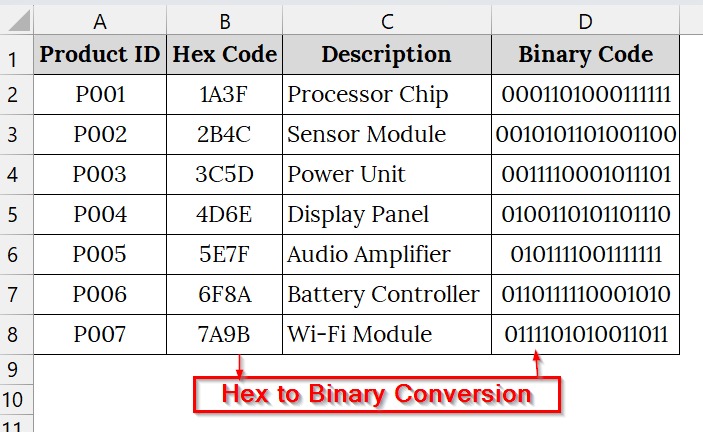
In this article, we will cover how to convert Excel hex to binary using Excel’s built-in and VBA methods.
Using the HEX2BIN Function to Convert Hex to Binary in Excel
The HEX2BIN function in Excel converts a hexadecimal number into a binary number. Compared to manual conversion or external tools, this is faster and integrates directly with Excel workflows. We use this function when we work with product codes, embedded systems, or network configurations.
We have a dataset of a small appliance retailer that stores product codes in hexadecimal format for inventory tracking. We will use Excel’s HEX2BIN function to convert the hex values to binary.
Steps:
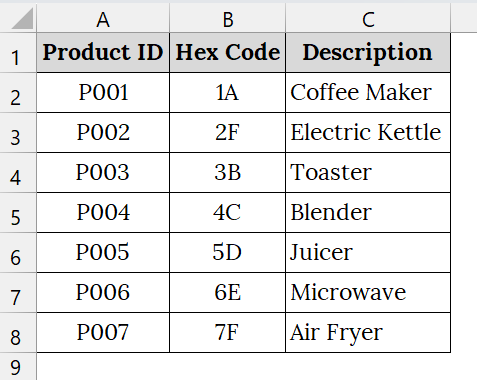
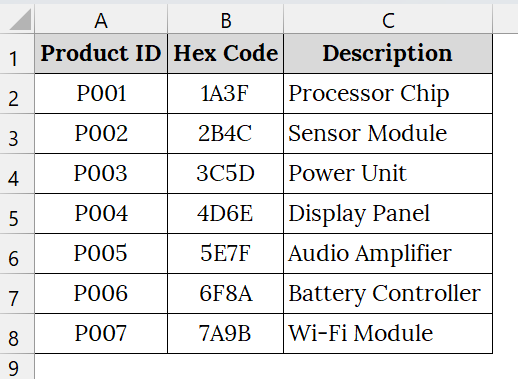
➤ Open your Excel sheet that contains your hex code. For example, we have taken a worksheet that contains Product ID in Column A, Hex Code in Column B, and Description in Column C.
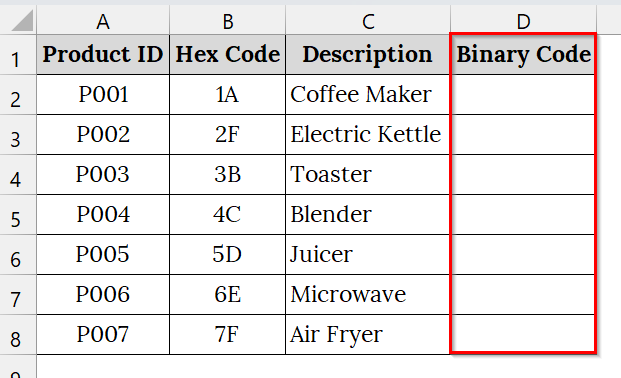
➤ Add a new Column and set the header name as Binary Code. For example, Column D.
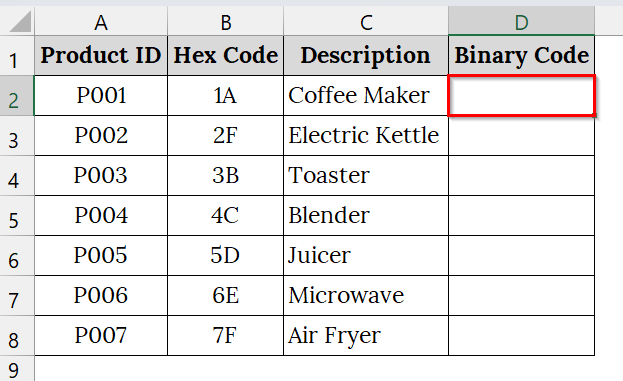
➤ Click on cell D2, where you want to display the binary equivalent of the hex code in B2.
➤ Type the following formula:
=HEX2BIN(B2)
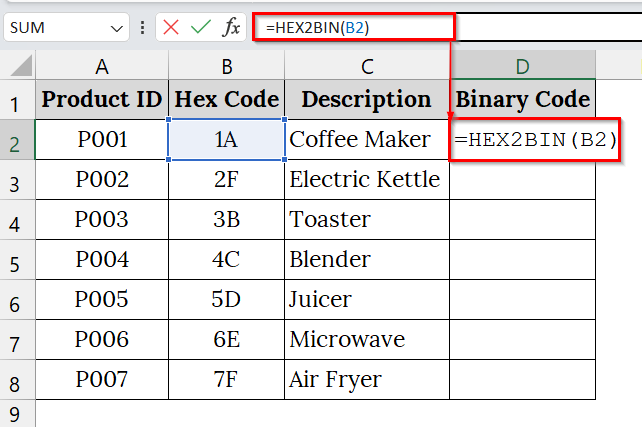
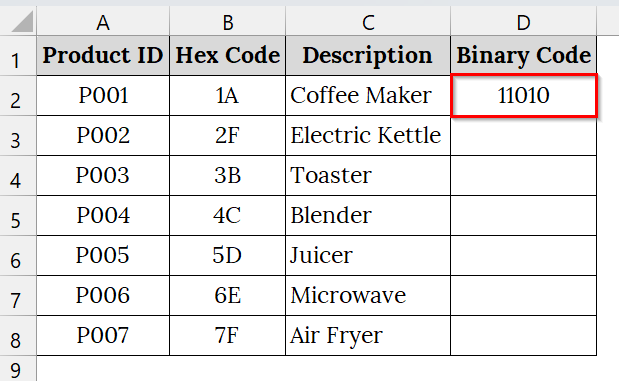
➤ Then press Enter. Excel will display the binary value of the hexadecimal code in cell D2.
➤ Drag the fill handle down to cell D9 to apply the formula for all rows.
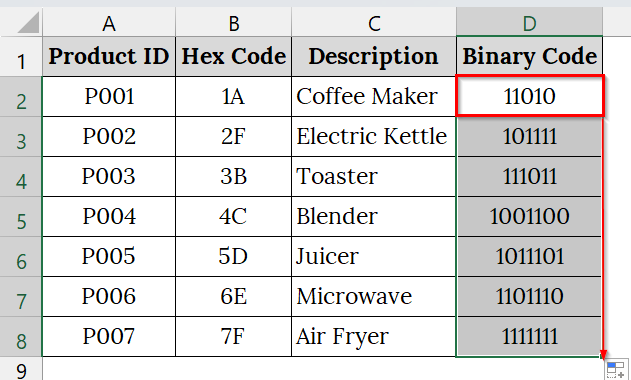
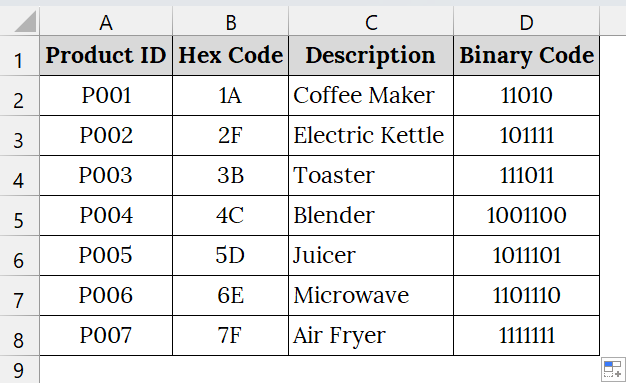
➤ Each product’s hexadecimal code in column B will now be converted to a binary value in column D.
Note:
➥ HEX2BIN supports up to 10 hexadecimal digits.
➥ If your hex value produces a binary number longer than Excel’s limit, you’ll see a #NUM! Error.
➥You can wrap the function in IFERROR to handle such cases, e.g.
=IFERROR(HEX2BIN(B2),"Invalid Hex")
Applying VBA Macro to Convert Long Hex Strings to Binary
Excel’s built-in HEX2BIN function is limited to converting hexadecimal values up to 10 bits, which makes it unsuitable for longer hex strings. A VBA Macro solves this limitation by efficiently converting extended hexadecimal codes into binary format.
We have a dataset of an electronics company that stores its product component codes in hexadecimal format. We will use a VBA Macro for long hex strings to convert these codes into binary form for system-level integration and digital diagnostics.
Steps:
➤ Open your Excel sheet that contains your hex code. For example, we have taken a worksheet that contains Product ID in Column A, Hex Code in Column B, and Description in Column C.
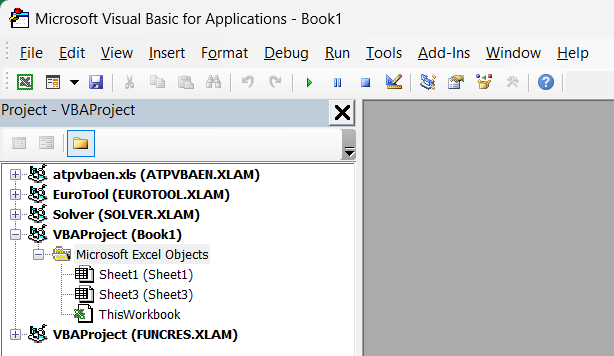
➤ Press Alt + F11 to open the Visual Basic for Applications (VBA) editor in Excel.
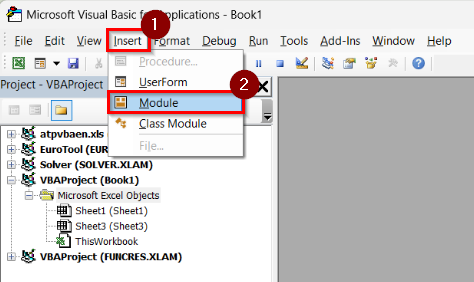
➤ Go to the menu bar → Insert → Module to create a new code module.
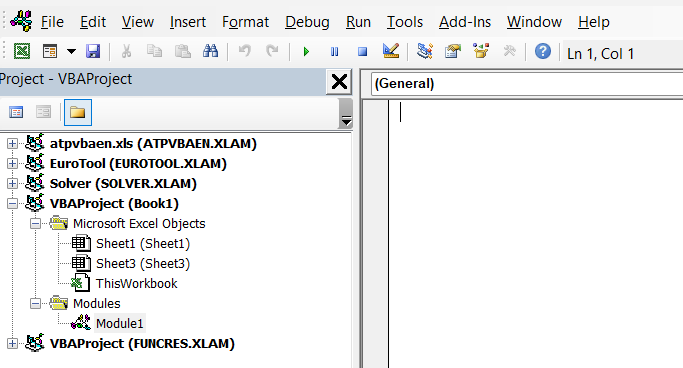
➤ A new code window will open where you will paste your VBA script.
➤ Copy and paste the following code into the module window:
Function HexToBinary_Long(hexValue As String) As String
    Dim i As Long
    Dim binResult As String
    Dim hexChar As String
    Dim binPart As String
    Dim hexMap As Object
    Set hexMap = CreateObject("Scripting.Dictionary")
    hexMap.Add "0", "0000"
    hexMap.Add "1", "0001"
    hexMap.Add "2", "0010"
    hexMap.Add "3", "0011"
    hexMap.Add "4", "0100"
    hexMap.Add "5", "0101"
    hexMap.Add "6", "0110"
    hexMap.Add "7", "0111"
    hexMap.Add "8", "1000"
    hexMap.Add "9", "1001"
    hexMap.Add "A", "1010"
    hexMap.Add "B", "1011"
    hexMap.Add "C", "1100"
    hexMap.Add "D", "1101"
    hexMap.Add "E", "1110"
    hexMap.Add "F", "1111"
    hexValue = UCase(hexValue)
    For i = 1 To Len(hexValue)
        hexChar = Mid(hexValue, i, 1)
        If hexMap.exists(hexChar) Then
            binResult = binResult & hexMap(hexChar)
        Else
            binResult = "Invalid Hex Value"
            Exit Function
        End If
    Next i
    HexToBinary_Long = binResult
End Function
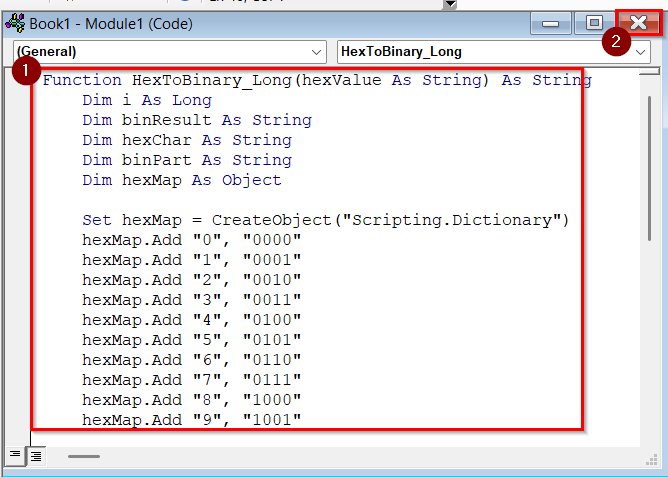
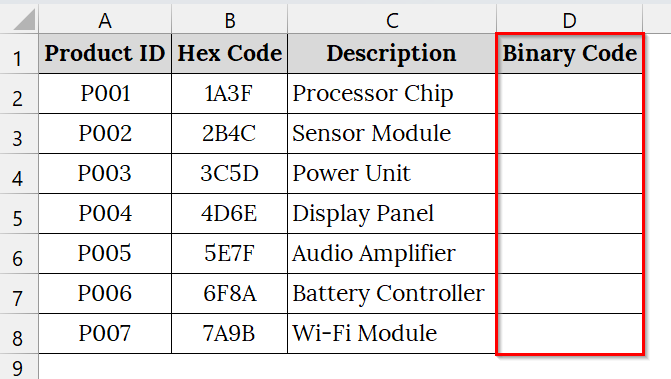
➤ Return to Excel by pressing Alt + Q . Add a new Column and set the header name as Binary Code. For example, Column D.
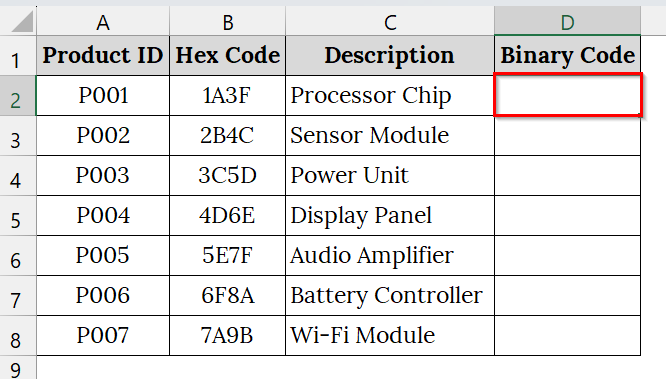
➤ Click on cell D2, where you want to display the binary equivalent of the hex code in B2.
➤ In the worksheet, enter the formula in cell D2:
=HexToBinary_Long(B2)
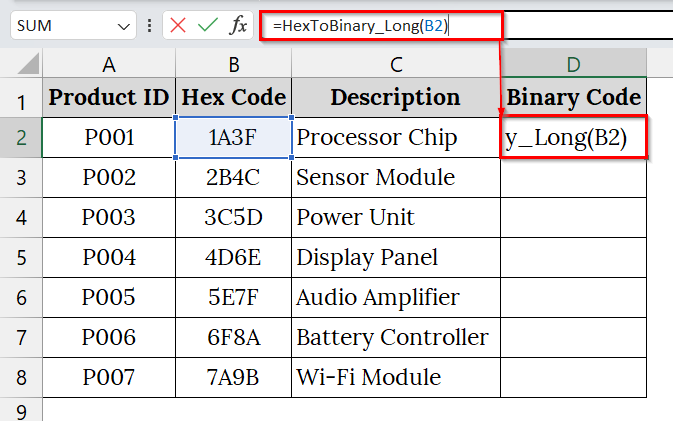
➤ Then press Enter. Excel will display the binary value of the hexadecimal code in cell D2.
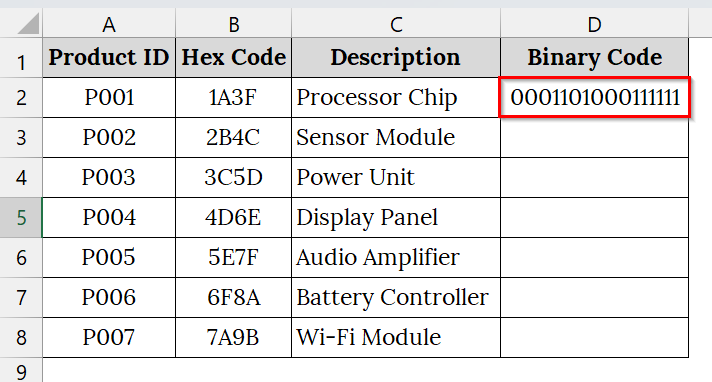
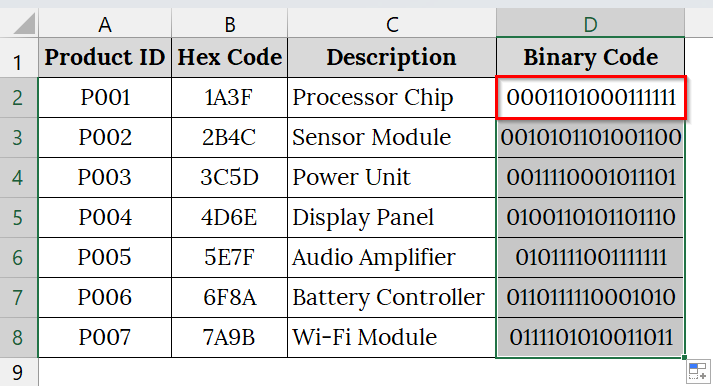
➤ Drag the fill handle down to apply the formula for all rows.
➤ Each product’s hexadecimal code in column B will now be converted to a binary value in column D.
Note:
➥The VBA macro works for any hex string length, unlike the HEX2BIN function.
➥ Ensure macros are enabled in your workbook before using this method.
➥ The function returns “Invalid Hex Value” if a cell contains characters other than 0–9 or A–F.
Downloadable Resources
Get our practice workbook or necessary files that we have worked with to prepare this article.
Frequently Asked Questions
Why does HEX2BIN fail for long hex values?
Excel’s HEX2BIN function supports up to 10-bit binary output. Longer hex strings exceed this limit and require VBA.
Can I automate hex-to-binary conversion for large datasets?
Yes, using a VBA macro allows batch conversion of long hex strings across multiple rows.
Is HEX2BIN available in all Excel versions?
It’s available in most modern Excel versions, but older versions may require enabling the Analysis ToolPak.
Can I convert binary back to hex in Excel?
Yes, Excel allows reverse conversion using the BIN2HEX function.
Concluding Words
Converting hex to binary in Excel is easy with the HEX2BIN function for short values and a VBA macro for longer strings. This method also ensures compatibility with digital systems and streamlines technical workflows. We have uploaded the dataset used in this article so that you can download and practice on your own.