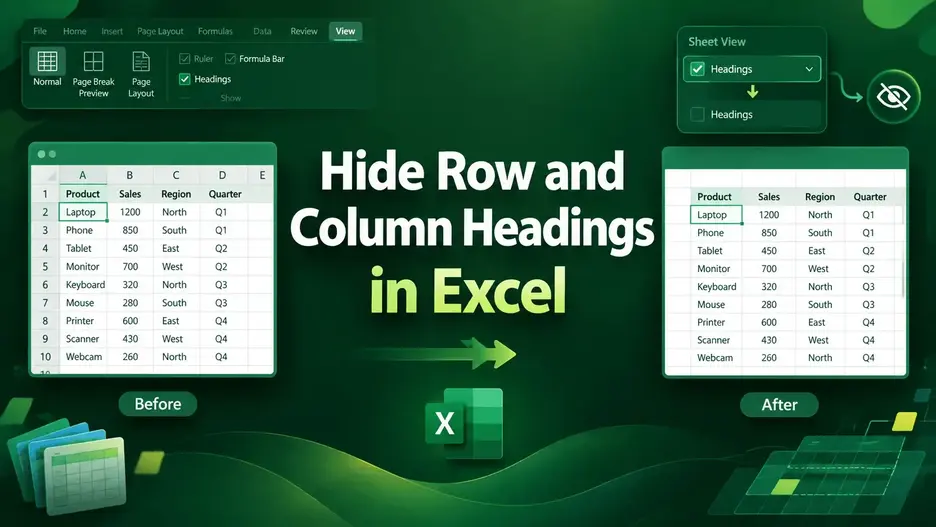
Hiding row and column headings in Excel is useful for creating cleaner presentations, simplifying navigation, and focusing attention on the most relevant data. By using Excel’s built-in options and features, we can easily hide row and column headings from our dataset.
Follow the steps below to hide row and column headings in your Excel Dataset.
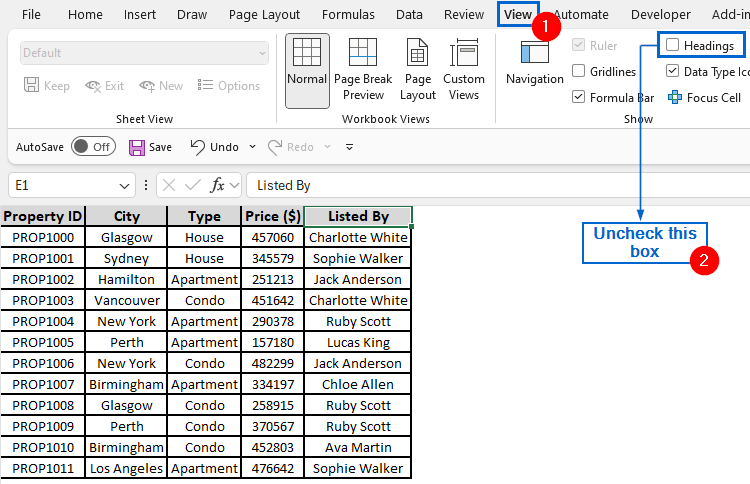
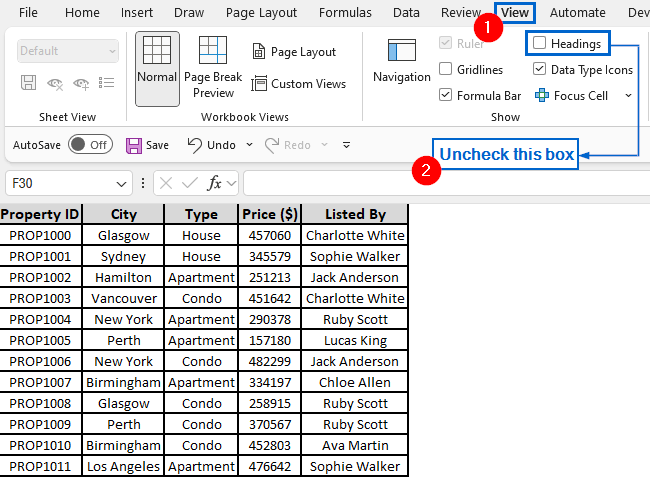
➤ In your dataset, go to the View tab from the main menu, and from the Show group, uncheck the Headings box.
In this article, we will learn three effective methods of hiding row and column headings in Excel.
Hide Row and Column Headings Using the View Tab Option
In the sample dataset, we have a worksheet called “Real Estate Listings” containing information about Property ID, City, Property Type, Price and the person property is Listed by. By using Excel’s View tab, we will now hide row and column headings and display the modified dataset in a separate “View Tab” worksheet.
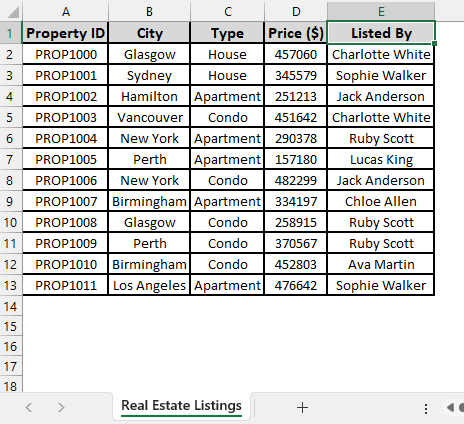
The View tab in Excel is an important tool that allows users to customize how their worksheet is displayed, with options to show or hide elements, freeze panes, and switch between different view modes. It also helps users control the layout of their workbook for easier navigation and better data presentation.
Steps:
➤ Go to the View Tab worksheet, and from the main menu, uncheck the Headings box in the View tab.
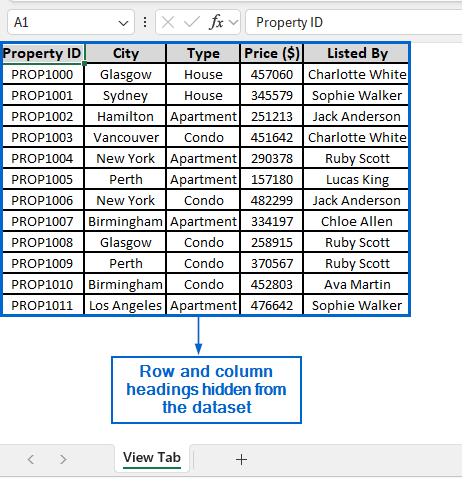
➤ All row and column headings should now be hidden from the dataset.
Note:
This change applies only to the currently active worksheet. If your workbook contains multiple worksheets, you’ll need to repeat the process for each one individually.
Use File Settings for Hiding Row and Column Headings
The File tab is another important Excel tool that provides users access to workbook management options such as saving, printing and workbook properties. It also offers features for creating new files, sharing workbooks, and adjusting settings to manage Excel more efficiently.
Using the same dataset, we will now hide row and column headings using options from the File tab. The updated dataset will be stored in a separate “File Tab” worksheet.
Steps:
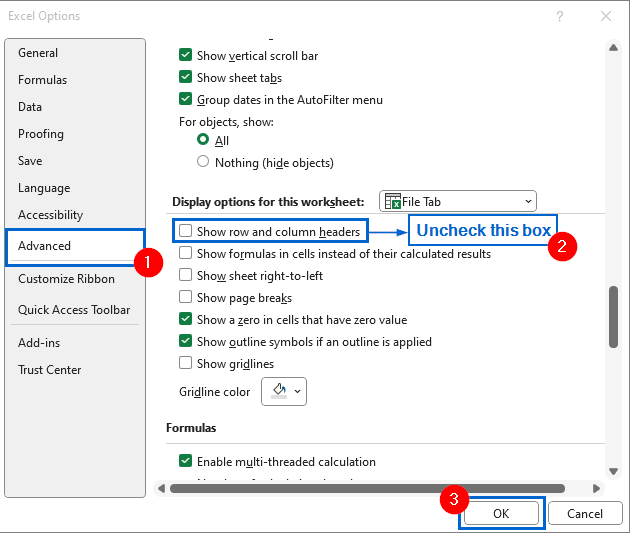
➤ Go to the File Tab worksheet, and from the main menu, click on the File tab.
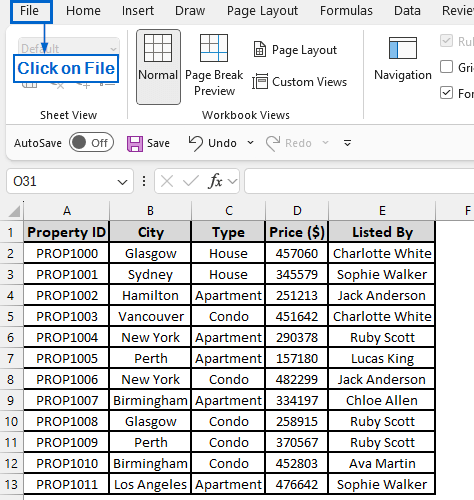
➤ Then, click on Options and choose Advanced from the Excel Options dialogue box.
➤ Under Display options for this worksheet, uncheck the Show row and column headers box and click on OK to confirm the changes.
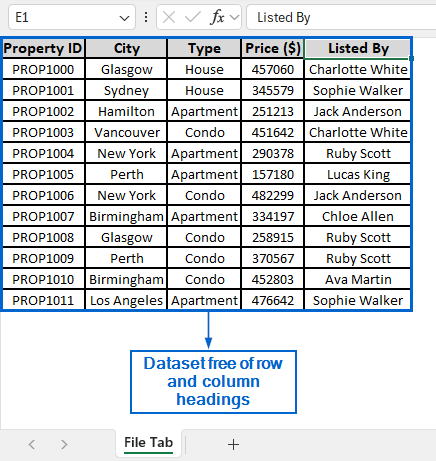
➤ Your dataset should now be free of all row and column headings.
Automatically Hide Row and Column Headings Using VBA Editor
VBA Editor is a powerful Excel tool that enables users to write and run macros to automate repetitive tasks, helping save time, reduce errors, and improve overall efficiency.
Working again with the same dataset, we will now automatically hide row and column headings using the VBA Editor. We will display the modified dataset in a separate worksheet called “VBA Editor”.
Steps:
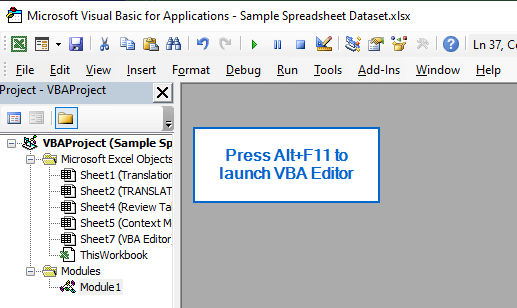
➤ Head to the VBA Editor worksheet, press Alt + F11 to launch the VBA Editor window.
➤ Then, navigate to Insert >> Module from the main menu and paste the following macro:
Sub HideHeadings()
    ActiveWindow.DisplayHeadings = False
End Sub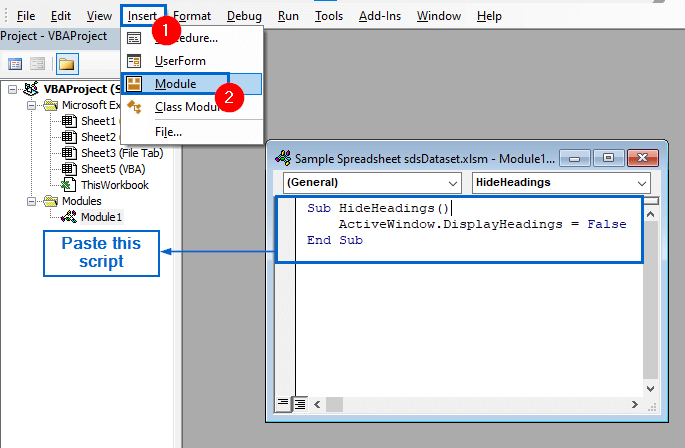
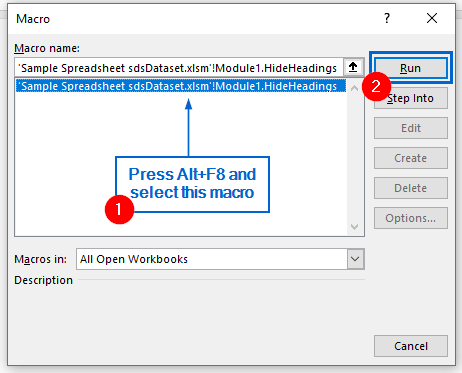
➤ Next, close the VBA Editor, press Alt + F8 to open the Macros dialogue box, choose the macro and click on Run to execute it.
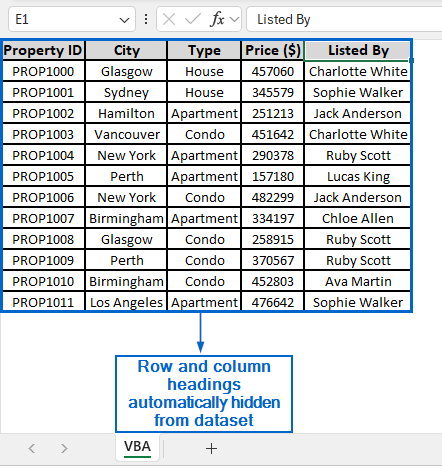
➤ All row and column headings should now automatically be hidden from the dataset.
Downloadable Resources
Get our practice workbook or necessary files that we have worked with to prepare this article.
Hide Row and Column Headings.xlsx
Frequently Asked Questions
Can I Hide Only Row Headings or Column Headings from the Dataset?
No, Excel does not allow users to hide row and column headings separately. The headings option applies to both rows and columns together, meaning we can only hide or show them as a pair.
Which Method Should I Use for Dealing With Large Datasets?
For large datasets, the VBA method is the best option because it can hide row and column headings across multiple worksheets at once, saving users from manually repeating the same steps in every sheet.
How do I Unhide Row and Column Headings After Hiding Them?
For the View Tab method, go to View >> Show group and check the Headings box. If you are using the File Tab method, navigate to File >> Options >> Advanced, and under Display options for this worksheet, check the Show row and column headers box.
And finally, for the VBA Editor method, enter the following macro and run it again. This will restore the row and column headings in your worksheet.
ActiveWindow.DisplayHeadings = True
Concluding Words
Knowing how to hide row and column headings in Excel is crucial for creating cleaner worksheets, improving presentation quality, and focusing attention on the data without unnecessary distractions.
In this article, we have discussed three effective methods of how to hide row and column headings in Excel, including using the View tab, File tab and VBA Editor. Feel free to try out all these methods and select one that best meets your needs.