
When working with Excel, we often need to highlight or work with ranges that match a specific cell value. Obviously, doing this manually can be time-consuming and not an easy feat, especially when we are working with large datasets.
However, you can automate this process and select ranges based on values with Excel VBA. That’s why, in today’s article, we will walk you through 8 practical methods to select ranges by cell value. These include selecting entire rows or columns, using Union, Resize, Find, selecting a range based on another cell value, selecting a range based on multiple cell values, and so on.
➤ Press Alt + F11 to open the VBA editor.
➤ In the VBA editor, go to Insert >> Module to add a new module.
➤ Insert the following VBA code in the new module:
Sub SelectRowBasedOnValue()
    Dim rng As Range
    Set rng = Range("A:A").Find(What:="Emily Johnson", LookAt:=xlWhole)
    If Not rng Is Nothing Then
        rng.EntireRow.Select
    End If
End Sub
➤ Run the code.
➤ The macro will select the entire row where the first occurrence of the specified cell value (Emily Johnson) appears.
➤ To select the entire column instead, replace rng.EntireRow.Select with rng.EntireColumn.Select.

Select Entire Rows or Columns Based on a Cell Value
In Excel VBA, you can select entire rows or columns if a cell contains a specific value. This is helpful when you want to highlight, format, or delete rows/columns depending on matching data. Here, the method will only select the first match it finds.
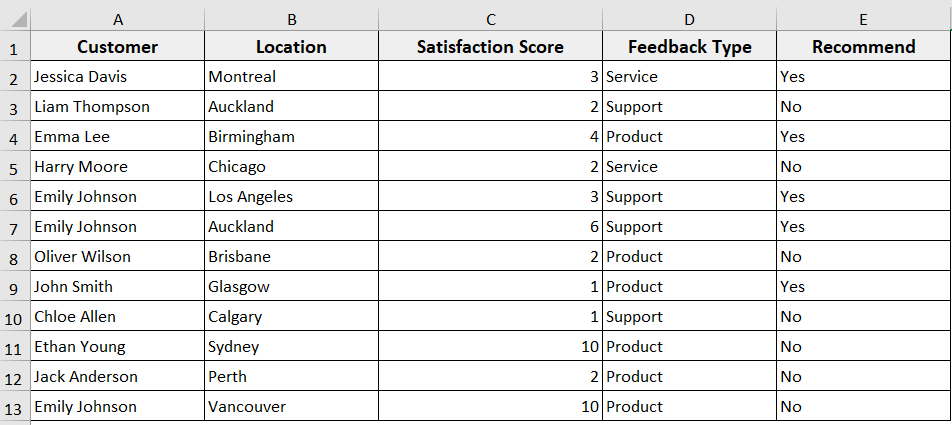
In the following dataset, we have customer feedback. We will use Excel VBA to select the entire row where the cell value “Emily Johnson” first appears.
Steps:
➤ Press Alt + F11 to open the VBA editor.
➤ Go to Insert >> Module to insert a new module in the VBA editor.
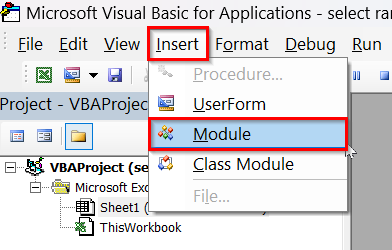
➤ In the new module, insert the following VBA code. You can just copy and paste it.
Sub SelectRowBasedOnValue()
    Dim rng As Range
    Set rng = Range("A:A").Find(What:="Emily Johnson", LookAt:=xlWhole)
    If Not rng Is Nothing Then
        rng.EntireRow.Select
    End If
End Sub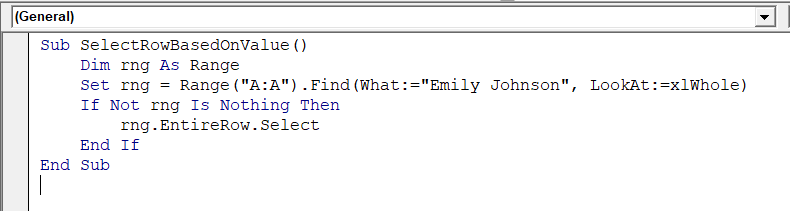
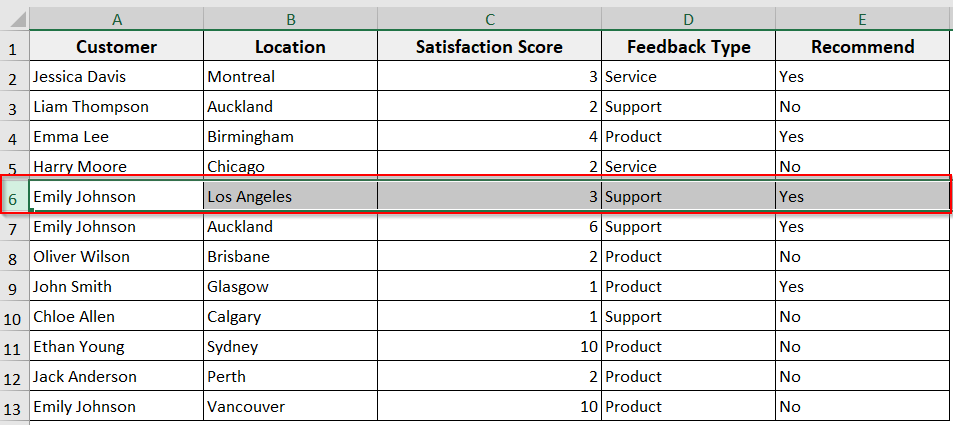
➤ Run the code.
➤ The macro will select the row where the specified value (Emily Johnson) first appears, such as in row 6.
➤ Now, if you want to select an entire column based on a specific cell value, insert the following code in the VBA editor.
Here, you just need to change rng.EntireRow.Select in the VBA code with rng.EntireColumn.Select.
Sub SelectRowBasedOnValue()
    Dim rng As Range
    Set rng = Range("A:A").Find(What:="Emily Johnson", LookAt:=xlWhole)
    If Not rng Is Nothing Then
        rng.EntireColumn.Select
    End If
End Sub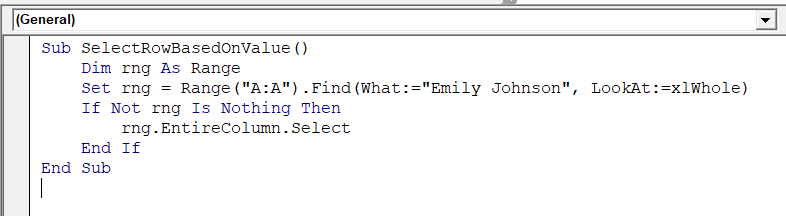
➤ It will highlight the entire column containing that specific cell value.
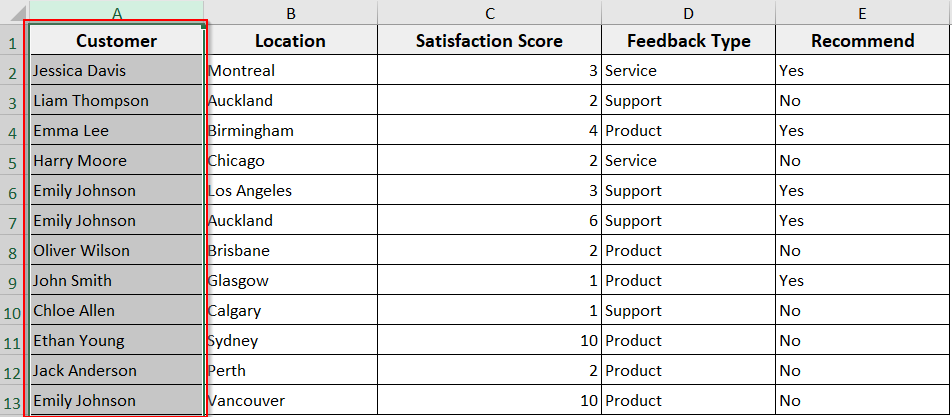
➥ rng.EntireRow.Select: It selects the full row where the first match is found.
➥ You can use rng.EntireColumn.Select instead if you want to select the whole column.
Select Multiple Ranges Matching a Value Using Union
In your Excel dataset, if the same value appears multiple times, you can select all matching rows at once using the Union method. It combines multiple rows into one selection.
Steps:
➤ Open the VBA editor and insert a new module.
➤ In the new module, insert the following VBA code.
Sub SelectAllRowsBasedOnValue()
    Dim rng As Range, firstAddress As String
    Dim allMatches As Range
    Set rng = Range("A:A").Find(What:="Emily Johnson", LookAt:=xlWhole)
    If Not rng Is Nothing Then
        firstAddress = rng.Address
        Do
            If allMatches Is Nothing Then
                Set allMatches = rng.EntireRow
            Else
                Set allMatches = Union(allMatches, rng.EntireRow)
            End If
            Set rng = Range("A:A").FindNext(rng)
        Loop While Not rng Is Nothing And rng.Address <> firstAddress
        allMatches.Select
    End If
End Sub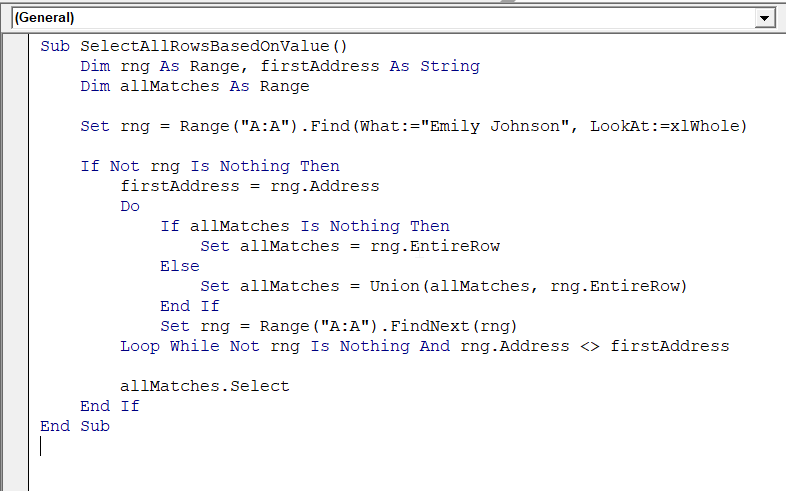
➤ Run the code.
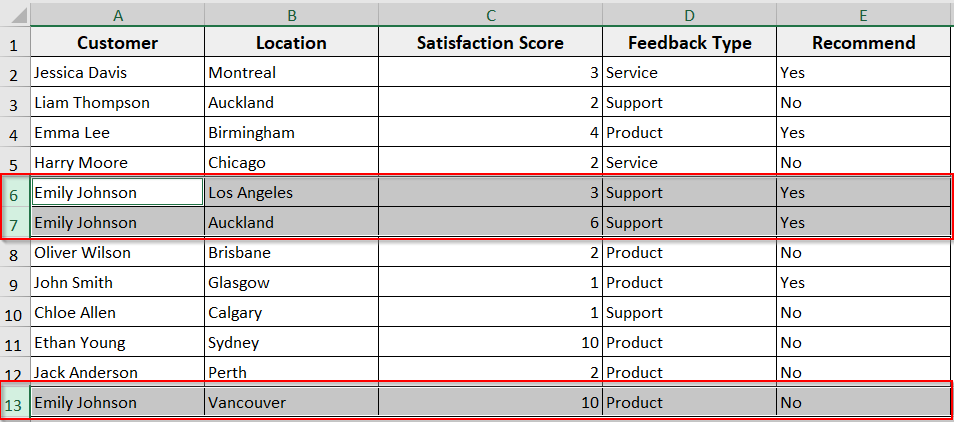
➤ The macro will select all rows where your specified cell value (Emily Johnson) appears. For instance, in our dataset, it selects rows 6, 7, and 13.
➥ FindNext: It keeps looping until all matches are found.
➥ Union: It combines all the rows into a single selection.
➥ .Select: It highlights all of them at once.
Selecting Range Based on Another Cell Value
In Excel VBA, you can select a range in one column based on a matching value in another column. If you have an Excel dataset with related data across multiple columns, you can use this method.
Steps:
➤ Insert a new module after opening the VBA editor.
➤ Insert the following VBA code in the new module.
Sub SelectRangeForEmilyJohnson()
    Dim lastRow As Long
    Dim custCell As Range, selectedRange As Range
    With ThisWorkbook.Worksheets("Sheet1")
        lastRow = .Cells(.Rows.Count, "A").End(xlUp).Row
        For Each custCell In.Range("A2:A" & lastRow)
            If custCell.Value = "Emily Johnson" Then
                If selectedRange Is Nothing Then
                    Set selectedRange = .Range("B" & custCell.Row & ":C" & custCell.Row)
                Else
                    Set selectedRange = Union(selectedRange, .Range("B" & custCell.Row & ":C" & custCell.Row))
                End If
            End If
        Next custCell
    End With
    If Not selectedRange Is Nothing Then selectedRange.Select
End Sub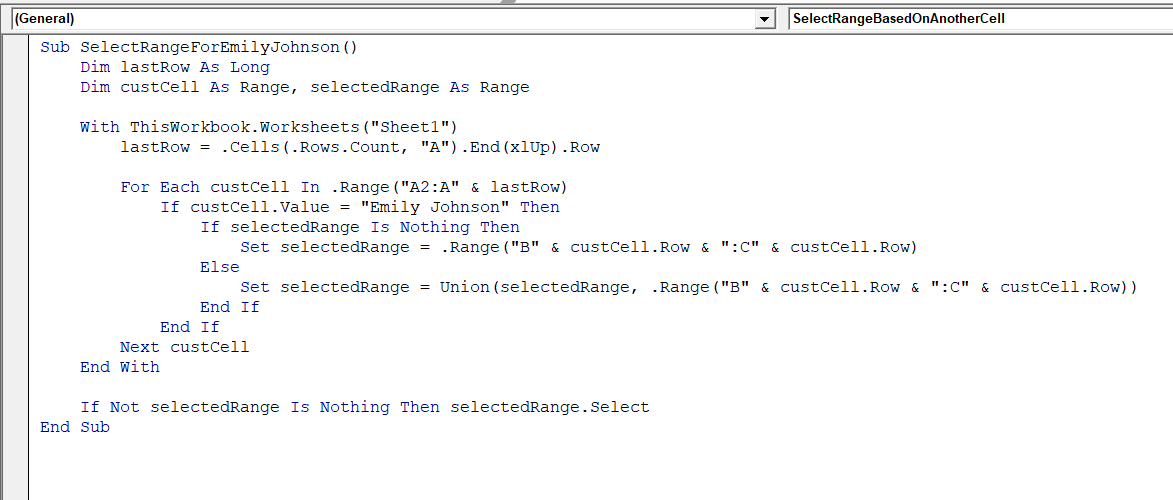
➤ Run the macro:
➤ The code checks for your specified cell value (Emily Johnson) in your specified column (column A) and selects the corresponding cells for all matching rows.
For instance, in our dataset, it will select the Location and Satisfaction Score for Emily Johnson in rows 6, 7, and 13.
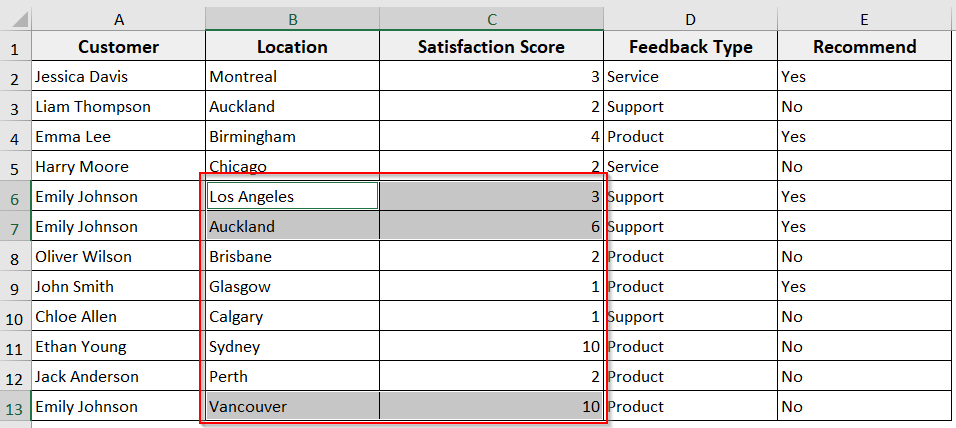
➥ For Each loop: It checks every cell in the Customer column.
➥ Union: It merges multiple ranges into a single selection.
➥ .Select: It highlights all the matching rows in the related columns.
Select Range Based on Multiple Values
In Excel VBA, you can select ranges based on more than one matching value. This method saves you time from checking each value separately. It is useful when you are working with multiple criteria in a dataset.
Steps:
➤ Open the VBA editor and create a new module.
➤ Paste the following code.
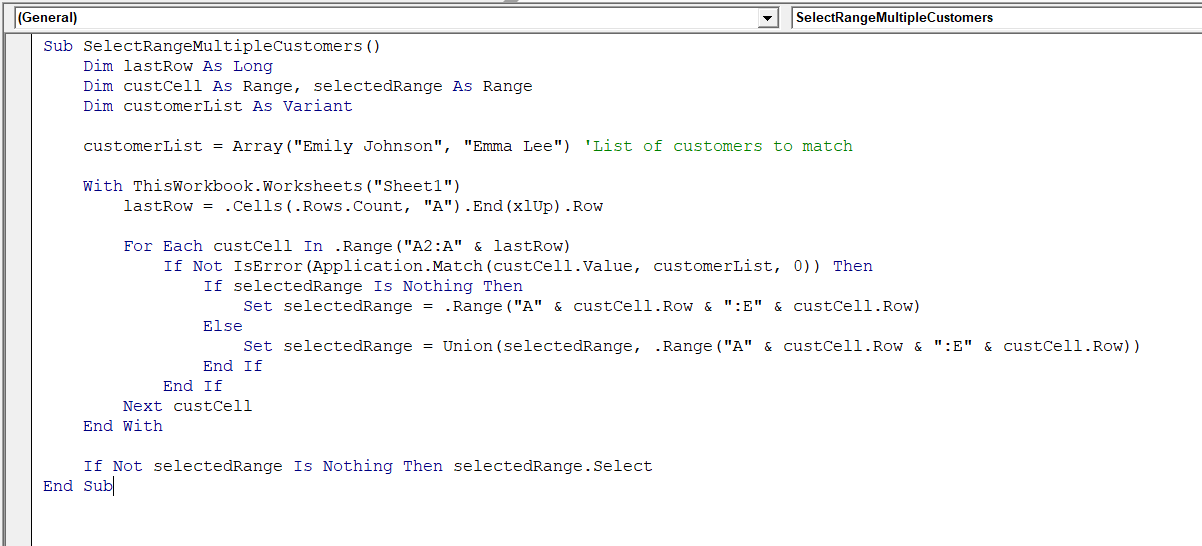
Sub SelectRangeMultipleCustomers()
    Dim lastRow As Long
    Dim custCell As Range, selectedRange As Range
    Dim customerList As Variant
    customerList = Array("Emily Johnson", "Emma Lee") 'List of customers to match
    With ThisWorkbook.Worksheets("Sheet1")
        lastRow = .Cells(.Rows.Count, "A").End(xlUp).Row
        For Each custCell In .Range("A2:A" & lastRow)
            If Not IsError(Application.Match(custCell.Value, customerList, 0)) Then
                If selectedRange Is Nothing Then
                    Set selectedRange = .Range("A" & custCell.Row & ":E" & custCell.Row)
                Else
                    Set selectedRange = Union(selectedRange, .Range("A" & custCell.Row & ":E" & custCell.Row))
                End If
            End If
        Next custCell
    End With
    If Not selectedRange Is Nothing Then selectedRange.Select
End Sub
➤ Run the macro:
➤ The code checks both specified values (Emily Johnson or Emma Lee) in the Customer column and selects the entire row (columns A to E) for all matches.
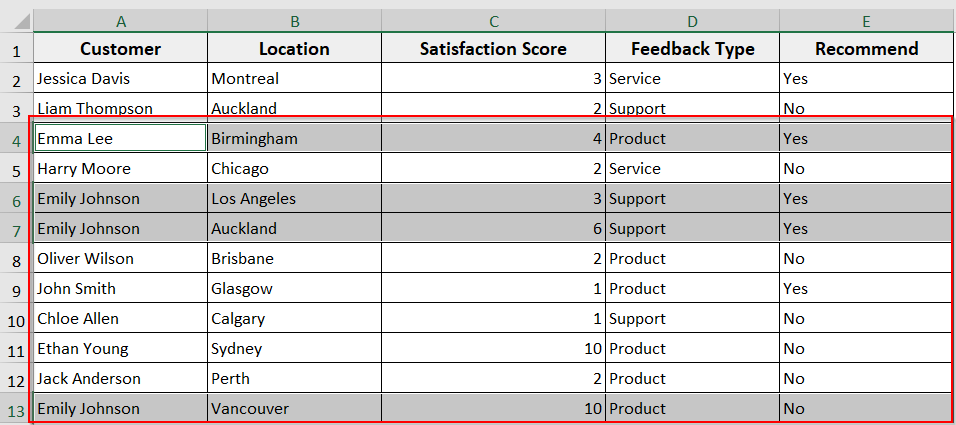
➥ Application.Match: It checks if the cell matches any value in the array.
➥ Union: It combines all matching rows into a single selection.
➥ .Select: It highlights the selected rows.
Select a Range Based on a Numeric Cell Value with Resize
In Excel VBA, the Resize property helps you select a range whose size depends on a numeric cell value. It is a useful method when you want to select a range based on a number in your worksheet, as the selection length of your dataset changes.
For example, if cell C2 contains the number 3, you can use Resize to select 3 rows starting from a given cell.
Steps:
➤ Press Alt + F11 to open the VBA editor.
➤ Insert a new module in the VBA editor.
➤ In the new module, insert the following VBA code.
Sub SelectRangeWithResize()
    Dim rowCount As Integer
    rowCount = Range("C2").Value
    Range("A2").Resize(rowCount, 1).Select
End Sub
➤ Run the code.
➤ As in our dataset, C2 = 3, the macro will select the range A2:A4 (3 rows starting from A2).
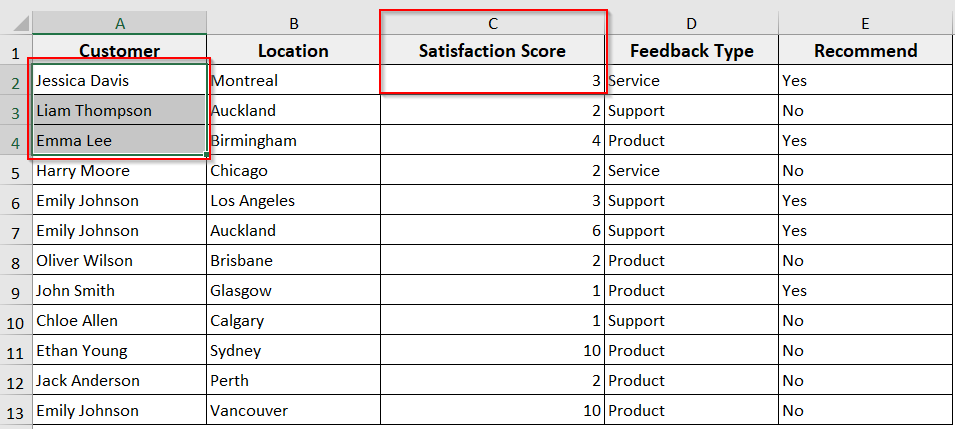
➥ Range("A2").Resize(rowCount, 1): It expands the selection starting from A2 into rowCount rows and 1 column.
➥ .Select: It highlights the resized range.
Select a Range after Finding a Cell Value with Find
In Excel VBA, the Find method is useful when you need to locate a specific cell value and then select a range starting from that position. You can use this method when you are working with large datasets where the value appears in different places. Here, the macro first finds the cell that matches your cell value, then selects the specified range next to it.
Steps:
➤ Press Alt + F11 to open the VBA editor.
➤ Go to Insert >> Module to insert a new module.
➤ In the new module, insert the following VBA code:
Sub SelectRangeAfterFinding()
    Dim rng As Range
    Set rng = Range("A:A").Find(What:="Emily Johnson", LookAt:=xlWhole)
    If Not rng Is Nothing Then
        Range(rng, rng.Offset(0, 3)).Select
    End If
End Sub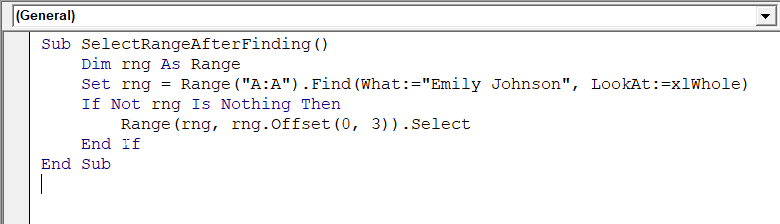
➤ Run the macro.
➤ The code will find the first cell containing “Emily Johnson” in column A and select that cell along with the next three columns in the same row.
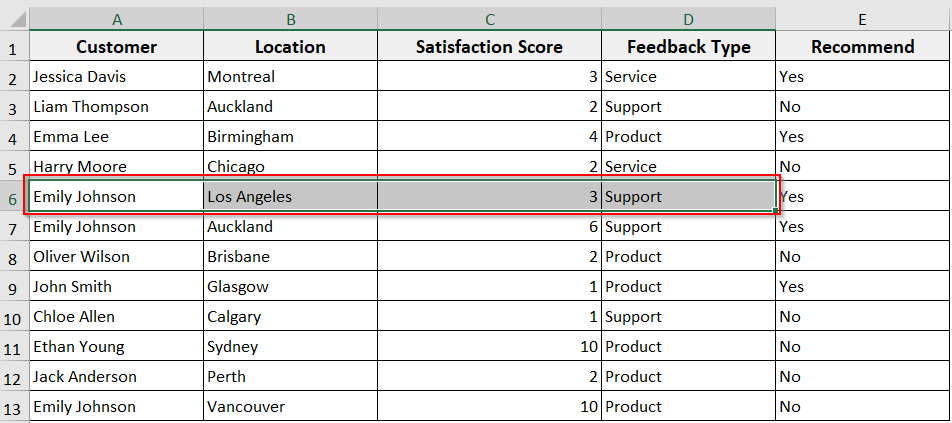
➥ Range(rng, rng. Offset(0, 3)): It creates a range starting from the found cell and extending the number of columns to the right you have specified.
➥ .Select: It highlights the resulting range on the worksheet.
Select a Range in an Excel Table (ListObject) by Cell Value
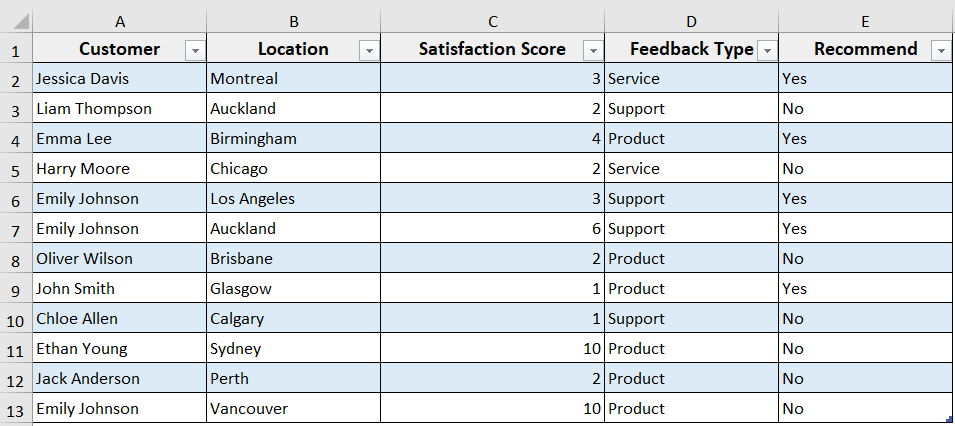
While working with an Excel dataset, if your dataset is formatted as a table, you can use VBA to find a specific cell value or select a range.
For this method, we have turned our Customer feedback dataset into a table by pressing Ctrl + T , then checking My table has headers.
Steps:
➤ Open the VBA editor.
➤ Insert a new module.
➤ In the new module, insert the following VBA code.
Sub SelectTableRowByValue()
    Dim tbl As ListObject
    Dim rng As Range
    Set tbl = ActiveSheet.ListObjects("Table1")
    Set rng = tbl.ListColumns("Customer").DataBodyRange.Find(What:="Emily Johnson", LookAt:=xlWhole)
    If Not rng Is Nothing Then
        rng.EntireRow.Select
    End If
End Sub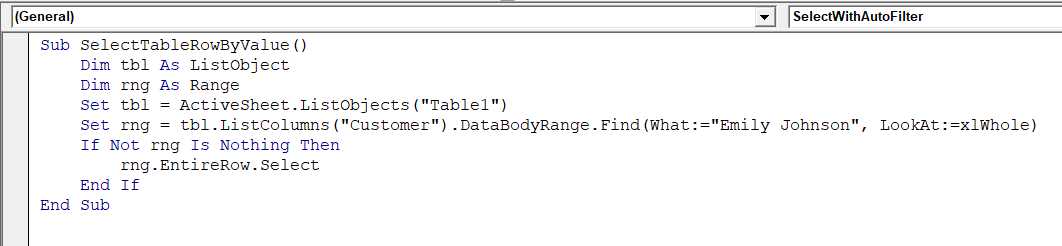
➤ Run the macro.
➤ The code will find “Emily Johnson” in the Customer column of the table and select the entire row inside the table.

➥ .ListColumns("Customer").DataBodyRange: It points to the Customer column inside the table.
➥ .Find: It searches for the given value in that column.
➥ rng.EntireRow.Select: It highlights the full row of the matching record within the table.
Select a Range Based on Cell Type with SpecialCells
In Excel VBA, the SpecialCells method helps you select cells of a specific type. For instance, blank cells or formulas. You can use this method when you want to quickly highlight or format some types of cells, not the entire range.
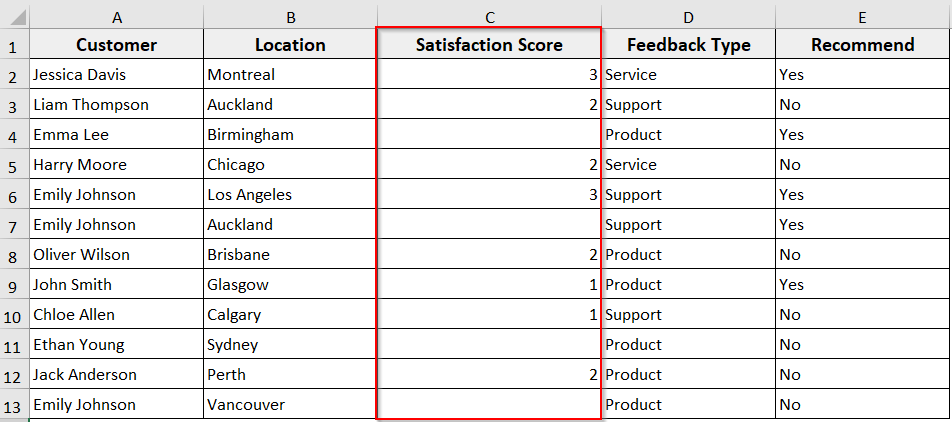
To demonstrate how the method works, we have created some blank cells in column C in our dataset.
Steps:
➤ Open the VBA editor and insert a new module.
➤ In the new module, insert the following VBA code.
Sub SelectBlankCells()
    Range("C2:C13").SpecialCells(xlCellTypeBlanks).Select
End Sub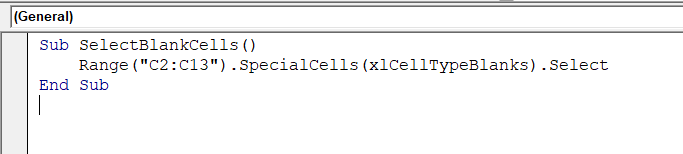
➤ Run the macro.
➤ The code will select all blank cells in column C (Satisfaction Score) in the dataset.
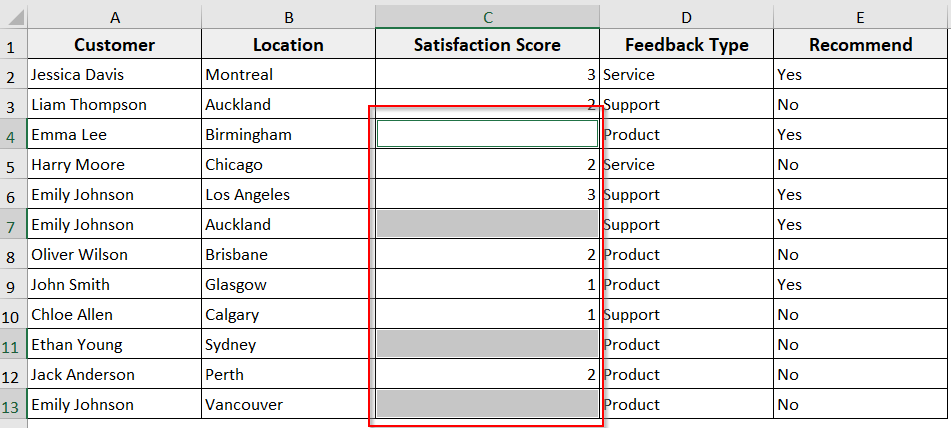
➥ .SpecialCells(xlCellTypeBlanks): It filters only blank cells in the range.
➥ .Select: It highlights all blank cells at a time.
Frequently Asked Questions
How to select a range in VBA dynamically?
➤ You can select a range in VBA dynamically by identifying the last used row or column and adjusting the range accordingly.
➤ Insert the following VBA code.
Sub SelectDynamicRange()
    Dim ws As Worksheet
    Dim lastRow As Long
    Set ws = ThisWorkbook.Sheets("Sheet1")
    lastRow = ws.Cells(ws.Rows.Count, "A").End(xlUp).Row
    ws.Range("A1:A" & lastRow).Select
End Sub
➤ The code automatically adjusts the selection based on how many rows are filled in column A
How to select a range in Excel based on criteria with VBA?
➤ You can use the Find method to locate cells that meet your criteria.
➤ To do so, insert the following VBA code.
Sub SelectRangeByCriteria()
    Dim ws As Worksheet, rng As Range, firstCell As Range, foundCell As Range
    Set ws = ActiveSheet
    'Search in column A for a specific value
    Set rng = ws.Range("A:A")
    Set foundCell = rng.Find(What:="YourValue", LookAt:=xlWhole)
    If Not foundCell Is Nothing Then
        Set firstCell = foundCell
        Do
            foundCell.EntireRow.Select  'Selects the entire row of the match
            Set foundCell = rng.FindNext(foundCell)
        Loop While Not foundCell Is Nothing And foundCell.Address <> firstCell.Address
    End If
End Sub
➤ The macro will find “YourValue” in column A and select the matching rows.
How to reference a range of cells in Excel VBA?
➤ In VBA, you can reference a range using the Range property.
➤ Insert the following VBA code in the module.
Sub ReferenceRange()
    'Using Range
    Range("A1:B5").Select
    'Using Cells
    Range(Cells(1, 1), Cells(5, 2)).Select
End Sub
Here,
➤ Range(“A1:B5”) selects cells from A1 to B5.
➤ Cells(1,1) refers to A1 and Cells(5,2) refers to B5.
Wrapping Up
In this tutorial, we have learnt multiple methods to select a range based on cell value with the help of Excel VBA. These methods help you automate selections and manage large datasets with ease. Feel free to download the sample workbook and try out the VBA macros yourself. Let us know how these codes have simplified your Excel tasks.