Empty rows can clutter your Excel worksheet and make your data harder to work with. Whether you’re cleaning up survey responses, exporting reports from external systems, or just maintaining tidy tables, removing those blank rows can save time and reduce errors.
In this article, you’ll learn four practical ways to delete empty rows in Excel using VBA. From selecting a range manually to scanning the whole sheet automatically, these methods help you simplify your data cleanup process. Pick the one that best fits your scenario, and apply it with just a few lines of code.
Steps to delete empty rows inside a user-selected range using VBA:
➤ In Excel, manually highlight the rectangular block that might contain blank rows.
➤ Press Alt + F11 , go to Insert >> Module, and paste the code below:
Sub DeleteBlankRowsInSelection()
    Dim rng As Range
    Dim rowRange As Range
    ' Use the current selection as the target range
    Set rng = Selection
    If rng Is Nothing Then
        MsgBox "No range selected.", vbExclamation
        Exit Sub
    End If
    ' Loop through each row in the selection (bottom → top prevents skips)
    For Each rowRange In rng.Rows
        If Application.WorksheetFunction.CountA(rowRange) = 0 Then
            rowRange.EntireRow.Delete
        End If
    Next rowRange
    MsgBox "Empty rows removed from " & rng.Address(False, False) & ".", vbInformation
End Sub
➤ The macro targets only the rows inside your selected block, outside data stays untouched.
➤ It uses CountA to check for completely blank rows, and deletes them from bottom to top.
➤ This prevents skipping rows during deletion caused by shifting cells upward.
➤ After running, a message box confirms the range cleaned and removal success.
➤ To execute: go back to Excel, press Alt + F8 , choose DeleteBlankRowsInSelection, and click Run.
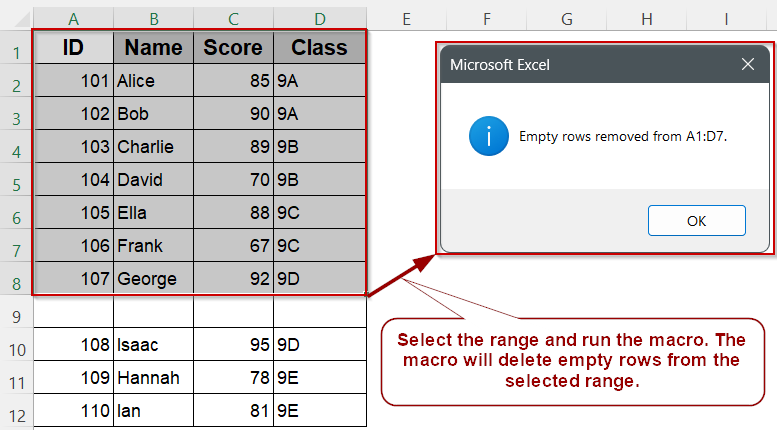
Delete Empty Rows in a User‑Selected Range with VBA
Cleaning up a pasted block or partial dataset often means removing completely blank rows without disturbing data elsewhere. VBA can target only the range you highlight and instantly delete every fully empty row inside that block.
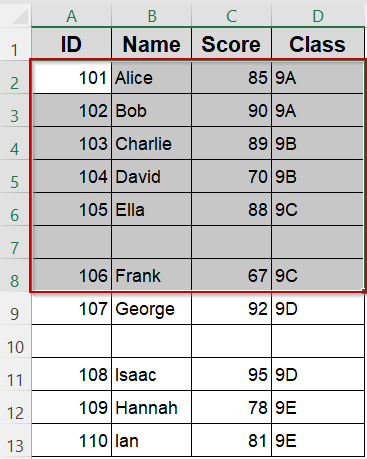
For this demonstration, our sample data on Sheet1 spans columns A–D and includes several blank rows between records. The macro below deletes those empty rows only within the range you select, leaving the rest of the sheet untouched.

Steps:
➤ Drag your mouse to highlight the range that you want to delete blank rows from.
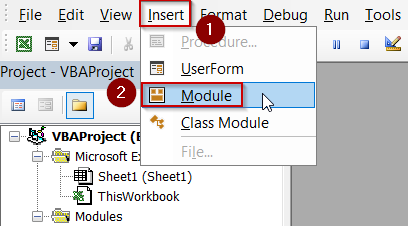
➤ Press Alt + F11 , choose Insert >> Module.
➤ Paste this code:
Sub DeleteBlankRowsInSelection()
    Dim rng As Range
    Dim rowRange As Range
    ' Use the current selection as the target range
    Set rng = Selection
    If rng Is Nothing Then
        MsgBox "No range selected.", vbExclamation
        Exit Sub
    End If
    ' Loop through each row in the selection (bottom → top prevents skips)
    For Each rowRange In rng.Rows
        If Application.WorksheetFunction.CountA(rowRange) = 0 Then
            rowRange.EntireRow.Delete
        End If
    Next rowRange
    MsgBox "Empty rows removed from " & rng.Address(False, False) & ".", vbInformation
End Sub 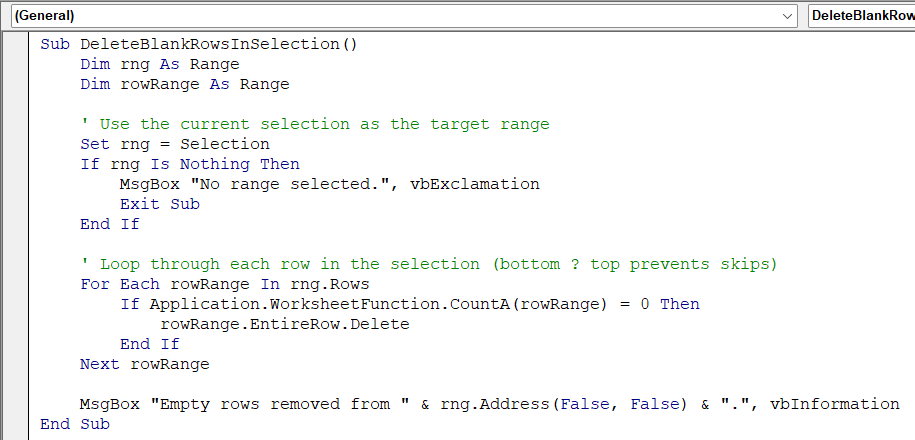
➧ CountA(rowRange) counts non‑blank cells in each row; a result of 0 means the row is empty.
➧ rowRange.EntireRow.Delete removes every blank row found, and looping bottom‑to‑top prevents missed rows as Excel reindexes.
➧ A message box confirms the address of the cleaned range and that blank rows are gone.
➤ Return to Excel, keep your desired range selected, press Alt + F8 , choose DeleteBlankRowsInSelection, and click Run.
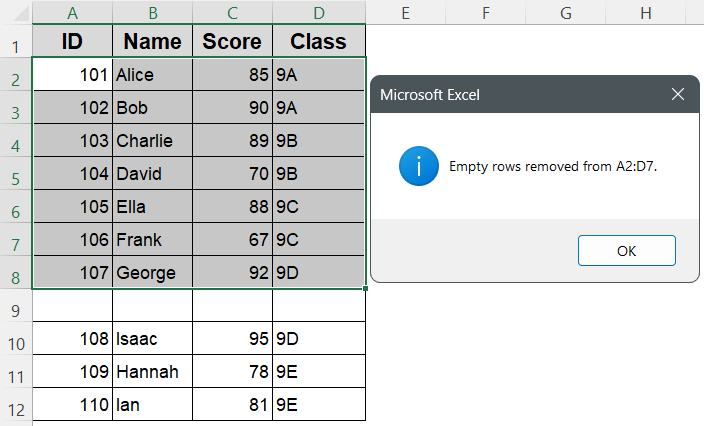
➤ All completely blank rows inside the highlighted block disappear, leaving a contiguous dataset.
Automatically Delete Empty Rows in a Defined Range
Blank rows buried inside a data block can break sorting, totals, or exports. VBA can clean those rows from a fixed range you hard‑code in the macro and slide the remaining data upward, leaving a clean dataset.
For this demonstration, the range A2:D14 on Sheet1 contains a few fully blank rows. The macro below deletes every completely empty row within that block and shifts the rows below upward so the table has no gaps.
Steps:
➤ Press Alt + F11 , choose Insert >> Module, and paste the code:
Sub TidyRange_DeleteBlankRows()
    Dim ws As Worksheet
    Dim targetRange As Range
    Dim r As Long, firstRow As Long, lastRow As Long
    Dim colCount As Long
    Set ws = ThisWorkbook.Sheets("Sheet1")      ' change sheet name if needed
    Set targetRange = ws.Range("A2:D14")        ' <- define the block to tidy
    firstRow = targetRange.Rows(1).Row
    lastRow  = targetRange.Rows(targetRange.Rows.Count).Row
    colCount = targetRange.Columns.Count
    ' Loop upward through rows to avoid skipping after deletions
    For r = lastRow To firstRow Step -1
        If Application.WorksheetFunction.CountA( _
             ws.Cells(r, targetRange.Column).Resize(1, colCount)) = 0 Then
            ws.Rows(r).Delete
        End If
    Next r
    MsgBox "Blank rows removed from " & targetRange.Address(False, False) & _
           "; data shifted up.", vbInformation
End Sub 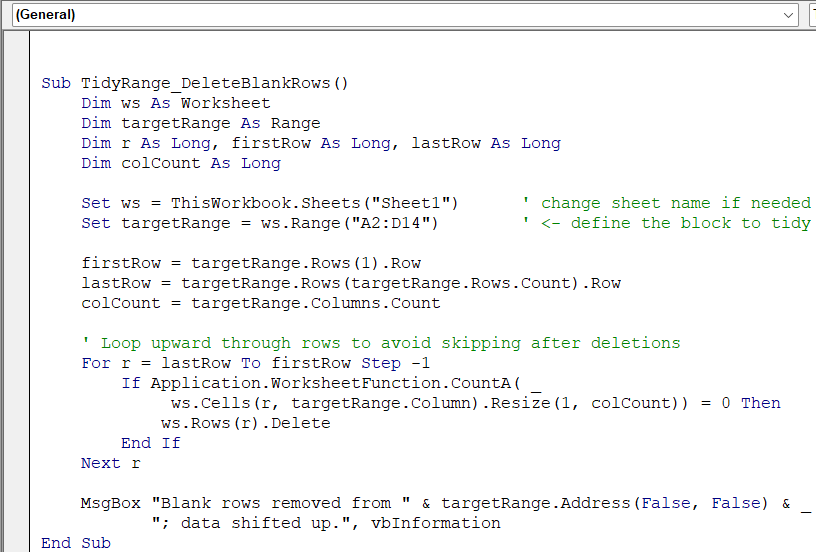
➧ firstRow, lastRow, and colCount capture the block’s boundaries.
➧ The loop scans rows bottom‑to‑top so row indices don’t shift after each deletion.
➧ CountA on the row slice (Resize(1, colCount)) checks whether every cell is blank; if so, that entire sheet row is deleted and rows below move up.
➧ A pop‑up confirms the block’s address and that all blank rows have been removed.
➤ Return to Excel, press Alt + F8 , select TidyRange_DeleteBlankRows, and click Run.
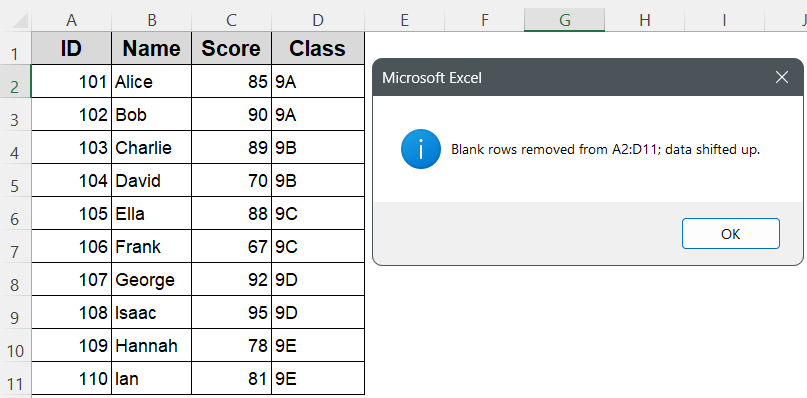
➤ The macro deletes every completely blank row inside A2:D14 and closes all gaps, leaving a contiguous dataset.
Remove Every Blank Row from the Worksheet in a Single Run
Blank lines scattered throughout a worksheet can inflate file size and disrupt sorting or formulas. VBA can scan the whole sheet in one pass, remove every row that is completely empty, and leave your data compact from top to bottom.
For this demonstration, the code targets the worksheet without the need for any range selection or setup, the macro simply deletes each entirely blank row it finds.
Steps:
➤ Press Alt + F11 , choose Insert >> Module, and paste this code:
Sub DeleteAllBlankRows_OnSheet()
    Dim ws As Worksheet
    Dim lastRow As Long
    Dim r As Long
    ' Set the worksheet to clean
    Set ws = ThisWorkbook.Sheets("Sheet1")   ' change if needed
    ' Find last used row in column A (safest anchor)
    lastRow = ws.Cells(ws.Rows.Count, 1).End(xlUp).Row
    ' Loop upward through every sheet row
    For r = lastRow To 2 Step -1             ' skip header row 1
        If Application.WorksheetFunction.CountA(ws.Rows(r)) = 0 Then
            ws.Rows(r).Delete
        End If
    Next r
    MsgBox "All completely blank rows removed from " & ws.Name & ".", _
           vbInformation
End Sub 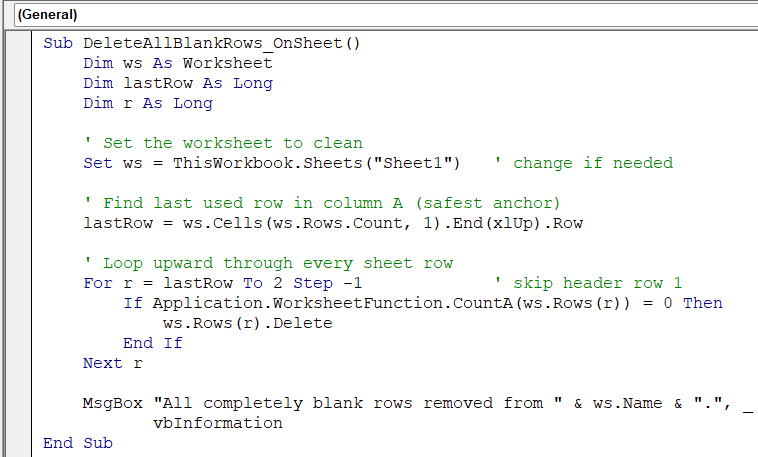
➧ lastRow finds the bottom data row (using column A as an anchor).
➧ The loop runs bottom‑to‑top; deleting rows from the bottom prevents index skips.
➧ CountA(ws.Rows(r)) counts non‑blank cells across the entire row; a result of 0 means the row is empty and should be deleted.
➧ Each qualifying row is removed, and a message box confirms completion.
➤ Return to Excel, press Alt + F8 , select DeleteAllBlankRows_OnSheet, and click Run.
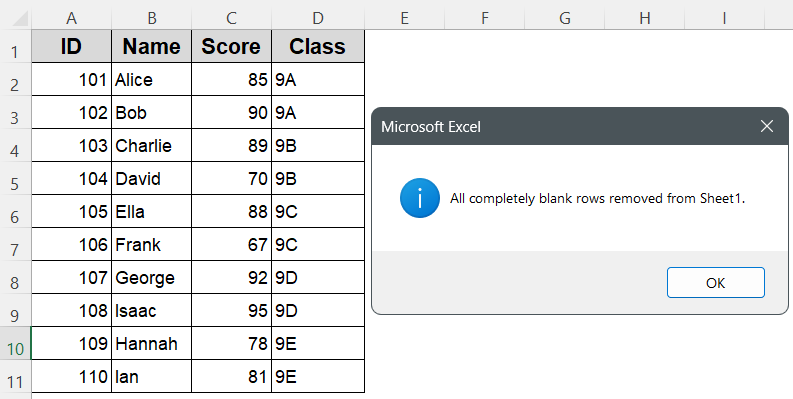
➤ Every completely blank row on Sheet1 is deleted in one shot, leaving a gap‑free worksheet.
Downloadable Resources
Get our practice workbook or necessary files that we have worked with to prepare this article.
Delete Empty Rows with VBA.xlsx
Frequently Asked Questions
What’s the fastest VBA way to remove blank rows?
Use Columns(“A:D”).SpecialCells(xlCellTypeBlanks).EntireRow.Delete. It instantly selects all blank cells in the target columns and deletes their rows,fast for large, scattered blanks.
Why loop bottom‑to‑top when deleting rows in VBA?
Deleting from the bottom prevents row re‑indexing issues. When rows shift up, your counter stays correct, ensuring no rows are skipped or double‑checked during the loop.
How can I delete rows only if an entire row is blank?
Apply WorksheetFunction.CountA(rng) = 0 on each row. CountA counts non‑blank cells, so a zero result guarantees every column in that row is empty before deletion.
Can I undo a VBA row‑deletion macro?
Yes, if you run the macro manually, Excel treats it as one action, so Ctrl + Z restores deleted rows. Automated macros in loops, however, may break undo history.
Wrapping Up
Deleting empty rows in Excel using VBA helps keep your data clean, compact, and analysis-ready. Whether you’re targeting a selected range, a defined block, or the entire worksheet, these methods offer reliable solutions for different cleanup needs. Choose the one that fits your workflow, run the macro, and instantly remove clutter. With just a few lines of code, you can maintain structured, gap-free datasets and make your spreadsheets easier to manage.