Macros in Excel are effective tools that allow you to automate repetitive tasks, from formatting tables to performing calculations across large datasets. By recording and editing macros, you can save time, reduce manual errors, and make your spreadsheets more dynamic and professional.
In this article, you’ll learn how to edit macros in Excel step by step using the Developer tab, opening and modifying macros using keyboard shortcuts and the Visual Basic Editor, testing changes on a sample dataset, and saving your workbook properly to preserve all updates. Let’s get started.
Steps to edit macros in Excel:
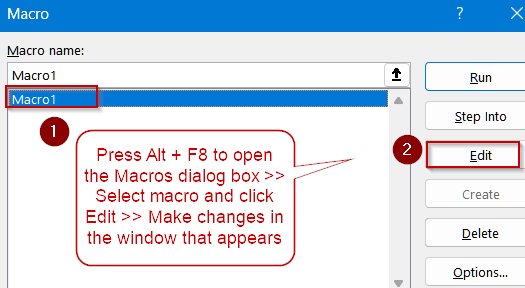
➤ Press Alt + F8 to open the Macros dialog box directly.
➤ Select the macro you want to edit from the list.
➤ Click Edit to open the Visual Basic Editor (VBE).
➤ Navigate to the macro code window and make your desired changes.
Using Keyboard Shortcuts to Access Macros Quickly
Keyboard shortcuts are a fast way to open the Macros dialog box or the VBA editor without navigating the ribbon. This method is ideal for experienced users who want to speed up editing and avoid multiple clicks.
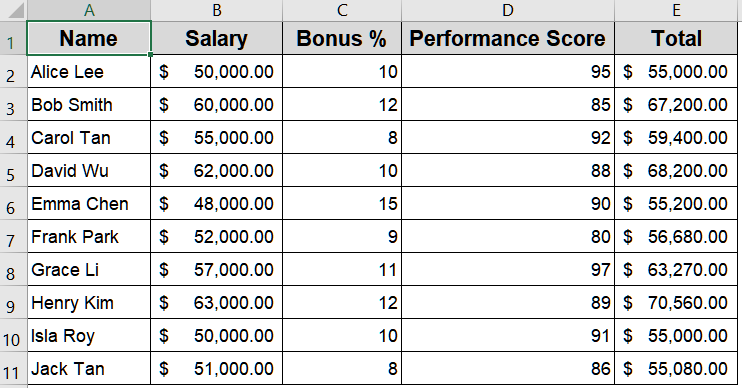
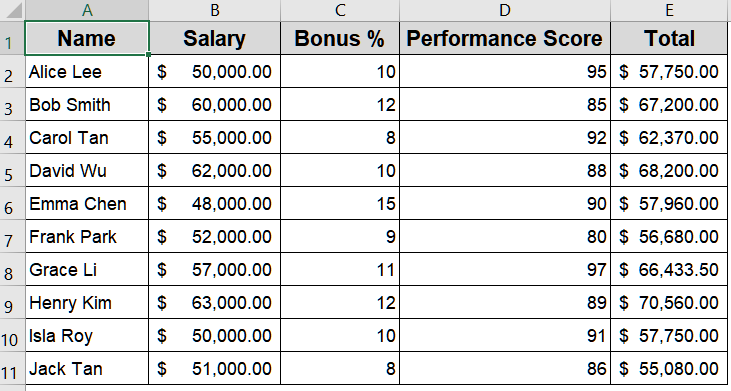
We’ll use the following dataset for demonstration where an existing macro generates the Total with Bonus for each employee:
Steps:
➤ Press Alt + F8 to open the Macros dialog box directly.
➤ Select the macro you want to edit from the list.
➤ Click Edit to open the Visual Basic Editor (VBE).

➤ Alternatively, press Alt + F11 to open the VBA editor directly without first selecting a macro.
➤ Navigate to the macro code window and make your desired changes.
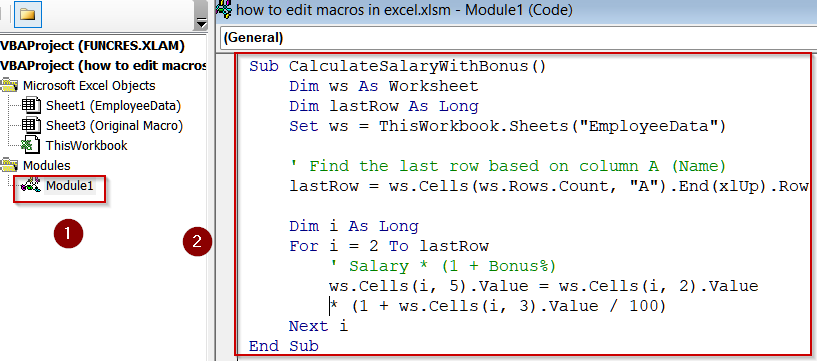
Editing VBA Code via the Developer Tab
The Developer tab provides full access to macro tools, including recording, editing, and managing VBA code. Using this method gives more visibility and control over macros, especially when modifying multiple macros in one workbook. Let’s see how to get the job done.
Steps:
➤ Go to the Developer tab and click Macros (or press Alt + F8).
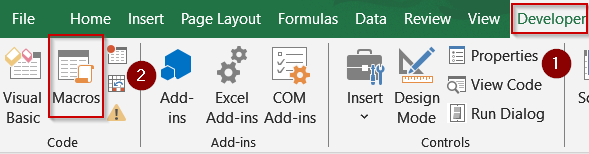
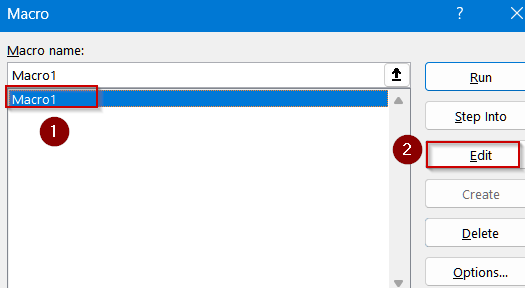
➤ Select the macro you wish to edit and click Edit.
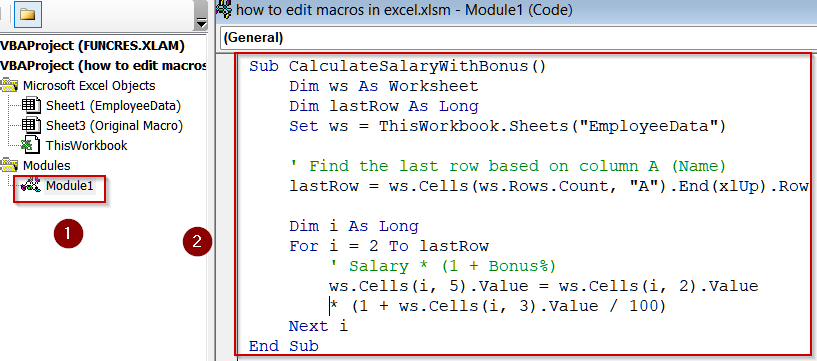
➤ The VBE will display the existing macro code in the code window.
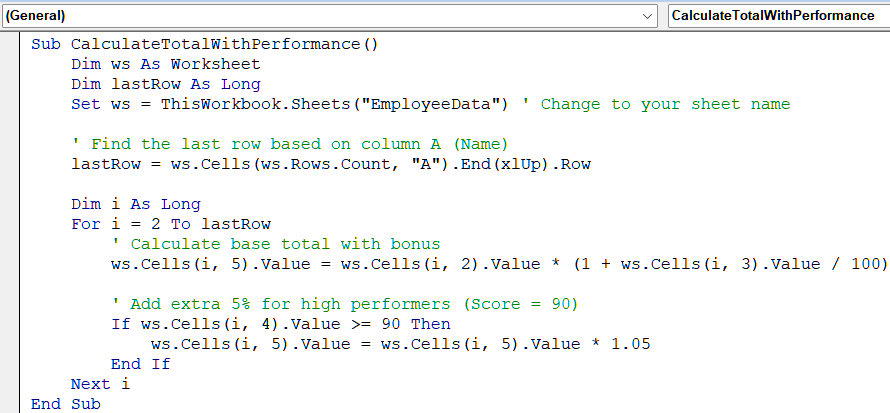
➤ Make the necessary changes. For example, suppose your original macro calculates Total payment including bonus. You can edit it to include a performance multiplier for high performers (score ≥ 90) using the following macro:
Sub CalculateTotalWithPerformance()
    Dim ws As Worksheet
    Dim lastRow As Long
    Set ws = ThisWorkbook.Sheets("EmployeeData") ' Change to your sheet name
    ' Find the last row based on column A (Name)
    lastRow = ws.Cells(ws.Rows.Count, "A").End(xlUp).Row
    Dim i As Long
    For i = 2 To lastRow
        ' Calculate base total with bonus
        ws.Cells(i, 5).Value = ws.Cells(i, 2).Value * (1 + ws.Cells(i, 3).Value / 100)
        ' Add extra 5% for high performers (Score ≥ 90)
        If ws.Cells(i, 4).Value >= 90 Then
            ws.Cells(i, 5).Value = ws.Cells(i, 5).Value * 1.05
        End If
    Next i
End Sub
This simple edit demonstrates how you can enhance an existing macro to include new logic or calculations without starting from scratch.
➤ Press F5 key to run the edited macro.
➤ Press Ctrl + S to save changes.
➤ Return to Excel and verify if the macro worked correctly.
Downloadable Resources
Get our practice workbook or necessary files that we have worked with to prepare this article.
Frequently Asked Questions
What is a macro in Excel?
A macro is a recorded sequence of actions or a VBA script that automates repetitive tasks in Excel. It can include formatting, calculations, or data manipulation which saves time and ensuring consistency across your worksheets.
Can I edit a macro after recording it?
Yes, macros can be edited anytime. Using the Macros dialog box or the Visual Basic Editor, you can modify formulas, formatting, or logic to improve functionality, correct errors, or adapt the macro for new datasets.
Do I need the Developer tab to edit macros?
While keyboard shortcuts allow quick access, enabling the Developer tab provides complete control over macros. It allows you to record, edit, test, and manage VBA code efficiently, making editing easier and more organized.
Will editing a macro affect other macros in the workbook?
No, editing a specific macro only changes its own code. Other macros remain unaffected unless they share common procedures or references. Always review dependencies to ensure modifications don’t unintentionally impact other automation.
Can macros work across different Excel versions?
Most modern Excel versions support macros, but compatibility requires saving the workbook as a Macro-Enabled Workbook (.xlsm). Older versions may have limitations, so always verify your macros work as intended before sharing files.
Wrapping Up
In this tutorial, we walked through how to edit macros in Excel. You learned to enable the Developer tab, access macros using shortcuts or the VBA editor, modify macro code with practical examples, test changes on a dataset, and save your workbook safely. Editing macros allows you to customize automation, simplify repetitive tasks, and make your Excel workflows far more efficient and reliable. Feel free to download the practice file and share your feedback.