Macros are effective tools that automate repetitive tasks in Excel using VBA (Visual Basic for Applications). However, sometimes you may find that your macros stop working as this could happen after downloading a file, changing settings, or updating Excel. Understanding the possible reasons and their solutions is crucial to get your automation back on track.
In this article, we’ll learn all the practical methods to fix macros not working in Excel, from enabling macros and unblocking downloaded files to checking file formats, macro settings, and trusted locations. Let’s get started.
Steps to fix macros not working in Excel:
➤ Close the Excel workbook.
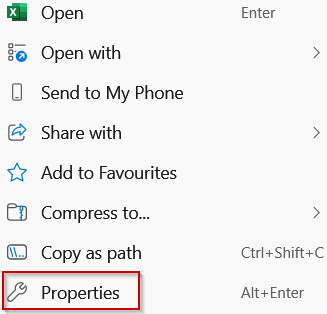
➤ Right-click the file in File Explorer and select Properties.
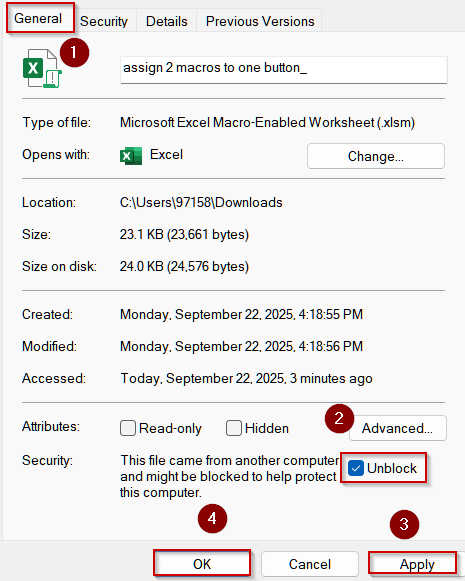
➤ In the General tab, locate the Security section and check Unblock.
➤ Click Apply >> OK.
➤ Reopen the file in Excel, and macros should now run properly.

Enable Macros for Your Current Workbook
Sometimes macros are disabled for a specific workbook due to security warnings or Trust Center settings. Enabling macros only for the current session ensures your automation works immediately without compromising global security.
Steps:
➤ Open your Excel workbook.
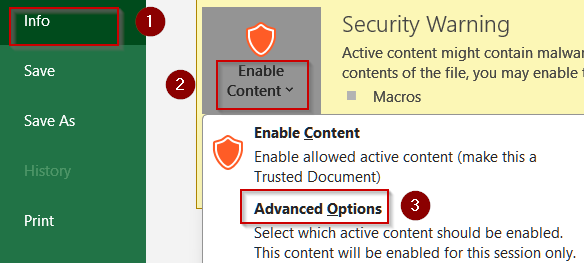
➤ If you see a Security Warning below the ribbon, click Enable Content.
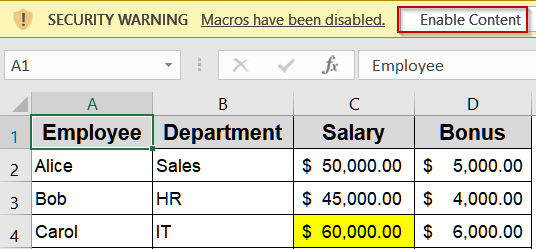
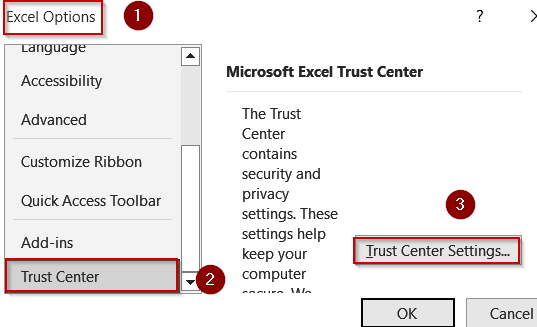
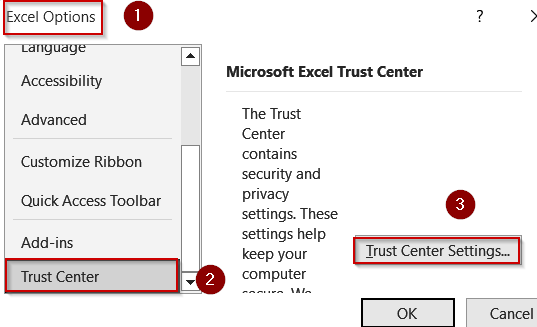
➤ If no warning appears, go to File >> Options >> Trust Center >> Trust Center Settings.
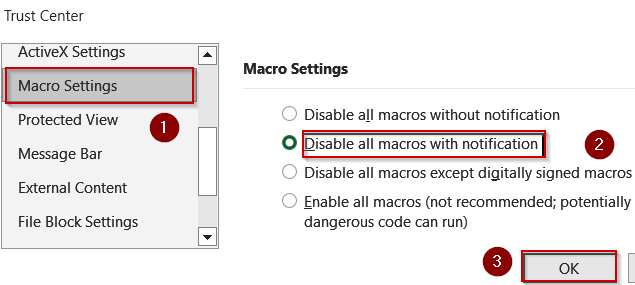
➤ Click Macro Settings and select Disable all macros with notification.
➤ Restart Excel and reopen the workbook to test your macros.

Run Macros Temporarily for a Single Excel Session
If you want to run a macro only once without changing permanent settings, you can enable it for the current session. This option is ideal when working with a file from an unfamiliar source or when testing code temporarily.
Steps:
➤ Go to File >> Info, look for the Security Warning, click Advanced Options under Enable Content.
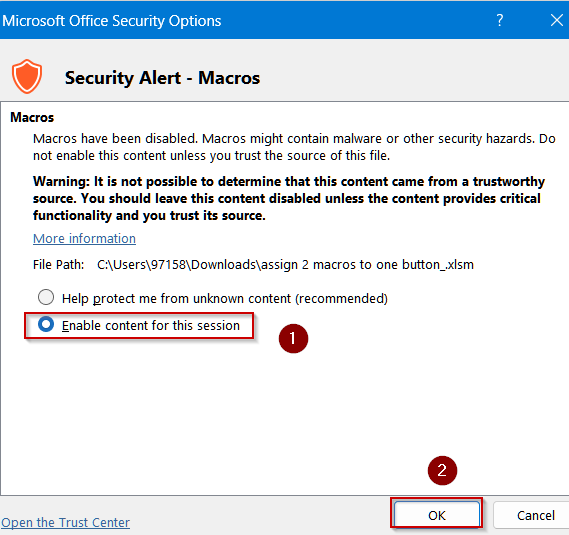
➤ Choose Enable content for this session or similar wording.
➤ Click OK and macros run until Excel is closed.
Tip:
Use this when testing unknown files because the session-level permission resets with each Excel restart.
Unblock Macros in Downloaded Files
When you download Excel workbooks from email attachments, websites, or shared drives, Windows automatically marks them as potentially unsafe. As a result, Excel blocks macros in these files to protect your system from harmful code. By manually unblocking the file before reopening it, you can safely restore macro functionality without altering global security settings.
Steps:
➤ Close the Excel workbook.
➤ Right-click the file in File Explorer and select Properties.
➤ In the General tab, locate the Security section and check Unblock.
➤ Click Apply >> OK.
➤ Reopen the file in Excel, and macros should now run properly.
Permanently Allow Macros Across All Excel Files
If you frequently use trusted macros and don’t want to enable them each time, you can adjust Trust Center settings or create a trusted folder. This approach saves time but should be used only on a secure device.
Steps:
➤ Go to File >> Options >> Trust Center >> Trust Center Settings.
➤ Under Macro Settings, choose Enable all macros to permanently allow macros.
➤ Click OK twice to close all windows.

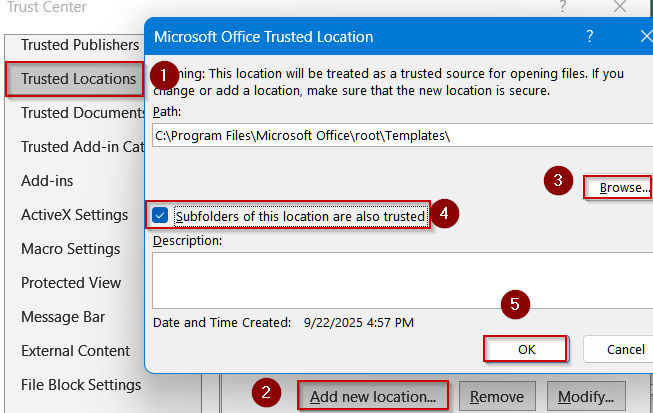
➤ Alternatively,to keep security tighter, instead of enabling all macros globally, go to Trusted Locations in the Trust Center. Click Add new location, browse for or type a folder path, and add a description.
➤ Check Subfolders of this location are also trusted if needed, then click OK twice. Any file saved in this folder will open with macros enabled automatically.
Verify File Format and Enable Macro Settings Globally
When macros stop working across multiple files, the issue often lies in Excel’s security restrictions or an incorrect file format. Macros are stripped out entirely if your workbook isn’t saved as a macro-enabled file (.xlsm), and even valid macros can be blocked by strict Trust Center settings. In collaborative or network environments, additional security options like Trusted Documents and ActiveX Settings play a critical role. Adjusting these settings ensures your automation works smoothly, even for files stored on shared drives or using advanced controls.
Steps:
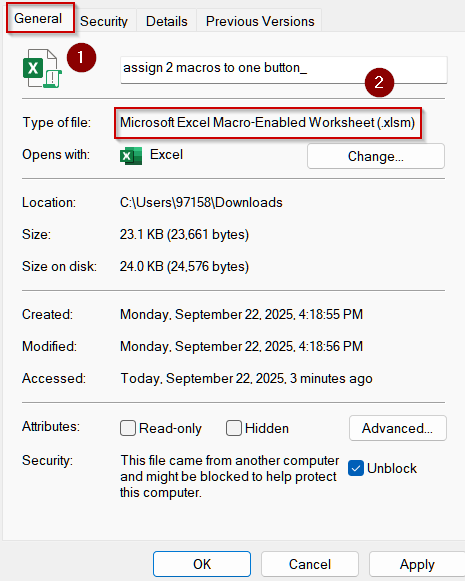
➤ Check your workbook extension from Properties because it must be .xlsm (Macro-Enabled Workbook) for macros to be preserved.
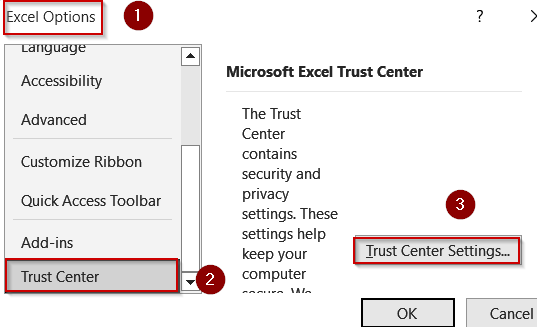
➤ Go to File >> Options >> Trust Center >> Trust Center Settings
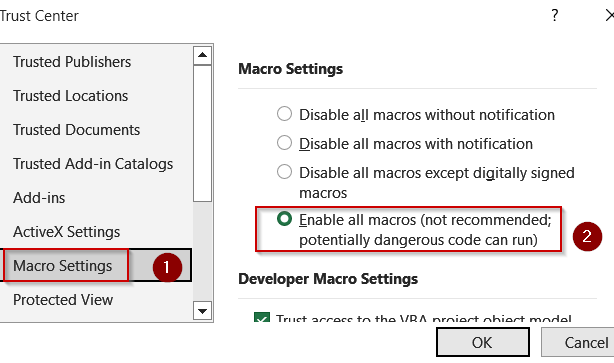
➤ Go to Macro Settings.
➤ Select Enable all macros (use with caution) or Disable all macros with notification to get prompts instead of silent blocking.
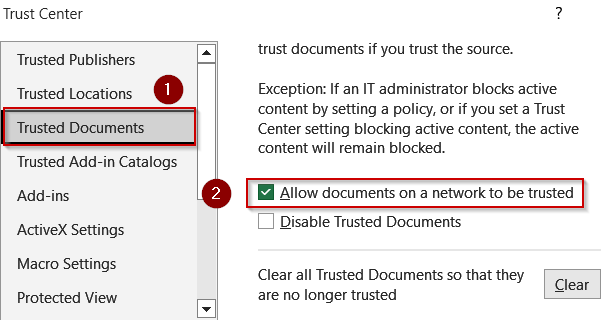
➤ In Trusted Documents, check the “Allow documents on a network to be trusted” option. This ensures network-stored workbooks you regularly use aren’t repeatedly flagged as unsafe.
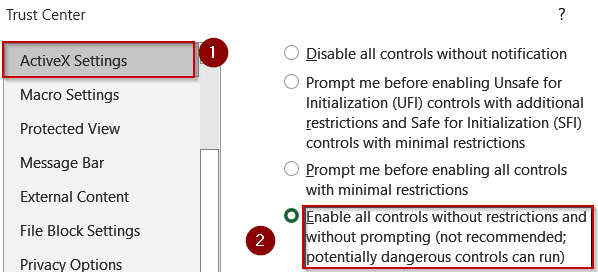
➤ Switch to ActiveX Settings and select “Enable all controls without restrictions and without prompting”. This is required if your macros rely on ActiveX buttons or controls to function properly.
➤ Restart Excel and test your macros.
Downloadable Resources
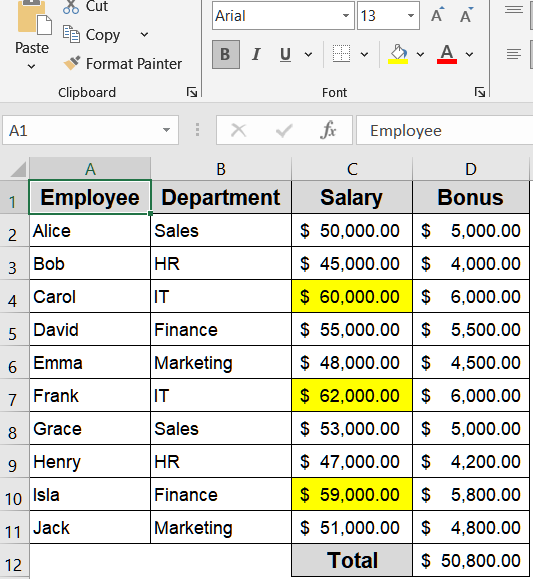
Get our practice workbook or necessary files that we have worked with to prepare this article.
Fix Macros Not Working in Excel.xlsx
Frequently Asked Questions
Why are macros not working in my Excel workbook?
Macros may be disabled due to Excel’s security settings, file format issues, or blocked files. Ensuring macros are enabled in the Trust Center, unblocking the file, and using a macro-enabled workbook usually fixes the problem.
Can macros run in Excel Online, iOS, or Android?
No. VBA macros are only supported in the desktop versions of Excel for Windows and Mac. Excel Online, iOS, and Android do not execute macros, so any macro functionality will be unavailable on these platforms.
Does saving as .xlsm always allow macros to run?
Yes. Saving your workbook as a Macro-Enabled Workbook (.xlsm) preserves all VBA code. Standard Excel workbooks (.xlsx) cannot store macros, so switching to .xlsm is essential for running automated tasks.
How can I ensure downloaded files allow macros?
Downloaded files may be blocked by default. Right-click the file, go to Properties, check Unblock, or move the file to a trusted location. This ensures Excel allows macros to execute safely.
Can disabling add-ins fix macros not working?
Yes. Third-party add-ins or startup files can conflict with macros. Launch Excel in Safe Mode, then disable add-ins one by one. This identifies and resolves conflicts, allowing macros to run smoothly again.
Wrapping Up
In this tutorial, we learned all the reliable methods to fix macros not working in Excel, including enabling macros, unblocking downloaded files, verifying formats, and checking macro settings or trusted locations. By following these techniques, you can restore your VBA functionality and keep your automation running smoothly. Feel free to download the practice file and share your feedback.