When working with lists, to-do sheets, attendance trackers, or dashboards, checkboxes make data tracking far more interactive and user-friendly. Instead of entering “Yes” or “No” manually, you can simply click a checkbox to mark an item complete or selected. However, adding checkboxes one by one can be time-consuming which is why adding multiple checkboxes in Excel efficiently is a major productivity boost.
In this article, we’ll walk you through four practical methods to add multiple checkboxes in Excel starting from using the Insert tab and Developer tools to quick copy-paste tricks and VBA automation. Let’s get started.
Steps to add multiple checkboxes in Excel:
➤ Select the range of cells (C2:C11) where you want to add checkboxes.
➤ Go to the Insert tab on the Ribbon.
➤ Click the Checkbox icon.
➤ Excel will instantly add a checkbox to each selected cell.

Add Multiple Checkboxes Using the Insert Tab (For Modern Excel Versions)
If you’re using a newer version of Excel (Microsoft Office 365 or Excel 2021), the Insert tab provides a convenient way to add checkboxes directly across multiple cells. This approach saves you time since Excel automatically places a checkbox inside every selected cell, eliminating the need for manual duplication.
We’ll use the following dataset:
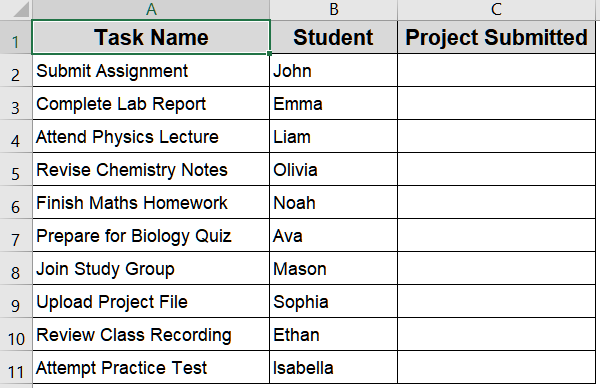
Steps:
➤ Select the range of cells (C2:C11) where you want to add checkboxes.
➤ Go to the Insert tab on the Ribbon.
➤ Click the Checkbox icon.
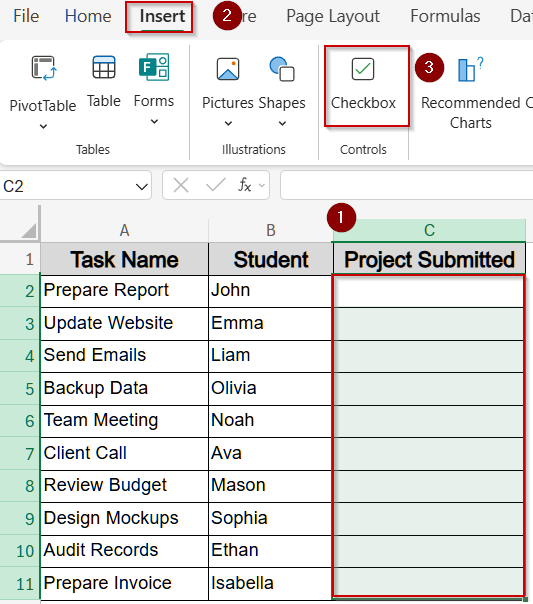
➤ Excel will instantly add a checkbox to each selected cell.
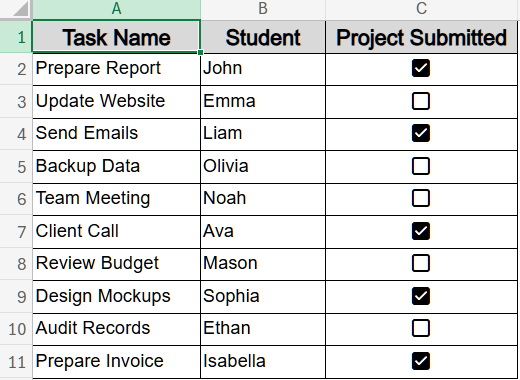
This method is fast, modern, and ideal for large datasets.
Use Copy-Paste or Fill Handle to Duplicate Checkboxes
If you’re using an older Excel version without a multi-insert option, you can easily add one checkbox and then replicate it across multiple cells using the Fill Handle or Copy-Paste for both checkboxes inserted using the Insert and Developer tab This approach ensures uniform checkbox placement throughout your list.
Steps:
➤ Insert a single checkbox in cell C2 using either the Insert tab or the Developer tab.
➤ For demonstration, we’ll insert a checkbox from the Insert drop-down located in the Developer tab.
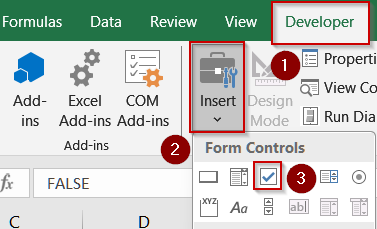
➤ Select the cell containing the checkbox.
➤ To fill down quickly, drag the Fill Handle (small square at the cell’s bottom-right corner) down to C11.
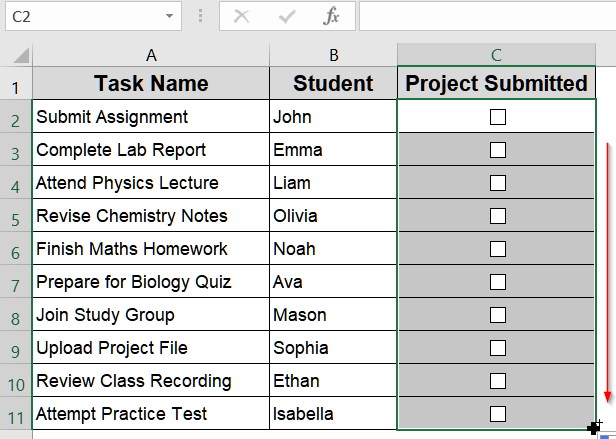
➤ Alternatively, use Ctrl + C to copy the checkbox and Ctrl + V to paste it into other cells.
➤ You can also use Ctrl + D after selecting multiple cells below to duplicate the checkbox downward.
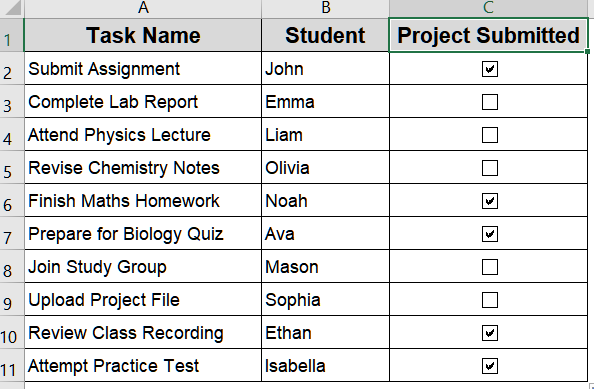
This is one of the simplest and most flexible ways to populate multiple cells with checkboxes.
Automate Multiple Checkbox Insertion with VBA Code
For large lists, adding checkboxes manually can still be tedious. Instead, you can use VBA (Visual Basic for Applications) to insert checkboxes programmatically. This method is ideal for automating repetitive tasks, ensuring consistent checkbox placement, and saving significant time.
Steps:
➤ Press Alt + F11 to open the Visual Basic for Applications editor.
➤ Go to Insert >> Module.
➤ Paste the following code:
Sub Add_Multiple_Checkboxes()
    Dim cell As Range
    For Each cell In Range("C2:C11")
        With ActiveSheet.CheckBoxes.Add(cell.Left + 2, cell.Top + 2, cell.Width - 4, cell.Height - 4)
            .Caption = ""
            .LinkedCell = cell.Offset(0, 1).Address
        End With
    Next cell
End Sub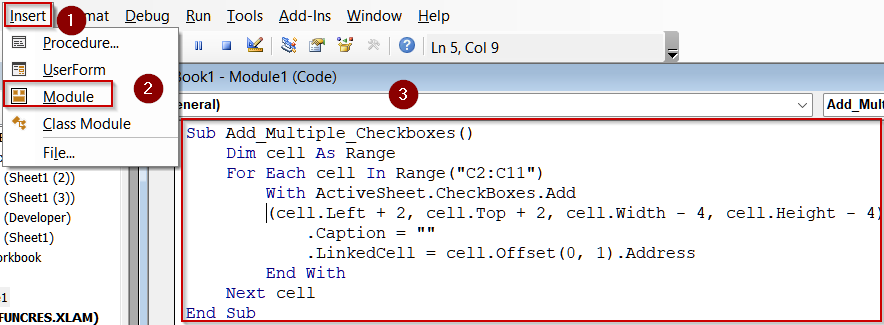
➤ Press F5 key to run the macro.
➤ The code inserts neatly aligned checkboxes into the C2:C11 range automatically and displays TRUE/FALSE in the adjacent column based on the checkbox status.
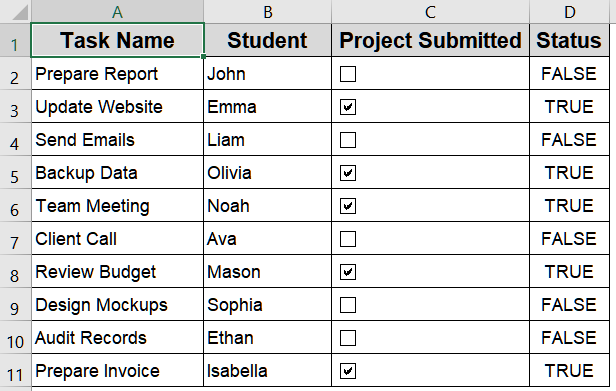
This VBA macro gives you total control over checkbox positioning, size, and linkage, making it ideal for large-scale checkbox insertion.
Downloadable Resources
Get our practice workbook or necessary files that we have worked with to prepare this article.
Add Multiple Checkboxes in Excel.xlsx
Frequently Asked Questions
Why would I need to add multiple checkboxes in Excel?
Adding multiple checkboxes helps manage tasks, track progress, or build interactive checklists. They’re useful in attendance sheets, to-do lists, and project tracking where each row requires a simple yes/no input.
Can I link each checkbox to a cell?
Yes, every checkbox can be linked to a specific cell to return TRUE when checked and FALSE when unchecked. This makes it easier to create formulas that track counts, percentages, or completion rates.
Why are my checkboxes not aligning properly in cells?
Checkbox alignment issues often occur when cells are resized or merged. You can fix this by right-clicking each checkbox, selecting Format Control, and adjusting its position or size manually to fit perfectly.
How do I count how many checkboxes are checked?
You can count checked boxes by linking them to cells and using the formula =COUNTIF(range,TRUE). This counts all linked cells marked TRUE, giving a quick overview of completed or selected items in your sheet.
Can I insert checkboxes in Excel Online or mobile apps?
No, currently Excel Online and mobile versions don’t fully support inserting checkboxes. To add or manage checkboxes, use the desktop version of Excel for Windows or macOS where the feature is fully available.
Wrapping Up
In this tutorial, you learned several ways to add multiple checkboxes in Excel starting from quick Insert tab shortcuts to VBA automation for advanced scenarios. Whether you’re creating checklists, trackers, or attendance sheets, these methods ensure accuracy, efficiency, and professional-looking results. Feel free to download the practice file and share your feedback.