
Sometimes we open Excel files with half-empty cells where values rarely make any sense. Blank cells are sneaky – we never know what important sales record, customer list, or product sheets are hiding. The worst part is breaking down a complete report, making your analysis unreliable. In such cases, what we really need to do is to fill those blank spaces by borrowing the values from other columns. It saves time, makes your data trustworthy, and totally fills the lack of intel.
If the cell is blank in your Excel to copy another cell, go through these easy steps:
➤ Open the dataset and create a new column with a proper header.
➤ In the first cell of the column, write the following formula –
=IF(B2=””,C2,B2)
Here, we assume the B2 cell is blank while the C2 cell has a value.
➤ Press Enter, and the blank in the B2 will be replaced with the value of C2 in the new column.
➤ Drag the cells or use Fill Handle to fill the rest of the columns.
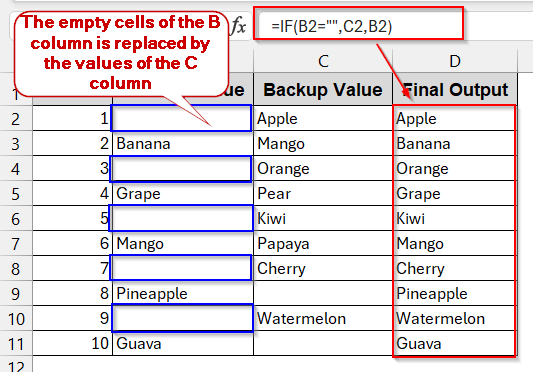
That’s just the beginning. The entire article covers the nitty-gritty of how to replace the blank cells’ values with different cells. From the basic IF function, we will explore techniques to handle hidden blanks, nested conditions, and even automated processes with VBA Macros. All are so simple and beginner-friendly that you can start right now with the methods.
Using the IF Function to Copy from Another Cell When Blank
The easiest and most straightforward way to solve the blank cell is to use the IF function. In this method, you need to assume one column as a primary from which the main values will come. If there is any blank space, it will take values from the other column (backup). To put it simply, the function checks if one column is empty or not; if it is found empty, it directs to another column.
To resemble our method, we’ll use this dataset. The Primary Value column is the main focus here. We will remove the blank cells of the Primary Value columns by inheriting those values from the Backup Value.
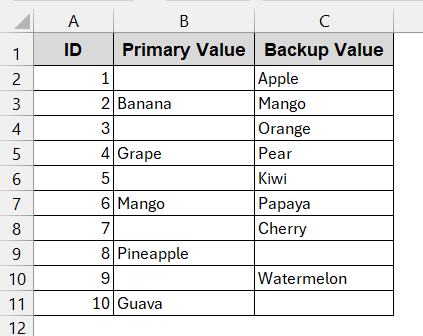
Steps:
➤ Open the dataset and find the column for the primary values with a blank space.
➤ Create a new column to store the final output without any blank cells.
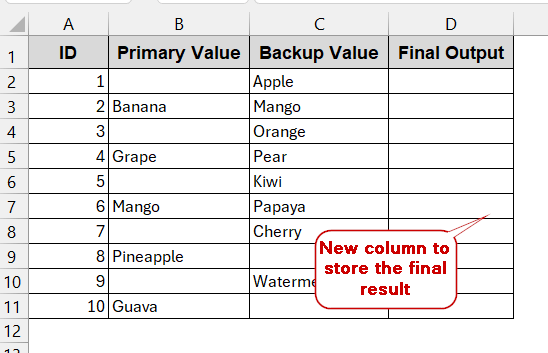
➤ In the first cell of the new column, write the IF formula-
=IF(B2="",C2,B2)
➤ Press Enter to get the value. As the B2 cell is empty, the IF function redirects the value of the C2 cell
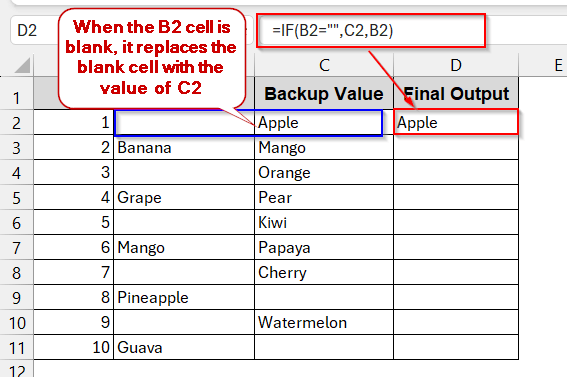
➤ Drag the cells or use Fill Handle to get the result for the rest of the cells.
➤ Notice that the existing values of column B stay the same, and only the blank ones are replaced by column B.
Notes:
➨ When neither of the columns contains any empty cell, it always picks the value of the primary column (i.e., the first parameter of the IF formula)
If you use the primary column, the values of column B will replace the blank cells of column C.
➨ In case neither column is empty, the primary column’s values (column C) are taken.
➨ If both columns have blank cells, the IF function will return false. Therefore, the output will be 0.
Applying ISBLANK with IF to Handle Empty Cells
Blank cells can also be replaced by values combining IF with the ISBLANK function. The complete blank cells (without spaces) can be used with this method. It works the same as before, takes the first cell’s value by default, and only replaces it with the second one if it is blank.
Steps:
➤ Open the dataset and make sure which column you want as the primary column.
➤ Add a new column to store the result.
➤ Enter the formula in the first cell –
=IF(ISBLANK(B2), C2, B2)
Here, the ISBLANK function checks if the cell B2 is blank. If the B2 is blank, the IF redirects the value of C2. Otherwise, it gives B2 value.
➤ Press Enter to get the result.
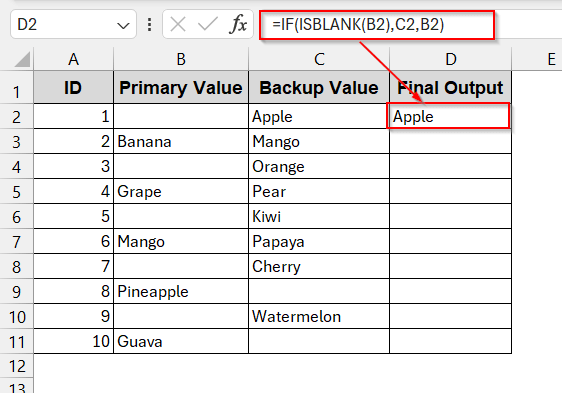
➤ Drag the cells to generate the same formula for the rest of the cells.
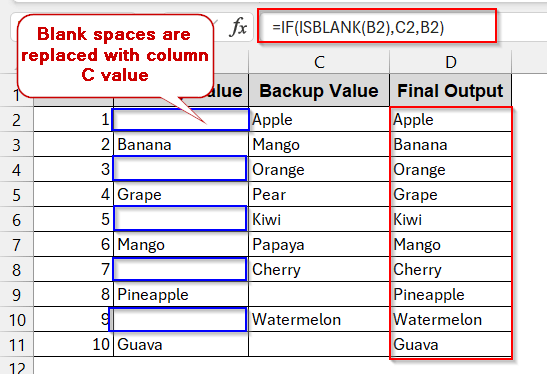
Notes:
The ISBLANK function only returns 0 (assumes the cell is blank) when it is untouched and does not even have any whitespace. If any space is present, it will return true.
Detect and Replace Invisible Blanks with LEN and TRIM
As you visibly blank cells, they might actually not be blank. As whitespaces, or even formulas, can be present in the cell, which you might mistake for a blank one. In small datasets, it is possible to check them manually; however, for larger ones, it is a nightmare.
To detect such hidden blank cells, you can use TRIM and LEN with the IF function. It cleans the cells before copying other values from different columns.
Steps:
➤ Open the dataset and create a new column to store the value.
➤ As before, determine the primary column.
➤ In the first cell of the column, paste the following formula –
=IF(LEN(TRIM(B2))=0, C2, B2)
Here, the TRIM(B2) removes all the unnecessary whitespaces, and the LEN(..)=0 ensures that it is completely blank. Only when the B2 is blank completely does it pass the C2 value.
➤ Press Enter to get the value.
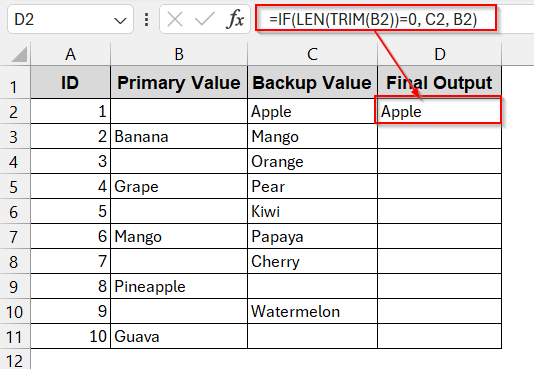
➤ Drag the cells or use Fill Handle to generate the entire column with the same formula-
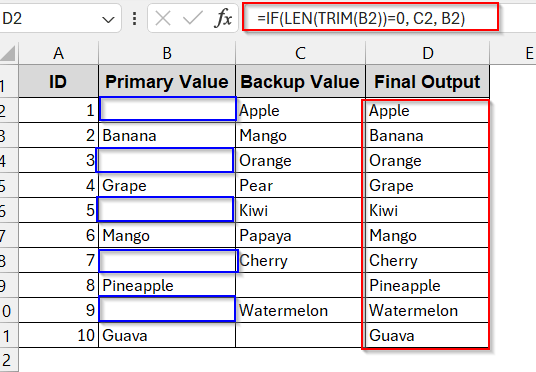
Notes:
To permanently remove the trailing spaces from the cells, use a helper column with the TRIM function.
Combine Nested IF for Multiple Backup Cells
In the real world, you don’t always get to replace blank cells from a single backup cell (column). What if both the cells are blank and need an extra backup cell? There are times when you’ll find that not one backup column is enough to deal with your. As a result, you will need multiple backup columns with nested IF to check the sequence of cells properly.
To describe the following method, we will use a dataset with four backup columns and a primary one.
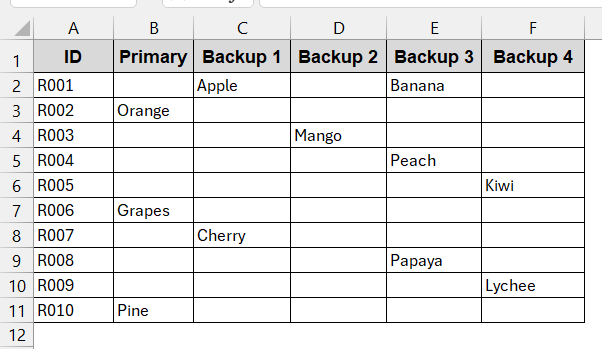
Steps:
➤ Open the dataset and locate the primary and the secondary columns.
➤ Create a column to store the final output.
➤ In the first cell of the new column, write the formula of IF with nested cells-
=IF(B2<>""B2,IF(C2<>"",C2,IF(D2<>"",D2,IF(E2<>"",E2,F2))))
It checks IF the B2 cell is blank or not; if it is blank, it goes to the C2 cell. If the C2 cell is blank, it redirects to the D2 cell. When the E2 cell is blank, it goes to F2, and so on.
➤ Press Enter to get the result.
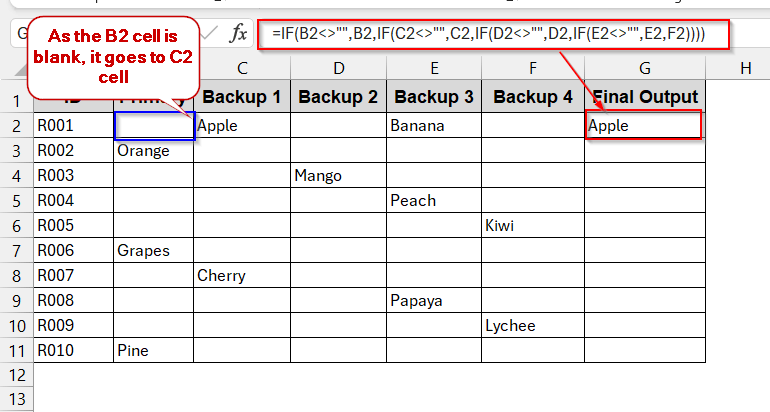
➤ Use Fill Handle to generate the same formula for the rest of the cells.
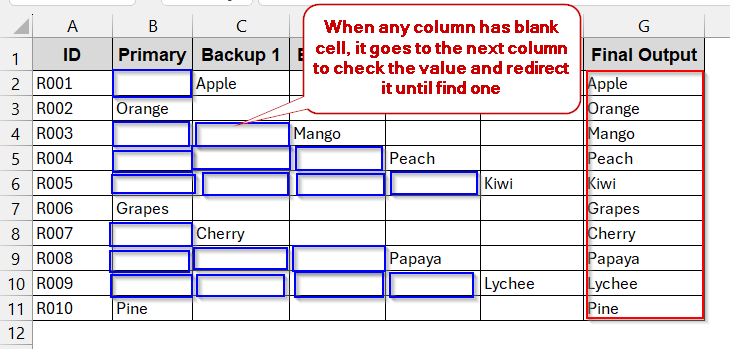
Notes:
➨ The <>”“ checks for the blank cells.
➨ You can use the IFERROR formula instead of the basic IF function to remove fallback errors.
VBA Macro to Fill Blank Cells Automatically
Another way to fill bulk blank cells is to use the VBA Macro. It is far more effective when you work with large datasets and various backup columns. Instead of writing the nested IF formula time and again, you can integrate a simple VBA code. It produces a customized function that seamlessly fills the column at one click.
In this method, we will use the previous dataset with a primary and four backup columns.
Steps:
➤ Open the dataset, go to the Developer tab -> Visual Basic.

➤ In the launched VBA window, click on the Insert tab and select Module.
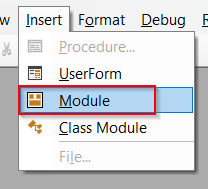
➤ In the blank Module, paste the below VBA code –
Sub FillBlanksFromBackups()
    Dim ws As Worksheet
    Dim lastRow As Long, i As Long
    Set ws = ThisWorkbook.Sheets("Sheet1")
    lastRow = ws.Cells(ws.Rows.Count, "B").End(xlUp).Row
    For i = 2 To lastRow
        ' If Primary is blank, check backups
        If ws.Cells(i, 2).Value = "" Then
            If ws.Cells(i, 3).Value <> "" Then
                ws.Cells(i, 7).Value = ws.Cells(i, 3).Value
            ElseIf ws.Cells(i, 4).Value <> "" Then
                ws.Cells(i, 7).Value = ws.Cells(i, 4).Value
            ElseIf ws.Cells(i, 5).Value <> "" Then
                ws.Cells(i, 7).Value = ws.Cells(i, 5).Value
            ElseIf ws.Cells(i, 6).Value <> "" Then
                ws.Cells(i, 7).Value = ws.Cells(i, 6).Value
            End If
        Else
            ws.Cells(i, 7).Value = ws.Cells(i, 2).Value
        End If
    Next i
End Sub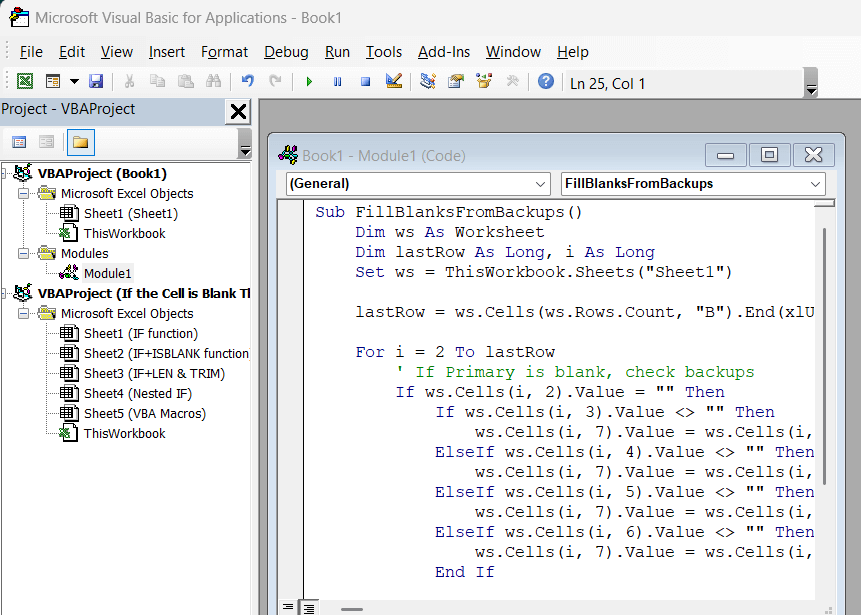
➤ Save the VBA code and close the window.
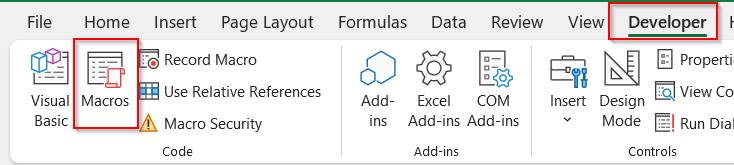
➤ Go to the Developer tab again in the dataset to select Macros
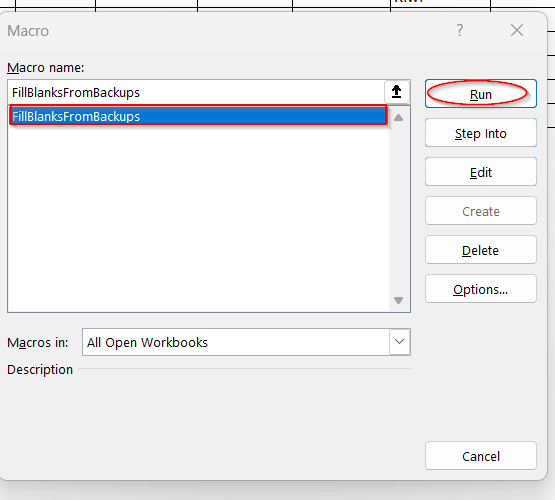
➤ In the Macros window, select the name of the function just created (FillBlanksFromBackups) and click on Run.
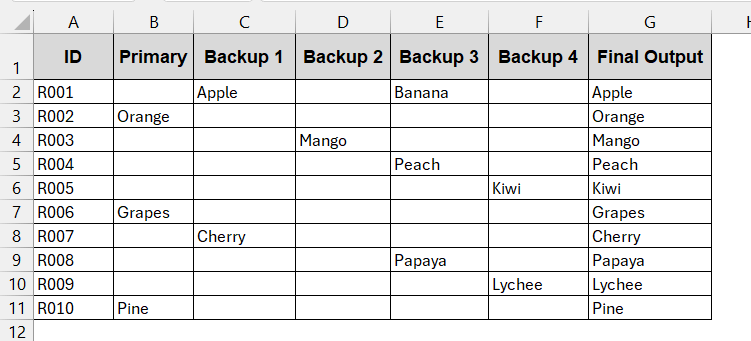
➤ This will generate a new column replacing the blank cells of column B with the backup columns from C to F. Give an appropriate header for the new column.
Notes:
➨ Replace the Sheet1 of line 4 with your sheet’s name –
Set ws = ThisWorkbook.Sheets(“Sheet1”) ‘ Adjust sheet name if needed
➨ In line 6, change the column reference to your primary column.
lastRow = ws.Cells(ws.Rows.Count, “B”).End(xlUp).Row
Downloadable Resources
Get our practice workbook or necessary files that we have worked with to prepare this article.
Copy Another Cell If a Cell Is Blank.xlsx
Frequently Asked Questions (FAQs)
What happens when both primary and backup are blank?
When both the primary and the backup cells are blank, the IF will return a value of 0. It states the condition is false every time. To professionally deal with zeros, you can mention ‘Not Available’ in the formula beforehand.
=IF(A2<>"",A2,IF(B2<>"",B2,"Not Available"))
How do I detect cells that are not really blank and have empty spaces?
To detect the blank cells that are actually not blank, and have empty spaces, can’t be checked using the ISBLANK function. You need to use LEN(TRIM)=0 in such cases to treat such hidden cells as blank ones.
How do I prevent zeros when copying blank cells?
Many times, cells contain zero, which holds no value in the real dataset. But they can get copied while replacing the blank ones. To prevent that, you can modify your IF function accordingly.
=IF(OR(A2="",A2=0), B2, A2)
Can I apply the formula dynamically to the whole column?
You can use the formula for the entire column dynamically. To do that, you can use both the formula and the VBA approach. In the case of the IF function, you can use the entire column range in the formula –
=IF(A2:A100<>"",A2:A100,B2:B100)
Can Power Query be used to remove blank columns?
Yes, Power Query can also be used, though it requires advanced control over the dataset. For this, load the data into the Power Query first. Add a Custom Column to check the primary and backup columns by using the same IF function. Once done, you can actually reload them back to the sheets again.
Concluding Words
Filling the blanks in Excel by copying other cells does not have to be a manual task. You can easily fill them with the basic IF formula. For advanced use, you can combine ISBLANK, nested IF, and TRIM/LEN for a better workflow. Also, when you prefer a faster solution for larger datasets, options like VBA Macros are also available to save you. All these methods are helpful, unique, and best in their own way – you just need to know which fits your requirement. So, open your dataset, try each method, and see which one clicks with your daily work.