Converting a PDF file to Excel can be tricky, especially when you want to keep the original layout, table structure, and cell formatting intact. Many times, data from a PDF ends up misaligned or merged into one column when pasted into Excel. Luckily, there are simple and effective ways to convert PDF files to Excel while preserving the formatting.
In this article, you’ll learn how to convert a PDF to Excel without losing formatting using some simple methods.
Here’s how to convert PDF to Excel without losing formatting:
➤ Open a new or existing Excel workbook.
➤ Go to the Data tab on the ribbon.
➤ Click Get Data >> From File >> From PDF.
➤ Browse and select your PDF file. Click Import.
➤ In the Navigator window, select the Table that you want to convert and click Transform Data.
➤ It will take you to the Power Query window. Now, go to the Home tab and click Close & Load >> Close & Load To…
➤ Excel will now automatically load your PDF table into a worksheet. The column headers, cell structure, and formatting are preserved.
➤ If you want to convert the table into a normal range, go to the Table Design tab and click Convert to Range.
➤ Excel will change your formatted table back into a regular data range.
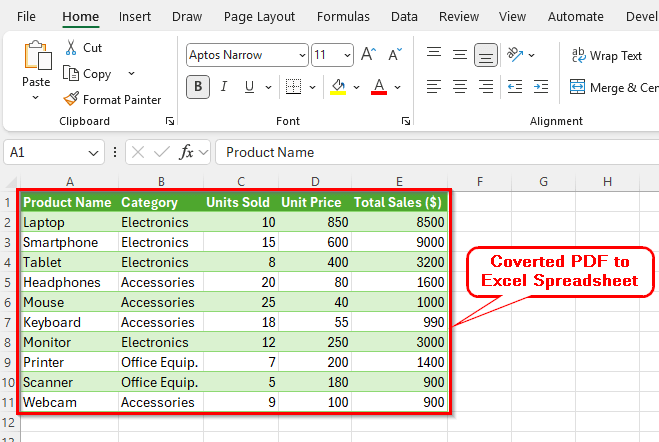
Applying Power Query to Convert PDF to Excel without Losing Formatting
In the following dataset, we have a sample Sales Report originally stored as a PDF file. The table includes product details such as Product Name, Category, Units Sold, Unit Price, and Total Sales. We’ll use this PDF file to demonstrate how to convert it to Excel while keeping the table structure and formatting.
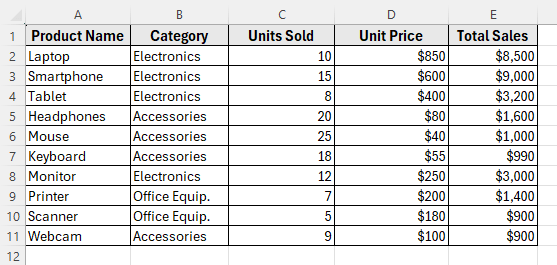
This is the PDF content we’ll convert into Excel with proper rows, columns, and formatting intact.
If you’re using Excel 365 or Excel 2021, you don’t need any third-party tool to convert a PDF to Excel. Excel now has a built-in feature that lets you import tables directly from PDF files and keep their original formatting.
Here’s how to do it step by step:
➤ Open a new or existing Excel workbook.
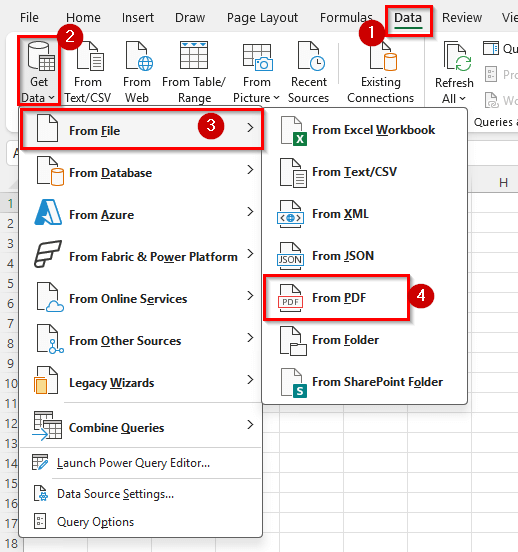
➤ Go to the Data tab on the ribbon.
➤ Click Get Data >> From File >> From PDF.
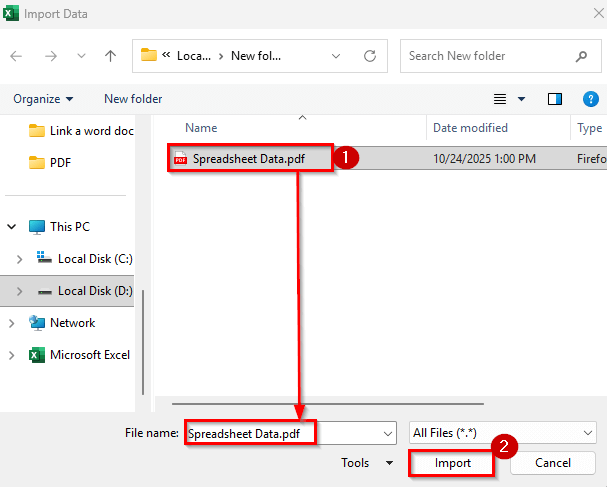
➤ Browse and select your PDF file. Click Import.
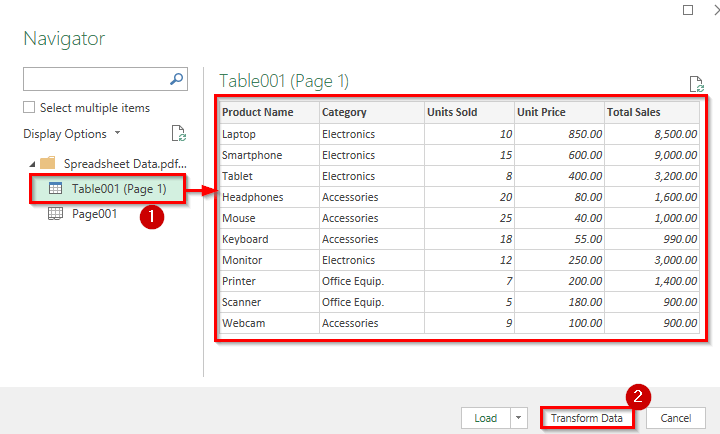
➤ In the Navigator window, Excel will show all tables and pages it detected.
➤ Select the Table that you want to convert and click Transform Data.
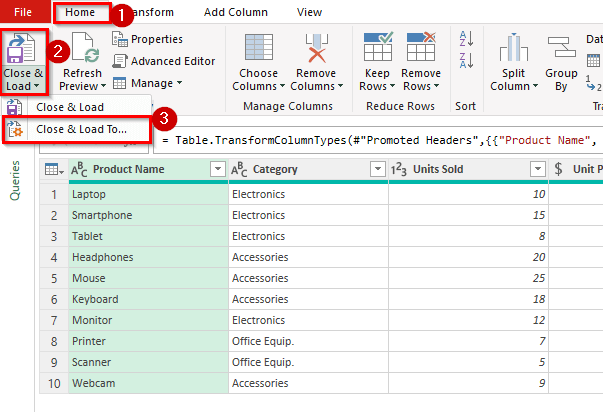
➤ It will take you to the Power Query window. Now, go to the Home tab and click Close & Load >> Close & Load To…
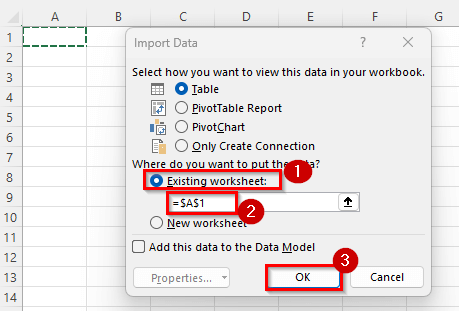
➤ In the Import Data window, check Existing worksheet and select the cell where you want to place the imported table. For example, cell A1.
➤ Click OK to confirm.
➤ Excel will now automatically load your PDF table into a worksheet. The column headers, cell structure, and formatting are preserved.
➤ If you want to convert the table into a normal range, go to the Table Design tab and click Convert to Range.
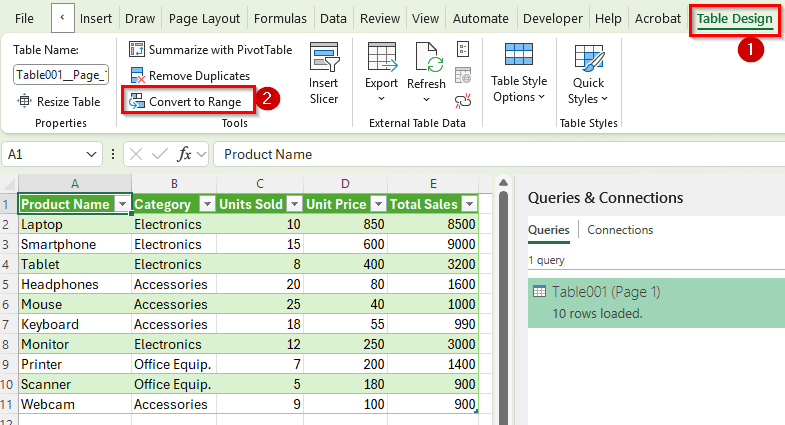
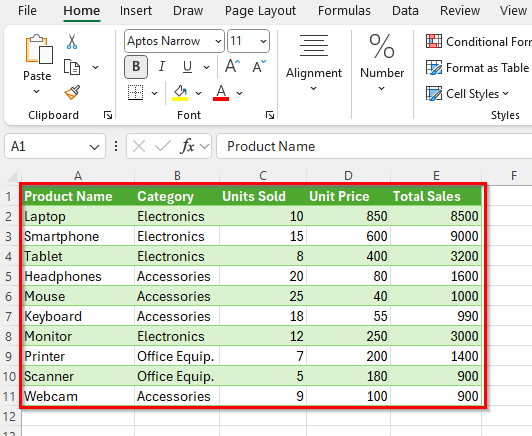
➤ Excel will change your formatted table back into a regular data range.
Convert PDF to Excel Using Adobe Acrobat Conversion Tool
Adobe Acrobat provides a built-in export option that converts PDFs directly to Excel format. It’s ideal when your PDF has complex formatting, merged cells, or multiple tables.
Here’s how to do it step by step:
➤ Open Adobe Acrobat from Google.
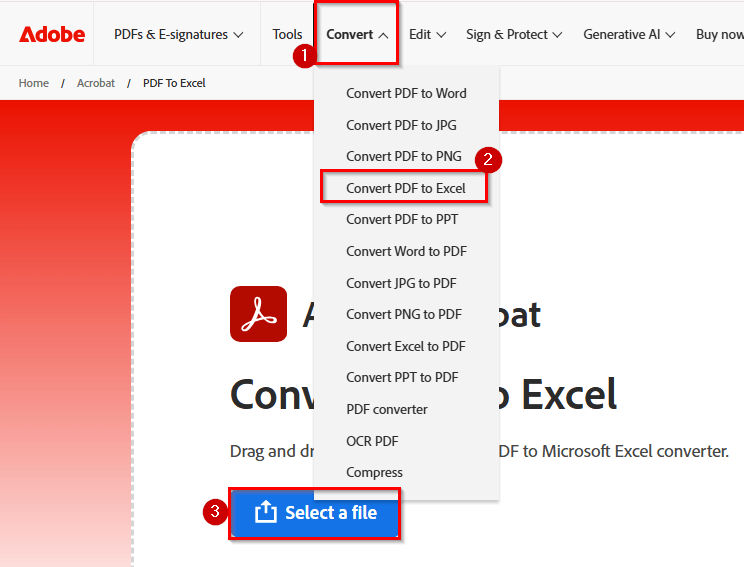
➤ Click on Convert >> Convert PDF to Excel.
➤ Next, click Select a File.
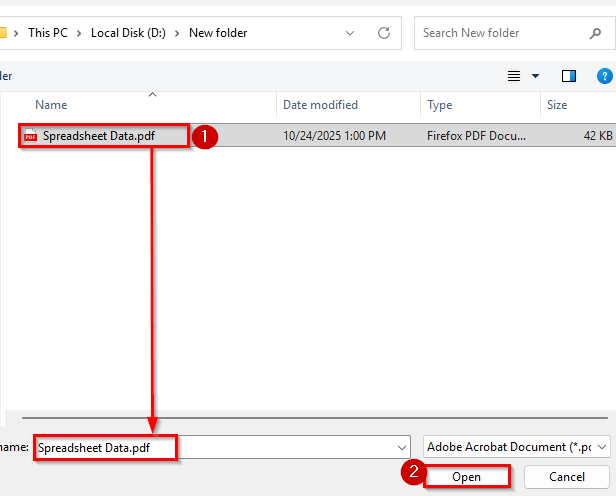
➤ Choose your PDF file from your computer and click Open.
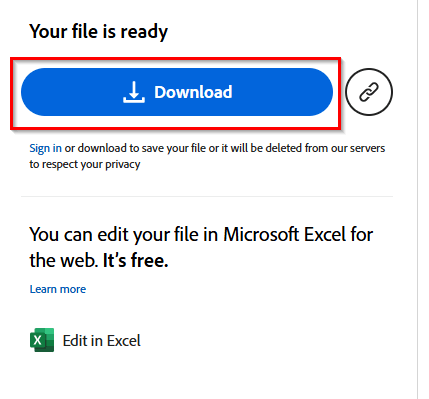
➤ Once your PDF file is converted to Excel, click Download.
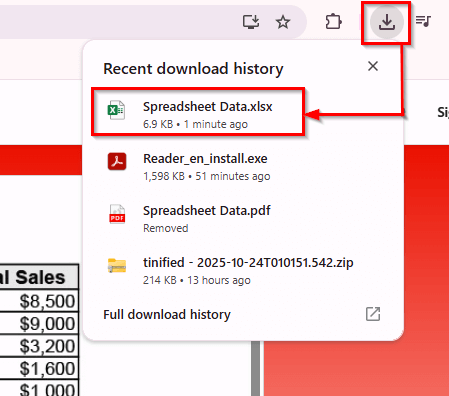
➤ You’ll find the downloaded Excel file in the top-right corner of your browser window.
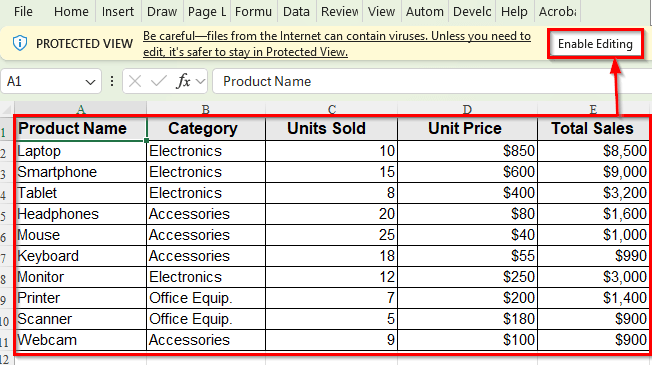
➤ Open the downloaded file. It will open in Protected View, which means you can’t make any edits or changes yet.
➤ To fix this, click Enable Editing at the top of the worksheet so you can make changes freely.
Using Free Online Converters (iLovePDF or Smallpdf)
If you don’t have access to Excel’s import tool or Adobe Acrobat, free online tools are a great alternative. Websites like iLovePDF, Smallpdf, or PDFtoExcel can convert PDFs into editable Excel files while maintaining formatting.
In this example, we’ll use iLovePDF to convert PDF files to editable Excel without losing formatting.
Here’s how to do it step by step:
➤ Go to iLovePDF site from Google.
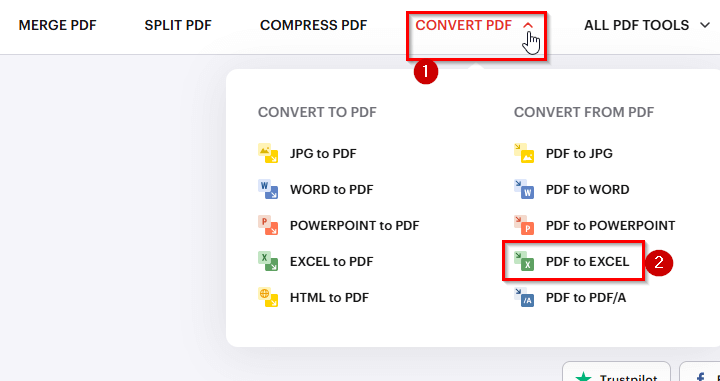
➤ Go to Convert PDF dropdown and click PDF to Excel.
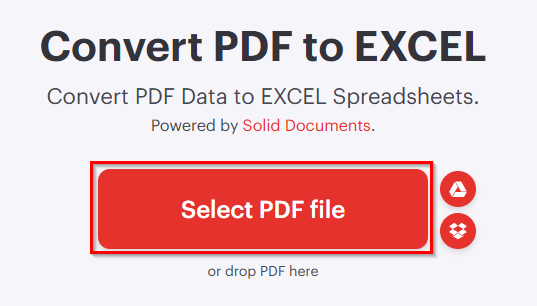
➤ Click on Select Pdf file.
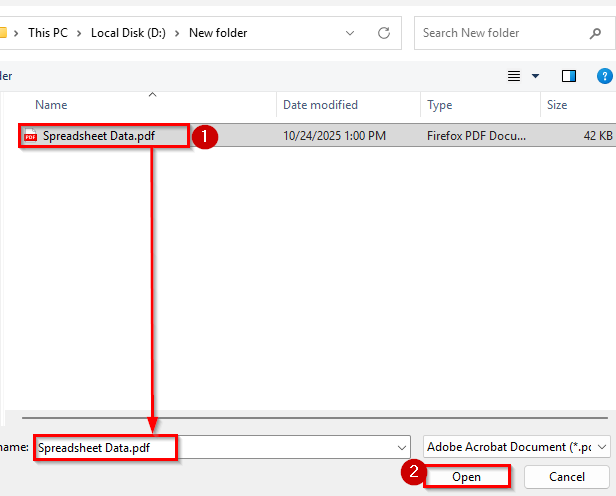
➤ Choose your PDF file from your computer and click Open.
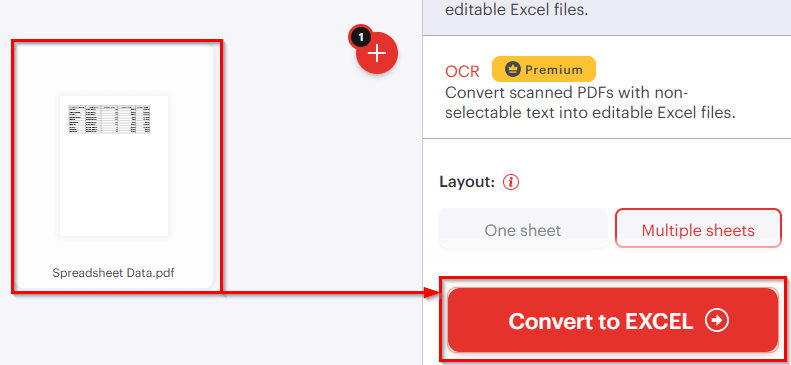
➤ Once your PDF file is ready to convert, click Convert to Excel.
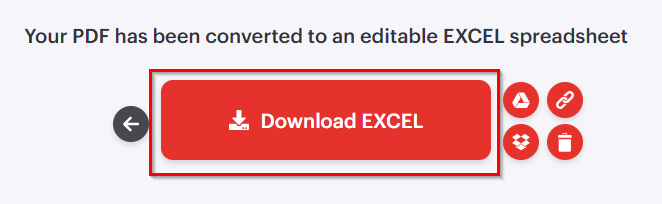
➤ Now, your PDF has been converted to an editable Excel spreadsheet. Click Download EXCEL.
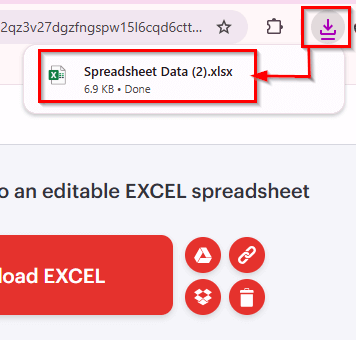
➤ You’ll find the downloaded Excel file in the top-right corner of your browser window.
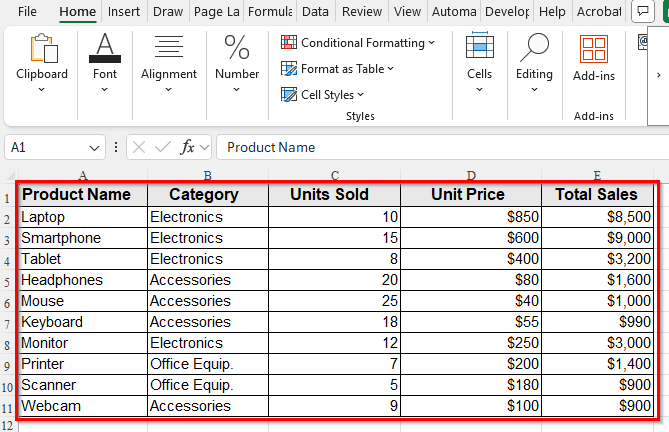
➤ Open the downloaded Excel file. You’ll see the tables, columns, and borders are appear as in the original PDF.
Downloadable Resources
Get our practice workbook or necessary files that we have worked with to prepare this article.
Convert PDF to Excel Without Losing Formatting.xlsx
Frequently Asked Questions
How can I convert scanned PDFs to Excel?
You can use Adobe Acrobat’s OCR (Optical Character Recognition) feature. It reads scanned images and converts them into editable Excel data. Some online tools like Smallpdf also include OCR conversion.
Does Excel automatically detect tables from a PDF file?
Yes. Excel’s Power Query automatically recognizes and extracts table structures from the file.
Why does my PDF data appear in a single column in Excel?
This happens if the PDF was created as an image or had poor formatting. Try converting it with OCR-enabled software like Adobe Acrobat or import it again using the From PDF option.
Are free online converters safe to use?
Most are safe for non-sensitive documents. For confidential business or financial data, use offline or trusted software like Excel or Adobe Acrobat.
Wrapping Up
Converting a PDF to Excel without losing formatting helps keep your tables clean, readable, and ready for data analysis. It’s especially useful for financial reports, invoices, or inventory lists originally shared as PDFs.
By using Excel’s built-in import tool or Adobe Acrobat’s export feature, you can save hours of manual formatting and ensure your spreadsheet looks just like the original document. For non-sensitive files, online converters also work well to achieve a clean and organized Excel layout.