When you filter data in Excel, only some rows remain visible, but Excel’s regular counting formulas still include the hidden ones. This makes it difficult to know how many visible cells actually contain text. To solve this, you can use special formulas that count only the cells shown after filtering.
In this article, you’ll learn how to count filtered cells that contain text in Excel using simple formulas.
Here’s how to count filtered cells that contain text in Excel:
➤ Open your dataset in Excel.
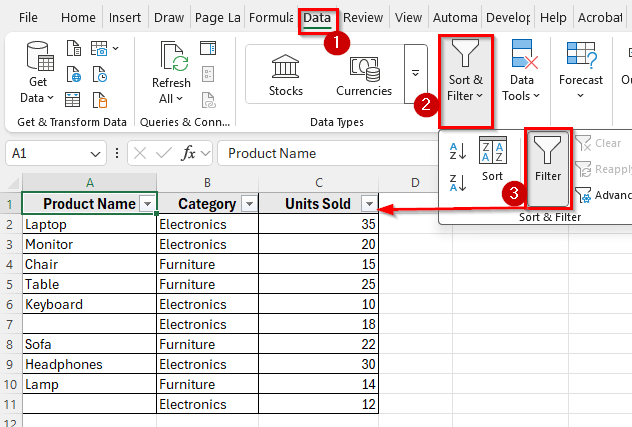
➤ Apply a filter to your dataset using the Data tab >> Filter option.
➤ Use this formula to count only visible cells with text:
=SUBTOTAL(103,A2:A11)
➤ Press Enter. You’ll see that Excel instantly counts the number of visible cells that contain data in the Product Name column.
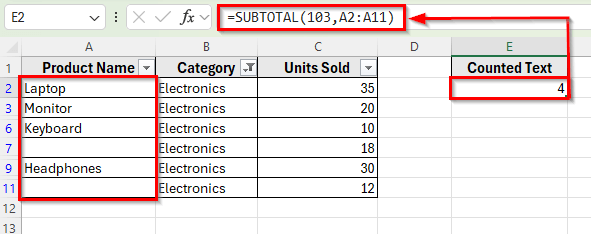
Using SUBTOTAL Function to Count Filtered Cells with Text in Excel
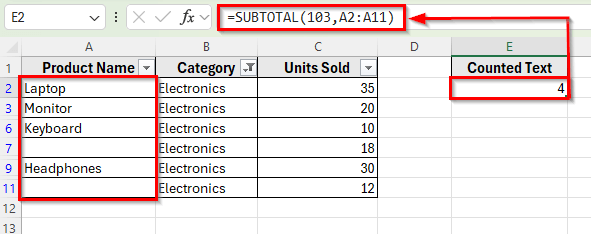
In the following dataset, we have a list of product names and their categories. Column A contains Product Names where some cells don’t have any text, Column B lists product Category, and Column C shows Units Sold.
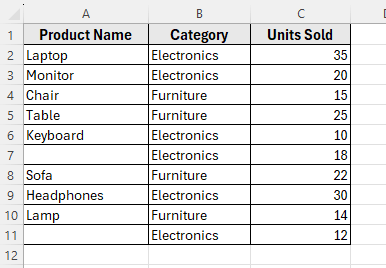
We’ll apply filters to this table and then count how many visible cells in the Product Name column contain text.
The SUBTOTAL function is one of the easiest ways to count only the visible cells in Excel. It automatically ignores hidden or filtered-out rows and calculates results based only on the visible data. This makes it perfect when you want to count text entries after applying filters to your worksheet.
Here’s how to do it step by step:
➤ Select any cell in your data range that contains your product names.
➤ Go to the Data tab on the ribbon and click Filter to add filter arrows to your column headers.
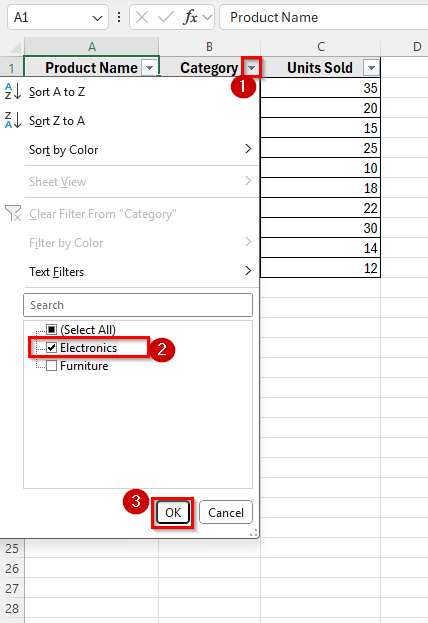
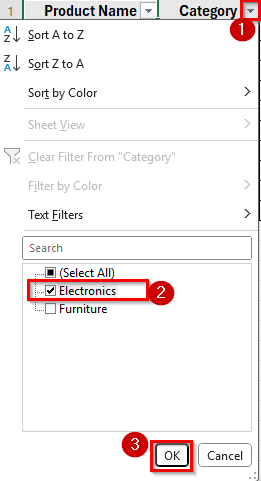
➤ Click the drop-down arrow beside the Category column and select Electronics.
➤ Only the products under the Electronics category will now be visible in your list.
➤ Click on an empty cell, for example E2, and enter the following formula:
=SUBTOTAL(103,A2:A11)
➤ Press Enter. You’ll see that Excel instantly counts the number of visible cells that contain data in the Product Name column.
Using COUNTIFS Function with a Helper Column
Another simple method is to count filtered cells with text using the COUNTIFS function. You can create a helper column to mark text entries and then use the COUNTIFS function to count them.
Here’s how to do it step by step:
➤ Go to the Data tab and click Filter to apply filters to your dataset if not already done.
➤ Filter the table by Category, for example select Electronics.
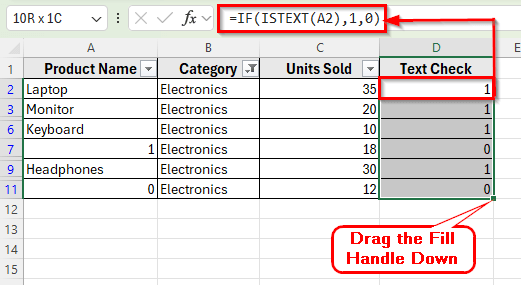
➤ Insert a new column beside your dataset and name it Text Check in cell D1.
➤ In cell D2, type the following formula:
=IF(ISTEXT(A2),1,0)
➤ Press Enter, then drag the fill handle down to D11 to apply the formula to the entire column.
➤ Each text cell in Column A will now display 1, and non-text cells will show 0.
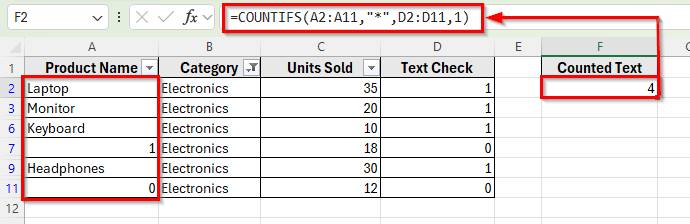
➤ In an empty cell, say E2, enter this formula:
=COUNTIFS(A2:A11,"*",D2:D11,1)
➤ Press Enter to see the result.
Combining OFFSET, ROW, and ISTEXT Functions to Count Only Visible Cells That Contain Text
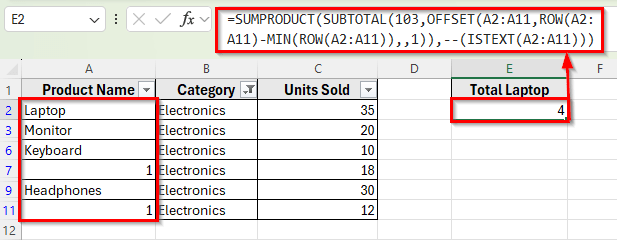
The SUBTOTAL function counts all visible non-blank cells, including numbers. If you want to count only the visible cells that contain text, you need to combine it with other functions such as OFFSET, ROW, and ISTEXT. This method ensures that only visible text entries are included in the result.
Here’s how to do it step by step:
➤ Click on an empty cell, for example E2, where you want to display the count result.
➤ Enter the following formula:
=SUMPRODUCT(SUBTOTAL(103,OFFSET(A2:A11,ROW(A2:A11)-MIN(ROW(A2:A11)),,1)),--(ISTEXT(A2:A11)))
➤ Press Enter to get the result.
Count Filtered Cells with Specific Text
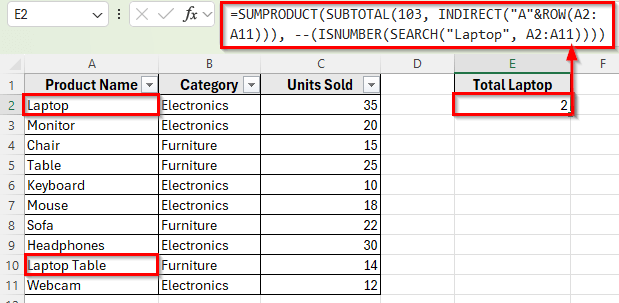
If you want to count only specific text in filtered cells, you need to combine it with other functions such as SUMPRODUCT, SUBTOTAL, INDIRECT, ROW, ISNUMBER, and SEARCH.
Here’s how to do it step by step:
➤ Click on an empty cell, for example E2, where you want to display the count result.
➤ Enter the following formula:
=SUMPRODUCT(SUBTOTAL(103, INDIRECT("A"&ROW(A2:A11))), --(ISNUMBER(SEARCH("Laptop", A2:A11))))
➤ Press Enter to get the result.
➤ Excel will return the total count of visible cells that contain the word Laptop even if the dataset is filtered.
Downloadable Resources
Get our practice workbook or necessary files that we have worked with to prepare this article.
Count Filtered Cells with Text.xlsx
Frequently Asked Questions
How do I count only visible cells with text in Excel?
You can use this formula to count only the visible cells that contain text:
=SUMPRODUCT(SUBTOTAL(103,OFFSET(B2:B11,ROW(B2:B11)-MIN(ROW(B2:B11)),,1)),--(ISTEXT(B2:B11)))
It counts all visible cells that have text values and ignores hidden rows.
Why does SUBTOTAL count numbers as well as text?
The SUBTOTAL function with code 103 counts all visible non-blank cells, including numbers. If you want to count only text cells, you must combine it with ISTEXT as shown above.
Can I count filtered text cells without using formulas?
Yes. Select the filtered range and look at Excel’s Status Bar at the bottom of the window. It shows a count of the visible cells. However, this method only gives a quick view and doesn’t provide a formula result inside a cell.
Wrapping Up
Counting filtered cells with text in Excel helps you analyze only the visible part of your data, making summaries more accurate. It’s especially useful when dealing with large tables or filtered reports where you only need results for the displayed entries.
Using these functions in this tutorial ensures your counts stay dynamic as you apply or remove filters, saving time and improving accuracy during analysis.