When working with complex Excel workbooks that contain multiple sheets and formulas, it can be difficult to keep track of important cell values while analyzing data elsewhere. Scrolling back and forth to check specific figures wastes time and increases the chance of missing an update.
In this article, you’ll learn what the Excel Watch Window is, how it works, and multiple ways to use and manage it effectively. This feature is especially useful for users who frequently audit formulas, monitor financial data, or review dynamic calculations spread across several worksheets. Let’s get started.
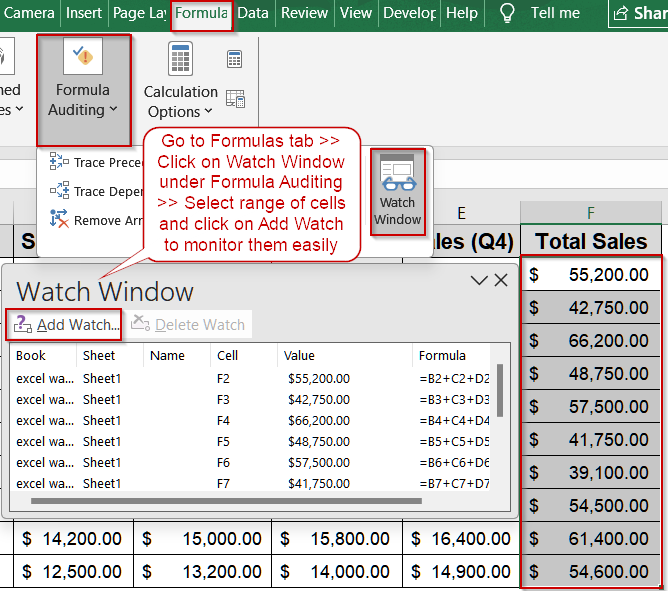
Steps to use the watch window in Excel:
➤ Go to the Formulas tab on the Ribbon.
➤ In the Formula Auditing group, click on Watch Window.
➤ A floating Watch Window panel will appear on your screen.
➤ Select the cell or range of cells (e.g., Total Sales) you want to monitor.
➤ In the Watch Window, click Add Watch.
➤ A dialog box will appear showing the selected cells. Click Add to confirm.
➤ The selected cells now appear in the Watch Window, displaying their values and formulas in real time.
What Is Excel Watch Window & What Does It Do?
The Excel Watch Window is a floating tool that allows you to track specific cell values and formulas without navigating to their actual location in the workbook. It’s ideal for monitoring key metrics such as totals, percentages, or formulas spread across multiple sheets while continuing to work elsewhere. This feature is especially useful when handling large datasets or financial reports where you need to keep an eye on certain calculations without constant scrolling or switching tabs.
Essentially, the Watch Window functions as a live dashboard for your selected cells, updating their values automatically in real time. It shows vital details, including the workbook and worksheet name, cell reference, current value, and any formulas used. This ensures you always have the most relevant data visible, helping you make quick and accurate decisions during your analysis.
Opening the Excel Watch Window
Before you can start tracking cells, you first need to open the Watch Window in Excel. This panel acts as the main workspace where you’ll view, manage, and monitor selected cells in real time. It’s part of Excel’s Formula Auditing tools, designed to help users inspect formulas, debug calculations, and ensure accuracy without having to switch between sheets.
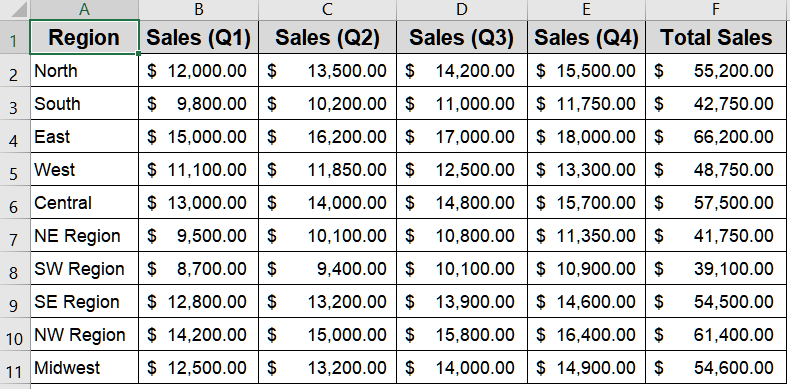
We’ll use the following dataset which shows quarterly sales figures for different regions and the total sales has been calculated with formulas:
Steps:
➤ Go to the Formulas tab on the Ribbon.
➤ In the Formula Auditing group, click on Watch Window.
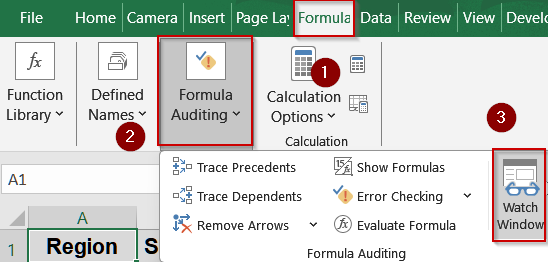
➤ A floating Watch Window panel will appear on your screen.
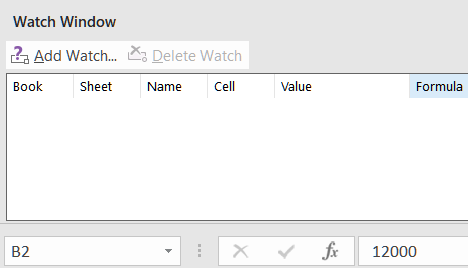
You can move and dock this panel anywhere in your Excel workspace for easy visibility.
Adding Cells to the Watch Window
After opening the Watch Window, the next step is to add the specific cells or ranges you want to keep track of. This is particularly helpful when working with financial models, large data summaries, or KPI reports spread across multiple sheets. Once added, the selected cells will display their values and formulas inside the Watch Window, updating automatically whenever changes occur.
Steps:
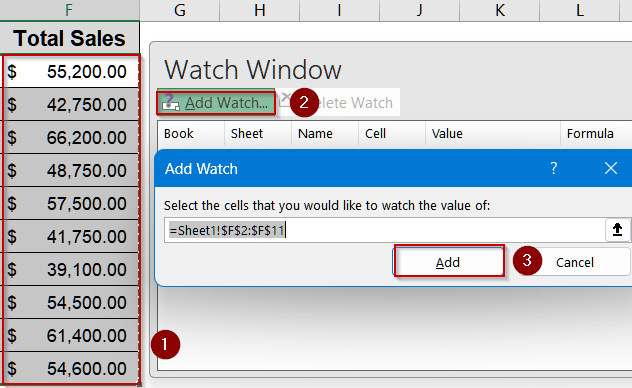
➤ Select the cell or range of cells (e.g., Total Sales) you want to monitor.
➤ In the Watch Window, click Add Watch.
➤ A dialog box will appear showing the selected cells. Click Add to confirm.
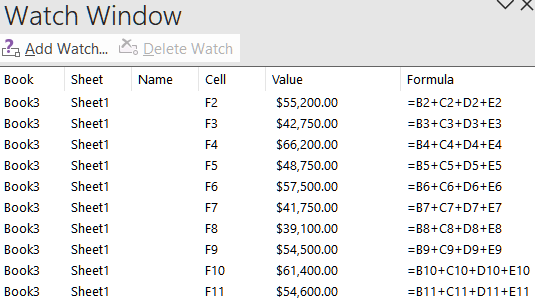
➤ The selected cells now appear in the Watch Window, displaying their values and formulas in real time.
Managing the Watch Window
As your dataset grows or your analysis becomes more complex, managing the Watch Window efficiently becomes essential. Excel allows you to reposition, resize, and customize the Watch Window for optimal use. You can monitor multiple sheets or even different workbooks at once which makes it easier to track overall performance, totals, or error-prone formulas without losing context.
Steps:
➤ Resize or move the Watch Window by dragging it anywhere in your Excel workspace.
➤ You can watch cells from different worksheets or even other open workbooks.
➤ Use it while scrolling through large datasets to keep summary or key cells visible.
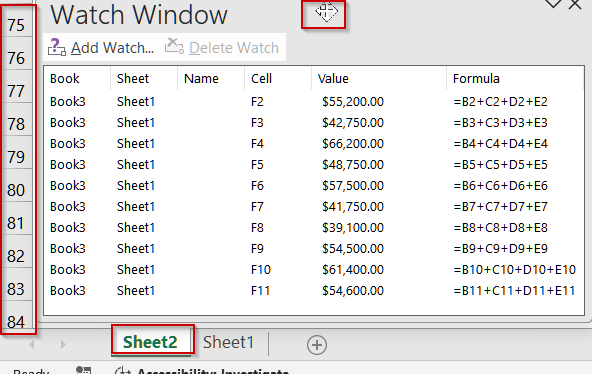
This flexibility ensures that your most important data remains in view at all times, even when navigating through complex spreadsheets.
Deleting Cells from the Watch Window
Over time, you may accumulate multiple watched cells that are no longer relevant. Removing these entries keeps your Watch Window clean and focused, preventing distractions or confusion during ongoing analysis. Deleting unnecessary watches also improves clarity when you only need to track specific KPIs or formula results.
Steps:
➤ Select the cell(s) you want to remove from the Watch Window list using the Shift key.
➤ Click Delete Watch in the Watch Window toolbar.
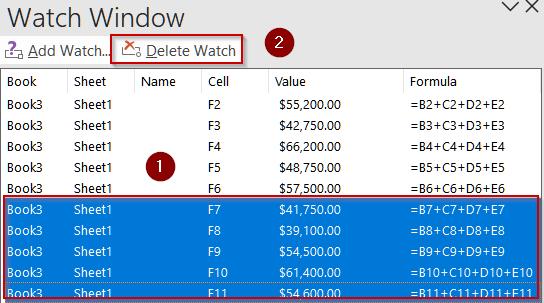
➤ The selected cell(s) will be removed immediately.
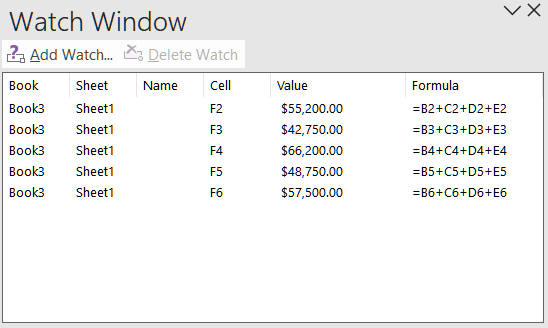
This ensures your Watch Window only displays the most meaningful and up-to-date information for your analysis.
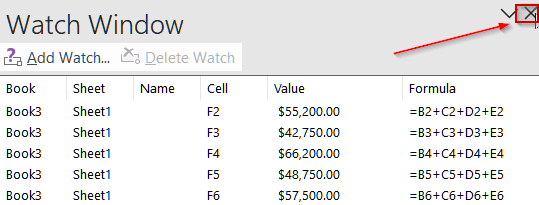
➤ Additionally, simply click on the X icon to close the Watch Window if you no longer need it.
Creating a Watch Window Using VBA
If you want to monitor a cell’s value directly through VBA rather than using the Excel interface, you can easily do this with the VBA Watch Window. This tool lets you track a variable or range value while running your macro line by line which is perfect for checking totals or calculations from your dataset dynamically.
Let’s take an example using the same dataset where each region’s quarterly sales are listed, and the Total Sales column (Column F) contains the sum for each region. We’ll monitor the Total Sales for the “North” region as the macro runs.
Steps:
➤ Press Alt + F11 to open the VBA Editor.
➤ Go to Insert >> Module to create a new module.
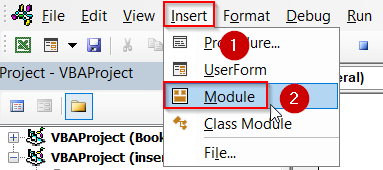
➤ Paste the code below inside the module:
Sub TrackSalesWithWatchWindow()
    Dim totalSales As Double
    totalSales = ThisWorkbook.Sheets("Sheet1").Range("F2").Value 'Total Sales for North region
    totalSales = totalSales + 500 'Example adjustment to simulate data change
    MsgBox "Updated Total Sales: " & totalSales
End Sub
➤ Click anywhere on the variable totalSales in the code.
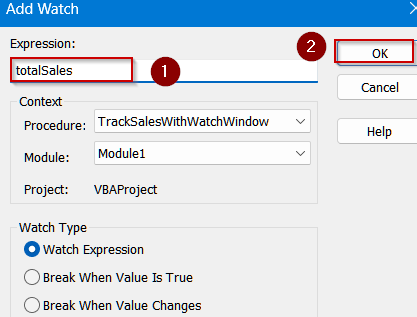
➤ Go to the top menu and click Debug >> Add Watch.
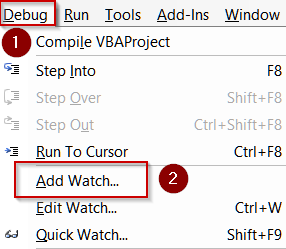
➤ A dialog box will appear. Ensure totalSales is shown under Expression, then click OK.
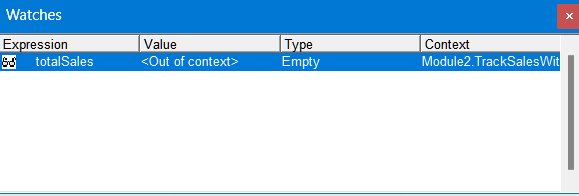
➤ You’ll now see the Watch Window appear at the bottom of the VBA editor showing columns like Expression, Value, Type, and Context.
➤ Press F8 key to run the macro step by step.
➤ As you move through each line, the Watch Window will show the changing value of totalSales.
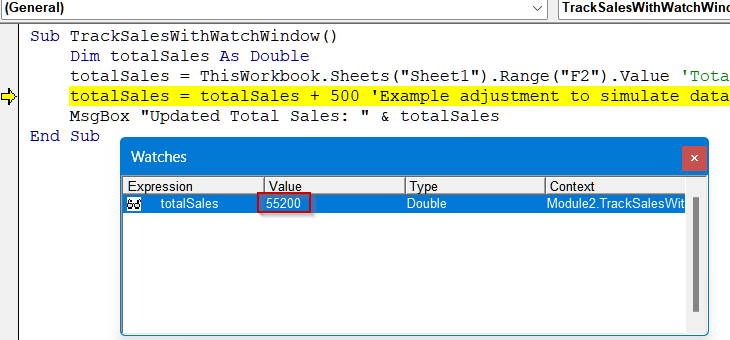
➤ You’ll see how it starts with $55,200 (the North region total) and then increases after the simulated adjustment.
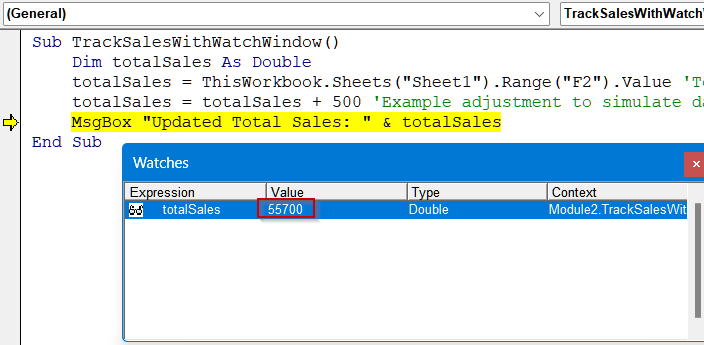
This approach is excellent for tracking live variable changes during code execution, especially when analyzing or debugging sales summaries across multiple regions.
Downloadable Resources
Get our practice workbook or necessary files that we have worked with to prepare this article.
Frequently Asked Questions
What is the purpose of the Watch Window in Excel?
The Watch Window allows users to monitor specific cell values and formulas across multiple worksheets without scrolling. It’s especially useful when auditing complex workbooks or tracking important calculations in real time.
Can I watch cells from different worksheets or workbooks?
Yes, the Watch Window can track cells from different worksheets within the same workbook and even from multiple workbooks opened simultaneously. This makes it ideal for monitoring linked data or comparing results across sheets.
Does the Watch Window update automatically when data changes?
Yes, the Watch Window updates in real time whenever the values or formulas in the watched cells change. This ensures you always see the most recent and accurate information during analysis.
How many cells can I monitor using the Watch Window?
Excel does not have a strict limit on the number of cells you can add to the Watch Window, though performance might slow slightly if you decide to track a very large number of cells in your workbook.
Can I close and reopen the Watch Window without losing watches?
Yes, closing the Watch Window doesn’t remove your watched cells. However, if you close the workbook completely, the watched cells must be re-added when you open it again in Excel.
Wrapping Up
In this tutorial, you learned what the Excel Watch Window is and how to use it effectively for monitoring critical cells across multiple sheets. By mastering this feature, you can audit formulas, track financial summaries, and analyze data efficiently without switching tabs repeatedly. Feel free to download the practice file and share your feedback.