Adding bullet points in Excel text boxes can greatly improve the readability and organization of your worksheets. Whether you are listing tasks, instructions, or items from a dataset, bullets make content easier to follow and visually appealing.
In this article, we will explore four practical methods to add bullet points in Excel text boxes using the right-click menu, keyboard shortcuts, symbols, and copy-paste techniques, along with a sample dataset to practice. Let’s get started.
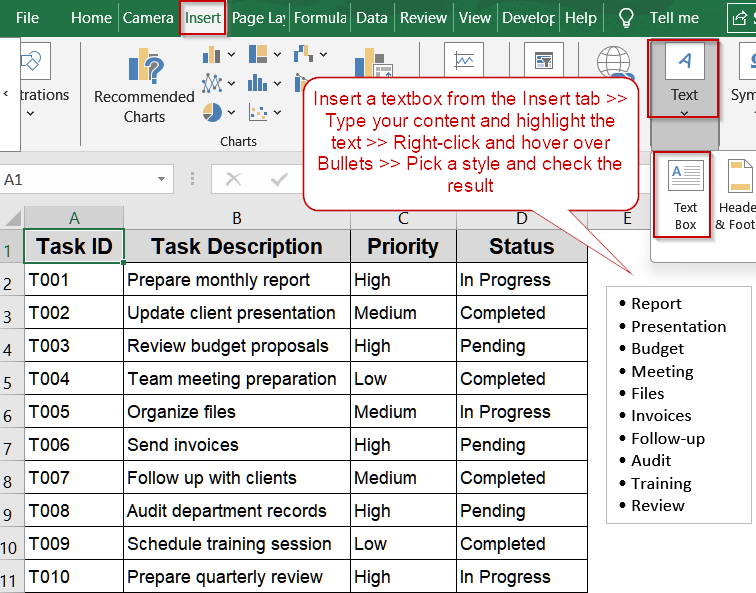
Steps to add bullet points in Excel text box:
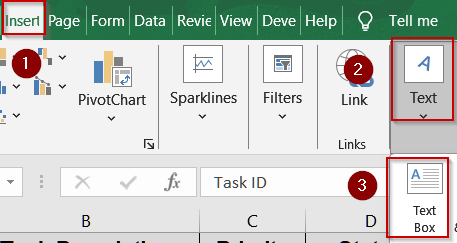
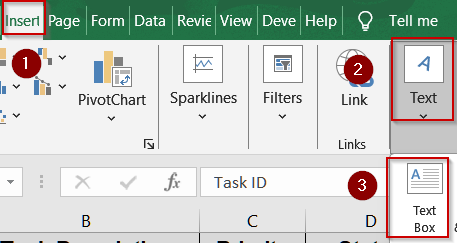
➤ Insert a text box by going to the Insert tab, clicking Text Box, and drawing the box on your worksheet.
➤ Type the content you want to display as a bullet list.
➤ Highlight the lines of text you want to format.
➤ Right-click the selected text to open the context menu.
➤ Hover over or select the Bullets option and choose your preferred bullet style.
Add Bullet Points in the Text Box Using Context Menu
When creating lists in Excel text boxes, the right-click context menu provides a simple and visual way to add bullet points. This method is ideal for users who prefer a straightforward approach without memorizing codes, allowing quick selection of predefined bullet styles.
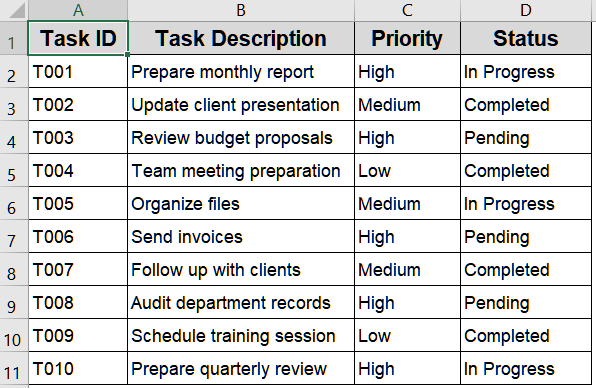
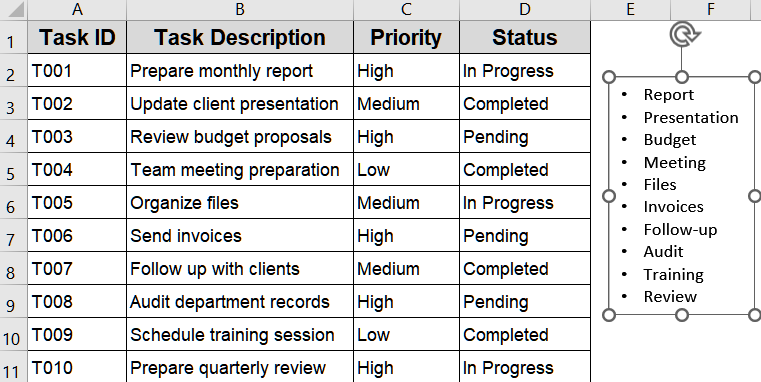
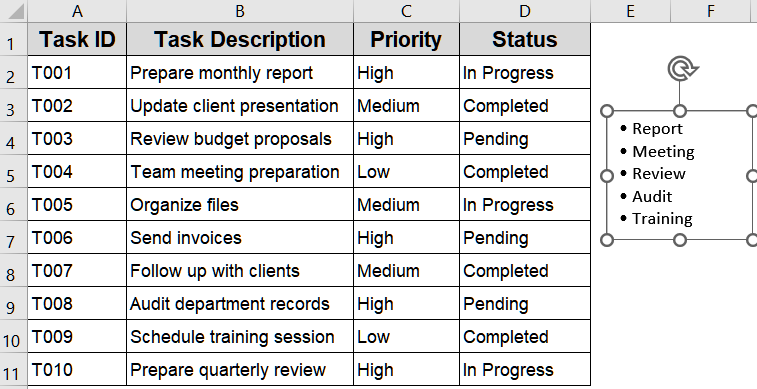
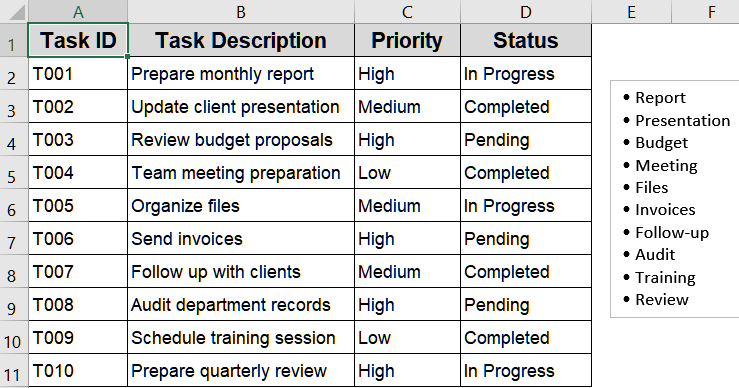
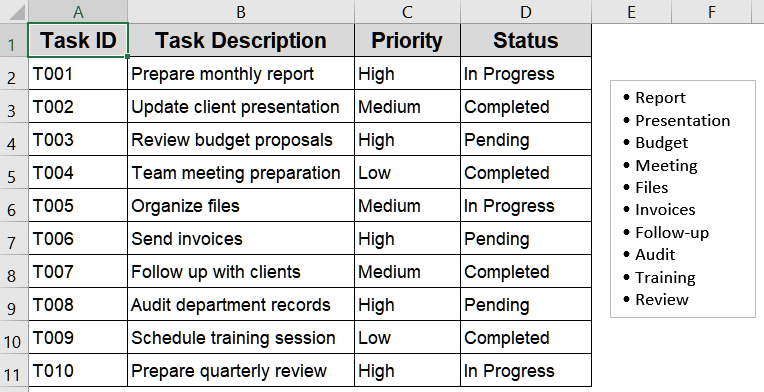
We’ll use the following dataset and next to it on the right, we’ll add a text box with a bulleted list.
Steps:
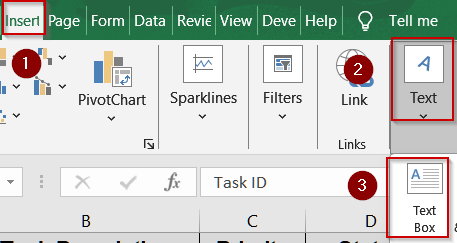
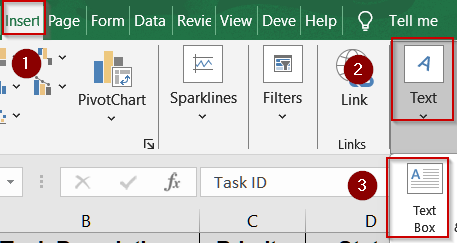
➤ Insert a text box by going to the Insert tab, clicking Text Box, and drawing the box on your worksheet.
➤ Type the content you want to display as a bullet list.
➤ Highlight the lines of text you want to format.
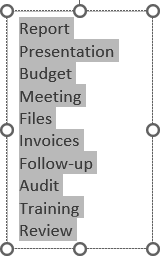
➤ Right-click the selected text to open the context menu.
➤ Hover over or select the Bullets option and choose your preferred bullet style.
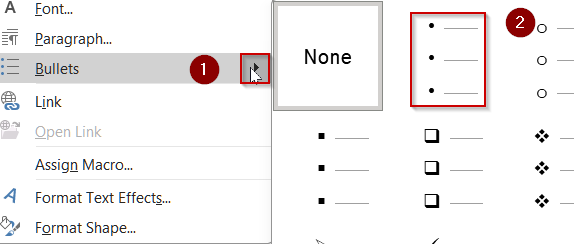
Now your textbox has been successfully formatted with bullet points.
Insert Bullet Points Using Keyboard Shortcuts
For users who prefer a fast, manual method, keyboard shortcuts allow insertion of bullet points directly in a text box. This approach is perfect for quickly adding bullets without navigating menus, ensuring each line starts with a consistent symbol.
Steps:
➤ Insert a text box using Insert >> Text Box and draw the desired area.
➤ Click inside the textbox.
➤ Press and hold the Alt key, then type 0149 on the numeric keypad and release the Alt key to insert a bullet.

➤ Enter your text after the bullet.
➤ Press Alt + Enter to move to a new line and repeat the Alt code method for additional bullets.
Add Bullet Points in the Text Box Using Excel Symbols
Using symbols provides flexibility to insert bullets in different shapes, such as arrows, stars, or squares. This method is ideal for users who want customized bullet styles or a visually distinct list within text boxes.
Steps:
➤ Insert a text box via Insert >> Text Box and draw it on the worksheet.
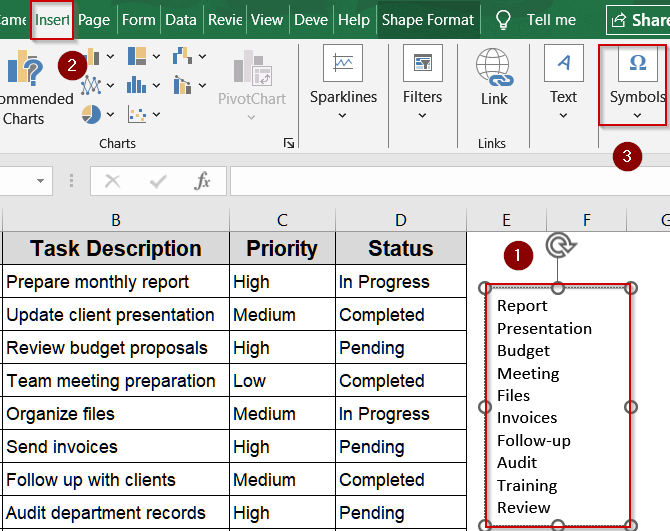
➤ Type the text you want to display as a list.
➤ Go to the Insert tab and click Symbol to open the symbol library.
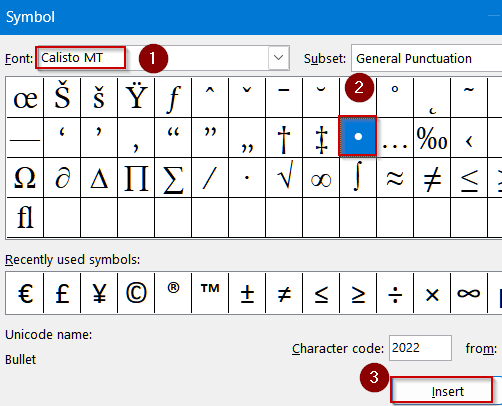
➤ Set the font to Calisto MT and select a bullet or custom symbol from the list and click Insert.
➤ Copy and paste the symbol at the beginning of each line as needed.
➤ Adjust font size, style, and spacing to ensure proper alignment of bullets.
Copy and Paste Bullet Points from Another Source
If you already have a list with bullets from Word, Outlook, or a website, copying and pasting is the fastest method. This approach preserves formatting and ensures your bullet points appear exactly as intended in Excel text boxes.
Steps:
➤ Copy the bullet list from your source document using Ctrl + C .
➤ Insert a text box in Excel using Insert >> Text Box and draw the desired area.
➤ Click inside the text box and press Ctrl + V to paste the list.
➤ Resize the text box as necessary to fit all content.
➤ Adjust font, spacing, or alignment to ensure the bullets look consistent and professional.
Downloadable Resources
Get our practice workbook or necessary files that we have worked with to prepare this article.
Bullet points in Text Box.xlsx
Frequently Asked Questions
Can I add bullet points directly without a text box?
No, Excel does not allow direct bullet points inside cells. To create properly formatted bullet lists, you need to use a text box, which ensures alignment, spacing, and consistent appearance for multiple lines of text.
Do Alt codes work on laptops without a numeric keypad?
On laptops without a dedicated numeric keypad, Alt codes may not function properly. Users can enable Num Lock and use embedded numeric keys, or alternatively, copy and paste bullet symbols or use the Insert >> Symbol command for bullets.
Can I change bullet style in Excel text boxes?
Yes, you can customize bullet styles in Excel text boxes. Right-click the selected text and choose different bullet types, or insert custom symbols like stars, arrows, or squares, adjusting font and spacing to suit your preferred layout.
Will bullets stay intact when copying text boxes?
When copying text boxes with bullets to another worksheet or workbook, the bullet formatting remains intact. Excel preserves spacing, alignment, and symbol styles, ensuring that lists maintain their professional appearance and readability across different locations.
Can I automate bullet creation for multiple text boxes?
Excel does not natively automate bullet insertion for multiple text boxes. However, VBA macros can be used to insert consistent bullets automatically, saving time and maintaining uniform formatting for repetitive tasks across several text boxes or worksheets.
Wrapping Up
In this tutorial, we explored four practical methods to add bullet points in Excel text boxes, including right-click menus, keyboard shortcuts, symbols, and copy-paste techniques. Each method improves list readability and makes your worksheets look professional and organized. Feel free to download the practice file and share your feedback.