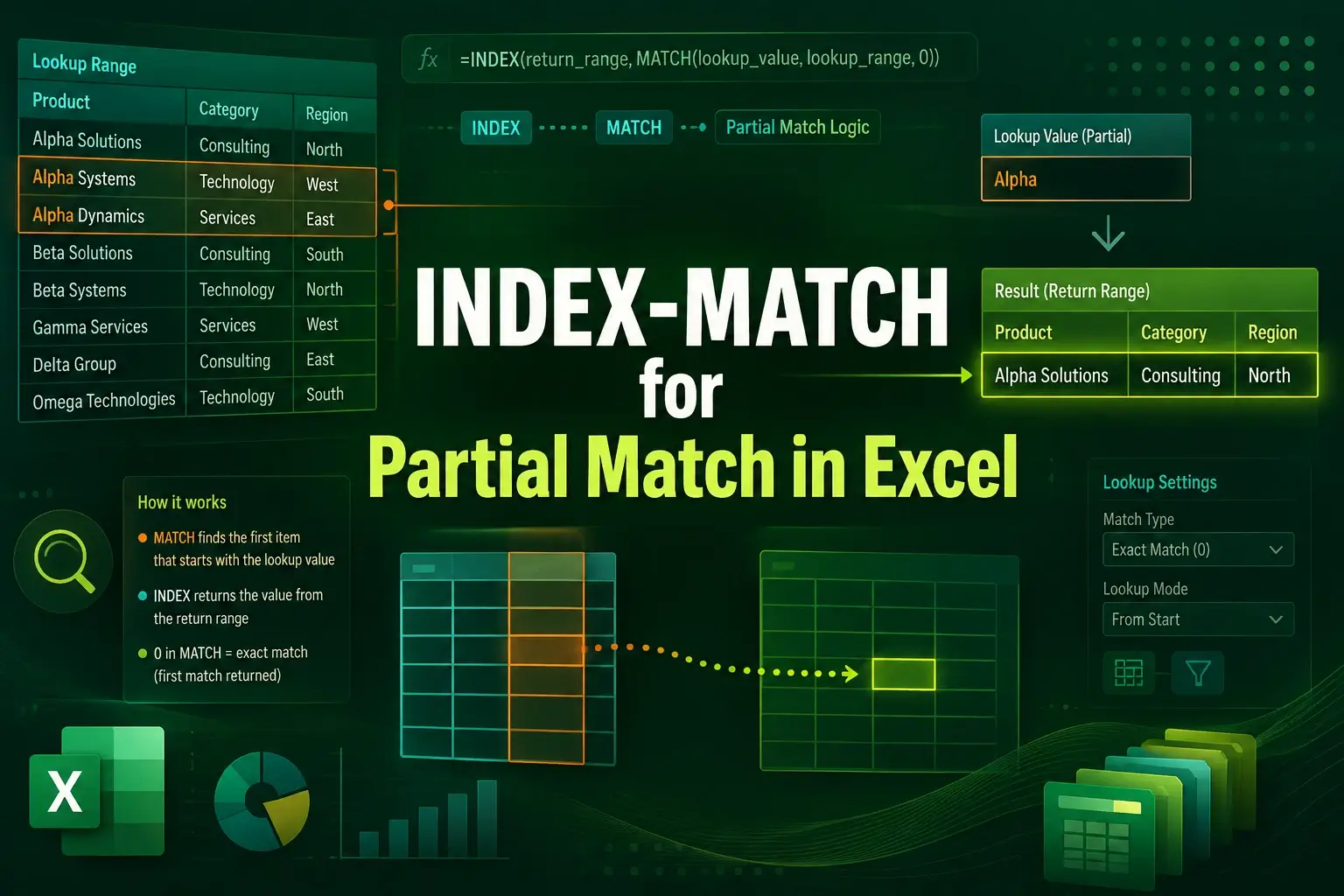
Searching for data in Excel often requires finding matches that aren’t exact. Standard lookup functions may fail when text has extra words, prefixes, or suffixes. Partial matches become essential in such cases.
In this article, you will learn how to use INDEX and MATCH functions with wildcards to perform partial matches in Excel. We’ll cover techniques to find values starting, ending, or containing specific text, retrieve corresponding numbers or text, and handle multiple criteria efficiently. Let’s get started.
Steps to use INDEX-MATCH for partial match in Excel:
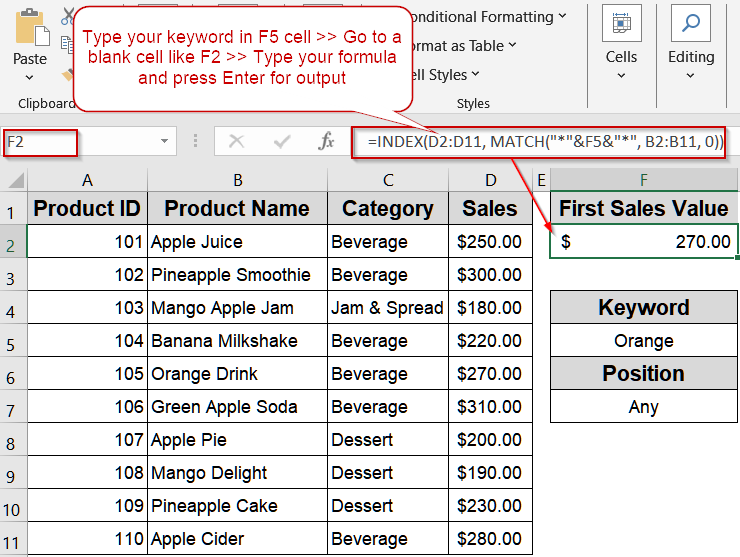
➤ Enter your search keyword (e.g., Orange) in F5.
➤ In another blank cell, type the formula:
=INDEX(D2:D11, MATCH(“*”&F5&”*”, B2:B11, 0))
➤ Press Enter to return the corresponding Sales value for the first product containing the word “Orange”.
Retrieve Data When Text Appears Anywhere in a Cell
Sometimes the text you’re searching for can appear at any position within a cell, whether at the start, middle, or end of a product name. Standard lookups may miss these entries, but combining INDEX and MATCH functions with wildcards on both sides ensures all relevant results are captured. This approach is ideal for datasets with inconsistent naming patterns.
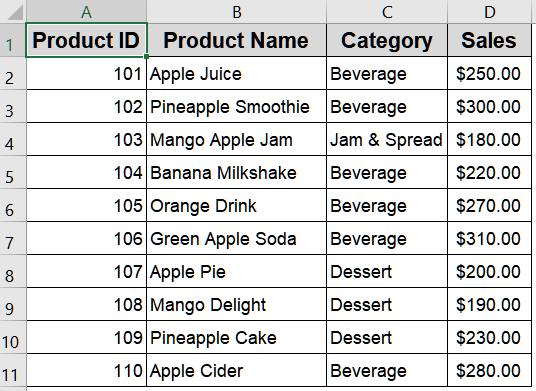
We’ll use the following dataset sales dataset for demonstration:
Steps:
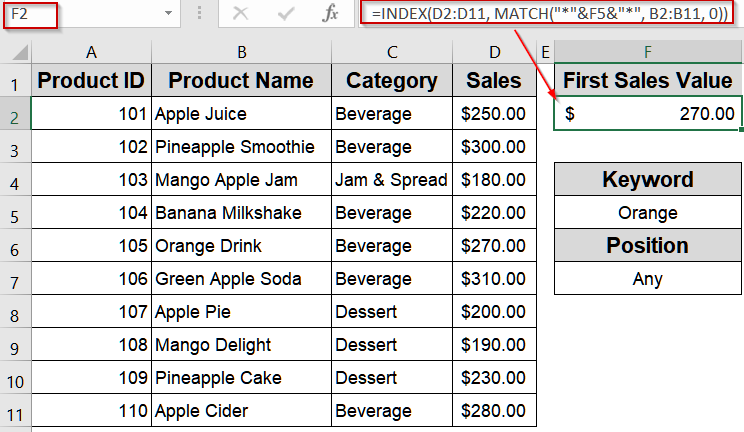
➤ Enter your search keyword (e.g., Orange) in F5.
➤ In another blank cell, type the formula:
=INDEX(D2:D11, MATCH("*"&F5&"*", B2:B11, 0))
➤ Press Enter to return the corresponding Sales value for the first product containing the word “Orange”.
Find Values Starting with Specific Characters
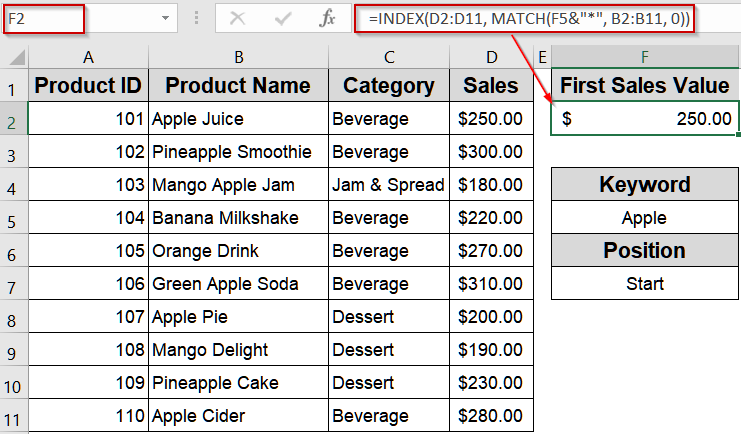
In many datasets, items follow a consistent naming pattern where the keyword appears at the beginning. Using a wildcard at the end of the lookup ensures you only retrieve entries that start with your specified text. This is helpful when searching for items like “Apple Juice” or “Apple Pie”.
Steps:
➤ Type your keyword (e.g., Apple) in F5.
➤ In a blank cell, type the formula
=INDEX(D2:D11, MATCH(F5&"*", B2:B11, 0))
➤ Press Enter to fetch the first value where the name starts with “Apple”.
Locate Data Ending with Specific Text
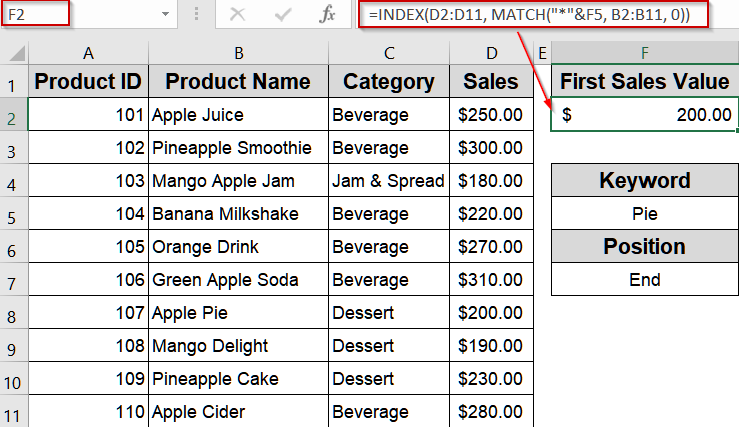
Some datasets include keywords at the end of entries, such as suffixes, regional codes, or product variants. Placing a wildcard before the lookup value allows INDEX and MATCH to locate items ending with the desired text. This method is useful for finding products like “Apple Pie”.
Steps:
➤ Enter your lookup text (e.g., Pie) in F5.
➤ In another cell, type the formula:
=INDEX(D2:D11, MATCH("*"&F5, B2:B11, 0))
➤ Press Enter to see the result where the product name ends with your keyword.
Combine INDEX-MATCH for Partial Matches with Multiple Criteria
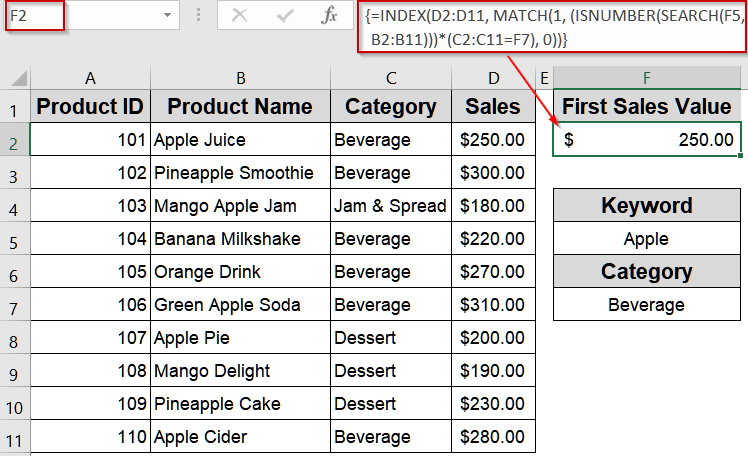
Sometimes a single search criterion isn’t enough, such as finding products that contain a keyword but also belong to a specific category. Standard partial match lookups cannot handle multiple conditions. Combining INDEX-MATCH functions with array logic allows you to retrieve values that satisfy all criteria simultaneously.
Steps:
➤ Enter your keyword (e.g., Apple) in F5 and category (e.g., Beverage) in F7.
➤ In another cell, type the formula:
=INDEX(D2:D11, MATCH(1, (ISNUMBER(SEARCH(F5, B2:B11)))*(C2:C11=F7), 0))
➤ Press Ctrl + Shift + Enter (for older Excel versions) or Enter (Excel 365/2021) to get the Sales value that meets both criteria.
Use INDEX-MATCH to Return Corresponding Text Instead of Numbers
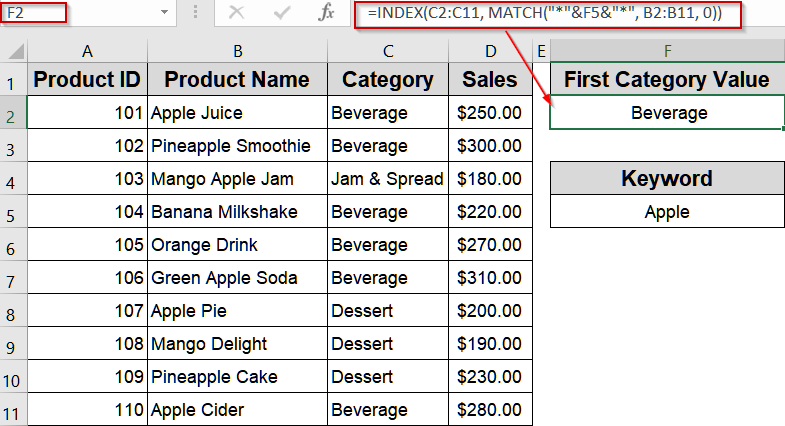
Partial matches can also be used to return text values like product categories or names instead of numbers. This is useful for checking which category or label corresponds to a partial keyword. For instance, we will find the first category value like Beverage or Dessert for the keyword Apple.
Steps:
➤ In F5, type a partial keyword (e.g., Apple).
➤ In another cell, type the formula:
=INDEX(C2:C11, MATCH("*"&F5&"*", B2:B11, 0))
➤ Press Enter to get the Category (like “Beverage” or “Dessert”) for that product.
Downloadable Resources
Get our practice workbook or necessary files that we have worked with to prepare this article.
INDEX-MATCH for Partial Match.xlsx
Frequently Asked Questions
Can INDEX-MATCH partial match work with numbers?
Partial matches using wildcards work only with text. To use numeric data, convert numbers to text with the TEXT function or add an apostrophe before the number so Excel treats it as text in the lookup formula.
Why does my INDEX-MATCH formula return #N/A?
This usually occurs due to incorrect wildcard placement, a mismatch between lookup and return ranges, or the searched keyword not existing in the range. Double-check your ranges and ensure the keyword is spelled correctly.
Are INDEX-MATCH partial matches case-sensitive?
No, Excel’s MATCH function ignores case by default. To enforce case sensitivity, you can combine SEARCH with the EXACT function inside an array formula, ensuring matches only occur when letter casing is identical.
Should I use VLOOKUP or INDEX-MATCH for partial matches?
INDEX-MATCH functions are preferred because it supports searches in any direction, works with partial text using wildcards, and handles complex datasets. VLOOKUP function is limited to left-to-right searches and is less flexible for partial matches.
Wrapping Up
In this tutorial, you learned how to perform partial lookups using INDEX and MATCH in Excel. Whether the keyword appears at the start, end, or anywhere within text, combining wildcards with these functions provides unmatched flexibility for text-based searches. Feel free to download the practice file and share your feedback.