Want to share only one tab in Google Sheets? It’s super easy and quick with our guide. Google Sheets is the most versatile tool for collaboration. This has every solution you can think of! Sharing only one tab with your team is one of those unique features you can get here. There are a few secure and proven methods you can follow. Follow along and get to know.
➤ The Hide Sheet option is the easiest way to share only one tab. However, in this method, you can share the document in only view-only or comment-only mode.
➤ The Protect Sheet feature helps you grant editing access to chosen individuals while ensuring everyone can see the tabs.
➤ The best way to hide any trace of the tabs you do not want to share is by creating a new spreadsheet.
➤ By publishing the spreadsheet, you can provide everyone with view access to a specific tab; however, they cannot edit the tab you have shared.
Share One Tab by Hiding All the Other Tabs
Using the Hide Sheet feature is super easy and can be done in a few clicks. Let’s say we have a spreadsheet containing three different tabs, but I want to share only the customer feedback sheet with my colleague. Here’s how you can do it:
Steps:
➤ Open your Google Sheet file.
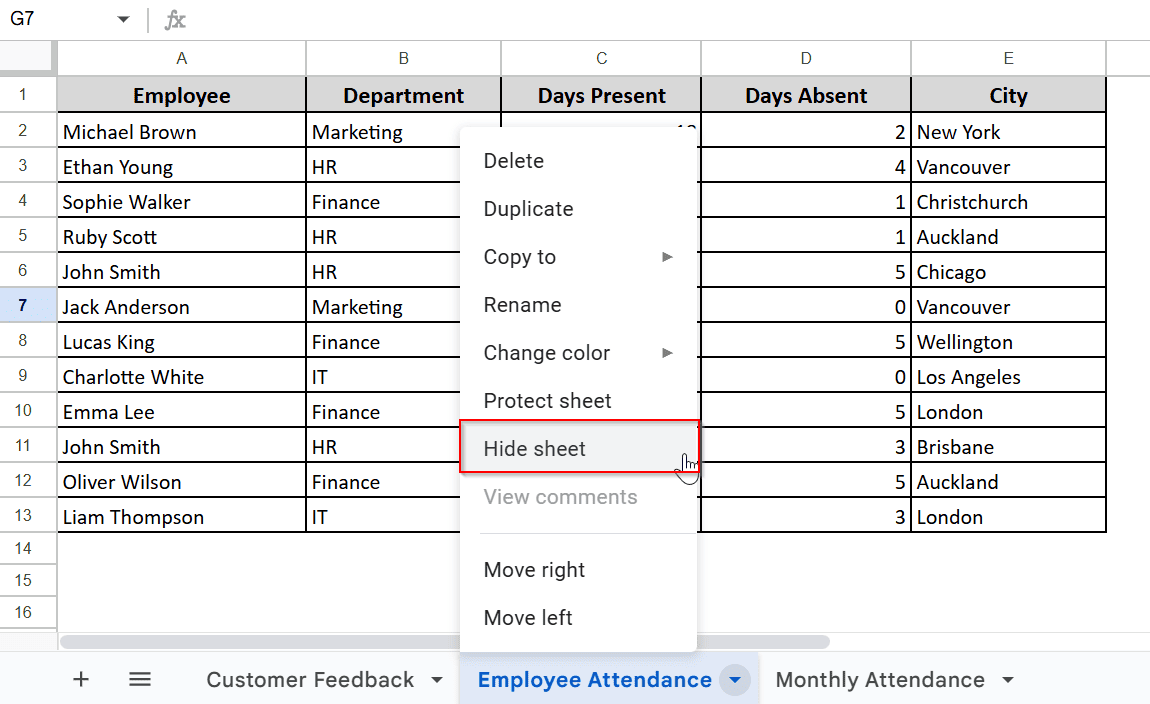
➤ Right-click on the tab you do not want to share.
➤ Choose the ‘Hide Sheet’ feature from the pop-up.
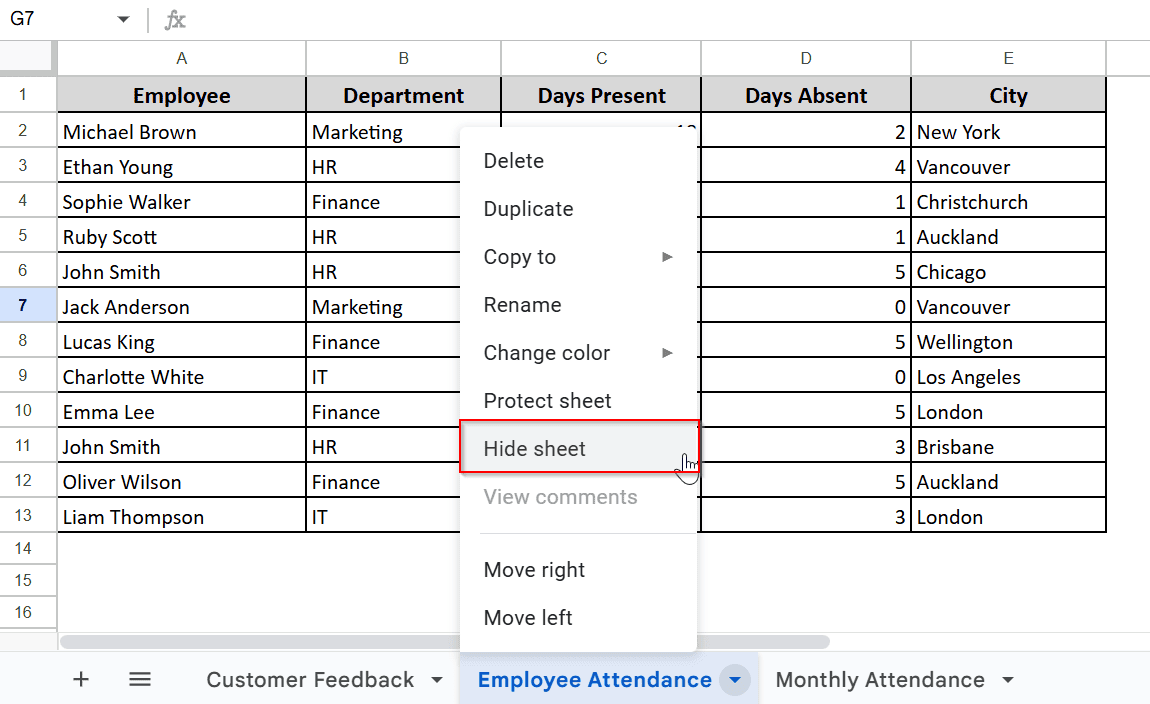
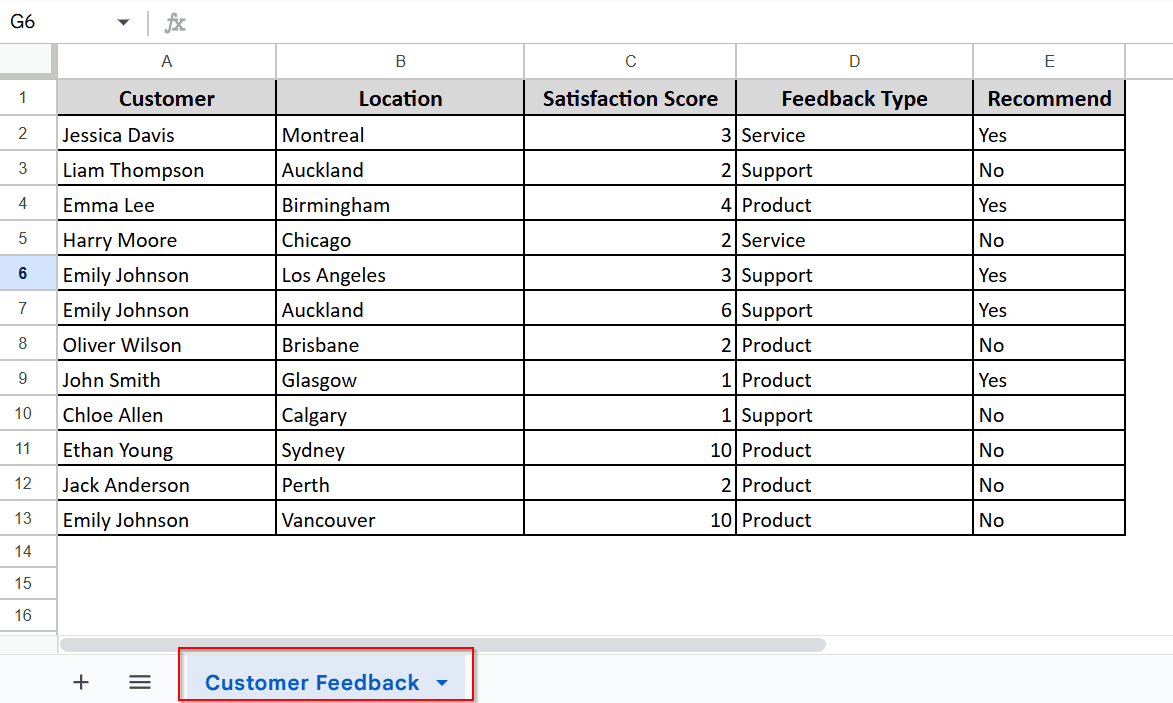
➤ Now, all the sheets you don’t want to share are hidden, and you are set to share your spreadsheet without compromising your privacy.
➤ To share the sheet, click on the Share button (at the top right corner ), enter the email addresses of the people you want to share the document with, and adjust the sharing settings (View, Comment, Edit).
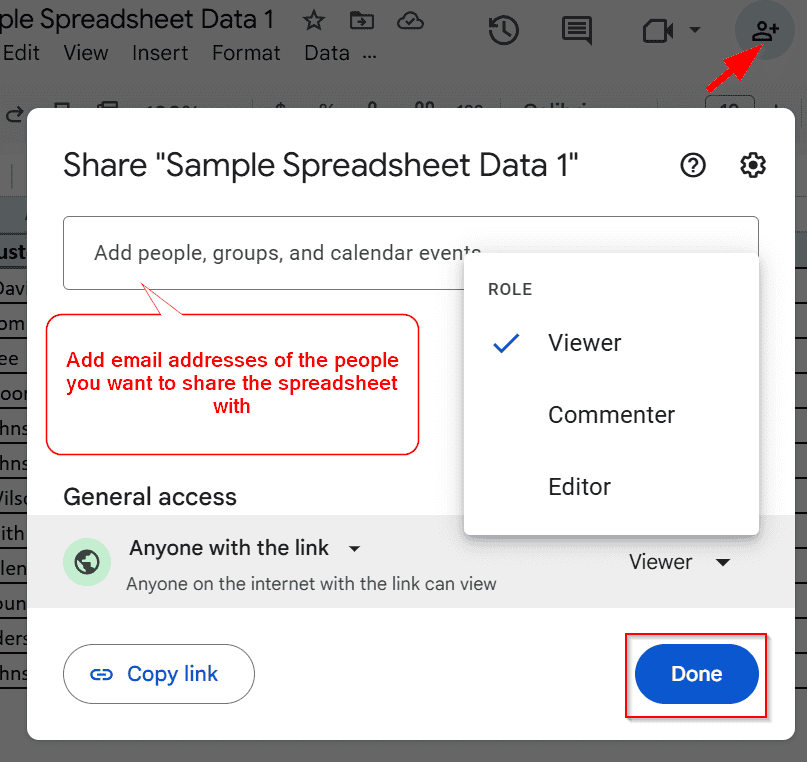
➤ Click ‘Done’ to finish the process. Now you can also share the link with others for better accessibility.
Note:
To protect hidden tabs, you must share your file in a view-only or comment-only mode.
Use the Protect Sheet Feature
The Protect Sheet feature is your friend if you want to protect specific tabs from edits and specify who can edit them. This restricts everyone’s access, although they can see the tabs.
Steps:
➤ Open the document you want to share.
➤ Right-click on the name of the Tab you want to protect from others.
➤ Select Protect Sheet from the pop-up.
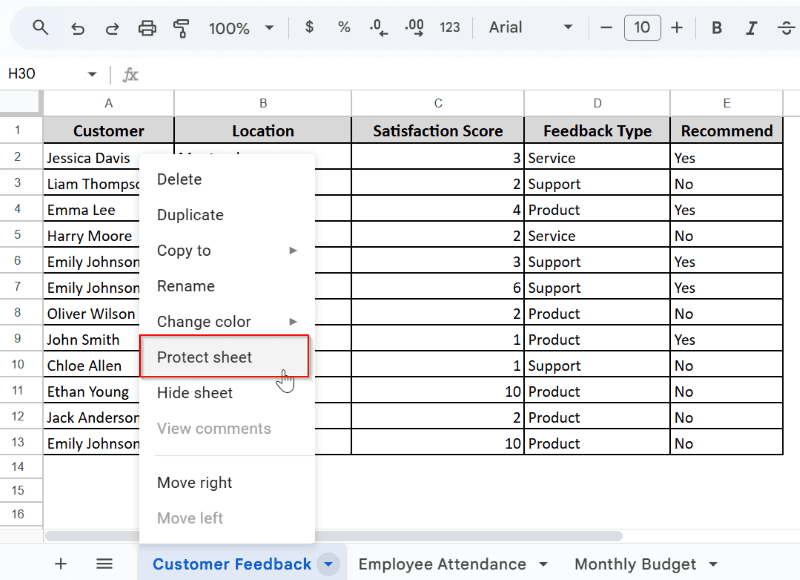
I want to protect the Customer Feedback tab, so I clicked on this tab’s name.
➤ From the sidebar, go to Sheet and choose the Tab you want to protect.
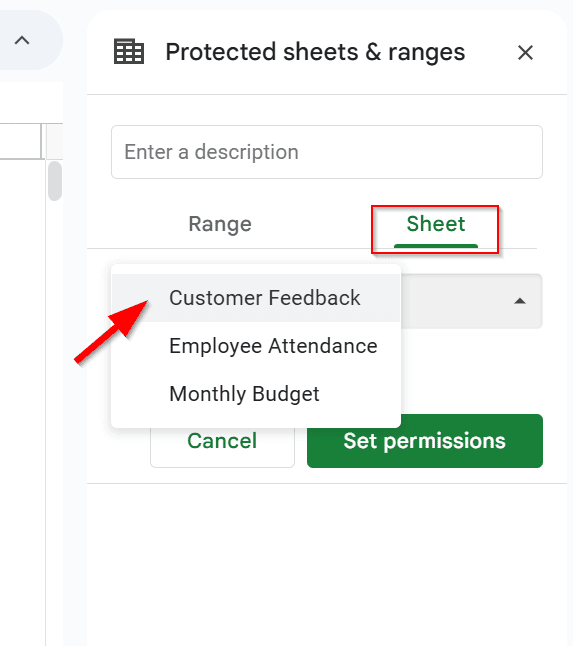
➤ Now, click Set Permissions and set who can edit the specific tab.
➤ If you do not want anyone else except you to edit the tab, choose ‘only you’ or use the Custom option to give the specific person’s email.
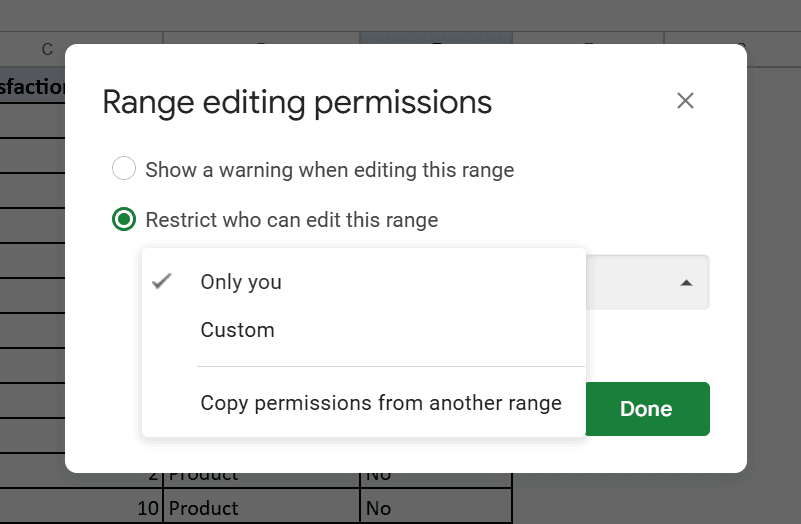
➤ Click Done, and you can share your spreadsheet without any worries.
➤ Share your spreadsheet from Share > Enter email > adjust view options.
Share by Creating a New Spreadsheet
If you do not want to take any risks and altogether avoid everyone else seeing all your tabs, it is better to share your data in a new spreadsheet.
➤ Simply click on the tab name you want to share and hover over Copy to; from the options, select New Spreadsheet, and voilà, a new spreadsheet containing the tab’s data will open.
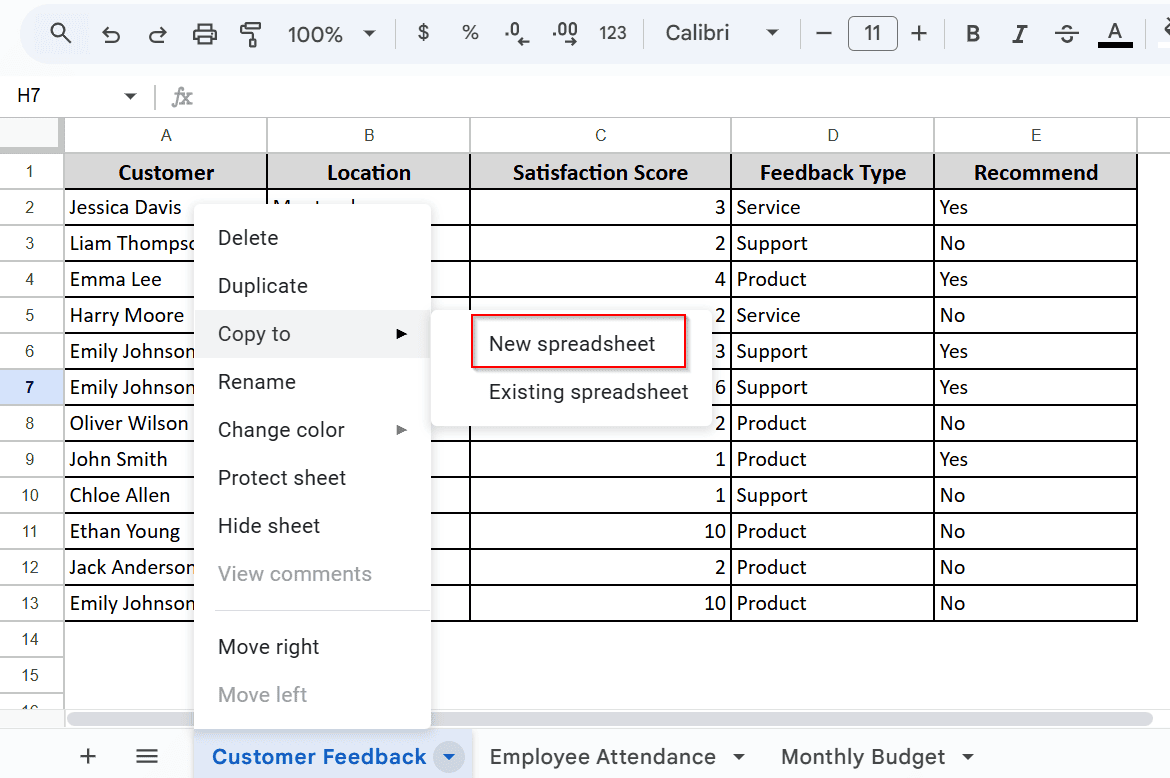
➤ Now, you can share the spreadsheet by clicking on the Share option and adjusting the share settings as you like.
Using the Publish to the Web Feature
You can use the Publish to the Web feature when you are trying to share a view-only link to a specific tab.
Steps:
➤ Open your spreadsheet and click on the tab name.
➤ Go to Files > Share > click Publish to Web.
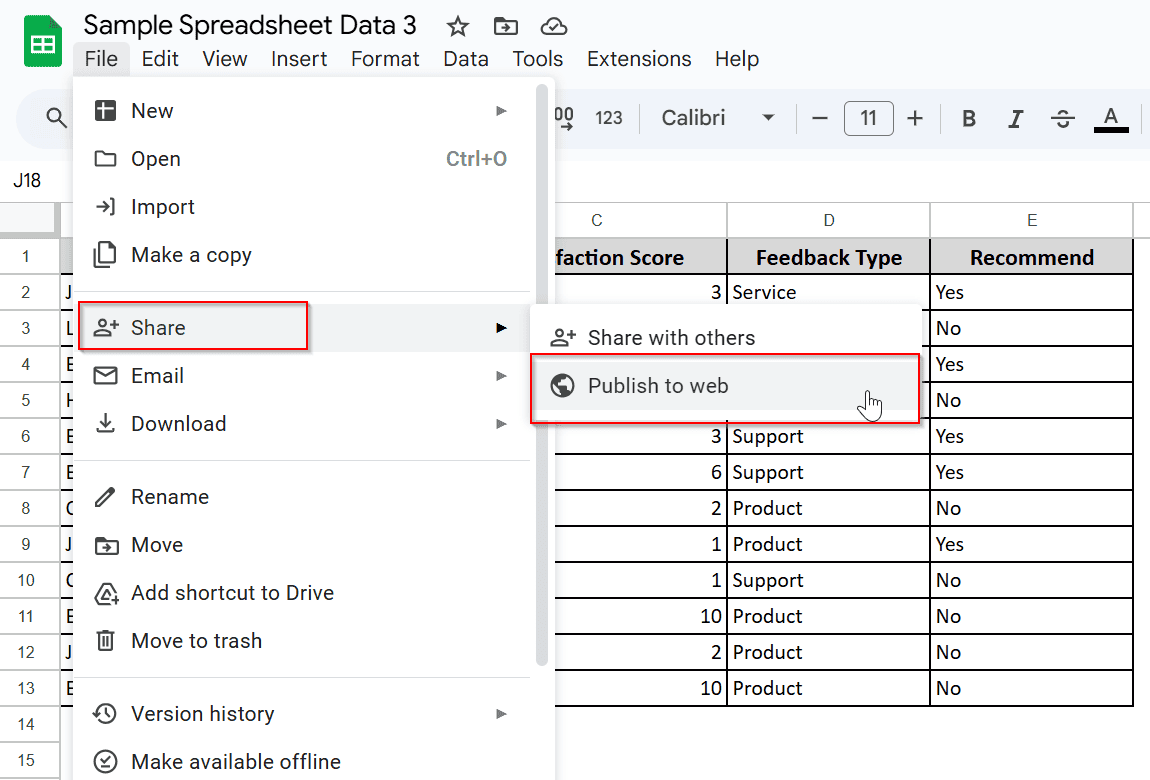
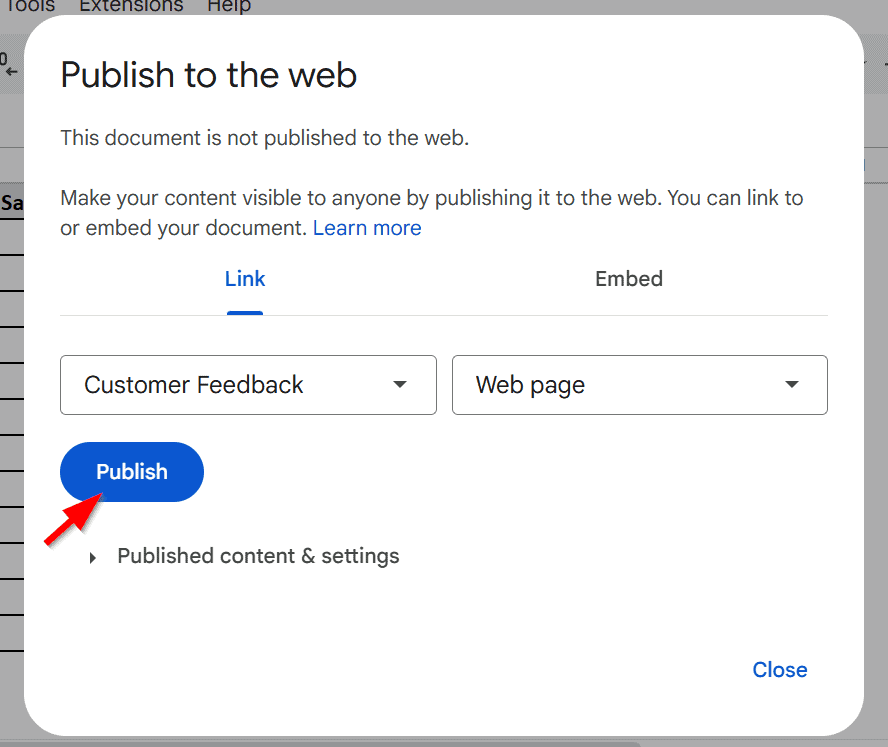
➤ Select the Tab you want to share from the Link option.
➤ Choose the file type and hit Publish.
➤ After publishing, you will have a link you can share, and viewers can easily access the shared tab.
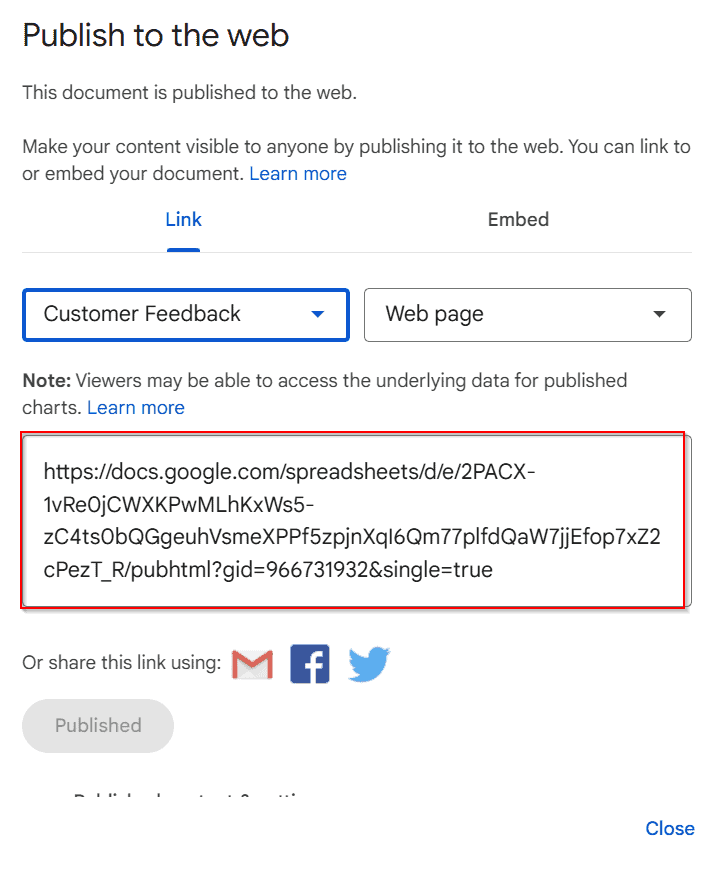
➤ Anyone can see the shared sheet using this link.
Frequently Asked Questions (FAQs)
Will others be able to unhide the tabs after I hide them?
Yes, if you share a document with others and grant them editing access, they can unhide the hidden tabs. However, if you restrict access to view-only or comment-only permissions, they cannot unhide the tabs.
What happens if I delete the original tab after copying it to a new spreadsheet?
If you copy a tab to a new spreadsheet and then delete the original tab, the copied data in the new spreadsheet will remain intact. The two sheets are independent after the copy, so deleting the original does not affect the copied data.
Concluding Words
The versatility of Google Sheets is endless; all you need to do is explore.
Sharing one tab in Google Sheets is easy and takes little time. Follow our exclusive methods to get the perfect results. Reach out to us through the comment section if you have any more questions. We are always eager to hear from you!