From managing inventory and serial numbers to shipping labels in Excel, manual entries can become overwhelming. Also, it is too luxurious to hope that it won’t have any errors. As errors often slip in, the codes are misread, and the entire data management and scaling seem too good to be true. This is where you might need to think something out of the ordinary – like the barcodes. Yes, Code 128 barcodes are one of the common types of barcodes that are extremely helpful for managing logistics and supply chains’ databases. Unlike Code 39, it is more compact and professional and can be set up with some easy steps.
To use Code 128 barcode font in Excel, follow the steps below –
➤ Open the dataset and create a new column for storing the barcodes.
➤ Give it a proper header (e.g, Barcodes).
➤ In the first cell of the column, write the following IMAGE formula –
=IMAGE(“https://barcodeapi.org/api/code128/” & A2)
Here, A2 is the cell containing the textual code that needs to be converted to a barcode.
➤ Press Enter to get the barcode.
➤ Drag the cells or use Fill Handle to apply the same formula to the rest of the cells.
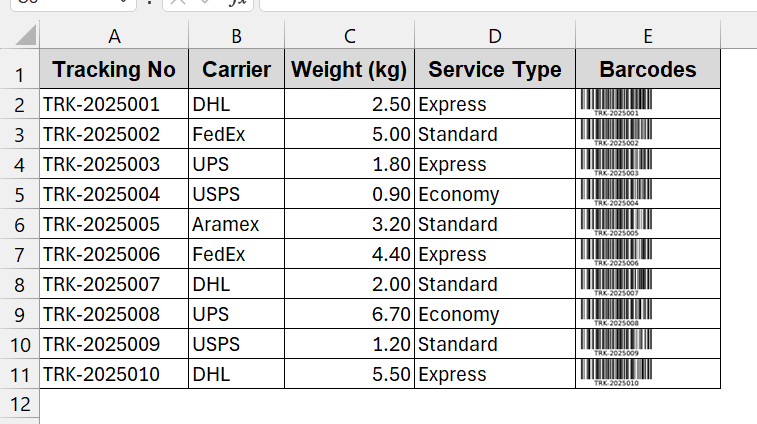
This article will guide you on how to use the Code 128 barcode font in Excel. For starters, we will see the simple installation of the font. For better encoding, you will introduce the VBA Macros method. And lastly, we will also give you a total non-geeky solution to use Code 128 without complexity, like a Web URL and an API. By the end, you hopefully will not only know all the methods but also which Subsets of the Code 128 require which method and steps for best practices.
Install the Code 128 Barcode Font in Excel
The first step in using the Code 128 barcode font is to install the font. The font is available to popular and trusted sites like Google Fonts, IDAutomation, and ConnectCode. Once done, they need to be extracted to install the main .ttf file.
Steps:
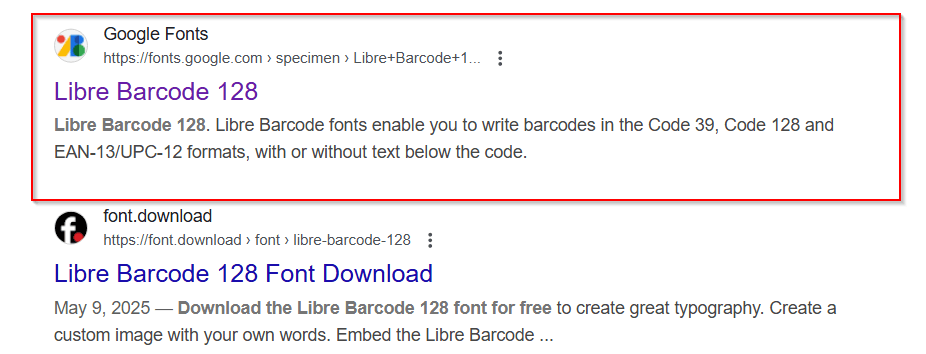
➤ Search for Libre Barcode 128 in the search bar of Google.
➤ Go to trusted websites like Google Fonts to download the font.
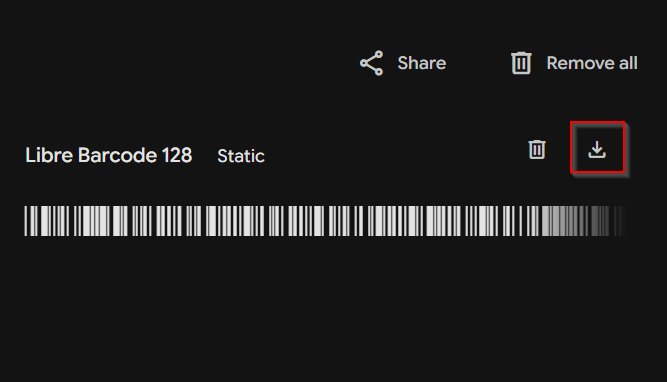
➤ To download the zip file, all you need to do is click on the download icon on the website.
➤ The Libre Barcode 128 named zip will be downloaded to your preferred location.
➤ Extract the zip to locate the LibreBarcode128-Regular file. It is in the .ttf extension.
➤ Open it and click the Install button at the top of the file.
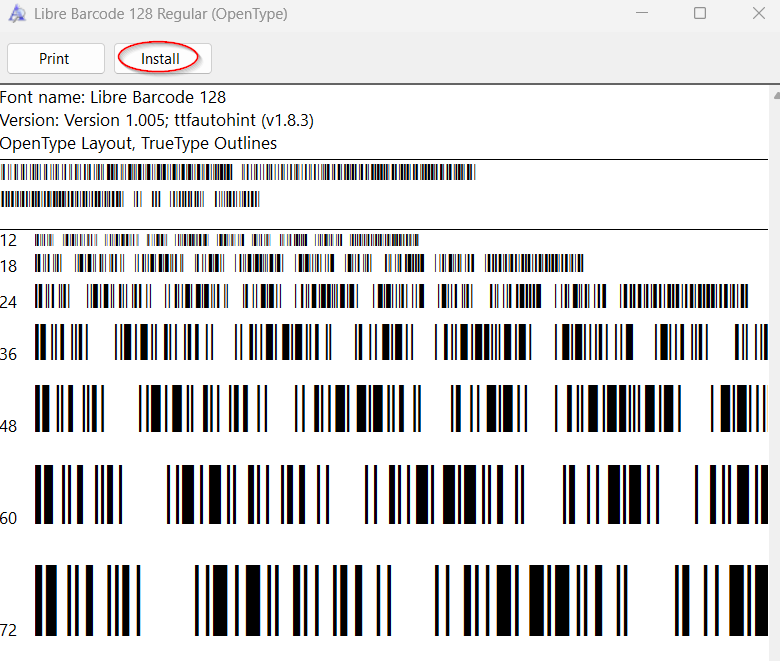
➤ If the Excel was opened during the installation, restart it after the installation.
➤ After downloading, the new font of Code 128 will be visible in the Font section.
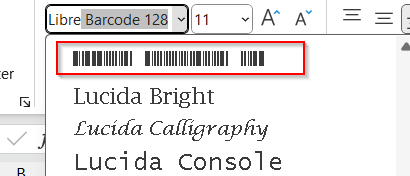
Notes:
The installation of the font is not enough to create barcodes. The values need proper encoding before converting to Libre Barcode 128 fonts.
Use VBA to Encode Code 128 Barcode Font
After proper installation, you need to ensure your datasets’ values are properly encoded before applying the font. To encode, you can use a premium add-in or a well-customized VBA script. As add-ins are not often available, it is good to rely on VBA Macros. They are easy to use, and you can just copy and paste the script to get the work done.
We will use the dataset below and the Serial Code for the barcode creation.
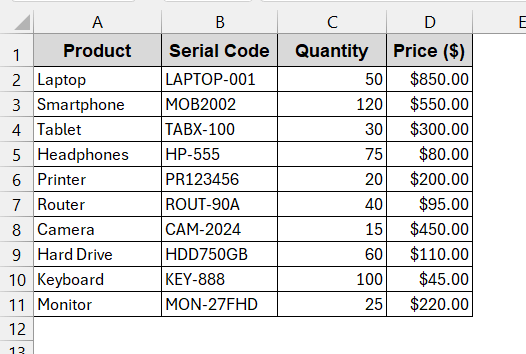
Steps:
➤ Open the dataset and create a new column to store the datasets.
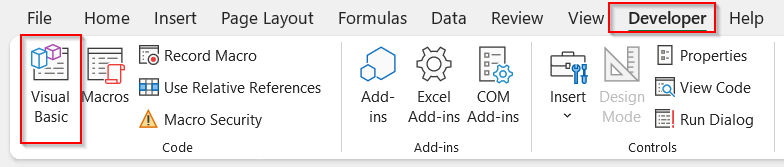
➤ Go to the Developers tab -> Visual Basic.
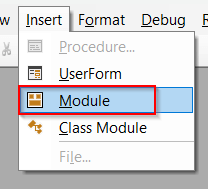
➤ In the launched window, click the Insert tab and select Module.
➤ In the new module, write the VBA code to encode the values.
Function EncodeCode128(txt As String) As String
    Dim i As Long, ch As String, total As Long
    Dim checksum As Long, chars As String
    Dim result As String
    ' Code 128 character set (subset B)
    chars = " !" & Chr(34) & "#$%&'()*+,-./0123456789:;<=>?@" & _
            "ABCDEFGHIJKLMNOPQRSTUVWXYZ[\]^_" & _
            "`abcdefghijklmnopqrstuvwxyz{|}~" & Chr(127)
    txt = Trim(txt)
    If Len(txt) = 0 Then
        EncodeCode128 = ""
        Exit Function
    End If
    ' Start code for Subset B = 104
    total = 104
    result = Chr(204) ' StartB character
    ' Encode each character
    For i = 1 To Len(txt)
        ch = Mid(txt, i, 1)
        Dim pos As Long
        pos = InStr(1, chars, ch, vbBinaryCompare) - 1
        If pos < 0 Then
            EncodeCode128 = "#INVALID_CHAR#"
            Exit Function
        End If
        total = total + pos * i
        result = result & Chr(32 + pos)
    Next i
    ' Calculate checksum
    checksum = total Mod 103
    result = result & Chr(32 + checksum)
    ' Stop code
    result = result & Chr(206)
    EncodeCode128 = result
End Function
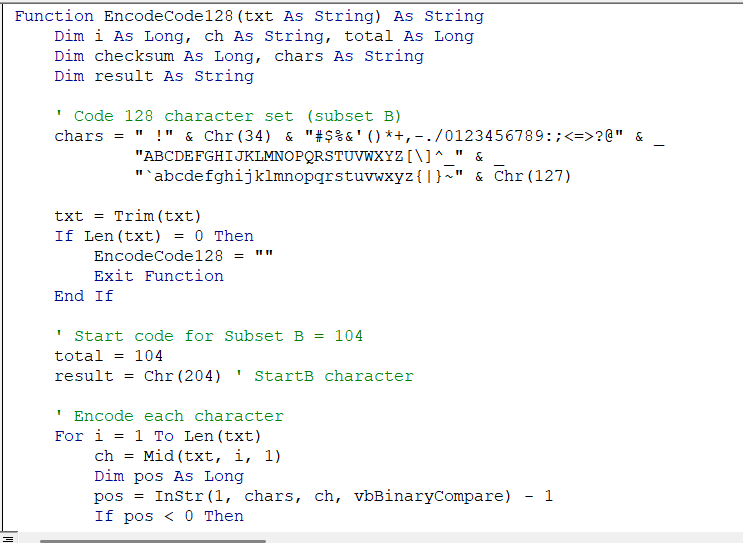
➤ Save the VBA script by Ctrl + S as a macro-enabled file. Close the VBA editor afterwards.
➤ Open the dataset again and select the first cell of the column to write the new formula –
=EncodeCode128(B2)
EncodeCode128 is the function created by VBA, into which the B2 cell is passed from the column Serial Code.
➤ Press Enter. It will result in a Subset B encoding of the previous value.
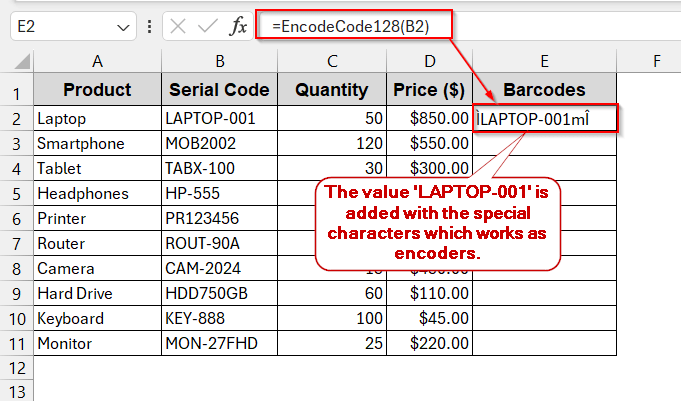
➤ Use Fill Handle to apply the same formula to the rest of the column.
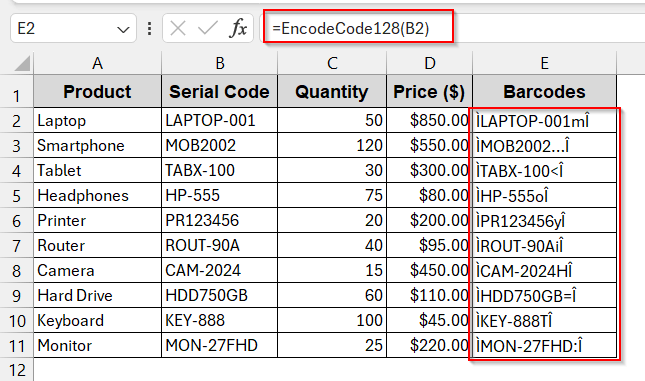
➤ Now, select the entire column and go to the Font section.
➤ Search for Libre Barcode 128 and apply the font to the new column.
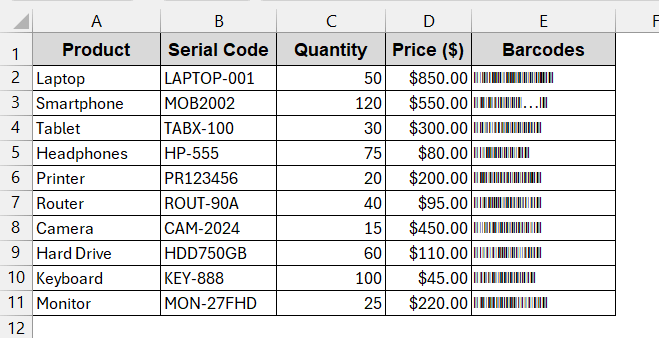
➤ Change the font size to 16 to 24 pts for better scanner readability.
Notes:
The VBA function is best for Code 128 Subset B. For longer values, Subset C is preferable.
Generate Code 128 Barcodes with Excel’s IMAGE Function and API (Alternative Method)
We know, this VBA encoding stuff might really turn you off. It’s not your fault; these things actually look a little complex at first glance. Lucky for you if you’re not into these tools, as you can have a hand on the Code 128 API to get this done. All you need is the IMAGE function wrapped around the Web URL.
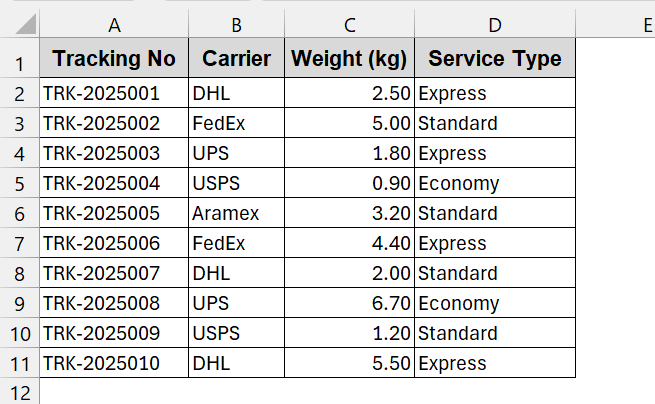
We will use the shipping database. Here, the Tracking No will be used to create the Code 128 barcode.
Steps:
➤ Open the dataset and create a new column for the barcodes.
➤ In the first cell of the column, write the IMAGE function –
=IMAGE("https://barcodeapi.org/api/code128/" & A2)
where the URL generates the barcode image based on the value of the cell A2.
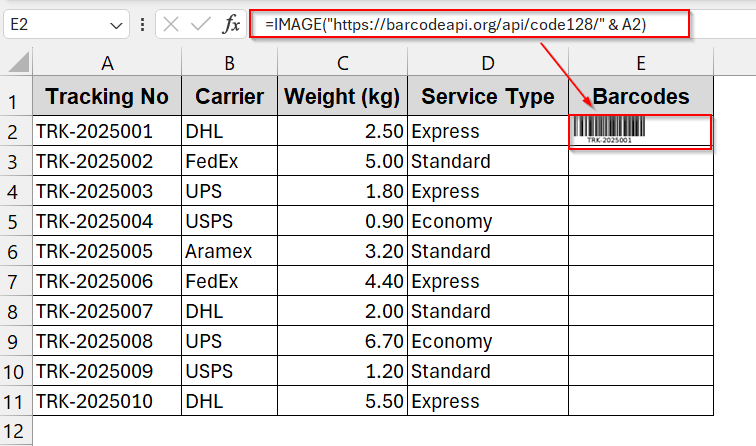
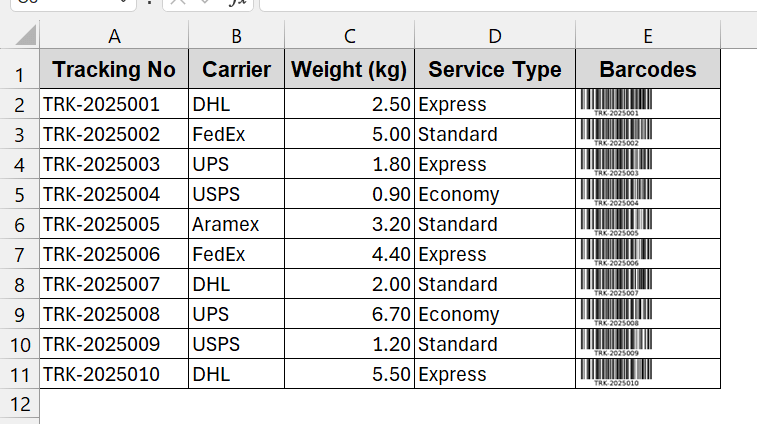
➤ Drag the cells or use Fill Handle to apply the IMAGE formula to all the columns.
Notes:
➧ The IMAGE function is only available for Excel 365 users.
➧ The barcode updates dynamically with any font change.
➧ Internet connection is required for the Web API to work.
Choosing the Right Code 128 Subset in Excel with Its Method
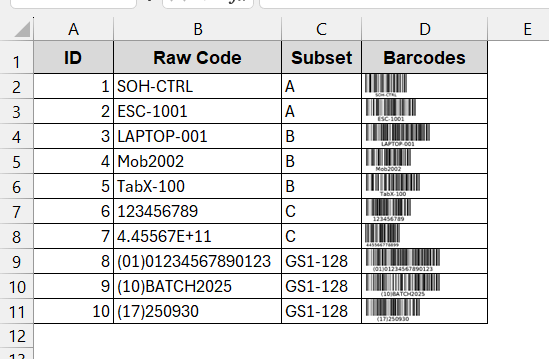
Code 128 is one of the powerful and widely used barcodes due to its extensive suitability for the ASCII set. It can cover 127 ASCII values from the alphabet, numbers, and special characters. However, this is only possible due to the versatility of the Subsets. Code 128 is divided into Subsets A, B, C, and GS1-128 standards. Each subgroup has a different purpose, and choosing the wrong one can make your barcodes unreadable. So, before moving to the details, let us clear the Subsets, their differences, and which method best suits them.
Subset A
- Designed for the uppercase letters, digits, punctuation marks, and control characters.
- Used in rare cases when the system uses machine characters.
- Preferred Method: VBA
Subset B
- Useful in both uppercase and lowercase letters, numbers, and punctuation marks.
- Mostly used in general-purpose applications, like product codes, SKUs, etc.
- Preferred Method: VBA and Web API (Both by default use Subset B).
Subset C
- Highly compact and have pairs of digits from 00 to 99 in half the length.
- Useful for long numeric codes like order numbers or account numbers.
- Preferred method: VBA and Web API.
GS1-128
- Covers only Application Identifiers.
- Used mainly in GS1 compliance industries like shipping and pharmacy
- Preferred Method: Web API
Examples of the Subsets with their barcode are given in the dataset for a clear understanding.
Frequently Asked Questions (FAQs)
Why won’t my Code 128 barcodes scan in Excel?
If your barcodes do not scan properly, it is mainly due to the wrong encoding or the improper font application. Code 128 requires start and stop characters with the checksum, which you will not find in plain textual codes. To apply VBA encoding, ensure the code for this string is correctly written. Also, note that there is enough margin space around the barcodes.
Does Code 128 support lowercase letters in Excel?
Yes, Code 128 supports lowercase letters; it is covered by Subset B of the barcode division. Both the VBA encoding and the Web API have this functionality by default.
Will my Code 128 barcodes still work if I share the Excel file?
The barcodes of Code 128 usually work over remote file sharing if the API is used. All you need is the internet. For the VBA Macros encoding and manual installation, the user needs to install the font first to see the barcodes.
What’s the minimum size for printing Code 128?
The Code 128 barcodes are often printed with a height of 0.5 inches with a resolution of 300 DPI. It can also widely depend on how much data you are encoding, as lengths can vary for each code.
Why does my barcode look too long?
If your barcode looks too long, the cause might be the wrong usage of the Subset. For example, the Subset C usually compresses the length of the code to half the size for large numeric values. In this case, accidental use of Subset B can make the barcode unnecessarily wide.
Concluding Words
Barcodes may look complicated in Excel, but believe me, it does not have to be. It is quite simple and gives you a wide array of flexibility over your data. You can get it done in a few minutes by installing the fonts and using an easy VBA formula to encode this. Still, if you are short of time, simply jumpstart with Web API and finish it in seconds. With the knowledge of the Subsets of Code 128, you can easily determine the best method and a reliable barcode system. If you want to reduce errors, save time, and professionalize your data, download the workbook, explore the methods, and see what works best for you.