How to Use Data Analysis ToolPak in Excel (with Simple Steps)
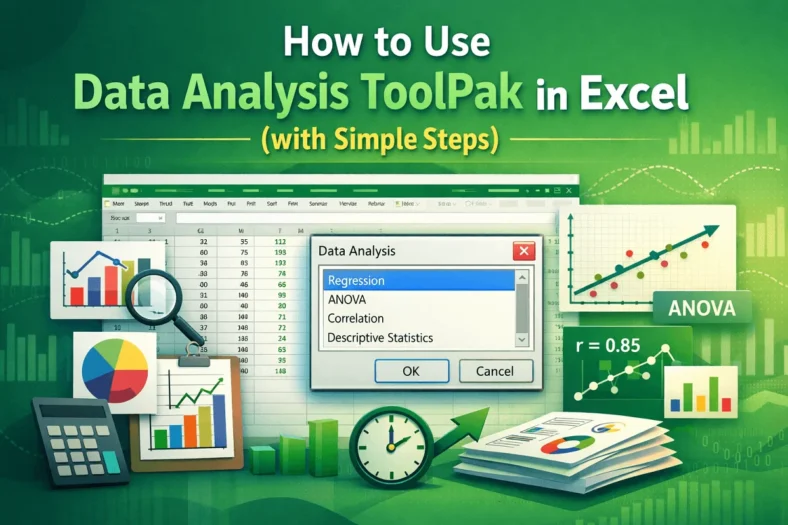
When we work with large datasets in fields like business, research, or academics, simple formulas often fail to capture all the important insights. In such cases, we need more advanced


When we work with large datasets in fields like business, research, or academics, simple formulas often fail to capture all the important insights. In such cases, we need more advanced

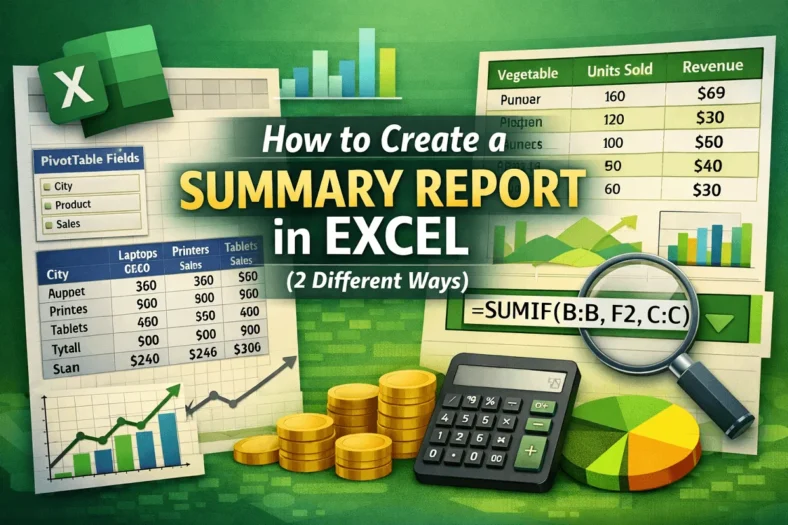
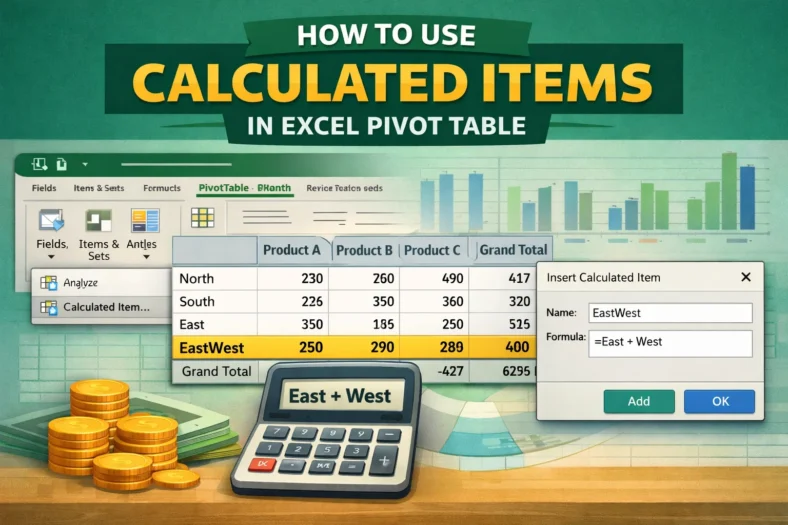
When we work with large datasets in Excel, it can get messier if we try to analyze the row data directly. That’s where we can use a summary report because

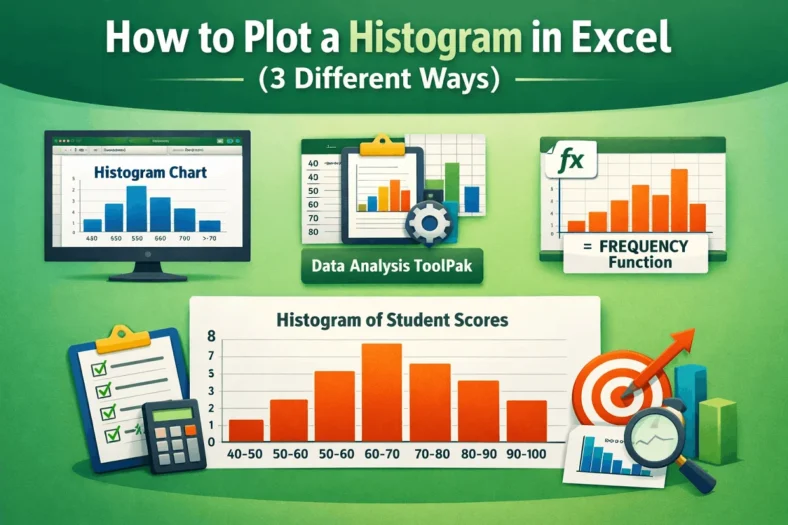
When we need to understand and visualize the distribution of a dataset, especially a large one, we use the histogram plot. Plotting a histogram allows us to group a large

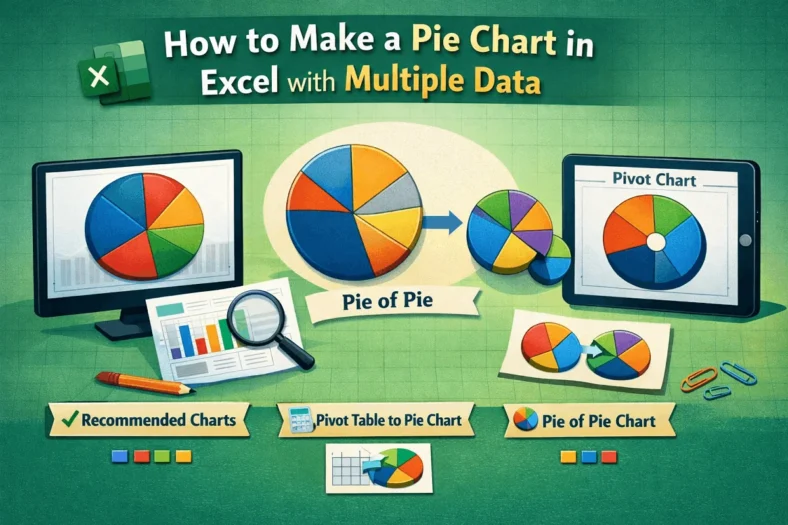
In Excel, our dataset typically contains multiple categories, and we need to compare them to extract relevant information. In such a situation, using a pie chart is very useful as

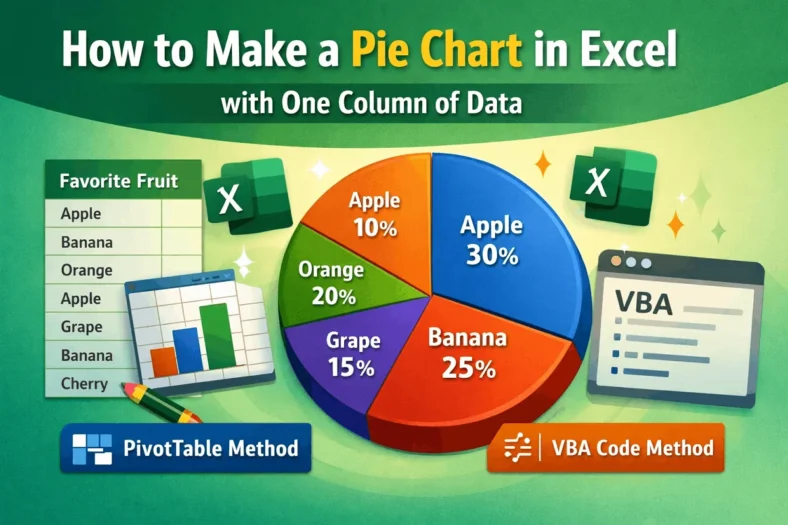
When we work with datasets of various categories, we often need a quick visualization method to see how differently these values or categories are distributed. For this purpose, using a

When analyzing data or using a formula in Excel, we sometimes need to copy and paste it into another cell. And, in many cases, our formula includes cell references that

In Excel, we often prepare different data-based reports for both business and academic purposes. However, if headers and footers clutter the layout of our report, they can easily distract the

When we prepare professional or academic reports in Excel, we often need to add extra details like page numbers, file names, or dates to make the document more informative. To

When we work with Excel files that contain multiple pages or print areas, sometimes extra blank pages appear when printing or exporting. These extra pages can cause confusion and wasted