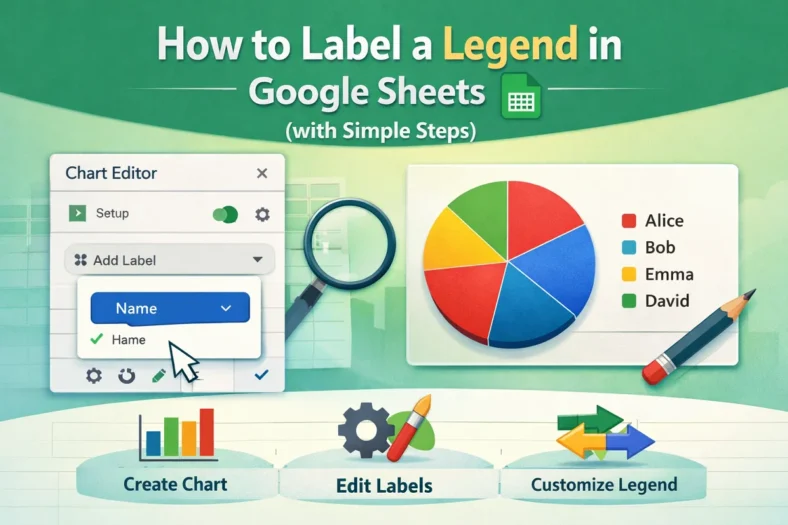

How to Label a Legend in Google Sheets (with Simple Steps)
We need to label legends in Google Sheets to ensure that the viewers of our charts understand the insights clearly. Although charts in Google Sheets usually include a label legend,


We need to label legends in Google Sheets to ensure that the viewers of our charts understand the insights clearly. Although charts in Google Sheets usually include a label legend,

To make our data look organized and clear, we sometimes need to merge rows in Google Sheets, especially in the case of grouped data. To do it, we can use

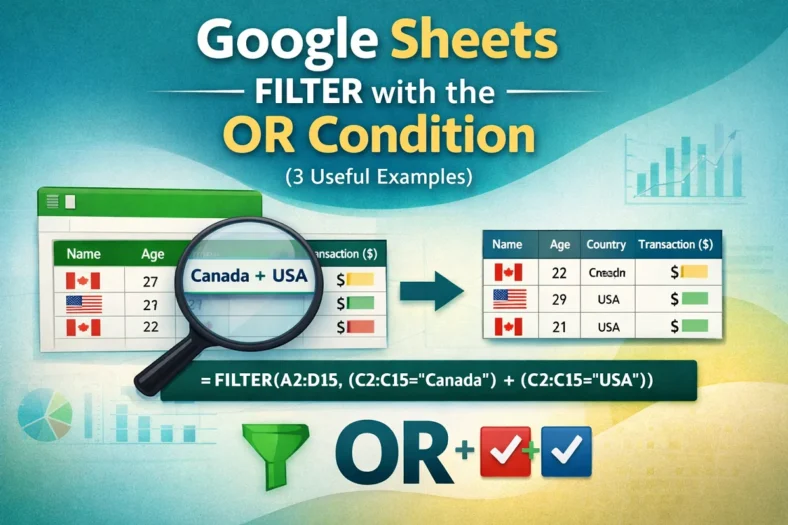
We use the FILTER with OR condition in Google Sheets when we want to include values that meet any one of a preset list of multiple criteria. For example, if

To get a cleaned version or sort our dataset properly, we often need to extract numbers from strings in Google Sheets. For this purpose, we can use the REGEXEXTRACT, ARRAYFORMULA,

When we enter data in Google Sheets or copy and paste data from somewhere, it’s common to have some mistakes or typos in the first character of text data, so

In the Google Sheets dataset, 0 (zero) often indicates missing data or invalid information. Thus, we need to ignore them when calculating the average to avoid getting inaccurate results. To

When our dataset appears as multiple values in a single cell separated by a delimiter, we need to split that text into rows for further analysis and better visualization. For

Phone numbers usually start with the “+” symbol or “0”, and Google Sheets interprets it as a formula or mathematical calculation. So, when we deal with a dataset in Google

Our datasets in Google Sheets often contain sensitive or private information, and so, we need to hide them from certain users. To do this, you need to filter that information