Mail merge is a popular way to create personalized documents by combining a data source with a template. While Microsoft Word is traditionally used alongside Excel for this purpose, many users want a more simplified method that works entirely within Excel. Whether you’re avoiding Word due to software limitations or simply looking for a faster, no-fuss workflow, there are several reliable alternatives you can use directly in Excel.
In this article, you’ll learn how to create customized messages using Excel formulas, automate email sending through VBA, send bulk emails using Mailmeteor, and connect Excel with external tools like Mailchimp for advanced campaigns without opening Microsoft Word.
Steps to mail merge without word in Excel:
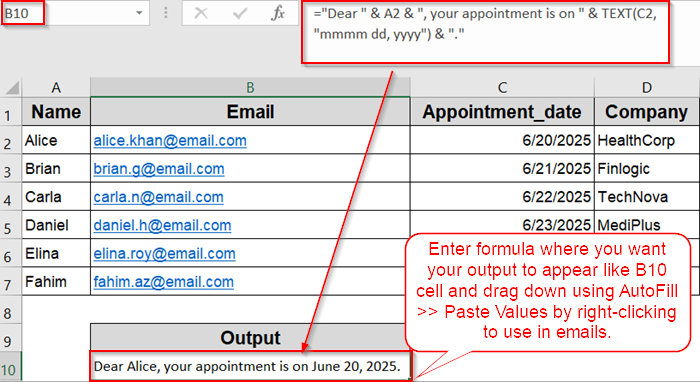
➤ Prepare your data table with columns such as Name, Email, Date, etc.
➤ In a new column, write a formula to combine fields and add your own text. For example in B10 cell enter:
=”Dear ” & A2 & “, your appointment is on ” & TEXT(C2,”mmmm dd, yyyy”) & “.”
➤ Drag the formula down to apply it to all rows.
➤ Copy this column using Ctrl + C >> Right-click and choose Paste Values under Paste Options to use in emails or printouts.
Apply Excel Formulas to Create Customized Messages
You can create targeted messages by concatenating cell values and static text using Excel formulas. This method works best for emails, letters, or labels where you want to combine fields like name, address, and greetings into one cell.
Steps:
➤ Prepare your data table with columns such as Name, Email, Date, etc.
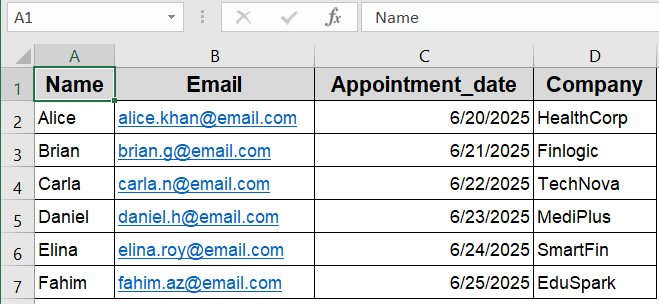
➤ In a new column, write a formula to combine fields and add your own text. For example in B10 cell enter:
=”Dear ” & A2 & “, your appointment is on ” & TEXT(C2,”mmmm dd, yyyy”) & “.”
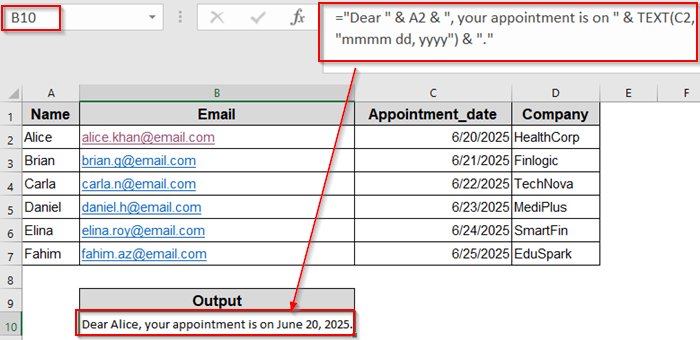
➤ Drag the formula down to apply it to all rows.
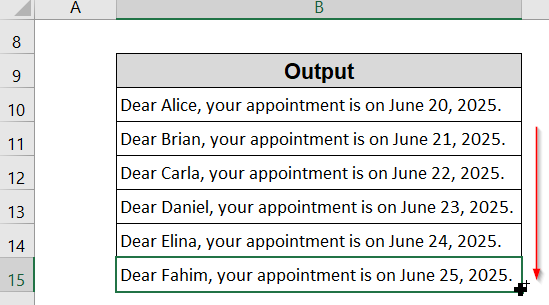
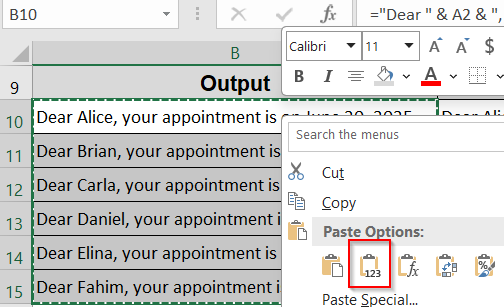
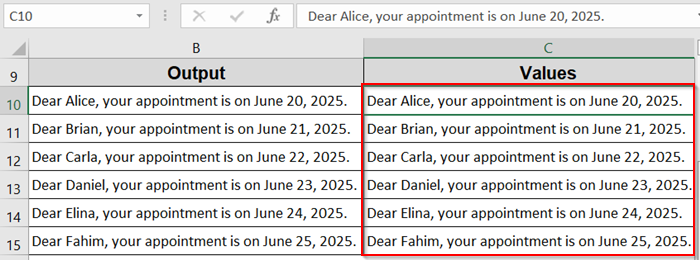
➤ Copy this column using Ctrl + C >> Right-click and choose Paste Values under Paste Options to use in emails or printouts.
This method requires no programming and works instantly for small datasets.
Automate Mail Merge Emails from Excel Using VBA Macro
For sending individualized emails without Word, VBA macros can automate the process by pulling data from Excel and sending messages through Outlook, fully bypassing Word.
Steps:
➤ Press Alt + F11 to open the VBA editor.
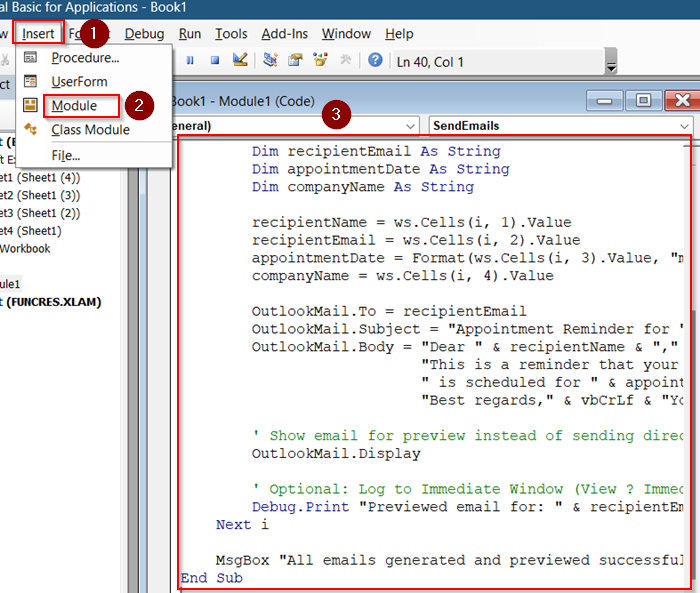
➤ Insert a new module and paste a VBA script that loops through your data and sends emails via Outlook. Example snippet:
Sub SendEmails()
    Dim OutlookApp As Object
    Dim OutlookMail As Object
    Dim ws As Worksheet
    Dim i As Integer
    Set ws = ThisWorkbook.Sheets("Sheet1") ' Change "Sheet1" if needed
    Set OutlookApp = CreateObject("Outlook.Application")
    For i = 2 To ws.Cells(ws.Rows.Count, "A").End(xlUp).Row
        Set OutlookMail = OutlookApp.CreateItem(0)
        ' Compose personalized email
        Dim recipientName As String
        Dim recipientEmail As String
        Dim appointmentDate As String
        Dim companyName As String
        recipientName = ws.Cells(i, 1).Value
        recipientEmail = ws.Cells(i, 2).Value
        appointmentDate = Format(ws.Cells(i, 3).Value, "mmmm dd, yyyy")
        companyName = ws.Cells(i, 4).Value
        OutlookMail.To = recipientEmail
        OutlookMail.Subject = "Appointment Reminder for " & recipientName
        OutlookMail.Body = "Dear " & recipientName & "," & vbCrLf & vbCrLf & _
                           "This is a reminder that your appointment with " & companyName & _
                           " is scheduled for " & appointmentDate & "." & vbCrLf & vbCrLf & _
                           "Best regards," & vbCrLf & "Your Team"
        ' Show email for preview instead of sending directly
        OutlookMail.Display
        ' Optional: Log to Immediate Window (View → Immediate Window or Ctrl+G)
        Debug.Print "Previewed email for: " & recipientEmail
    Next i
    MsgBox "All emails generated and previewed successfully!"
End Sub
➤ Modify the script according to your data layout and message.
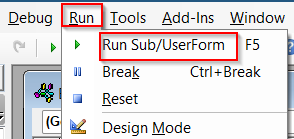
➤ Run the macro to send customized emails directly from Excel. You can use the F5 key or the Run tab for this.
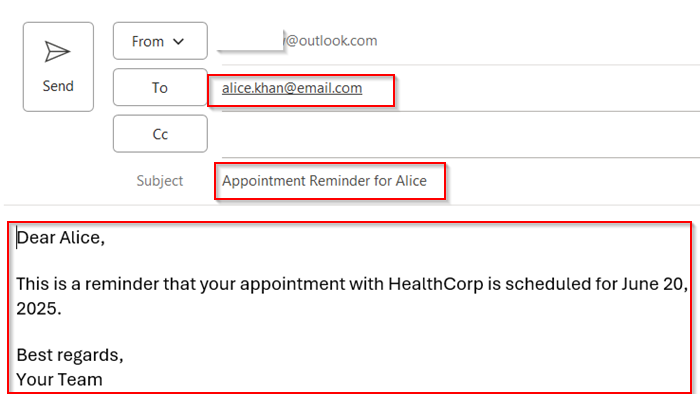
Now a mail pop-up window from outlook will be visible to you where you can see the preview.
Export Excel Data to CSV and Use Email Marketing Platforms
If you prefer external tools for mail merge, export your Excel sheet as CSV, then import it into email marketing platforms like Mailchimp or Sendinblue, which handle user-specific campaigns efficiently.
Steps:
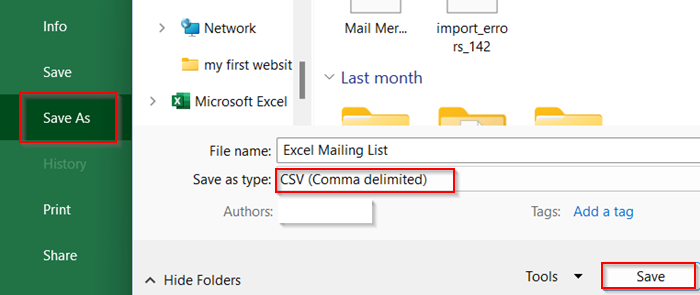
➤ In Excel, go to File >> Save As.
➤ Select CSV (Comma delimited) (*.csv) format and hit Save.
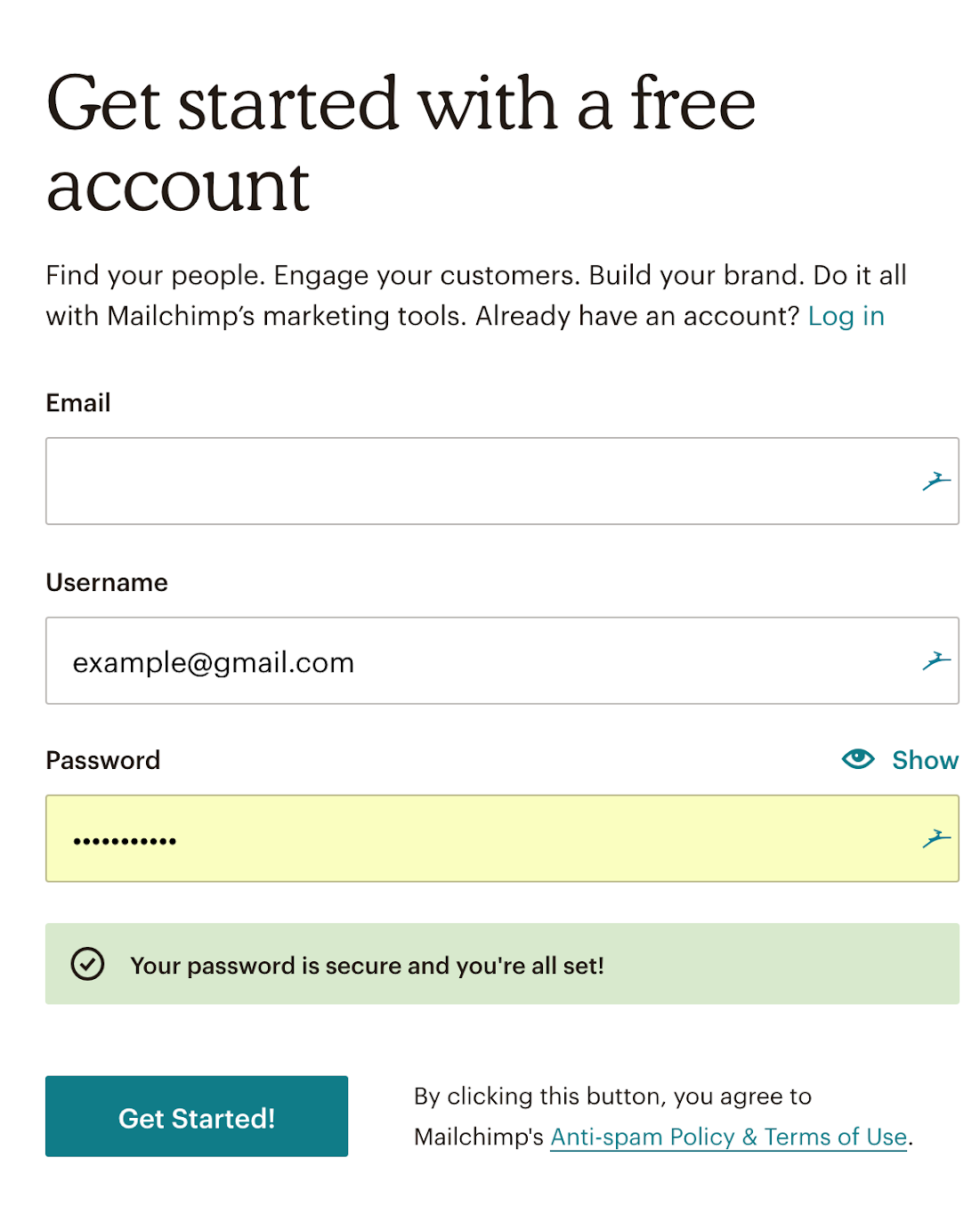
➤ Log into your email marketing platform such as Mailchimp.
➤ Import the CSV file as your contact list.
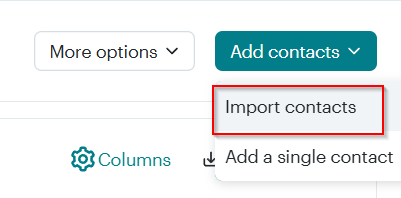
➤ Create your email template using personalization tags corresponding to your CSV columns.
➤ Launch the campaign to send your emails without Word or VBA.
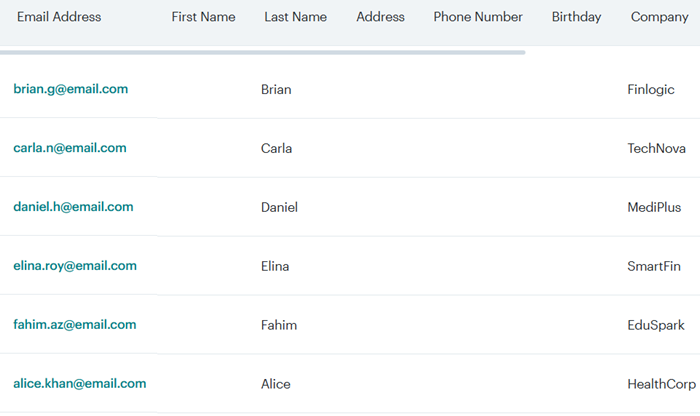
This method is best for users looking for scalable email campaigns.
Send Smart Campaigns Using the Mailmeteor Add-In
Mailmeteor is a no-code email merge tool that lets you send targeted emails straight from Excel without using Word or writing VBA. It supports Gmail and Outlook, allows merge tags, and tracks opens and clicks.
Steps:
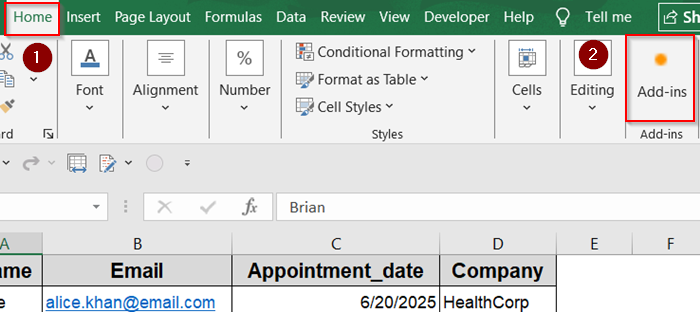
➤ Go to Home tab >> Click on Add-ins.
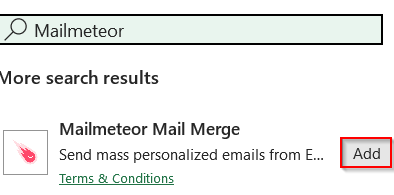
➤ Search for Mailmeteor and click Add.
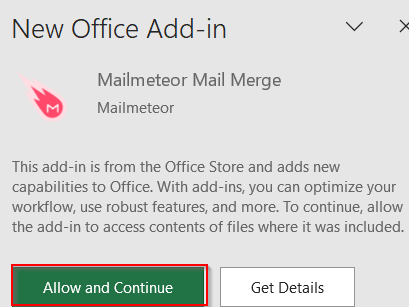
➤ On the sidebar, click Allow and Continue.
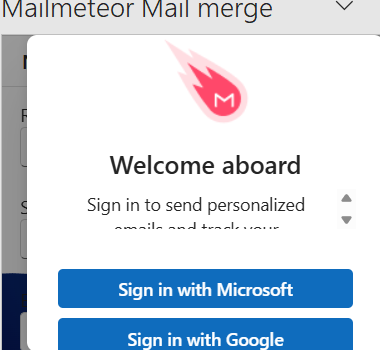
➤ Sign up using either your Microsoft or Google account.
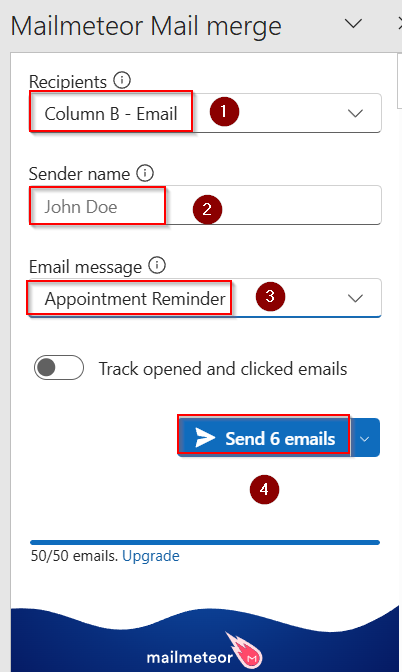
➤ Customise your message and information >> Hit Send.
Downloadable Resources
Get our practice workbook or necessary files that we have worked with to prepare this article.
Mail Merge Without MS Word.xlsx
Frequently Asked Questions
Can I send personalized emails directly from Excel without Outlook?
No, Excel’s VBA mail merge macros typically require Outlook. Alternatives involve exporting data to third-party platforms for sending emails independently.
Is it possible to create printable letters in Excel without Word?
Yes, using formulas to concatenate text or VBA to generate printable sheets allows letter creation, but Word offers more advanced formatting options.
Are add-ins secure for mail merge?
Top-rated tools like Mailmeteor undergo security audits and support data privacy. Always review permissions and credible user reviews before installation.
How do I troubleshoot VBA macros that don’t send emails?
Ensure Outlook is installed and configured properly. Check macro security settings and references in VBA editor to enable Outlook library access.
Wrapping Up
In this tutorial, we learned multiple ways to perform mail merges directly from Excel including formulas, macros, add-ins, and external platforms. These methods let you personalize messages, automate delivery, and scale communications effectively. Feel free to test them and share your feedback.