
Excel Pro Tips
How to Use Relative Cell Reference in Excel
Learn how to use relative cell references in Excel for basic calculations and easily copy formulas across rows and columns accurately.
Read article

Tasmia Rahim holds a B.Sc in Electrical Engineering with a focus on automation and embedded systems, supporting logic-driven spreadsheet workflows. With 2 years of Excel and Google Sheets experience, she works with conditional formatting and basic automation. She is interested in using macros and ActiveX controls to simplify Excel tasks and improve usability.
Articles by Tasmia Rahim are developed under the guidance of ExcelInsider’s core training program and are technically reviewed by Nehad Ulfat, lead spreadsheet consultant, to ensure accuracy and user-centric value.
Learn how to use relative cell references in Excel for basic calculations and easily copy formulas across rows and columns accurately.

Learn how to use absolute cell references in Excel to lock cells in formulas, perform accurate calculations, and copy formulas correctly.

Learn how to hard code in Excel by entering fixed values in formulas, using custom formatting, and converting formulas to values.
Learn how to print an Excel spreadsheet on multiple pages using scaling options, shortcuts, and VBA automation easily.

Learn how to insert sequential page numbers across worksheets in Excel using Page Layout, Header Footer options, and VBA automation.

Learn how to highlight a row if a cell contains text in Excel using formulas, SEARCH, FIND, AND, OR, MATCH, and drop-down controls.

Learn how to use the Watch Window in Excel to monitor cells, manage tracked values, and create a Watch Window with VBA easily.

Learn how to add bullet points in an Excel text box using context menu, shortcuts, symbols, and copy paste methods easily.
Learn how to print multiple sheets in Excel using print options, set print areas, Camera tool, and VBA automation easily.

Learn how to insert a watermark in Excel by adding an image via Header & Footer, using WordArt text, or inserting a background image.

Learn how to create a custom footer in Excel by using Page Layout view, customizing via Page Setup, or adding one with a VBA macro.
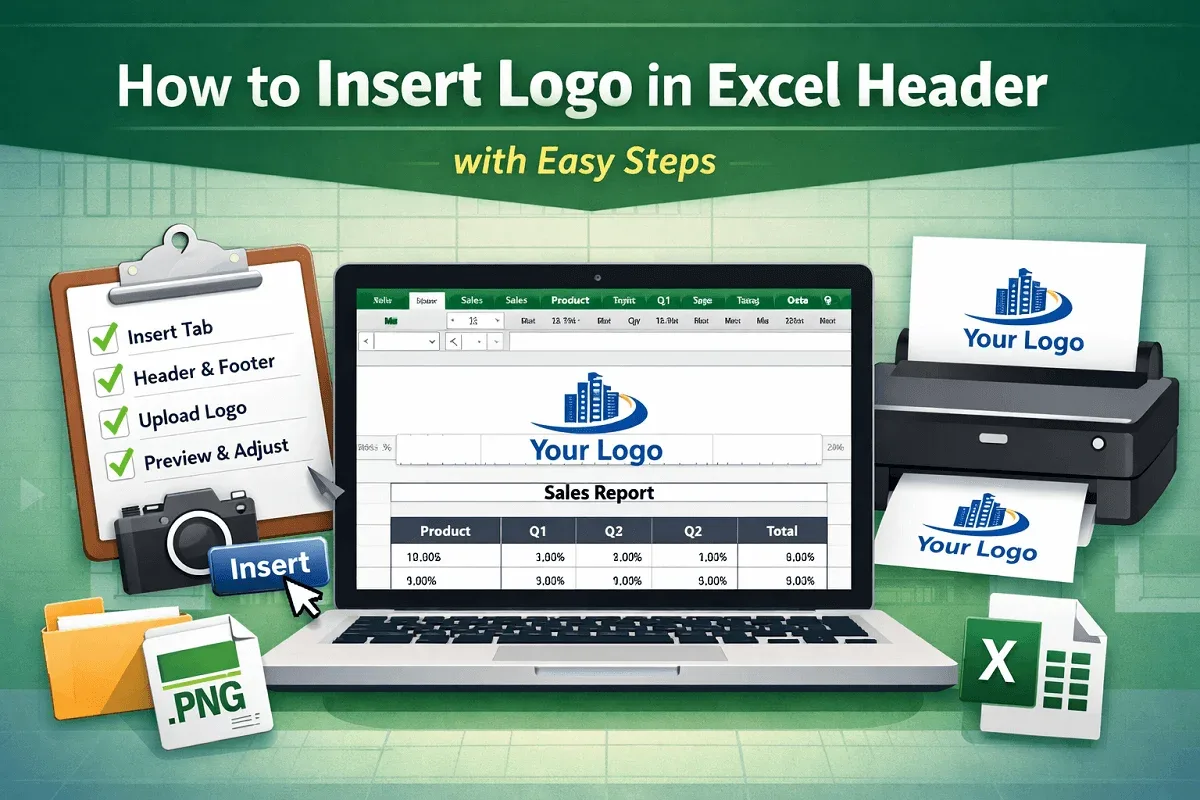
Add a logo to an Excel header by opening Header & Footer view, selecting a section, inserting the image, confirming it, adjusting the size.